Product archive – Information about older hörbert models

On this page, you will find all important information, instructions, and guidance related to our older and discontinued hörbert models. If you own an earlier hörbert, you can conveniently find the appropriate documentation, usage tips, as well as information on maintenance and possible spare parts here. We want to ensure that your hörbert – regardless of its year of manufacture – continues to accompany you reliably.

hoerbert 2021

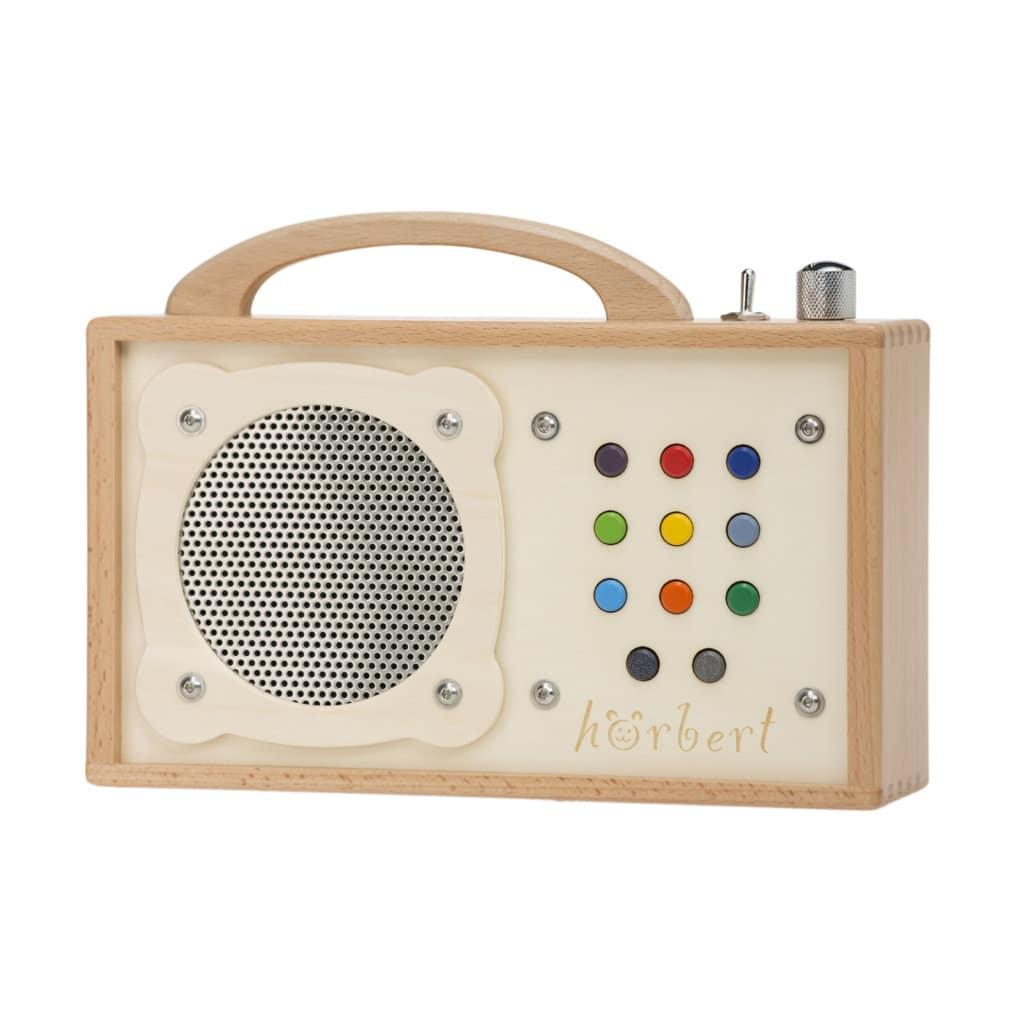
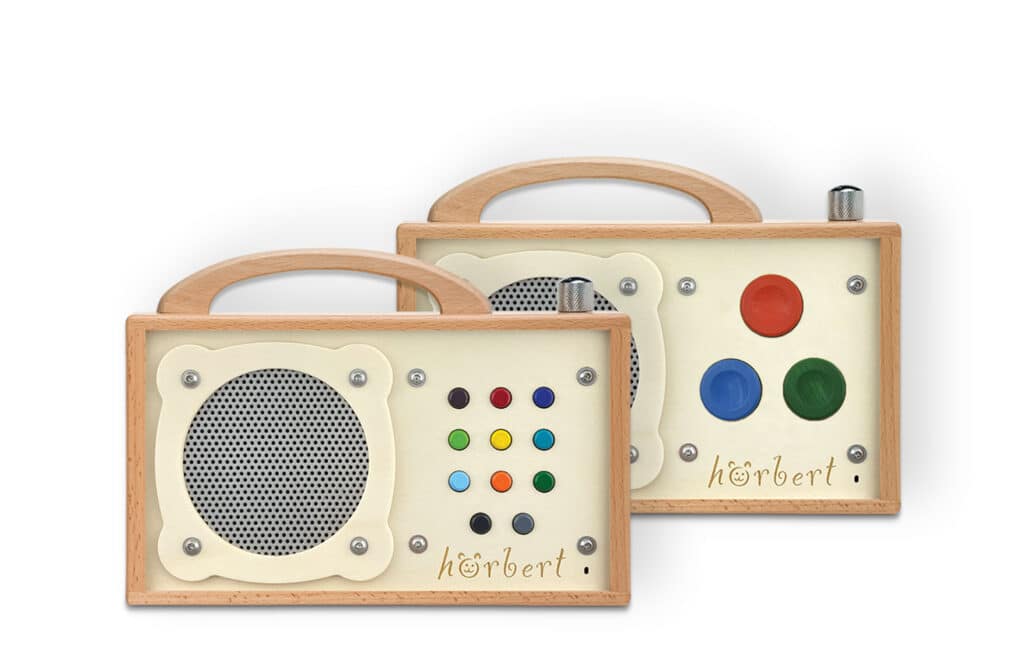
The hörbert 2021 is the model we manufactured and sold from October 2021 to March 2026. It can be identified by the fact that it has neither a mechanical toggle switch nor an LED indicator (only present on the latest hörbert 3.0) between the handle and the volume control. The device is available in a version with 11 buttons or 3 buttons.

hörbert with "Butterfly" firmware
hörbert with firmware prior to "Butterfly"

Software

For hörbert with firmware prior to "Butterfly"

hörbert software for filling the memory card

macOS from 10.14

Software version 3.1.4

Compatible with macOS Ventura

Windows from 10

Software Version 3.1.3

Linux AppImage

Software-Version 3.1.3, tested on Ubuntu Linux 16.0.4

Previous versions

macOS from 10.14

Software Version 3.1.3

Windows from 10

Software Version 3.1.2

Linux AppImage

Software Version 3.1.2, tested on Ubuntu Linux 16.0.4

Questions about hörbert

Requirements:

  • Your hörbert (model from October 2021 without toggle switch) is already running the new BETA version of the Butterfly2 firmware from October 2025.
  • If needed, here’s where you can update to the new BETA version -> Firmware Update

People who use hörbert, especially young children who often playfully press all the buttons, mustn’t accidentally enter hörbert’s SET mode. That’s why we’ve devised a method that can’t be applied “by accident”.
How to enter hörbert’s SET mode without unscrewing it:

  • Press the rotary knob at the top and hold it down.
  • Wait 5 seconds (hörbert may start playing)
  • Now additionally press the dark green button.
  • Hold both buttons for at least 10 seconds, then release the rotary knob first, followed by the dark green button.
  • hörbert is now in Set mode and opens its own Wi-Fi for you.
  • Connect your smartphone, tablet or computer to hörbert’s Wi-Fi. The Wi-Fi password is: hoerbert
  • Then start a web browser on your device and enter the following address: http://hoerbert.local
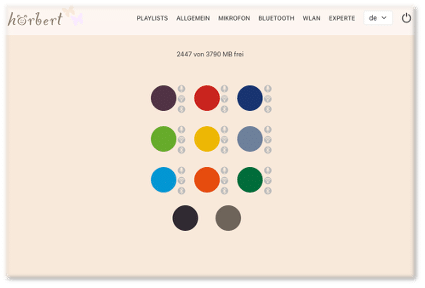
  • You’ll now see hörbert’s browser Set Mode on the display:

In Browser Set Mode, you can now make all settings for hörbert. For example:

Enable/disable Wi-Fi, Bluetooth and the voice microphone, edit playlists, add podcasts or web radio stations, and much more.

Here you’ll find an overview of the possibilities in Browser Set Mode: BLOG ARTICLE BROWSER SET MODE

Requirement: You have a hörbert model from October 2021 onwards with a rotary knob for switching on/off.
If you still have a hörbert with a toggle switch, you can have it updated through us or upgrade it yourself with our DIY Upgrade Kit.

Three preparation steps

  1. Activation of the microphone function
  2. Editing the memory card: Defining one or more playlists on which voice recordings should be stored.
  3. Switch on hörbert, start recording and save.

Activating the microphone and editing the memory card in Browser Set Mode

If your hörbert doesn’t have the Butterfly firmware yet, we recommend updating the firmware. Here you’ll find the necessary steps for a firmware update and the firmware file to download. If the Butterfly firmware is successfully installed on your hörbert, proceed as follows. At the very bottom of this FAQ you’ll also find the steps without Butterfly firmware or Browser Set Mode.

  • Start the Browser Set Mode of hörbert.
  • To do this, switch on hörbert, wait until it plays.
  • Press the small SET button inside hörbert to the right of the hörbert logo on the green circuit board. hörbert emits an ascending signal tone and opens its own Wi-Fi network.
  • Go to your Wi-Fi settings on your smartphone, tablet or computer. There hörbert appears as a new Wi-Fi network.
  • Connect to hörbert’s Wi-Fi. The password is: hoerbert
  • Now start a web browser on your phone, tablet or computer, e.g. Google Chrome, Safari, Firefox, etc.
  • Enter the following address in the address bar: http://hoerbert.local
  • The Browser Set Mode of hörbert opens, which looks like the following image in mobile view. Here you’ll also find an EXPLANATORY VIDEO for BROWSER SET MODE
  • Open the MICROPHONE item in the menu and activate the function there.
  • Also set the sensitivity of the built-in microphone there. The higher the value, the more sensitively the voice microphone reacts and the better the recording will be audible in the end, even if you’re at a somewhat greater distance from hörbert.
  • Open the PLAYLISTS menu item and select one of the colourful playlist buttons there on which hörbert should save voice recordings. The recordings are always saved directly after the last played file before recording starts. Repeat this step for all playlists on which voice recordings should be saved.
  • NOTE: Make sure that at least one audio file is present on each playlist on which recordings are to be made.
  • If you have an accessible hörbert with only three large playlist buttons, now go to the GENERAL menu item and there to the “Advanced Settings“. Tick the box for “Show expert menu“. In the main menu you’ll now find a new sub-item “EXPERT”. Select this. Go there to the “Recording Settings“. Select the desired recording mode here, e.g. recording starts by pressing a playlist button for a longer time.
  • End the Browser Set Mode either on the device via the disconnect button or press the SET button inside hörbert again. If you want to set the parrot mode, see the necessary steps for parrot mode below before leaving the Browser Set Mode.
  • Wait until hörbert plays again and select one of the playlists that you previously enabled for voice recordings.

Starting and stopping a recording with hörbert

  • To start a recording, proceed as follows:
  • Press the black and grey buttons at the very bottom on the front of hörbert simultaneously. The red light behind the microphone opening lights up. Recording has started, you can release both buttons. Or press a playlist button longer on a hörbert with only three large playlist buttons, depending on the selected recording mode.
  • To end and save the recording, you must press the black button once. On a hörbert with only three playlists, you can end and save the recording by briefly pressing a playlist button again.
  • The recording is played directly a few seconds after ending.

Parrot mode of hörbert

The parrot mode in hörbert is a special function with which you can record your own voice on all playlists, listen to it directly afterwards, but hörbert deletes this recording immediately after listening, provided the playlist was not previously specifically allowed for voice recording. Just like a parrot that repeats what it hears. This is a lovely gimmick and fun speech play for young and old. This function is also useful in speech therapy and for speech development. Direct listening back trains hearing and self-perception – central elements in speech therapy.

How to activate parrot mode on hörbert

  • You need the Browser Set Mode of hörbert for activation.
  • Start the Browser Set Mode as described above
  • Go to the GENERAL menu item and there to the “Advanced Settings“. Tick the box for “Show expert menu“. In the main menu you’ll now find a new sub-item “EXPERT”. Select this. Go there to the “Recording Settings“. Switch on the parrot mode here.
  • Leave the Browser Set Mode via the disconnect button or press the SET button inside hörbert to return to hörbert playback mode.
  • Now you can make voice recordings via the built-in microphone in all playlists. The recordings are only saved if hörbert was playing a playlist in which voice recordings are allowed when the recording was started.

Activating voice recordings without the Butterfly firmware

If the Butterfly firmware isn’t running on your hörbert yet, you can still perform all necessary steps without the Browser Set Mode. You need without Butterfly firmware however a computer and the hörbert software to edit the memory card. You can find the current hörbert software on our website in the “Service” section under “Software Downloads”. Download the software and install it on your computer.

By the way: On all hörberts and also on all accessible hörberts with only three large buttons that we’ve been delivering since mid-November 2024, the Butterfly firmware is already installed.

  • Start the hörbert software. Select the correct hörbert model without toggle switch.
  • Connect the hörbert memory card to your computer via an SD card slot or via an external SD card reader.
  • The hörbert software recognises the card and displays it as a drive. Select the SD card as the drive in the hörbert software.
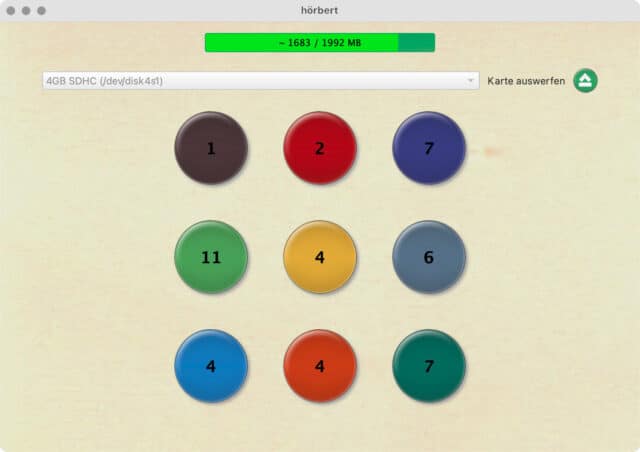
  • Click on “Read card” and wait until the software has read all titles and now displays the number of audio files located there on the coloured buttons.
  • Now click on the coloured button on the screen that you want to enable for voice recordings.
  • Select “Save voice recordings here” at the bottom of the content window.
  • Close the window via the green tick at the top right.
  • Go to “Extras” in the hörbert software main menu and then to “Configure Set Mode“.
  • Select “Allow” for microphone and save the setting.
  • Eject the card properly via the green button next to the “Eject card” display and wait until the hörbert software says that you may now disconnect the card from the computer.
  • Insert the SD card back into hörbert and switch on hörbert.
  • Start a recording by pressing the black and grey buttons simultaneously until the red lamp at the microphone opening at the front lights up. You can then release the buttons.
  • To end the recording, press the black button again.

Note: Recordings are not possible with an older hörbert 2011 model with a toggle switch for switching on/off. You can have your hörbert updated by us or upgrade it yourself with our DIY upgrade kit for hörbert 2011 if you want to make recordings with it.

If your hörbert already has the Butterfly firmware, an Internet radio recording works as follows:

  • Connect to hörbert’s WLAN with your mobile phone, tablet or computer by switching it on and pressing the Set button inside. hörbert opens its own WLAN.
  • hörbert is now displayed as a WLAN network on your end device. Connect to it. The WLAN password is: hoerbert

  • Start an internet browser on your end device, e.g. Chrome or Firefox. Enter the following web address there:

    http://hoerbert.local

  • The hörbert browser set mode opens.
  • Tick ‘activated’ in the ‘WLAN’ menu item in the browser set mode.

  • Select your home WLAN from the list and enter the WLAN password. Then click on ‘Save and test’
  • In the browser set mode, select a playlist in the ‘PLAYLISTS’ menu item that you want to share for web radio recordings. All recordings from the Internet will then be saved there one after the other.

  • Enter at least one valid web radio URL for this playlist. To do this, open the content list of the playlist that you have authorised for web radio recordings in the Set Mode browser. Click on ‘+ RADIO’ at the top of the track list.

  • A keyword search for radio stations from which you can choose will open.
  • If you know the exact streaming URL, you can also insert it in the text line below and save it.
  • Exit the browser set mode. After a few seconds, hörbert will start playing from his loudspeaker again.
  • Select the playlist with the web radio URL and click through to it.
  • hörbert will indicate the search for the home WLAN and the URL with an ascending sequence of tones and will then play the radio station after a few seconds.
  • Start a recording by first pressing the black and then the grey button at the same time until the red light on the microphone opening at the front lights up. You can then release the buttons.

  • To end the recording, press the black button again.
  • The recording is saved at the end of the playlist that you have previously enabled for web radio recordings in browser set mode.
  • If you have an hörbert with only three large playlist buttons, you do not have a black or grey button to start and stop recording. You must first change the recording mode in the browser set mode in the ‘Expert menu’ under ‘Recording settings’ so that a recording starts, for example, when you press and hold a playlist button. And the recording ends when you press a playlist button again. See also our instructions for hörbert with Butterfly firmware from page 40.

If your hörbert does not yet have the Butterfly firmware, an Internet radio recording works as follows:

You can either upgrade to the Butterfly firmware if you want to use the simple method via the Browser Set Mode (see above). Or you can proceed as follows:

  • If no Butterfly firmware or newer is installed on your hörbert, you will need a computer and the hörbert software to edit the memory card. You can find the latest hörbert software on our website in the ‘Service’ section under ‘Software Downloads’.

  • Download the software and install it on your computer.
  • Start the hörbert software. Select the correct hörbert model without toggle switch.

  • The hörbert software recognises the card and displays it as a drive. Select the SD card as a drive in the hörbert software and click on ‘Read card’.

  • Click on the coloured button on the screen that you want to share for Internet radio recordings.

  • Select ‘Save Internet radio recordings here’ at the bottom of the content window.

  • Click on the green plus sign to the right of the word ‘URL’.
  • You will now receive a new text line in the track list at the end and can enter the streaming URL of your radio station there by double-clicking in the line. You must know the URL, there is no search for a suitable URL here. Save with ‘Enter’.

  • Close the window by clicking the green tick.

  • In the hörbert software main menu, go to ‘Extras’ and then to ‘Configure Wifi connections’.

  • You can now save up to 5 WLAN networks by entering the WLAN name (without spaces) and the password and saving them.
  • Eject the card properly using the green ‘Eject card’ button and wait until the hörbert software says that you can now disconnect the card from the computer.

  • Insert the SD card back into hörbert.
  • Turn hörbert on and wait until he plays.

  • Then press the SET button inside of hörbert.
  • Now press the orange button on the front of hörbert for approx. 10 seconds to read the WLAN data into the device. You will hear a confirmation tone when hörbert has done this.
  • Then you can press the SET button inside again and wait for hörbert to play.
  • Switch on hörbert and select the button with the radio station. Navigate to the station.

  • hörbert indicates the WLAN and station search with an ascending tone sequence. It may take a few seconds for hörbert to play the station.
  • Start a recording by pressing the black and grey buttons at the same time until the red light at the front of the microphone opening lights up. You can then release the buttons.

  • To end the recording, press the black button again.

  • The recording is saved at the end of the playlist that you have previously enabled for Internet radio recordings in browser set mode.
  • If you have an accessible hörbert with only three large playlist buttons, you do not have a black or grey button to start and stop recording. You must first change the recording mode in the browser set mode in the ‘Expert menu’ under ‘Recording settings’ so that a recording starts, for example, when you press and hold a playlist button. And the recording ends when you press a playlist button again. See also our instructions for hörbert with Butterfly firmware from page 40

  • However, to be able to use the Browser Set Mode, you must first install the Butterfly firmware on your hörbert. With a 3-button hörbert, the home WLAN can also only be saved via the browser set mode.
  • Here you find all information regarding a Firmware Update.

Prerequisite for Bluetooth recordings:

You have a hörbert model from October 2021 with a rotary knob for switching on/off. If you still have an hörbert with a toggle switch, you can have it updated by us or upgrade it yourself with our DIY upgrade kit.

Three preparatory steps

  1. Activating the Bluetooth and pairing special functions
  2. Editing the memory card: Define a playlist on which the Bluetooth recordings are to be saved. Attention: At least one audio file must already be present there.
  3. switch the hörbert to Bluetooth speaker mode and pair it with an end device, e.g. mobile phone, tablet or computer.

Activating the Bluetooth and pairing special functions and editing the memory card in browser set mode

If your hörbert does not yet have the Butterfly firmware, we recommend updating the firmware. Here you will find the necessary steps for a firmware update and the firmware file to download. Once the Butterfly firmware has been successfully installed on your hörbert, proceed as follows:

  • Switch on hörbert, wait until he plays.
  • Inside hörbert, press the small SET button to the right of the hörbert logo on the green circuit board. hörbert emits an ascending signal tone and opens its own WLAN network.
  • Go to your Wi-Fi settings on your Bluetooth transmitter, i.e. your smartphone, tablet or computer. hörbert appears there as a new Wi-Fi network.
  • Connect to hörbert’s WLAN. The password is: hoerbert

  • Now start a web browser on your Bluetooth transmitter, e.g. google chrome, Safari, Firefox, etc.
  • Enter the following address in the address bar: http://hoerbert.local

  • The hörbert browser set mode opens, which looks like the following image in the mobile view. Here you will also find a

    VIDEO about BROWSER SET MODE

  • Open the BLUETOOTH item in the menu and enable the Bluetooth and pairing function there. You need an active pairing function if you want to pair your hörbert with a previously unknown device. Once you have paired all the desired Bluetooth devices in your household with hörbert, you can also deactivate this pairing function here later.

  • Open the PLAYLISTS menu item and select one of the colourful playlist buttons on which hörbert should save Bluetooth recordings. The recordings always end up piece by piece at the end of the authorised playlist. Only one playlist can be enabled for Bluetooth recordings at a time.

  • If you have an accessible hörbert with only three large playlist buttons, go to the GENERAL menu item and then to the ‘Advanced settings’. Tick the ‘Show expert menu’ box. You will now find a new sub-item ‘EXPERT’ in the main menu. Select this. Go to the ‘Recording settings’. Select the desired recording mode here, e.g. start recording by pressing and holding a playlist button.

  • End the browser set mode either on the end device using the disconnect button or press the SET button inside the hörbert again.

  • Wait until hörbert plays and then switch it off.

Switch hörbert to Bluetooth speaker mode

  • Switch hörbert to Bluetooth speaker mode by switching it on using the rotary knob at the top and switching it off again within approx. 0.5 seconds. It is then not switched off, but goes into speaker mode and confirms this with an ascending sequence of beeps.
  • hörbert now appears in the list of available Bluetooth devices on your mobile phone, tablet or computer.
  • Connect with hörbert. You have 60 seconds to do this after switching on hörbert.
  • Start an audio playback on your Bluetooth transmitter. This can be an audio file or a playlist from your streaming service, e.g. Spotify. Or simply a YouTube music video or an audio book.
  • The sound is now played back by hörbert.

Starting and stopping a recording with hörbert

  • To start a recording, proceed as follows:
  • Press the black button on the front of hörbert and the grey button at the same time so that both buttons are pressed together briefly. The recording starts. Or, on an hörbert with only three large playlist buttons, press one playlist button longer, depending on the selected recording mode.
  • To stop and save the recording, press the black button again. On an hörbert with only three playlists, you can stop and save the recording by briefly pressing a playlist button again.
  • The recording was saved at the end of the playlist previously set in Browser Set Mode and can be accessed from there.

Tip: Start the recording on the hörbert first, then immediately start playback of the audio content on the Bluetooth transmitter to ensure the desired song or audio story is recorded from the very beginning.

How to activate Bluetooth recordings without Firmware Butterfly

If the Butterfly firmware is not yet running on your hörbert, you can still carry out all the necessary steps without using Browser Set Mode. However, without the Butterfly firmware, you will need a computer and the hörbert software to edit the memory card. You can find the latest hörbert software on our website in the “Service” section under “Software Downloads.” Download the software and install it on your computer.

Übrigens: Auf allen hörberts – einschließlich aller barrierefreien hörberts mit nur drei großen Tasten –, die wir seit Mitte November 2024 ausliefern, ist die Butterfly-Firmware bereits installiert.

  • Start the hörbert software. Select the correct hörbert model without toggle switch.

  • Connect the hörbert memory card to your computer via an SD card slot or via an external SD card reader.
  • The hörbert software recognises the card and displays it as a drive. Select the SD card as a drive in the hörbert software.
  • Click on ‘Read card’ and wait until the software has read in all the tracks and now displays the number of audio files on the coloured buttons.

  • Now click on the coloured button on the screen that you want to share for Bluetooth recordings.
  • Select ‘Save Bluetooth recordings here’ at the bottom of the content window.

  • Close the window by clicking on the green tick in the top right-hand corner.

  • In the hörbert software main menu, go to ‘Extras’ and then to ‘Configure set mode’.

  • Select ‘On with pairing’ for Bluetooth and save the setting.

  • Eject the card properly using the green button to the right of the ‘Eject card’ display and wait until the hörbert software says that you can now disconnect the card from the computer.

  • Insert the SD card back into hörbert.
  • Switch hörbert on and immediately off again within 0.5 seconds.

  • hörbert is now in Bluetooth speaker mode and waits until you pair it with a transmitter and start audio playback on your transmitter (mobile phone, tablet, computer).
  • The sound is now transferred to hörbert
  • Start a recording by pressing the black and grey buttons at the same time until the red light at the front of the microphone opening lights up. You can then release the buttons.
  • To end the recording, press the black button again.

Option 1 – with SD card reader on computer

This is the fastest and best option if you want to transfer a larger number of tracks.
  • Open your file manager on the computer, such as Windows Explorer or macOS Finder.
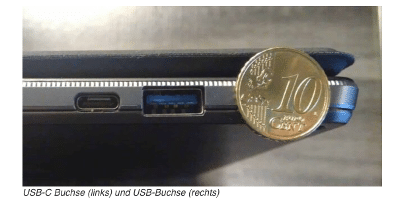
  • Connect hörbert’s memory card to the computer. For this you need either a built-in SD card slot in the computer or a connection for an external SD card reader that you can connect to the computer. Many laptops have these connections here for external card readers (the 10 cent coin serves for size comparison):

At the connection on the right you can connect the following external USB-3 or USB card readers:
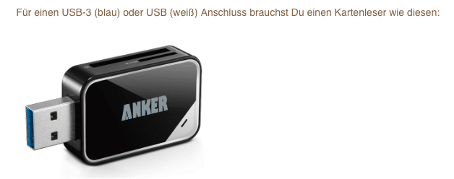
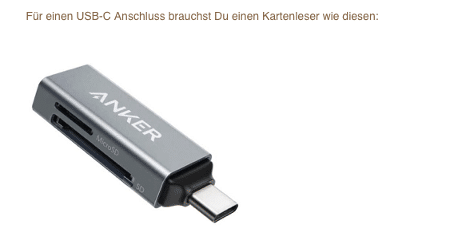
  • Find the memory card drive in the file manager. This is called e.g. DE (German-language free card) or INT (multilingual card) or CH (Swiss German card)
  • Click on the SD card drive with your mouse. You’ll see the contents of the SD card. The important folders are 0 to 8. The MP3 files are stored in these.
  • If you’re using a foreign, own SD card, you must first format it in FAT32 format (or FAT, MSDOSFAT, EXFAT) for hörbert before first use and create folders 0 to 8 in the main directory of the card.
  • If you have a hörbert with only 3 large playlist buttons, you only need to create folders 1 (red), 6 (light blue) and 8 (dark green).

Playlist assignment to folder number:

0 = dark purple / 1 = red / 2 = dark blue / 3 = light green  / 4 = yellow / 5 = dove grey /6 = light blue / 7 = orange /
8 = dark green


Open the desired folder where you want to save new MP3 files by clicking with your mouse.

A file called “playlist.m3u” is only found there if you’ve already opened this playlist in browser set mode once before. This file should be kept there.

Important: Your own files that you want to add must be located directly on your device and must not be stored in a cloud.
Now copy or drag your own MP3 or WAV files by drag & drop into the desired content folder of hörbert

Important: Regardless of where you place the tracks in the file manager, new tracks will always be played by hörbert first at the end of a playlist in alphabetical order.

The playback order can then be changed in browser set mode by moving the tracks within the playlist.
See our hörbert user manual from page 22 for this.
Here you can access the user manual:
https://www.hoerbert.com/wp-content/uploads/sites/5/2024/10/User_Manual_Butterfly_DE.pdf


Properly eject the card from the computer before disconnecting it from the computer and insert it back into hörbert.

Option 2 – via browser set mode.

Via browser set mode – and thus via hörbert’s own WLAN – new tracks can also be added to playlists or existing ones deleted.


Adding new tracks via browser set mode:
See our user manual on page 13 for starting browser set mode and from page 23 for adding new files.

Here you can access an explanatory video for starting browser set mode: VIDEO Browser Set Mode


Here you can access the user manual:
https://www.hoerbert.com/wp-content/uploads/sites/5/2024/10/User_Manual_Butterfly_DE.pdf

My recording has disapeared or is not there. What went wrong?

Prerequisites for successful recordings:

The hörbert 2021 model – the one with the rotary knob for switching on and off – can record all sources it plays simultaneously.

– The prerequisite for this is that the memory card has been prepared in advance and the desired playlists have been defined where recordings are allowed.
– If you want to record Bluetooth streams, the Bluetooth and pairing functions must first be activated on hörbert.
– If you want to record internet radio, hörbert must first be connected to your home 2.4 GHz Wi-Fi network, and one or more suitable web radio URLs must be assigned to the desired playlist.
– If you want to make voice recordings using the built-in microphone, the microphone function must be activated on hörbert.

All the above-mentioned settings can conveniently be made using hörbert’s so-called Browser Set Mode. Please also refer to our user manual for hörbert with the Butterfly firmware.

Attention: there must at least be one audio file on the playlist already.

Once everything is set up and hörbert is turned on in standard mode or Bluetooth speaker mode, you can start a recording by pressing the black and the grey button simultaneously. This is the standard method for starting a recording. Press the black button again to stop and save the recording.

In Browser Set Mode, you can also configure in the Expert Menu that a recording should start when a playlist button is pressed and held. This is necessary, for example, for hörberts that only have three large playlist buttons and do not have a black or grey button.

As a visible indicator that a recording is in progress, the red LED behind the opening for the built-in microphone lights up. You can see the LED from the front of the hörbert device.

If the LED does not light up, the recording did not start. Please try again and make sure the recording function is enabled for the desired playlist.
There are also hörbert devices manufactured between October 2021 and December 2022 that do not have a built-in voice microphone. In this case, hörbert plays a confirmation tone to indicate that a recording is in progress.


Attention:

  • In order to successfully start a voice recording or an Internet radio recording, you must first have pressed a playlist permitted for these recordings on the hörbert front page. For Internet radio recordings, hörbert must be playing the web radio station you want to record. To pair hörbert with a Bluetooth transmitter and start a Bluetooth recording, hörbert must be in Bluetooth speaker mode. You switch hörbert to this mode by pressing the rotary knob twice in quick succession. In other words: On-Off. hörbert is then not off, but in Bluetooth speaker mode and can now be paired with your transmitter.
  • At least one audio file should already be present on the playlist before the recording attempt.

  • Voice recordings are played once immediately after stopping and saved after the last played file in the respective playlist.

    Bluetooth and web radio recordings are saved at the end of the playlist. ATTENTION. If a voice recording has not been saved, it is also possible that someone has activated parrot mode on your hörbert in browser set mode. For all playlists that have not previously been set to allow voice recordings to be saved there, the recording will then only be played once and then deleted directly by hörbert.


  • To stop the recording, press the black button. The recording will then be saved. If you have selected a different recording mode, e.g. start recording by pressing and holding a playlist button, you can also press the same button again to stop the recording. You can also turn the rotary control to stop recording. ATTENTION: The recording will not be saved if you switch off hörbert before you have properly stopped the recording.

  • If your recording is not available afterwards despite following all the tips above, it could be because the contents or the file system of your memory card is fundamentally mixed up. In this case, you can try the following: Make a backup of the memory card by using your file manager to copy all the contents to a backup folder on your computer hard drive. Then format the memory card in FAT32 format (or if this is not selectable, also FAT, EXFAT, MSDOSFAT format.) Then copy the data 1:1 back to your memory card. Use the browser set mode to redefine which playlists you want to release for which recording types. Try the recording again. If you get stuck, please write to us using the contact form.

SET-Mode of hörbert

Update from November 2024:

First of all, the explanation below regarding SET mode is still correct. However, since November 2024, there is a new firmware called “Butterfly” for the hörbert model with a rotary knob for turning it on and off.

If this firmware is running on your hörbert, you also have the option to conveniently adjust all settings without using the hörbert software—directly via a web-based interface called **Browser Set Mode**.

With Browser Set Mode, you can:

– adjust all settings for your hörbert
– Select playlists for Bluetooth, voice, and internet radio recordings,
– Store internet radio URLs via a keyword search, and
– Even upload individual audio files to the memory card via hörbert’s Wi-Fi.

You can find out how to update your hörbert’s firmware to Butterfly and access the Browser Set Mode under **HÖRBERT FIRMWARE**.

For all details about hörbert and the many new possibilities the Butterfly firmware offers, check out our guide for a hörbert running the Butterfly firmware.


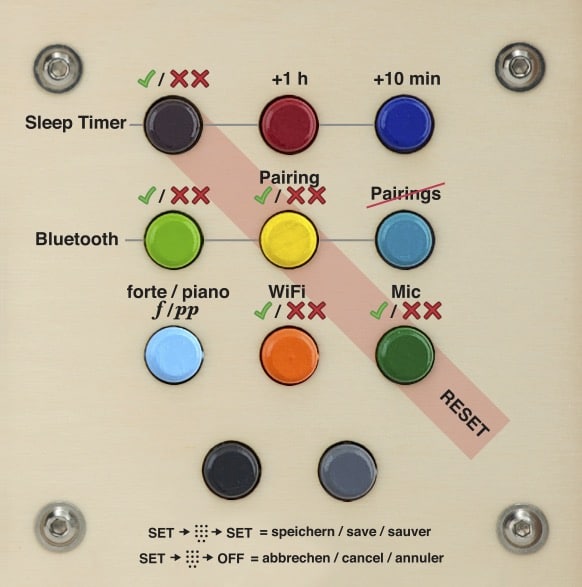
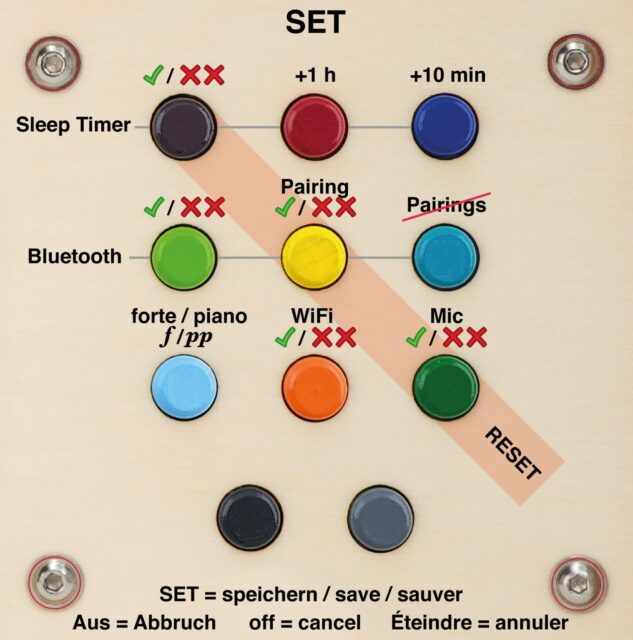
The SET mode is only available on the hörbert model 2021. All special functions of hörbert can be activated and deactivated via this mode. This SET template shows which functions can be set. It is always included in the delivery of a new hörbert:
How do you set hörbert to SET mode?

  1. Open the rear back panel with a coin and pull out the back panel.
  2. Switch on hörbert, it will then play normally through its loudspeaker.
  3. Inside hörbert, press the small button labelled “SET” once. The LED on the SET button is now solid green. hörbert is mute. The front buttons are now in SET mode.
  4. Set the desired functions. You can set all functions at once. You will find a detailed explanation of the individual functions below.
  5. Important: After setting the functions, you must press the SET button inside again so that they are saved.
  6. There is a time-out of about 5 minutes. So make all the settings you want within this time and press the SET button again at the end to save them.
  7. Then wait a few seconds until hörbert is playing normally again and only then switch it off or let hörbert continue to entertain you, just as you like.

What do the symbols on the SET template mean?

  1. Dark purple button: Activate the sleep timer by pressing it once. If you hear a single beep, the sleep timer is now activated. If you hear a double, slightly lower beep, the sleep timer is off. To activate it, simply press the dark purple button again. ON is indicated on the template by the green tick. OFF is indicated by the red XX.
  2. Red and dark blue button: Set the desired playing time of the sleep timer. Each click on the red button means +1 hour. You can set up to 7 hours of playing time, then the counter starts again at 0, indicated by a double beep. Each click on the dark blue button means: +10 minutes. For example, you can set a playing time of 2.5 hours by pressing the red button twice and the dark blue button three times.
  3. Light green button: Activate Bluetooth (single beep) / deactivate (double beep)
  4. Yellow button: Activate pairing (single beep) / deactivate (double beep). The first time you want to pair a new Bluetooth device, e.g. mobile phone or wireless headphones with hörbert, you must activate both Bluetooth and pairing. Once all the desired devices in the household have been paired, you can deactivate the pairing function on the hörbert by pressing SET -> yellow button -> SET. This should prevent unwanted third-party devices from connecting by mistake.
  5. Pigeon blue button (middle row far right): Delete all pairings.
  6. Light blue button: Activate volume limit (pp stands for piano. This quiet setting is active when the double beep is heard).
  7. Orange button: Activate WiFi for listening to Internet radio (single beep) / deactivate (double beep).
  8. Dark green button: activate voice microphone (single beep) / deactivate (double beep)

Further information:
To listen to Internet radio, you must first save the W-LAN data to the memory card with the hörbert software and read it into the hörbert. In addition, at least one streaming URL of an Internet radio station must be stored on one of the coloured buttons. See our instructions for hörbert or the corresponding FAQ for the Internet radio function.

In order for recordings to be made via Bluetooth WiFi or via the voice microphone, the memory card must also be processed with the hörbert software beforehand. You have to tell hörbert on which coloured buttons you want to allow which recordings. -> See also our blog article about hörbert’s recording functions.

The reset can only be performed on the hörbert 2021 model (hörbert with a rotary knob for turning it on and off). There are two ways to do this:

1. If your hörbert already has the Butterfly firmware, you can connect to hörbert’s Wi-Fi and access the *Browser Set Mode* (a web-based interface for hörbert) via a web browser on your phone, tablet, or computer. In the menu go to *GENERAL* -> *Advanced Settings* and you will find the option to *Reset to factory settings*. You can find all the details in our guide for hörbert with Butterfly firmware.

2. Or you can start SET mode by pressing the *SET button inside hörbert* and using the colorful buttons on the front to reset hörbert manually.

The reset has the effect that hörbert is reset to the factory settings. This SET template, which is supplied with a new hörbert, shows which functions can be activated/deactivated via which button in SET mode.
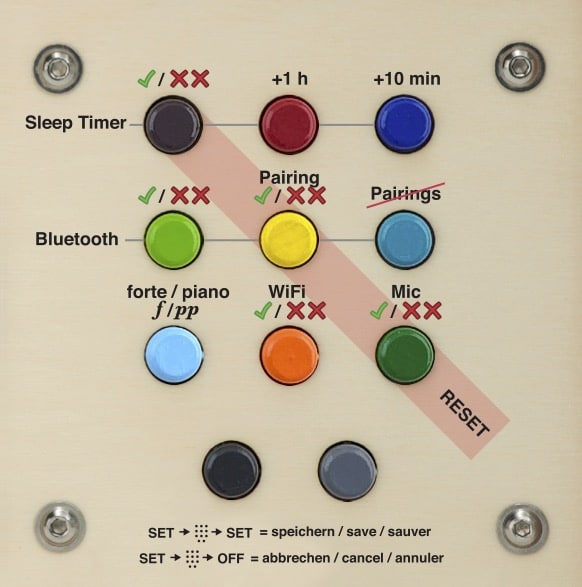
The reset goes like this – colour-coded by the slightly darker orange stripe across the SET template:
– switch on hörbert, it plays from its loudspeaker.
– press the small SET button inside hörbert once, the LED lights up green continuously and hörbert becomes mute. The front buttons are now in SET mode.
– Press the diagonal of the three buttons dark purple, yellow and dark green all together, starting with the first row on the far left at dark purple.
– A short series of beeps will sound to confirm.
Important: At the end, press the SET button inside again to save.
Now hörbert is reset to the factory setting, i.e.:

– The sleep timer is off
– Bluetooth is off
– Pairing is off
– No previous pairings are stored and devices must be paired again.
– hörbert is set in Forte mode
– WiFi is off
– The voice microphone is off.
– hörbert has no more saved WLAN data. The WLAN data (network name and password) must be written to the memory card again via the hörbert software and read in in hörbert via the SET mode -> press orange button for approx. 10s -> press SET button again to save.

The reset has no influence on the other settings of the memory card. So if you have enabled certain buttons for Bluetooth / voice microphone / WiFi recordings, these enablements will remain after the reset. When Bluetooth and pairing, as well as WiFi, are re-enabled, streaming, radio listening and recording can resume.

Further notes on the SET mode:

If you have pressed the SET button inside once, you can now directly set all the desired SET functions at once and only press the SET button again at the very end.
There is a time-out in SET mode after about 5 minutes. If you have not pressed the SET button again within 5 minutes, hörbert switches off with a signal tone and the settings are discarded. It is therefore important to make the desired settings according to the SET template within this period of time and to press the SET button again at the end to save.

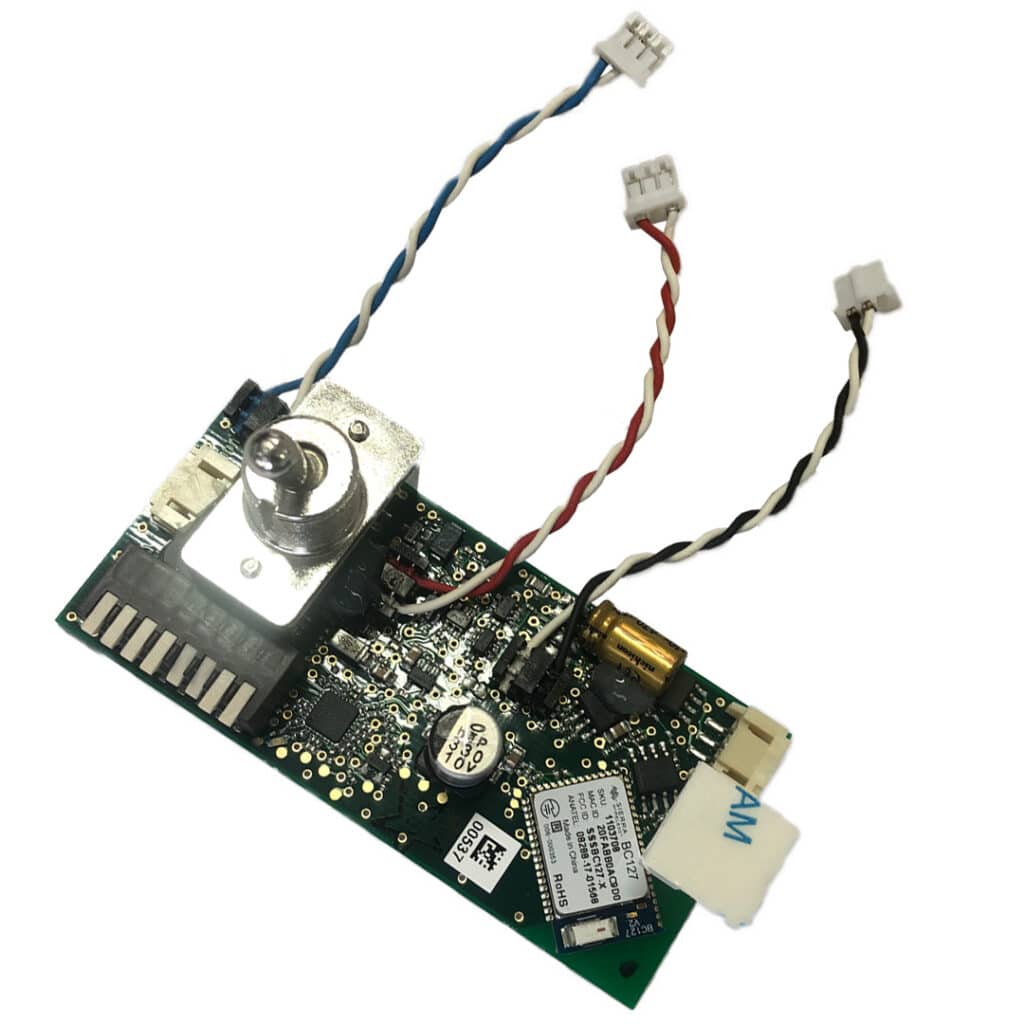
Your hörbert has fallen on the encoder? If you are confident enough to repair it yourself, you will find the instructions below. If you cannot repair the encoder, it is also available as a spare part in our shop. You can order it and replace it yourself with the help of the instructions below. If you don’t want to do it yourself, you can of course send hörbert to us for inspection and repair.

Please be sure to contact our service team in writing beforehand to receive a ticket number and the corresponding return instructions.
 
Encoder removal guide:

  • Loosen the rotary knob on the encoder with a 2mm hexagon socket/bus
  • Loosen the nut under the knob. You will need an 11mm wrench/socket for this. 
  • Then pull the encoder out of the mounting hole and loosen the release from the ribbon cable on the encoder itself. To loosen the release, you have to push the two protruding black lugs on the right and left of the cable with your fingernails. Then carefully pull out the cable.
  • The ribbon cable can get stuck in the board on the other side.
  • Remove the encoder and carefully try to straighten it again.
  • If this does not work, order the spare part from our shop or send it to hörbert by arrangement.


Install repaired or new encoder:


  • Plug the cable into the encoder. Make sure that the cable is plugged in as shown in the picture and that the blue side is not inserted with the wrong polarity. The white side must be at the top.
  • Push the release on the cable shut:

  • Insert the encoder into the mounting hole of the housing and put on the nut.
  • Tighten the nut with the 11 mm spanner.
  • Put on the rotary knob – with a distance of approx. 1 mm to the housing – and tighten it with the grub screw and the 2mm hexagon socket. Done!

    Print text as PDF: Anleitung Einbau neuer Encoder

The standard model from hörbert 2011 – without an additional module such as a sleep timer or Bluetooth module lasts for approximately 50 hours.
If the sleep timer module (automatic switch-off) is installed, the playing time is reduced by a few hours.
With the Bluetooth module installed, the playing time is reduced by up to 1/3 of the playing time of the standard model, i.e. about 35 hours.

So far, we have tested the new hörbert 2021 in our factory at medium volume in an endurance test with high-quality AA batteries.
In standard mode – i.e. when playing from its SD card – hörbert 2021 plays for approximately 38 hours.

If you use hoerbert in Bluetooth- oder WiFi Mode only, hörberts plays shorter, approximately 17-20 hours, depending on the batteries/accumulators you use.

All special functions such as sleep timer, Bluetooth, WiFi, and the microphone function are deactivated by default.

To be able to make recordings with hörbert, the following four steps are required first:

  1. You need to activate the desired functions Bluetooth, WiFi, and microphone.

  2. To use the internet radio feature, you must also save your WiFi credentials (network name and password) to hörbert and add at least one valid streaming URL of a radio station.

  3. Finally, assign the colorful playlist buttons on which recordings are allowed. Note: there must be at least one audio file already saved in the playlist you want to add a recording to.

  4. If you want to use hörbert as a speaker for Bluetooth streams from your mobile phone, tablet or computer and record these streams at the same time, you must switch hörbert to Bluetooth speaker mode after having done all preparation settings first. To do this, hörbert must be switched off. Switch it on by pressing the rotary control at the top twice. Do not wait too long with the second press (approx. 0.5 seconds). hörbert emits an ascending tone sequence as confirmation that it is going into speaker mode. You now have 60 seconds to find it in the list of available Bluetooth devices on your Bluetooth transmitter and pair it.

General: Starting and stopping a recording

Once everything is set up, you can generally start a recording by pressing and holding the black button on hörbert and then briefly pressing the grey button. The red light behind the microphone hole will light up, and you can release the buttons.
To stop and save the recording, press the black button again.

If you’d like to change the standard recording mode — for example, if you’re using an accessible hörbert with only three large playlist buttons — you can do this in Browser Set Mode. There you can configure the device so that, for example, pressing and holding a playlist button starts the recording. To stop, simply press a playlist button again.
You’ll find detailed instructions for changing the recording settings in the expert menu in our guide for the 3-button hörbert with Butterfly firmware.


To activate the functions and enable playlists for recordings, you have two options:


Option 1: using Browser Set Mode – you don’t need a computer or a hörbert software

Browser Set Mode is only available for hörberts with the Butterfly firmware or newer.
Haven’t installed the latest firmware on your hörbert yet? Click here for the UPGRADE TO BUTTERFLY.

You’ll also find instructions on how to start Browser Set Mode at the link above, along with a short explainer video.

In the Browser Set Mode menu, you will see the colorful buttons of your hörbert displayed on your screen.
Click on the desired playlist button and enable Bluetooth, internet radio, and/or microphone recordings in that button’s settings.

  • Bluetooth recordings can only be enabled on one playlist.

  • Web radio and microphone recordings can be enabled on multiple playlists.

In the Browser Set Mode menu:

  • Go to Bluetooth to activate Bluetooth and enable pairing if you want to record Bluetooth streams.

  • Go to WiFi to enable the function and enter your WiFi credentials if you want to make web radio recordings.

  • To add a radio station: go to Playlists and click the “+RADIO” button to add a streaming URL to the desired playlist. You can also use the convenient keyword search to find suitable radio stations.

  • Go to Microphone to enable the built-in microphone for voice recordings.


Option 2: With a computer, SD card reader, and hörbert software

1.) Activating special functions directly on hörbert in SET mode:

  • Unscrew the back of hörbert.

  • Turn on hörbert – it will start playing from the memory card.

  • Press the SET button inside – hörbert will go silent. The LED on the SET button will glow solid green. The front buttons are now in SET mode.

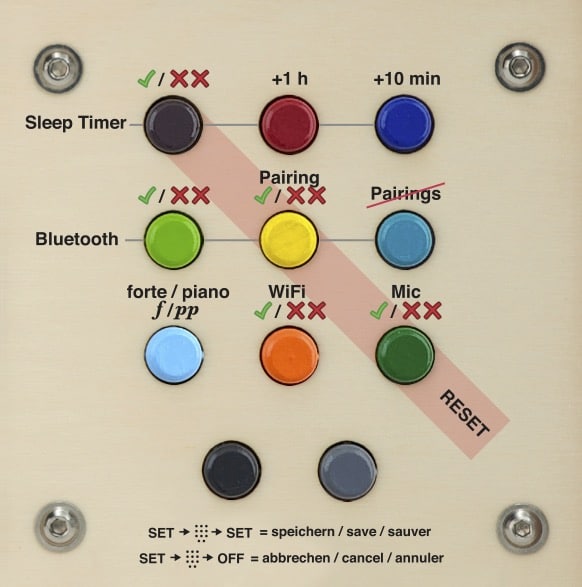
  • Use the template included in your hörbert package (see attachment) to identify which button activates which function (e.g., Sleep Timer, Bluetooth, WiFi, Mic).

  • A single beep = function enabled.

  • A double beep = function disabled.

  • After selecting your desired functions, press the SET button again to save.

  • hörbert resumes playback, and the settings are now active.


2.) Special instructions for Internet Radio:

2.1) Editing the memory card with hörbert software on your computer
  • Install and launch hörbert Software version 3.x.x.

  • Select the “hörbert 2021” model and read the memory card.

  • In the Extras menu, select Configure WiFi connections.

  • Enter the exact name of your WiFi network and the password.

⚠️ It must be a 2.4 GHz WiFi. If connection fails, check your router settings.
⚠️ WiFi network name must not contain spaces.

  • Choose a colorful button that you want to assign to internet radio.

  • Click the “+” symbol next to “URL” in the content window and add a streaming URL (e.g., http://laut.fm/kinderradio) — preferably at the top of the list.

  • Most MP3 podcast links also work.

  • Save by clicking the green checkmark at the top right, then eject the card using the Eject button before removing it from your computer.

2.2) Insert the card back into hörbert and import the WiFi data:
  1. Turn on hörbert. It will start playing normally.

  2. Press the SET button inside. hörbert will go silent, and the buttons enter programming mode.

  3. Press and hold the orange button (WiFi) for approx. 10 seconds until you hear a short confirmation beep. The WiFi data will be imported and then deleted from the card for privacy.

  4. Press the SET button again to save.

hörbert resumes normal playback.

Did you place the URL at the top of a playlist? When you press the corresponding button, hörbert will emit a series of ascending search tones while it connects to the internet radio station and then begins playback.
If it doesn’t work, check that WiFi is enabled (step 1) and that you used a valid streaming URL.


3.) Defining playlists for recording

With hörbert software, you can assign one or more colorful buttons where recordings are allowed — even without Butterfly firmware.
This can also be done while performing step 2 above, since the memory card is already connected to the computer.

  • Open the content window of the button where you want to allow microphone, Bluetooth, or internet radio recordings.

  • Check the appropriate box at the bottom of the window, e.g., “Allow microphone recordings here.”

  • Click the green checkmark at the top right to save and close the window.

You can repeat this for other buttons as well.

Note: Bluetooth recordings are only allowed on one button. That’s why you’ll see a round radio button instead of a checkbox.
There should be at least one file already on the playlist to allow proper navigation and recording.

Always eject the memory card using the Eject button before removing it from your computer. Then insert the card back into hörbert.


4.) Starting and stopping a recording

For voice recordings and internet radio recordings, you first need to select the playlist on hörbert that you previously enabled for such recordings in Browser Set Mode or via the software.
For Bluetooth recordings, this is not necessary — they are always saved at the end of the one playlist previously defined for Bluetooth.

To start a recording:

  • Press and hold the black button.

  • Briefly press the grey button.

  • The recording starts, and you can release both buttons.

  • To stop and save the recording, press the black button again.

Voice recordings made via the microphone are placed directly after the last played file in the selected playlist. hörbert will automatically play back the recording a few seconds after it is saved.
Bluetooth and internet radio recordings are always placed at the end of the assigned playlist.


For any questions, our service team is happy to assist you.

SET MODE TEMPLATE (included in your hörbert package)


Let me know if you’d like this in a downloadable format or need further adjustments (e.g., US/UK spelling or more technical vs. user-friendly tone).
The detailed instructions for the new hörbert with 9 or 3 playlist buttons can be found here: https://www.hoerbert.com/anleitungen/hoerbert/
Here you will find a suitable and detailed FAQ on the subject of Internet radio.
Here you can find a suitable and detailed FAQ on the subject of Bluetooth recordings
Here you will find a suitable and detailed FAQ on the subject of voice recordings

Tag: hörbert

Answer: Yes, that’s possible with the new hörbert Model 2021.

First, you need to activate Bluetooth and pairing on hörbert, then edit the memory card and set the playlist where the recordings should be saved.

You can do this either on a computer with the hörbert software or without a computer using a phone or tablet via the so-called Browser Set Mode. The Browser Set Mode is available for hörbert 2021 with the Butterfly firmware. You can update your hörbert 2021 to Butterfly at any time if it doesn’t already have this firmware.
Read here exactly which setup steps you need to take and how it works:
FAQ about Bluetooth recordings

After that, you put hörbert into Bluetooth speaker mode by pressing the rotary knob twice with a 0.5-second interval. You then have 60 seconds to pair hörbert with a phone, tablet or computer and play a Spotify playlist or another type of audio file.

To record:
Press the black button and hold it down. Now simultaneously press the grey button next to it briefly.
The recording starts, the red LED behind the microphone lights up. You can release the buttons.
To end the recording, press the black button again.

If you have a barrier-free hörbert with only three buttons, you can change the recording mode in Browser Set Mode so that you, for example, press a playlist button long to start a recording and press it again to end the recording.

You’ll find the recording at the end of the playlist that you previously defined in Browser Set Mode or in the hörbert software for Bluetooth stream recordings.

Have fun streaming, recording and listening back afterwards.

Relevant BLOG article for this question.

Tag: hörbert

The microphone is built into the hörbert model on the inside.
This gives you the possibility to record your own voice and play it back from hörbert’s colourful buttons.

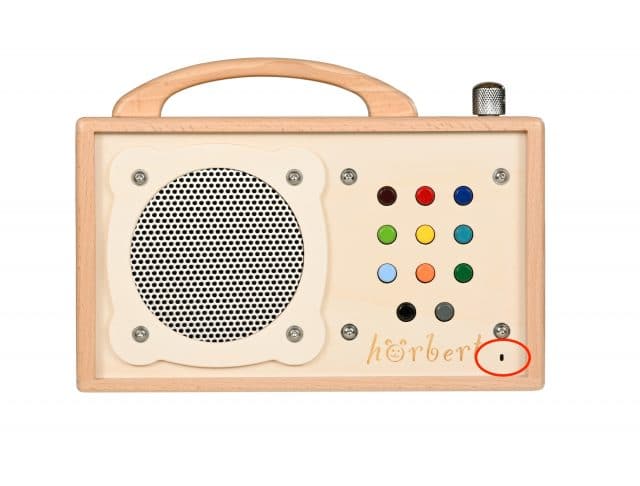
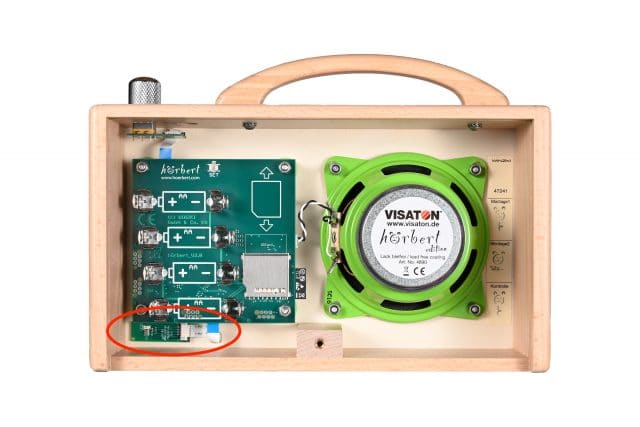
When ordering a hörbert, we install it straight from the factory. It’s very small and sits on an equally small microphone circuit board inside hörbert on the front underside. From the outside, only a small opening in the wood next to the hörbert logo can be seen.
To record speech with the microphone, two settings must first be made:

1. Choose which of the colourful hörbert buttons voice recordings can be saved on.
You might not want to allow voice recordings on every button. For example, if you’ve loaded one of the buttons with connected audio stories and tales. The chapters of these stories shouldn’t be interrupted.

You have two options to activate the microphone and define the playlists on which voice recordings should be allowed.

a. Via the Browser Set Mode, a convenient web interface – for this you need neither a computer, nor an SD card reader, nor hörbert software. Here’s the tutorial video for starting Browser Set Mode.
Note: Browser Set Mode is only available if your hörbert is running the Butterfly firmware, which has been available since November 2024. Here’s the link to the FIRMWARE UPDATE

b. The hörbert software also offers the possibility for you to set at your home computer which playlists you’d like to allow voice recordings for. Start the hörbert software, select the new hörbert model and read the card. Open the button on which you want to allow recordings.
Select “Allow voice recordings here” at the bottom of the window and close the button content window again via the green tick at the top right.
Note: At least one audio file must already be saved on the playlist for a recording to succeed.
In the same way, you can also set where recordings from Bluetooth streams or internet radio should end up.

Always eject the SD card properly first before disconnecting it from the computer and putting it back into hörbert.

2. Activate the microphone via SET mode on your hörbert

Here’s how:
1) Switch hörbert on. Press the small SET button inside hörbert. Now the front colourful buttons of hörbert are in SET mode.
2) Then activate the microphone function by pressing the dark green button at the front once. The included SET template makes it very easy for you to find the right button. Press once: “on” (single signal tone), press again “off” (double signal tone)
3) Press the SET button inside again to save the setting. hörbert has now saved the setting and the microphone is active.
4) Now you can screw hörbert back together and switch it on.

5) Start recording
When you’re in the corresponding, allowed playlist, you can start a recording by holding down the black button at the bottom left and then simultaneously pressing the dark grey button at the bottom right. You can then release both buttons again whilst you speak something.

Stop a recording
To stop the recording, press the black button again.

Discard a recording
To discard the recording, end the recording by pressing the on/off switch and switching hörbert off.

Playback of a microphone recording
With a microphone recording, this is also played back immediately after recording. It lands directly after the track that was playing when you started the recording.

Related FAQ to this question: How do voice recordings work with hörbert

The answer is “Yes”:
The settings from the new hörbert can be made via the SET mode.

Inside the unit there is a SET button. When you press it, you can use the coloured buttons on the front and the SET template provided to set the following functions as desired:

  • Sleep timer on/off, playing time in hours and minutes
  • Bluetooth on/off, pairing mode on/off, delete all pairings
  • WiFi on/off
  • Microphone on/off
  • piano/forte
  • Reset to factory settings.

    If you press the power button after making a change, all the changes you have just made are discarded.
    If you press the SET button inside again after making a change, all the changes you have just made will be saved.

IMPORTANT:
WiFi, Bluetooth and microphone are initially deactivated in the factory setting. Only by setting them via the SET mode and after previously configuring the playlists in which recordings are allowed, can the functions be activated by an adult. The prior selection of the playlists that are allowed to save recordings is done via the hörbert software directly on the memory card.neuer hörbert SET-Modus Schablone

Tag: hörbert

You want all this for your own hörbert too? No problem! Please contact our service team in order to get an offer for an Upgrade.

Contact Serviceteam

Visual differences:
The new hörbert comes with a slightly different appearance and a brand new electronic interior.

The toggle switch for switching on/off no longer exists. Instead, the volume control can be pressed for electronic on/off.

The new hoerbert’s front panel has a small opening at the right bottom, behind which the microphone is hidden.

hörbert now has even less plastic. The coloured buttons on the front now also consist of wood!

New features:

  • recording function:
    All sources hörbert knows, it can also record on the memory card: Microphone (if built in), Bluetooth streaming and Internet radio.
  • Microfone:
    Record speech and music in CD quality with the microphone and play it back directly from the memory card.
  • WiFi for Internet radio:
    Connect hörbert to your W-Lan to play Internet radio stations with hörbert’s buttons. With the recording function, radio broadcasts can then be recorded and played back later from the memory card.
  • Pause function:
    hörbert continues playing exactly where you switched it off. There is no need to fast-forward to the right place.
  • Even less plastics
    The colourful keys are now wooden turned parts. hörbert thus contains less than 5% plastic. Only the circuit board and the components on it. That can’t be improved any more.
  • Even more space for replaying
    The storage space on the SD card now goes further, because hörbert can play native mp3 and m4a files. That’s why more hours fit on the same card. Each of your memory cards will then hold up to 5 times the amount of content compared to the previous format.
  • Bluetooth Audio for headphones and Streaming
    You can use hörbert with Bluetooth headphones or as a Bluetooth speaker. Simultaneous listening with up to two wireless headphones is possible. With a mobile phone or tablet, you can listen to content from streaming services on hörbert, e.g. from Spotify or audible.
    This is already possible with your “hörbert 2011” if you have a built-in Bluetooth module.
    What is new is that you can also record everything that hörbert plays as a Bluetooth speaker so that you can play it back again and again from the memory card.
    What’s new is that you no longer have to pay anything extra for the Bluetooth functions. Bluetooth audio is now included in the price. Of course, the Bluetooth function can also be switched off completely, so that nothing transmits if you don’t want it to.

Proven and still available:

  • Sleep Timer included
    Set how long hörbert can play before it switches itself off.
  • Selectable additional volume limit included
    piano/forte

hörbert comes ready to play. 

Depending on your selection, a preloaded memory card is included with German, international, or Swiss German audio content for children. If you choose an accessible hörbert, you can also opt for a blank SD card or one with audio content for adults. The hörbert for seniors automatically includes the free memory card with content for adults. 

We provide over two hours of carefully selected songs and stories. 

Additionally, we include 4 AA batteries so you can start using hörbert right away after unpacking. 

You are also welcome to use 4 rechargeable AA batteries in hörbert’s battery clips. 

Important Note:

If you purchase a hörbert with an optional USB port and battery charging function, we also include a preloaded free memory card of your choice. 

However, to operate hörbert via a power outlet, you will need the following accessories: 

– USB power adapter 

– USB-C cable 


If you also want to use hörbert on the go, you will additionally need: 

– 4 x rechargeable AA batteries (1.2V HR6) 

You can find everything about hörbert’s USB port **HERE**. 

The included 4 GB memory card for the new hörbert Model 2021 can hold approximately 50 hours of audio content when using MP3 files.

Our free cards, which we include as a product supplement, are preloaded with over two hours of children’s songs and stories. You can add your own favorite songs and stories to our content at any time or replace the content.

More information on loading your own audio content onto the memory card.

If you have a “hörbert 2011,” the 4 GB memory card included in the delivery can hold 1,000 minutes (or 17 hours) of content.

In our experience, even with these 17 hours, it takes several weeks to months before a child wants something different.


Each of the nine coloured buttons represents a list of songs or audio book chapters. By pressing the same button several times, you jump through that list track by track.

You find all details about hoerbert’s functions in our user manuals:
MANUALS

The metallic grey button is used for audible fast forward, the black button jumps back to the beginning of the current title. Pressing the black metallic button twice you will jump back one more title.

hörbert is made of natural materials, that’s why we can’t predict colors and texture of the wood, for example. Each hörbert is unique! Small discolorations or knot-holes leave their traces and are normal.

The answer is yes and no.

The standard hörbert is a portable device and has no mains connection. It runs on 4 x AA rechargeable batteries or batteries, which are available everywhere. Here, a power connection with a power supply is omitted so that hörbert is also suitable for the youngest and always mobile, and there is no danger from power connections or cables.

Since November 2024, however, there is also hörbert for seniors and hörbert accessible. In this area, it is often necessary that hörbert can also be operated stationary via mains power. Therefore, these models automatically come with USB connection and battery charging function in the standard version.

Even with hörbert for children, you have the option to optionally choose a USB connection and suitable rechargeable batteries when purchasing.

The USB_C connection is only usable with a hörbert model 2021 (without toggle switch). The Firmware Butterfly must also be installed on the hörbert.

You can learn more about the USB-C connection of hörbert in our BLOG ARTICLE ON THE USB CONNECTION

Does hörbert have a USB port?

Yes, but not for USB sticks. It is used for operation via a USB-C cable and a USB power adapter plugged into a socket. If rechargeable batteries are also inserted in the internal battery compartment, they will be charged simultaneously when hörbert is connected to the socket via a USB-C cable. A practical feature. MORE INFO ABOUT THE USB PORT

Where are the audio contents stored?
hörbert works with a memory card in SD card format.

You need an SDHC card reader on your computer to save your own content to this memory card and to make changes to it.

Alternative option without a computer and without an SD card reader
Since the end of November, the Butterfly firmware has been available for all hörbert devices from October 2021 onwards. This is the model with a rotary knob for turning on and off. With this firmware, all settings for hörbert can be configured via the Browser Set Mode, a user-friendly web interface, which also allows you to add individual audio files or web radio URLs.

The wood, operating elements and electronics have been specifically selected and produced in a way to protect hoerbert and your children, when it gets a bit wild in the playroom. hörbert will go through interesting times and may even get some marks and scratches that can easily be corrected with a bit of sand paper. If hörbert should have an unfortunate fall and something gets broken, spare parts are available – because throwing hörbert away is out of the question. Of course, you can also send hörbert in for repair at any time, we will be happy to advise you.

Please always CONTACT US before sending your hoerbert in for repair.

hörbert is available in our online shop at https://www.hoerbert.com, as well as in selected customer shops, that you can also find on our homepage. No matter where you buy your hörbert, you can have it individually engraved. Just ask at your customer shop, we’ll engrave your hörbert for you while we produce it.

hörbert was designed to be operated by even small children (from the age of two years) themselves without the help of anybody. Only transferring content to hörbert and replacing batteries are tasks that are left to grown-ups. As hörbert already comes with lots of songs and audio books, you won’t have to sacrifice your first day with hörbert at your computer instead of giving it to your children.

We don’t recommend a minimum age for using hörbert. You may want to play lullabies to a baby, your two-year-old kid may be able to handle hörbert completely on his or her own. Maybe grandma or grandpa like to use hörbert as a pretty and simple music box, that’s also a task hörbert can handle.

Children use the colored buttons to select what to listen to next. Behind each of the nine colored buttons there can be several songs or chapters of a story. Skipping them works by pressing the same button several times. There’s one more grey button for an audible fast forward scan and one black one to jump right back to the beginning of the currently playing title. You can even jump further to the previous titles by pressing that ‘back’ button quickly in repeat. Finally, there is a rotary volume knob and a robust on/off switch.

Read all about hoerbert’s functions in our user manuals.
hoerbert 2011

The hörbert 2011 is our model that we manufactured and sold from 2011 until October 2021. Thanks to its extremely minimalist electronics, this model offers an especially long playback time. You can recognize the hörbert 2011 by its mechanical toggle switch, which is located between the handle and the volume control knob.

User manuals

hörbert software for hörbert 2011

Links for downloading the software that allows you to create your own playlists and transfer them onto memory cards that can be played by the hörbert 2011.

Software User Manual

hörbert von vorne rechts
hörbert inside with installed bluetooth-module

Helpful instructional video for hörbert 2011

You are currently viewing a placeholder content from YouTube. To access the actual content, click the button below. Please note that doing so will share data with third-party providers.

More Information

You are currently viewing a placeholder content from YouTube. To access the actual content, click the button below. Please note that doing so will share data with third-party providers.

More Information

You are currently viewing a placeholder content from YouTube. To access the actual content, click the button below. Please note that doing so will share data with third-party providers.

More Information

You are currently viewing a placeholder content from YouTube. To access the actual content, click the button below. Please note that doing so will share data with third-party providers.

More Information

You are currently viewing a placeholder content from YouTube. To access the actual content, click the button below. Please note that doing so will share data with third-party providers.

More Information

You are currently viewing a placeholder content from YouTube. To access the actual content, click the button below. Please note that doing so will share data with third-party providers.

More Information

You are currently viewing a placeholder content from YouTube. To access the actual content, click the button below. Please note that doing so will share data with third-party providers.

More Information

You are currently viewing a placeholder content from YouTube. To access the actual content, click the button below. Please note that doing so will share data with third-party providers.

More Information

Questions about hörbert 2011

Please try the following after starting the hörbert software and inserting the SD card.

Go to the top menu in the software and select Tools -> Select target manually.
The card should then be selectable there.

If this is not possible, our development team has prepared a solution:
With manual selection, you can simply choose a folder on your hard drive – instead of the memory card. The hörbert software will then treat this folder as if it *were* a memory card.
If your memory card can be used with the card reader under your operating system and is correctly mounted, you can then simply copy the contents of this folder onto the memory card. This feature is intended for cases where the mount directory of the memory card does not work for any reason, and when alternatives such as “Sox” also fail.

The new hörbert 2021 has been continuously tested in our workshop at medium volume using high-quality AA batteries.
In standard mode – meaning playback from its SD card – hörbert runs for approximately 38 hours.

The older standard model of hörbert 2011 – without additional modules such as a sleep timer or Bluetooth module – was the top performer in the Stiftung Warentest test in November 2019.
In their test, it achieved 56 hours of playback time, while in our in-house tests it reached approximately 50 hours.
With a built-in sleep timer module (automatic shut-off), the playback time is reduced by a few hours.
With a built-in Bluetooth module, the playback time is reduced by up to one third of the standard model’s duration, resulting in around 35 hours.

Would you like all the new features such as Bluetooth, internet radio, voice recordings, sleep timer, and pause function
for your own hörbert as well? No problem! Starting from spring 2023, we are once again offering upgrades carried out by us.

However, hörbert 2011 must be sent to us for the upgrade.

Please contact us via the contact form so that we can provide you with an upgrade offer.


Visual differences:
The new hörbert comes with a slightly updated appearance and completely new internal electronics.

  1. The toggle switch for turning it on/off is no longer present. Instead, the volume control knob can be pressed for electronic on/off.
  2. For the voice microphone, the front panel of hörbert now has a small opening at the bottom right, behind which the microphone is located inside.
  3. The new hörbert uses even less plastic! The colored buttons are now also made of wood.

New features:

  • Recording function:
    All sources that hörbert supports can also be recorded onto the memory card: voice recordings via microphone, Bluetooth streaming, and internet radio.
  • Microphone:
    Record speech and music in CD quality with the microphone and play it back directly from the memory card.
  • WiFi for internet radio:
    Connect hörbert to your Wi-Fi to play internet radio stations using hörbert’s buttons. With the recording function, radio broadcasts can be recorded and later played back from the memory card.
  • Pause function:
    hörbert resumes playback exactly where you turned it off. Fast-forwarding to the correct position is no longer necessary. However, if you select a different playlist, hörbert always starts with the first track of that playlist.
  • Even less plastic
    The colored buttons are now turned wooden parts. hörbert now contains less than 5% plastic. Only the circuit board and its components remain. This cannot be further reduced.
  • Even more space for reloading
    The storage space on the SD card now goes further, as hörbert can play native MP3 files. This means more hours fit on the same card. Each of your memory cards can hold up to five times more content compared to the previous format. When using MP3 files, approximately 50 hours of audio content fit on the included 4 GB card.
  • Bluetooth audio for headphones and streaming
    You can use hörbert with Bluetooth headphones or as a Bluetooth speaker. Simultaneous listening with up to two wireless headphones is possible. With a phone or tablet, you can stream content from services such as Spotify or Audible to hörbert.
    This is already possible with your “hörbert 2011” if you have a built-in Bluetooth module.
    What’s new is that everything hörbert plays as a Bluetooth speaker can also be recorded, so it can be replayed later from the memory card.
    Also new is that you no longer need to pay extra for Bluetooth functions. Bluetooth audio is now included in the price. Of course, the Bluetooth function can also be completely disabled if you prefer no wireless signals.


Proven and still included:

  • Sleep timer included
    Set how long hörbert should play before it switches off automatically.
  • Selectable additional volume limit included
    piano/forte

Due to the very high power consumption of these cards, interference noises may occur in the Bluetooth module during standard playback mode.
This does not happen with the cards we supply. We therefore recommend using the original hörbert memory card, as your hörbert will also run longer with it.
A Transcend card tested by us (16 GB Class 10) had significantly higher power consumption than our original cards.
This is, of course, detrimental to battery life.

If you do not want to give up your memory card, please contact our support team (service@winzki.de), as we can upgrade your hörbert circuit board for a small service fee so that even power-hungry memory cards can be used with minimal interference.

In general, the following applies: unfortunately, we cannot guarantee the functionality of third-party cards, as manufacturing methods and internal components can vary greatly and change frequently. We source our own memory cards directly from the manufacturer according to our specifications.

  1. Please first check the following: Does hörbert play normally in standard hörbert mode through its built-in speaker when you switch it on? If so, the module has at least been installed correctly.
  1. To use hörbert with a built-in Bluetooth module as a Bluetooth speaker, you need to switch it on using the toggle switch and then immediately switch it off again. IMPORTANT: please leave hörbert switched off and DO NOT switch it on again. The LED indicator inside the Bluetooth module will now blink twice per second and a signal tone will sound, indicating that hörbert is now in Bluetooth speaker mode.
    You now have one minute to find hörbert in the list of Bluetooth devices on your phone and pair it with your phone.
    Now start a playlist on your phone to play it through hörbert.
  1. Your phone shows a connection to hörbert, but the playlist is not played through hörbert, instead it plays through the phone.
    – Proactively remove hörbert from the list of Bluetooth playback devices on your phone (e.g. using the command “Forget this device”) and let your phone search for hörbert again and pair with it.
    – Is there perhaps a setting in your phone or directly in the app that causes the phone to be used as the playback device instead of hörbert? If you are unsure, check your phone’s settings or documentation.
  1. Is another Bluetooth device “grabbing” the connection to your phone? For example, switched-on Bluetooth headphones, a smartwatch, a tablet, or a neighbor’s device? Please disconnect these devices first and/or move to a different location. It is recommended to turn off Bluetooth on nearby devices or switch them off completely before pairing with hörbert.
Pairing headphones with hörbert for the first time can take up to a minute, especially if there are many other Bluetooth devices nearby. It is recommended to switch off other Bluetooth-enabled devices or disable Bluetooth on them before pairing. The headphone mode only searches for headphones during the first 60 seconds after hörbert is switched on. In headphone mode, hörbert’s speaker switches off as soon as sound is heard through the headphones. If it doesn’t work on the first attempt, it often works on the second (or third). Please proceed with troubleshooting as follows:
  1. Do the headphones work with other Bluetooth devices, for example, can they be successfully paired with a Bluetooth phone? If not: please fully charge the headphones first. If they still do not work, contact the retailer where you purchased the headphones. There may be a defect, and the headphones may need to be replaced.
If yes: proceed to steps 2 to 6:
  1. Are switches 5 and 6 (Bluetooth and pairing) on the Bluetooth module activated? Please only operate any switches on the “DIP switch” of the Bluetooth module when hörbert is switched off. If switch no. 6 (pairing) is deactivated while hörbert is switched on, all stored pairings may be deleted under certain conditions. (See section 3.2.4.2 of our Bluetooth module manual).
  2. Are other nearby Bluetooth-enabled devices trying to connect to the headphones? Please switch off Bluetooth on all nearby devices (e.g. phone, tablet, computer) and/or move to a different location.
  3. If your headphones have their own volume control, remember that the volume may need to be increased there if you cannot hear anything. Also ensure that hörbert’s volume control is not set to very low.
  4. If pairing does not work after one minute, please switch off all devices and try the process again a second or even third time:
    1. Switch on the headphones. Bluetooth mode must be activated. Check for the correct LED indication or a voice prompt such as “Bluetooth/Pairing on” depending on your headphone model.
    2. Switch on hörbert by moving the toggle switch forward. The LED on the Bluetooth module must blink twice per second. hörbert will now search for headphones for 60 seconds. Please allow this full time before switching everything off and restarting the process if it does not work immediately.
If none of these tips help, our service team will be happy to assist you. Go to the contact form!
 

It is possible to change the name of paired devices in your Bluetooth transmitter.
You can find the necessary tips under the links below, depending on which device you are using:

www.support.apple.com (rename a Bluetooth device):
https://link.hoerbert.com/6M00K

www.Techify.de (rename paired Bluetooth devices on Android):
https://link.hoerbert.com/5pUwQ

www.genuine-lamps.com (how to rename Bluetooth devices on Windows):
https://link.hoerbert.com/4i3QG

The strength of electromagnetic radiation depends on the transmission power of the devices.
The performance class of the hörbert Bluetooth module corresponds to Class 2. This means: our Bluetooth connections are all Class 2 with a transmission power of up to 2.5 mW (+4 dBm).
Due to its very low transmission power, the hörbert Bluetooth module definitely complies with the recommended SAR limits.

This depends on the environment, for example whether there are obstacles such as walls or barriers in the way. However, the range is typically around 15 meters.

In hörbert mode, you simply listen to content with your hörbert as usual. Just switch it on, and it starts playing. Your hörbert with a built-in Bluetooth module will consume slightly more power in this mode than the standard hörbert, and therefore it will not reach the 50-hour runtime. This is because the audio has to pass through the Bluetooth module, which also requires some power. The playback time is therefore approximately one third shorter.

This faint humming, which is usually only noticeable during quiet moments and only in piano mode, is due to the fact that the audio has to pass through the Bluetooth module.

Interference noise can be minimized if all cables leading to the Bluetooth module are twisted together first, as shown in the installation video and in the installation instructions.

Note: Interference noise may be stronger if memory cards other than our original ones are used, as some cards draw more power than others.

hörbert arrives ready to play.
Depending on your selection, it comes with a preloaded memory card containing either German, international, or Swiss German audio content for children. If you choose a barrier-free hörbert, you can also select an empty SD card or one with audio content for adults. The hörbert for seniors automatically includes the free adult content card.
This means you receive over two hours of selected songs and stories right away.
We also include 4 AA batteries so you can start using hörbert immediately after unpacking it.
You can also use 4 rechargeable AA batteries in hörbert’s battery holders.

Important note:

If you purchase a hörbert with optional USB port and battery charging function, it is also delivered with a preloaded complimentary memory card of your choice.
However, to operate it via a power outlet, you will still need the following accessories:

  • USB power adapter
  • USB-C cable

If you would like to use hörbert on the go, you will additionally need:

  • 4 x rechargeable AA batteries (1.2V HR6)

You can find everything about hörbert’s USB port HERE.

We arrange this with you on a case-by-case basis: after all, it depends on what is broken, and we determine that, for example, via email, by phone, or at the latest in our workshop. Some repairs can be carried out by you if you wish, while others we prefer to handle here in our workshop.

We always work with you to find the most cost-effective way to get your hörbert ready to play again.

If you live in Switzerland, Liechtenstein, or the UK and need to send your hörbert from there, please contact us beforehand and do not send it without a return label from us, otherwise it may get held up at customs.

If hörbert needs to be sent to us for repair, we will of course try to preserve everything as much as possible.
As long as the decorated part is not damaged, we will only repair the rest, and you will receive your own hörbert back.
Please note that hörbert’s frame and front panel form a single unit. Individual parts cannot be replaced separately, as this would not be good for stability.

You can replace the handle, the speaker, the on/off switch, and the volume control (on the hörbert 2011), and in exceptional cases—after consulting with us—even the circuit board yourself, provided you have sufficient technical know-how and the necessary tools at home. If this is not the case, please contact us so that we can assist you.

A housing replacement (i.e. replacing the frame and the front while reusing all intact hörbert components) is generally carried out only in our workshop, as we may also perform necessary minor repairs and replace small parts—of course at a previously agreed flat rate, with the occasional screw included free of charge.

If batteries leak, you will find traces of battery chemicals on the electronics (circuit board). These traces must be completely removed to get your hörbert working again.

Cleaning after leaking batteries:

Important safety instructions:

Pay attention to your safety and that of your surroundings during the following steps! Only work with safety goggles! Only work with protective gloves! Do not touch anything else with the gloves! Work with an open window and sufficient fresh air! Do not work near flames or ignition sources! Keep chemicals and tools away from children! These instructions do not apply to other devices! Leave the repair to us if you do not feel confident performing any step!  Risk of injury: Splashes of alcohol or battery chemicals in the eyes can cause serious eye injuries. In case of an accident, consult a doctor immediately. Working with high-proof alcohol can cause fires. Keep extinguishing agents ready. Alcohol can dry out your skin, so wear gloves! And again: keep children away from chemicals and tools!

How to proceed:

  1. Remove the memory card from the card holder. Check the contacts of the memory card. It may need to be replaced if it has been exposed to battery chemicals. You can try cleaning it with alcohol.
  2. Remove the electronics by loosening the 4 nuts on the circuit board inside hörbert. Lift the board and unplug all cables.
  3. Locate all traces of battery chemicals on both the top AND bottom of the circuit board. You must now clean them very thoroughly to stop corrosion.
  4. Use plenty of 70% isopropyl alcohol (e.g. from a pharmacy): generously apply the alcohol to all areas where you find traces of battery chemicals. Let everything soak. When the alcohol evaporates, apply more to the board, including into the card holder.
  5. Carefully scrub away all traces of battery chemicals with a toothbrush. Cotton swabs can also help. Important: NEVER scrape! If you scratch a circuit trace or damage a small component, the board will most likely be permanently damaged.
  6. Once everything is clean, let the alcohol evaporate for one hour. Never use the electronics while wet.
  7. You can now reconnect all cables, reinstall the circuit board, and screw it back in place.
  8. Insert the batteries and the memory card again and switch hörbert on. Don’t forget to breathe.

There are two possible causes: either the contents of the memory card have become disorganized and hörbert can no longer read the card, or residues from leaking batteries are affecting the electronics. (In that case, continue with: Problems with leaking batteries?)

  • To narrow down issues with the memory card, you can, for example, try another compatible memory card for comparison, or first back up all contents of your hörbert card using your computer’s built-in tools: simply copy all contents of the memory card into a folder on your computer. You may need this backup later.
  • A disorganized memory card can most easily be “repaired” by formatting and reloading it:
    Here are the individual steps to do so:1. First, make sure to create a backup of the data on the card, as formatting will delete all contents. You can select the card as a drive in Windows Explorer or macOS Finder, mark all files, copy them, and save them in a new backup folder on your hard drive.


    2. Next comes formatting:

    On Mac: Applications->Utilities->Disk Utility

    • Use Spotlight search (shortcut: “cmd” + space) to find “Disk Utility”. Alternatively, it can be found in the “Utilities” folder.
    • The inserted SD card should appear on the left side. Select the SD card to be formatted and make sure it is the correct drive. All data on the card will be deleted in the next step.
    • In the center, you will see several tabs. Select “Erase”.
    • Then choose the desired format (FAT or FAT32 or msdos FAT) and assign a name to the SD card.
    • Start formatting using the “Erase” command.
    • After formatting, please eject the card properly before removing it from the computer.

    On Windows:

    • Open Windows Explorer. For example, press “Windows” + “E” at the same time.
    • You will see the SD card in the window. Right-click on it and select “Format”.
    • Select “FAT32” as the format. If not available, choose “FAT” or “msdos FAT”.
    • Disable the “Quick Format” option and click the “Start” button.
    • Confirm with “OK”. The SD card will now be formatted. Once the process is complete, close the windows with “OK” and “Close”.
    • After formatting, please eject the card properly before removing it from the computer.

    3. After successful formatting, please start the hörbert software, read the card again, and reload it using the hörbert software. You can use the data from your backup or—better yet—retrieve the data again from the original storage location on your hard drive.

    We hope these steps solve the issue and are happy to assist with any further questions.

WARNING! This tip does not apply to hörbert 2011 models with a Bluetooth module. Please do not move the switch back and forth if your hörbert has a built-in Bluetooth module.
hörbert has a very robust on/off switch. The switch manufacturer applies a small amount of grease inside the switch. If this accumulates in the wrong place, it can cause this effect. However, this is not a problem: simply switch the button on and off at least 50 times very quickly and firmly. This will redistribute the grease and resolve the issue.

Background information: In a lamp, the grease would simply burn off with a spark, but such energy does not occur in hörbert. Therefore, some mechanical action may be required. You can switch it back and forth as quickly and vigorously as you like. The switch can handle it: we deliberately chose an oversized switch that can withstand children playing with it.

Yes, the hörbert software has also been available for Linux since 12/2020 (tested on Ubuntu >16.0.4) and can be downloaded here:
https://www.hoerbert.com/service/downloads-und-bespielen/

Otherwise, if necessary, it is also possible to manage without the hörbert software:

Converting audio with sox

The audio files must be in WAV format with a 32 kHz sample rate, 16 bit, mono.

Using the tool ’sox’, you can use the following command line for conversion.
Which files your ’sox’ program can read depends on the compiled-in options.

sox --buffer 131072 --multi-threaded --no-glob inputFileName --clobber -r 32000 -b 16 -e signed-integer --no-glob outputFilename.WAV remix - gain -n -1.5 bass +1 loudness -1 pad 0 0 dither


Bash script

One of our customers wrote a script that can also handle multiple files.

You are welcome to use or adapt the script if you like. However, we do not provide any guarantee regarding functionality or the absence of errors.


#!/bin/bash # script by flo, 2017

function convert_dir {
idx=0
srcdir=ls "$1" | grep "^$3"
if [ "$srcdir" != "" ]; then
if [ -d "$2/$3" ]; then
rm -rf "$2/$3/*"
else
mkdir "$2/$3"
fi

idx=0
declare -a pids

echo "Directory '$1/$srcdir'.."

cd "$1/$srcdir"
for f in *; do
echo " converting '$f'.."
sox --buffer 131072 --multi-threaded --no-glob "$f" --clobber -r32000 -b 16 -e signed-integer --no-glob "../../$2/$3/$idx.WAV" remix - gain -n -1.5 bass +1 loudness -1 pad 0 0 dither &
pids[$idx]=$!
idx=$(($idx+1))
done
cd - >/dev/null

wait for processes to finish

for pid in ${pids[*]}; do
echo -en "\r waiting for $idx background processes to finish.. "
wait $pid
idx=$(($idx-1))
done
echo "done."
unset pids
fi
}

if [ ! $# -eq "2" ]; then
echo "Usage: $0 "
exit 1
fi

if [ ! -d "$2" ]; then
# create destination directory if not exists
mkdir "$2"
fi

for i in seq 0 8; do
convert_dir "$1" "$2" $i
done

echo "Final output size: du -sh --si "$2" | sed 's/\t.*//'"

The publishers of the content included with your device offer even more beautiful music and stories – some of them even free of charge.

You can find sources for the artists and publishers here by clicking on the detailed content description for each memory card: hörbert’s preloaded content

In addition, there is a wide range of content available for purchase as MP3 or M4A downloads that you truly own. You can find these, for example, on Amazon and iTunes under the category “Music Downloads”. There you will find not only music, but also stories available for download.

Even more content for your hörbert, mostly free of charge, can be found here on our website

Approximately 50 hours of audio content can fit on the included 4 GB memory card of the new hörbert 2021 model when using MP3 files.

Our free cards, which are included as part of the product, are already preloaded with over two hours of children’s songs and stories. You can supplement our content at any time with your own favorite songs and stories or replace it entirely.

More information on loading your own audio content onto the memory card.

If you own a “hörbert 2011”, the included 4 GB memory card can hold about 1000 minutes (or 17 hours) of content.

From our experience, even with these 17 hours, it can take several weeks to months before a child wishes for some variety.

Yes. The current hörbert model supports SD cards with capacities between 4 GB and 512 GB.

Required preparation steps for the SD card so that hörbert can play it

  • Your SD card must be formatted in FAT32 (or FAT, MSDOS-FAT, EXFAT).
    Important: Formatting will permanently delete all data on the selected storage medium. Make sure you are formatting the correct card and that you have created a backup or no longer need the stored data.
  • You must then create 9 playlist folders named 0 to 8 on the SD card.

Here’s how it works:

You can format your SD card using your computer’s built-in tools. If FAT32 is not available, you can also choose FAT, EXFAT, or MSDOS-FAT.

Alternative without a computer:

  • Start the Browser Set Mode
  • Go to GENERAL → Advanced Settings
  • Enable “Expert Menu”
  • Navigate to EXPERT → Memory Card
  • Format the SD card there
  • Add files or web radio URLs under PLAYLISTS
  • You can also add podcasts (via Butterfly2 firmware)
  • Or exit Browser Set Mode and continue editing via computer

Set up SD card on a computer and transfer many files quickly

1. Create folder structure

Create 9 folders (0–8) in the root directory of the SD card for playlists.

Note: For a hörbert with 3 buttons, create only folders 1, 6, and 8.

You can now copy audio files into these folders (mp3, wav).

Playback order is determined by file naming, e.g.:

1_Title
2_Title
3_Title

Then safely eject the card and test it in hörbert.

Editing via Browser Set Mode (without computer)

If your hörbert has Butterfly firmware, you can transfer files via Wi-Fi using Browser Set Mode.

Select a playlist button → “Playlist content” → “FILE” to upload audio.

Note: After editing in Browser Set Mode, a playlist.m3u file is created to control playback order. New files added later via computer will be appended alphabetically.

Full guide: Instructions for hörbert with Butterfly firmware

For hörbert 2011:

Supports SDHC cards between 4 GB and 32 GB.
Recommended: Class 4 or 6.
Some Class 10 cards may cause occasional playback interruptions.

For both models:
Third-party cards may consume more power than the original hörbert SD cards. Compatibility may vary due to different internal components.

To ensure FAT32 formatting for hörbert 2011, use the hörbert software, which will also create the correct folder structure.

No need to worry: it simply isn’t getting enough power because the batteries or rechargeable batteries are empty. Just replace them with fully charged ones, and it will work as usual again. It is important to always use 4 equally charged cells—never mix batteries with unknown charge levels.

By the way, we strongly recommend using rechargeable batteries to protect the environment. At the time of delivery, we cannot know which charger you use, so we include regular batteries once to ensure hörbert is ready to use right away.

You can find everything about hörbert’s features HERE in our guides and videos.

In short:
Each colored button represents a full playlist with multiple tracks.
Each time you press the same button again, hörbert jumps to the next track within that playlist.
For example, if you press the red button 4 times, you will hear the 4th track of the red playlist.

If you switch playlists (e.g. press the yellow button), the new playlist always starts from the first track.

To jump back to the beginning of a track, press the black button at the bottom left once.
Pressing it twice takes you one track back within the playlist.

The gray button at the bottom right allows you to fast-forward within a track to find a specific position.

You can find everything about hörbert’s features here in our guides.


Details about the function of the black and gray buttons can be found in this FAQ:

How do the colored buttons on hörbert work?

hörbert is a natural product, which means we cannot control the color or grain of the wood. Each device is therefore unique! Small color variations, knots, and natural wood structures, as well as slight marks from the high level of handcrafting, are normal and unavoidable. We use only clear varnish so that the natural wood surface remains visible. We do not use plastic veneer or laminates!

The answer is both yes and no.

The standard hörbert is a portable device and does not have a power supply connection. It runs on 4 AA rechargeable batteries or standard batteries, which are available everywhere. A mains power connection is intentionally avoided so that hörbert remains safe for even the youngest users, fully mobile, and free from risks associated with cables or electrical outlets.

However, since November 2024, there are also hörbert for seniors and barrier-free hörbert models. In these cases, it is often necessary to operate hörbert using mains power. Therefore, these models come with a USB connection and battery charging function as standard.

For the children’s hörbert, you also have the option to add a USB connection and suitable rechargeable batteries when purchasing.

The USB-C connection is only available with the hörbert 2021 model (without toggle switch). The device must also have the Butterfly firmware installed.

Learn more about the USB-C connection in our BLOG ARTICLE ABOUT THE USB CONNECTION.

Does hörbert have a USB port?

Yes, but not for USB sticks. It is used to operate hörbert via a USB-C cable and a USB power adapter connected to a wall socket. If rechargeable batteries are inserted inside the device, they will be charged at the same time while hörbert is connected via USB-C. A very practical feature. MORE INFO ABOUT THE USB CONNECTION

Where is the audio content stored? hörbert works with an SD card.

You need an SDHC card reader on your computer to add your own content or make changes to the SD card.

Alternative without a computer and SD card reader
Since the end of November, the Butterfly firmware for all hörbert models from October 2021 is available. This applies to models with a rotary knob for power on/off. It allows you to manage settings and add audio files or web radio URLs via the Browser Set Mode, a convenient web interface.

Important note:

For the new hörbert 2021 model with Butterfly firmware (release October 2024), you no longer need the hörbert software to load content onto the SD card. You can do this conveniently via the Browser Set Mode or by copying your own files directly onto the SD card using your computer’s file manager.
Learn more in this BLOG ARTICLE.

For the older hörbert 2011 model with toggle switch, the hörbert software is required.
There is also an upgrade option to convert your hörbert 2011 to the new version.

The software is included on the memory card of a new hörbert. However, as we cannot guarantee it is the latest version, we recommend downloading the newest version here:

hörbert Software Download

System requirements:

  • PC or Mac (Intel), operating system: Windows 10 or higher, macOS from version 10.14, Linux (tested on Ubuntu >16.0.4)
    If you are using an older system, please contact our support team.
  • Screen resolution at least 1024×768 pixels
  • At least 4 GB free disk space
  • At least 2 GB RAM

hörbert supports the following common file formats: mp3, wav – with the limitation that DRM (Digital Rights Management)-protected files will not work. DRM-protected content from (streaming) services such as Audible or Deezer is copy-protected and cannot be played directly on hörbert.

However, the current hörbert model offers the possibility to record Bluetooth streams while they are being played. This allows you to obtain new audio content by pairing hörbert with your smartphone, streaming playlists from services like Spotify, Deezer, or Audible, and recording them simultaneously.
In addition, the new hörbert can be used as a radio for internet radio streams. These can also be recorded directly onto the memory card while listening.

Learn more about the recording features of the hörbert 2021 model.

See also our article on adding your own content to hörbert’s memory card.

The wood, controls, and electronics of hörbert are selected and manufactured in such a way that neither the device nor the child will be harmed, even during rough use. hörbert is built to experience a lot and may develop a few “dings” over time, which can easily be smoothed out with fine sandpaper if needed.
If hörbert should ever fall and something breaks, spare parts are available—because throwing it away is not an option. Of course, you can also send your hörbert to us for repair at any time; we’ll be happy to advise you.

Of course, in our online shop. If you prefer ordering via Amazon, we also offer hörbert there (although it’s not faster than ordering directly from us, as we handle the shipping in both cases).

hörbert is also available in selected retail stores in Germany, Austria, and Switzerland. You can find a list of retailers here. Some of our retail partners can also arrange custom engraving requests for you through us.

hörbert is designed so that even young children from around the age of 2 can independently listen to music and audio stories—whenever and wherever they like.
Using the on/off switch and the colorful buttons to select songs and stories is very easy.

Only uploading new content requires an adult’s help. However, a new hörbert already comes with many songs and stories included, so you don’t need to spend your first time with hörbert at the computer.

We do not specify a strict age limit for hörbert. Children can usually operate it independently from around the age of 2, as they typically have the motor skills needed to press the rotary knob for switching on/off and to use the colorful buttons on the front.

…and if seniors would like to enjoy their favorite music on a beautiful and easy-to-use device, hörbert is also the perfect audio player for them.

Tip: For very young children, it is recommended to activate the volume limit on hörbert.

You can find everything about hörbert’s features here.

A CD with copy protection can usually be identified by the corresponding IFPI copy protection logo. It is a black circle with a white triangle. You can find more information here:

https://de.wikipedia.org/wiki/Kopierschutz

Tip:

It is recommended to first import a CD into your computer using a program like iTunes. This makes transferring the files to hörbert’s memory card much faster. In addition, iTunes has a good converter that automatically converts tracks into an optimal format (m4a or preferably mp3).
On Windows, you can do something similar with Windows Media Player, but make sure to select the mp3 format, as hörbert software cannot read .wma files.

After importing into iTunes, you can use the hörbert software to drag and drop tracks directly from your iTunes library into the desired playlist window.

Software is necessary to conveniently organize tracks into playlists and in the correct order. If you simply copied MP3 files onto a memory card, the player would not know in which order to play them or which button should trigger which playlist.

Another advantage is that you can also use source files in formats such as OGG, WAV, or FLAC, as well as directly import from audio CDs or other common formats—something most MP3 players cannot handle.

Instead of describing hörbert as an MP3, OGG, WAV, and FLAC player, it is categorized simply as an “MP3 player.” Otherwise, you wouldn’t even find it in most shops, as there is usually no category for “audio players,” only “MP3 players.”

Strictly speaking, the correct term would be “universal audio player for children.” However, to make it easier for customers searching for such a device, we use the term “MP3 player” as a general category—even though hörbert can do much more.

If you own a “hörbert 2011” model (the predecessor of the current hörbert), all audio formats you transfer are automatically converted to .wav format by the hörbert software. This conversion helps save a lot of power during playback, because decoding MP3 or other formats continuously requires more processing power and therefore more energy. By doing this conversion once on the computer, hörbert can work with already decoded files and achieve longer battery life.

Another advantage is that you can use source files in formats such as OGG, WAV, or FLAC, as well as directly import from audio CDs or other common formats—something a typical MP3 player cannot handle.

And here’s the key point: since the hörbert software is needed anyway to organize files into the correct playlists and order, it can also perform all necessary conversions automatically—without any extra effort from you.

Instead of describing hörbert as an MP3, OGG, WAV, and FLAC player, it is categorized simply as an “MP3 player.” Otherwise, you wouldn’t find it in most shops, as there is usually no category for “audio players,” only “MP3 players.”

Strictly speaking, the correct term would be “universal audio player for children.” However, to make it easier for customers searching for such a device, we use the term “MP3 player” as a general category—even though hörbert can do much more.

M4A files can be played on a hörbert with a toggle switch if they are transferred using the hörbert software. The display showing a duration of 0 minutes is a technical issue that occurs only once per file during transfer and does not persist afterward:

Before transferring, the file is shown with a duration of 0 because the hörbert software cannot determine the length of M4A files prior to conversion. The file is still transferred correctly.

After reinserting the memory card, the correct duration will be displayed in the playlist.

Tip: If it is an older .m4a file with copy protection (e.g. from 2003–2014), it cannot be transferred to hörbert. In this case, you need to download the file again without DRM. Apple offers a “replacement” option for such files: https://support.apple.com/en-us/HT201616

If your hörbert 2011 remains silent after switching it on, please check the following in this order:

  1. Is the device switched on? (Toggle the switch back and forth once.)
  2. Is the memory card properly inserted into the card slot?
  3. Is the volume turned up? (Turn the knob fully to the right for testing.)
  4. If you hold your ear close to the speaker at full volume: do you hear a very faint rhythmic chirping sound? (If yes, continue with: Only faint rhythmic sounds can be heard)
  5. Are the batteries empty? Insert a completely new set of 4 identical batteries from the same fresh pack. If necessary, try another new pack, as it can happen that one weak cell is included or batteries are already empty when purchased.
  6. Do the batteries have proper contact? Check whether all battery clips are touching the metal ends of the batteries correctly. If necessary, gently bend the contact springs inward (with batteries removed).
  7. If your hörbert 2011 has an automatic shut-off module installed: is exactly one of the small white DIP switches (1–6) set to the down position?

If this does not solve the issue, please continue here: hörbert does not switch on or turns on/off by itself

  • Please first insert a completely fresh set of new batteries or fully charged rechargeable batteries, as poor power supply can also result in distorted sound.
  • Next, we should rule out simple causes such as a loose screw or a vibrating back panel that may just need tightening.
    Remove the sliding back cover and listen to the device at full volume with the back open to check if the humming noise is still present.

Is the problem still there?

  • If yes, try placing your hand on the speaker grille to check whether the noise comes from the grille or the wooden frame around it (possibly due to one of the four screws being loose).

If a screw is loose, you can carefully tighten it yourself. This issue may occur due to changes in humidity or temperature, as the wood can expand or contract slightly.

Is the problem still there?

Please contact our support team via the contact form.

Is it possible that you are using a particularly fast Class 10 (or faster) SD card?

With some of these cards, this issue can occur. They occasionally perform internal housekeeping or sorting processes, which can interrupt the data stream. As a result, the problem does not occur at a specific track or playback time—the card’s microcontroller sometimes “does its own thing.”

If possible, please test with a smaller/older/slower card (e.g. Class 4 or 6). In that case, the issue should no longer occur.

Tip: If possible, use Class 4 SDHC cards between 4 and 32 GB. Our supplied cards are Class 4, identifiable by a “4” inside a circular “C”.

Yes. Small dents or scratches can even be fixed yourself using fine sandpaper. Larger damage is best repaired by replacing the affected parts to ensure stable and safe operation afterward.

For more extensive repairs, you are welcome to send your hörbert to us after prior arrangement. A complete housing replacement (i.e. replacing the frame and front while reusing all intact parts) is carried out exclusively in our workshop, as we may also perform necessary minor repairs—of course at a pre-agreed flat rate.