By the way: you can find our detailed instructions for hörbert with 11 or 3 buttons under this link:User manuals and videos

Transfer your own content to the memory card

With hörbert 3.0 (Release February 2026) or predecessor model 2021 with Butterfly firmware

Since mid-November 2024, we’ve been delivering hörbert with the Butterfly firmware. If this firmware isn’t running on your hörbert yet, it’s best to do a firmware update straight away. Here you’ll find all the information about the Firmware Update.

How can you find out if Butterfly is running on your hörbert?

  • Switch on hörbert, wait until it plays.
  • Press the SET button inside, which will then light up continuously green.
  • Now open the WiFi settings on your smartphone, tablet or computer and activate WiFi if not already active.
  • Start searching for available WiFi networks.
  • If hörbert is now visible as a network, it already has the Butterfly firmware.

Alternatively, you can also have a look at the square, green main circuit board inside hörbert. If version 2.4, 2.5 or 3.0 is printed on the board there, your hörbert already has the Butterfly firmware.

Note: Without the Butterfly firmware only option 3With the hörbert software” listed below is available to you for transferring new files to the SD card.

Let’s get started

With Butterfly Firmware you now have two different options for transferring your own audio content (mp3 or wav) to the SD card:

  1. Fastest option: Via your computer’s file manager. For this you need an internal or external SD card reader. Tips for buying an external SD card reader can be found in this blog article.
  2. Without SD card reader. With your smartphone, tablet or computer via a web interface, the so-called Browser Set Mode.

A) I’m using hörbert’s included free memory card or one of the other pre-loaded SD card editions from hörbert. In section B) below you’ll find the info if you want to prepare your own SD card.

Option 1: Via the file manager on your computer

  • Connect hörbert’s SD card to your computer
  • Open your file manager (e.g. Windows Explorer or macOS Finder)
  • Click on the SD card drive
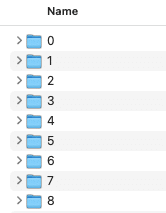
  • You’ll find folders 0 to 8 there.
  • The assignment of folder number to coloured playlist button is as follows: 0 = dark purple, 1 = red, 2 = dark blue, 3 = light green, 4 = yellow, 5 = dove blue, 6 = light blue, 7 = orange, 8 = dark green
  • Now copy the desired new audio files (mp3 or wav) into the corresponding playlist folder. You can also delete tracks from the folders that you no longer want to hear.
  • The audio files must be located on your device and must not be stored in a cloud.
    

About playback order:

Basically, hörbert plays all newly added tracks via the file manager at the end of the playlist in alphabetical order.

If you want to change this, you can then drag the tracks to a different position in the playlist in Browser Set Mode (see option 2).

Option 2: Via Browser Set Mode

A detailed guide on how to start Browser Set Mode can be found here: Browser Set Mode
Or watch our explanatory video on starting Browser Set Mode.

  • Then select “PLAYLISTS” from the Browser Set Mode main menu.
  • Tap on the coloured playlist button that you want to edit and select “Playlist contents” there.
  • Place the “insertion point” at the position where you want to insert a new audio file.
  • Click on the blue “FILE” button, select one or more audio files (MP3 or WAV) on your device and upload them.

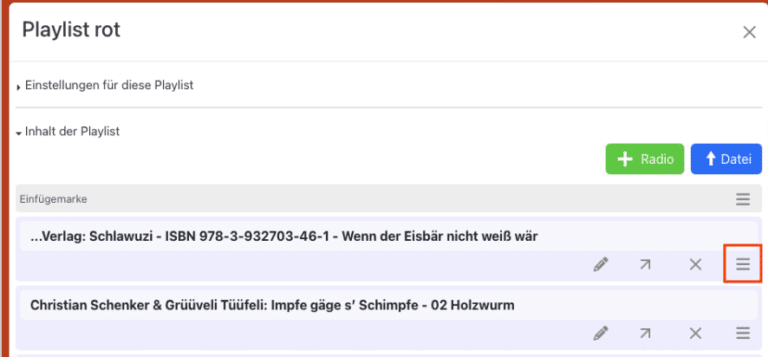
  • You can also change the position of a track by moving the track to a different position in the playlist using the small icon with the three stacked lines.

  • To save the changes, click “Save and close” in the top right.
  • Exit Browser Set Mode via the “Disconnect” button or press the SET button inside hörbert again.
  • After exiting Browser Set Mode, wait until hörbert plays and let yourself be entertained by the new audio content or switch it off.

B) I’m using an empty 4 GB card from the hörbert shop or my own, third-party SD card between 4 and 512 GB

  1. Our empty 4GB card from our hörbert web shop is already formatted in the correct FAT32 format.
  2. Third-party SD cards must first be formatted in FAT32 format.
  3. You can do the formatting either using your computer’s built-in utilities with the respective disk utility programme or in the Browser Set Mode -> Expert menu in the main menu under GENERAL -> then in the EXPERT menu item -> Format memory card.
  4. If your disk utility programme doesn’t display the FAT32 format, you can also choose FAT, MSDOS FAT or EXFAT.
  5. On the SD card you must then manually create the folder structure via your file manager
  • To do this, connect the SD card to your computer and create nine folders in the main directory of the SD card.
  • Name the folders from 0 to 8

  • Now you can – with a hörbert with Butterfly firmware – add your own audio content to the corresponding folder by copy&paste or drag&drop from your device.

For the playback order see above under point A)

I have the hörbert with the rotary knob for switching on and off – with 3 buttons on the front.

A) I’m using hörbert’s included free memory card or one of the other pre-recorded SD card editions from hörbert.

Then you now have two different options for how you can transfer your own audio content to the SD card:

  1. Fastest option: Via your computer’s file manager. For this you need an internal or external SD card reader. Tips for buying an external SD card reader can be found in this blog article.
  2. Without an SD card reader. With your smartphone, tablet or computer via a web interface, the so-called Browser Set Mode.

For 1. Via the file manager on your computer

  • Connect hörbert’s SD card to your computer
  • Open your file manager (e.g. Windows Explorer or macOS Finder)
  • Click on the SD card drive
  • There you’ll find folders 0 to 8.
  • The assignment of folder numbers to coloured playlist buttons is as follows: 0 = dark purple, 1 = red, 2 = dark blue, 3 = light green, 4 = yellow, 5 = dove blue, 6 = light blue, 7 = orange, 8 = dark green
  • Relevant for your hörbert with three buttons are only folders No. 1 = red, 6 = light blue and 8 = dark green.
  • Now copy the desired new audio files (MP3 or WAV) into the corresponding playlist folder 1, 6 or 8. You can also delete tracks from the folders that you no longer want to hear.
  • The audio files must be located on your device and may not be stored in a cloud.

About the playback order:

Generally, hörbert plays all newly added tracks via the file manager at the end of the playlist in alphabetical order.

If you want to change this, you can in Browser Set Mode (see next point “For 2.”) drag the tracks to a different position in the playlist.

For 2. Via Browser Set Mode

A detailed guide on how to start Browser Set Mode can be found here: Browser Set Mode
Or watch our explanation video for starting Browser Set Mode.

  • Browser Set Mode should recognise that you have a hörbert with 3 buttons or bring up an enquiry about it.
  • If this doesn’t happen, you can switch to the 3-button variant as follows:
  • Select in the menu item “GENERAL” -> “Advanced Settings” -> “Show Expert Menu”.
  • You’ll then find the “EXPERT” item in the main menu. Select this.
  • Open the “Browser User Interface” item and select “3 Buttons” there.
  • Then select the “PLAYLISTS” item in the main menu.
  • Tap on the coloured playlist button you want to edit and select “Playlist Content” there.
  • Set the “insertion point” at the position where you want to insert a new audio file.
  • Click on the blue “FILE” button, select an audio file on your device and upload it.

  • You can also change the position of the file by moving the track to a different position in the playlist using the small icon with the three stacked lines.

  • hörbert always applies the changes you make in Browser Set Mode immediately, unless there’s specifically a save button, e.g. when adding a new radio URL or when entering home WiFi data in the WIFI menu item.
  • Exit Browser Set Mode via the “Disconnect” button or press the SET button again inside hörbert.
  • After exiting Browser Set Mode, wait until hörbert plays and let yourself be entertained by the new audio content or switch it off.

B) I’m using a blank 4 GB card from the hörbert shop or my own, third-party SD card between 4 and 512 GB

Our blank 4GB card from our hörbert webshop is already formatted in the correct FAT32 format.

Third-party SD cards must first be formatted in FAT32 format.

You can do the formatting either using your computer’s built-in tools with the respective disk utility or in Browser Set Mode in the Expert Menu in the “Memory Card” sub-item.

To access the Expert Menu, tick the box for “Show Expert Menu” under GENERAL -> Advanced Settings.

If your disk utility doesn’t show the FAT32 format, you can also choose FAT, MSDOS FAT or EXFAT.

Afterwards you must manually create the folder structure via your file manager:
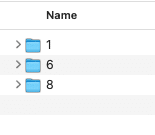
  • Connect the SD card to your computer and create folders 1, 6 and 8 in the main directory of the SD card. 1 = red playlist, 6 = light blue playlist, 8 = dark green playlist.

  • Now you can copy/drag your own audio content (MP3 or WAV) into the corresponding folders. The audio files must be present on your device and may not be stored in a cloud.

For playback order see above under point A)

I have a hörbert with a toggle switch for on/off (model 2011)
with 1, 3, or 11 buttons.

mp3 player for children

If you have a hörbert with a toggle switch for on/off, then you own the 2011 model.

For this hörbert, you need:

  • The free hörbert software to transfer new songs and stories onto hörbert’s included memory card.

  • A computer with an internal or external SD card reader. If your computer does not have a built-in SD card slot, you can find tips for buying an external SD card reader in this blog article.

Procedure if you use our included free hörbert memory card or one of our pre-loaded purchase editions:

  • Download the hörbert software suitable for your operating system (Windows, macOS, or Linux) via this link: hörbert Software Download.
  • After successful installation on your computer, start the hörbert software and select the model with the toggle switch.
  • Connect the SD card to your computer. The hörbert software will recognize the card and display its name.
  • Click Read Card to the right of the card display. The nine colourful hörbert buttons will then show the number of tracks stored on the card.
  • If you have a hörbert with a toggle switch and only one or three large buttons, select the number of buttons you have in the hörbert software under Extras > Advanced Functions and then click Close.
    Next, click on the desired coloured button and add a new file or URL via the content window using the corresponding plus sign.
    Click the green checkmark at the top right to confirm.
  • Properly eject the SD card before disconnecting it from your computer and reinserting it into hörbert.