


Your hörbert must have the latest firmware version (Butterfly2) installed. The model hörbert 3.0 already has this firmware version or a newer one. Here’s the link to the -> Instructions for a firmware update.


We wish you lots of fun with your favourite podcasts!
People who use hörbert, especially young children who often playfully press all the buttons, mustn’t accidentally enter hörbert’s SET mode. That’s why we’ve devised a method that can’t be applied “by accident”.
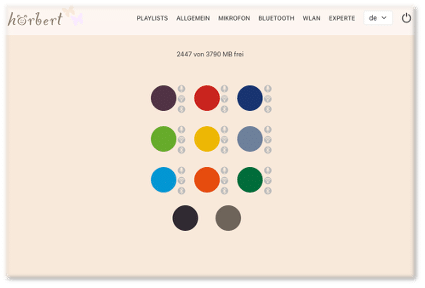
In Browser Set Mode, you can now make all settings for hörbert. For example:
Enable/disable Wi-Fi, Bluetooth and the voice microphone, edit playlists, add podcasts or web radio stations, and much more.
Here you’ll find an overview of the possibilities in Browser Set Mode: BLOG ARTICLE BROWSER SET MODE
Requirement: You have a hörbert model without toggle switch.
If you would like to upgrade your hörbert 2011 (old model with toggle switch), order the Upgrade Kit for self-retrofitting now, or have hörbert upgraded by us in our workshop.
How you perform a firmware update depends on which firmware is running on your hörbert. If your firmware is older than November 2024, you must use the manual method (below). It’s most convenient if your hörbert already has the “Butterfly” firmware or newer.
Start the Browser Set Mode (click here to go to the explanatory video)
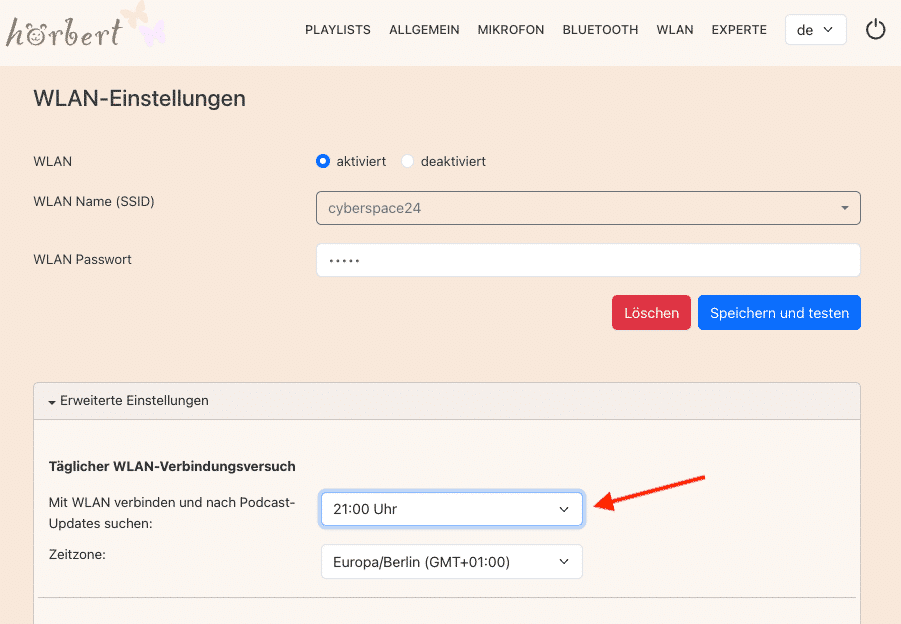
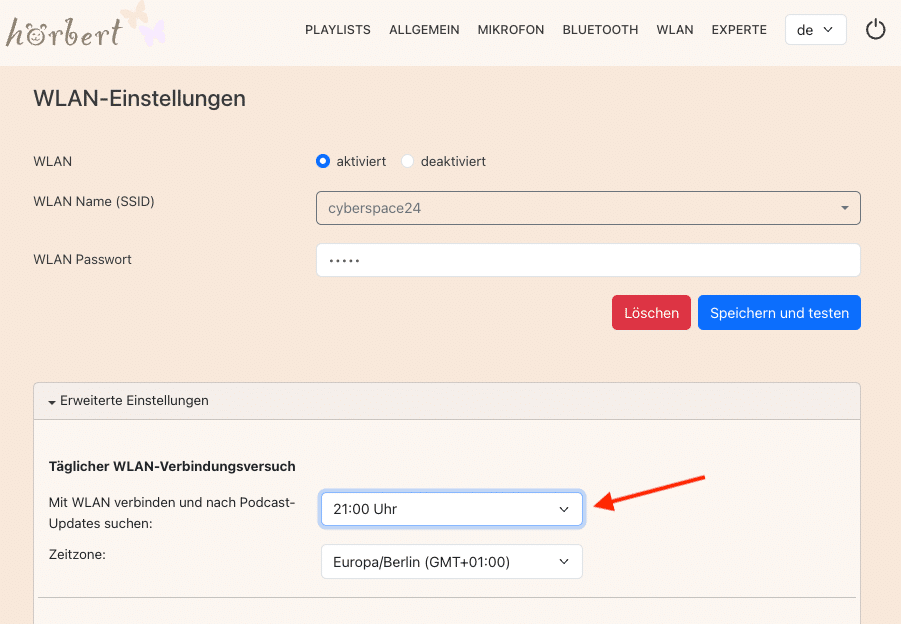
Activate and configure hörbert’s WLAN function in the WLAN menu item:
Select your WLAN (only 2.4GHz) from the list of available networks and enter your WLAN password.
Tip: If you would like to use hörbert as a podcast player: Set under “Advanced Settings” when hörbert should automatically search for new podcast episodes. Choose a time when hörbert is not being used, e.g. at night. hörbert will not make any sounds when updating podcasts.
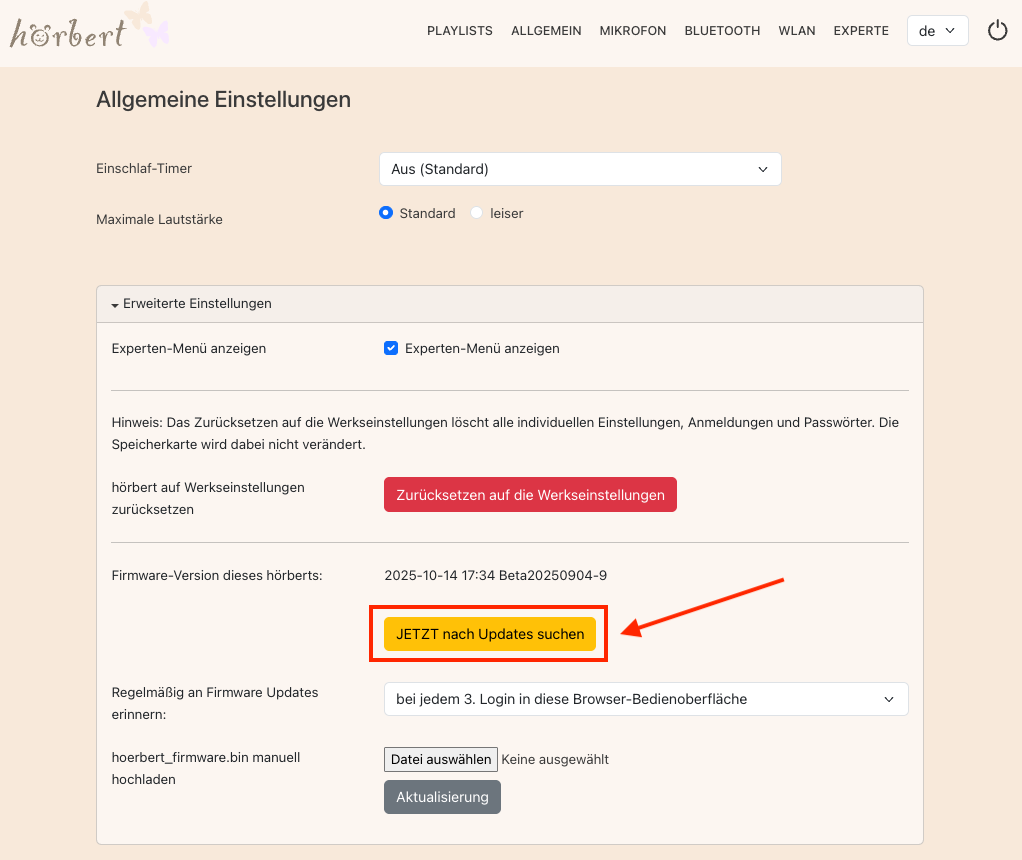
Then select “General” in the main menu and open the Advanced Settings there. Click on “Search for updates NOW” to bring your hörbert’s firmware up to the latest version.
Wait until the update has been carried out. You can tell this by hörbert automatically ending Browser Set Mode. Please do not switch hörbert off and wait until it plays content through its speaker again.
Done! You are now using the latest firmware with the current functions and bug fixes!
TIP: BETA VERSIONS
We are constantly developing hörbert’s firmware further. We test new functions in BETA versions that are not yet stable or mature. If you are curious, and you have a backup copy of your memory card, you can also take a look at these BETA versions:
To do this, download the BETA firmware as a file. You must not unpack the downloaded file, as it is simply loaded onto hörbert as a .bin file:
Click on “Select file“, then search for the downloaded .bin file, and then click on “Update“.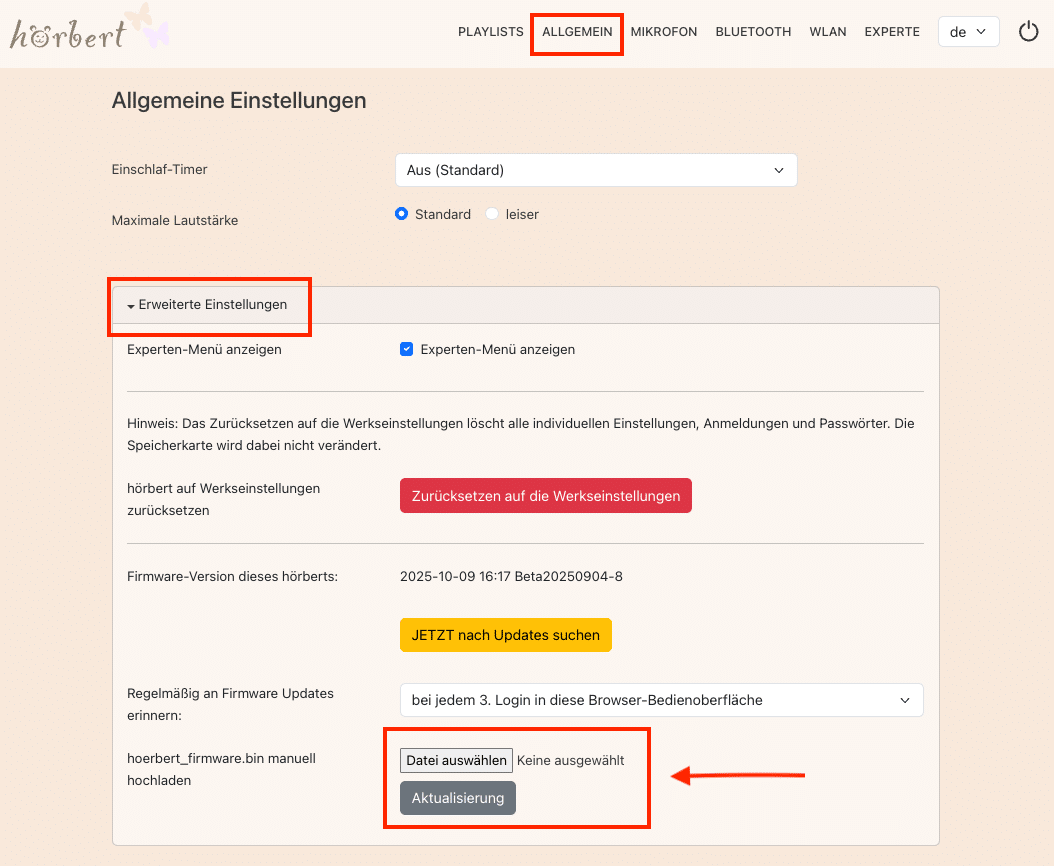
hoerbert_firmware.binDone! From now on you can perform future firmware updates quite easily via WLAN through Browser Set Mode.
Note: Recordings are not possible with an older hörbert 2011 model with a toggle switch for switching on/off. You can have your hörbert updated by us or upgrade it yourself with our DIY upgrade kit for hörbert 2011 if you want to make recordings with it.
hörbert is now displayed as a WLAN network on your end device. Connect to it. The WLAN password is: hoerbert
Start an internet browser on your end device, e.g. Chrome or Firefox. Enter the following web address there:
Tick ‘activated’ in the ‘WLAN’ menu item in the browser set mode.
In the browser set mode, select a playlist in the ‘PLAYLISTS’ menu item that you want to share for web radio recordings. All recordings from the Internet will then be saved there one after the other.
Enter at least one valid web radio URL for this playlist. To do this, open the content list of the playlist that you have authorised for web radio recordings in the Set Mode browser. Click on ‘+ RADIO’ at the top of the track list.
Start a recording by first pressing the black and then the grey button at the same time until the red light on the microphone opening at the front lights up. You can then release the buttons.
If you have an hörbert with only three large playlist buttons, you do not have a black or grey button to start and stop recording. You must first change the recording mode in the browser set mode in the ‘Expert menu’ under ‘Recording settings’ so that a recording starts, for example, when you press and hold a playlist button. And the recording ends when you press a playlist button again. See also our instructions for hörbert with Butterfly firmware from page 40.
You can either upgrade to the Butterfly firmware if you want to use the simple method via the Browser Set Mode (see above). Or you can proceed as follows:
If no Butterfly firmware or newer is installed on your hörbert, you will need a computer and the hörbert software to edit the memory card. You can find the latest hörbert software on our website in the ‘Service’ section under ‘Software Downloads’.
Start the hörbert software. Select the correct hörbert model without toggle switch.
The hörbert software recognises the card and displays it as a drive. Select the SD card as a drive in the hörbert software and click on ‘Read card’.
Click on the coloured button on the screen that you want to share for Internet radio recordings.
Select ‘Save Internet radio recordings here’ at the bottom of the content window.
You will now receive a new text line in the track list at the end and can enter the streaming URL of your radio station there by double-clicking in the line. You must know the URL, there is no search for a suitable URL here. Save with ‘Enter’.
Close the window by clicking the green tick.
In the hörbert software main menu, go to ‘Extras’ and then to ‘Configure Wifi connections’.
Eject the card properly using the green ‘Eject card’ button and wait until the hörbert software says that you can now disconnect the card from the computer.
Turn hörbert on and wait until he plays.
Switch on hörbert and select the button with the radio station. Navigate to the station.
Start a recording by pressing the black and grey buttons at the same time until the red light at the front of the microphone opening lights up. You can then release the buttons.
To end the recording, press the black button again.
If you have an accessible hörbert with only three large playlist buttons, you do not have a black or grey button to start and stop recording. You must first change the recording mode in the browser set mode in the ‘Expert menu’ under ‘Recording settings’ so that a recording starts, for example, when you press and hold a playlist button. And the recording ends when you press a playlist button again. See also our instructions for hörbert with Butterfly firmware from page 40
Here you find all information regarding a Firmware Update.
PayPal uses Google reCAPTCHA to help secure the payment process. (More Information)
You are currently viewing a placeholder content from Vimeo. To access the actual content, click the button below. Please note that doing so will share data with third-party providers.
More InformationYou are currently viewing a placeholder content from YouTube. To access the actual content, click the button below. Please note that doing so will share data with third-party providers.
More InformationYou need to load content from reCAPTCHA to submit the form. Please note that doing so will share data with third-party providers.
More InformationYou are currently viewing a placeholder content from Google Maps. To access the actual content, click the button below. Please note that doing so will share data with third-party providers.
More InformationYou need to load content from reCAPTCHA to submit the form. Please note that doing so will share data with third-party providers.
More Information