


In the hörbert Model 2011 (with toggle switch) you can use your own SDHC cards between 4 and 32GB. NO SDXC cards.
It should preferably be a Class4 or Class6 card.
We ask for your understanding that we cannot give a 100% guarantee for the use of third-party cards in our product that they will function perfectly with hörbert.
For example, we don’t know the power consumption of other cards. With Class10 cards this can be considerably higher than with our Class4 cards. In this case hörbert would not achieve its average playing time of approx. 50 hours – from memory card and at medium volume.
Before you can get started, a third-party SD card must first be formatted in FAT32 format.
Attention: This will delete all data on the card and reset it. So you should back up the contents to your hard drive beforehand if there is already content on a third-party card.
You can format a memory card for hörbert 2011 with the hörbert software
(Version 1.4.14 -> Step 1 -> Memory card tools -> Format card;
Version from 2.1.x -> Read in card, then in the menu above go to Extras -> Format memory card)
or with your computer’s built-in tools via the disk utility.
Requirement: You have a hörbert model from October 2021 onwards with a rotary knob for switching on/off.
If you still have a hörbert with a toggle switch, you can have it updated through us or upgrade it yourself with our DIY Upgrade Kit.
If your hörbert doesn’t have the Butterfly firmware yet, we recommend updating the firmware. Here you’ll find the necessary steps for a firmware update and the firmware file to download. If the Butterfly firmware is successfully installed on your hörbert, proceed as follows. At the very bottom of this FAQ you’ll also find the steps without Butterfly firmware or Browser Set Mode.

The parrot mode in hörbert is a special function with which you can record your own voice on all playlists, listen to it directly afterwards, but hörbert deletes this recording immediately after listening, provided the playlist was not previously specifically allowed for voice recording. Just like a parrot that repeats what it hears. This is a lovely gimmick and fun speech play for young and old. This function is also useful in speech therapy and for speech development. Direct listening back trains hearing and self-perception – central elements in speech therapy.
How to activate parrot mode on hörbert
If the Butterfly firmware isn’t running on your hörbert yet, you can still perform all necessary steps without the Browser Set Mode. You need without Butterfly firmware however a computer and the hörbert software to edit the memory card. You can find the current hörbert software on our website in the “Service” section under “Software Downloads”. Download the software and install it on your computer.
By the way: On all hörberts and also on all accessible hörberts with only three large buttons that we’ve been delivering since mid-November 2024, the Butterfly firmware is already installed.
Note: With an older hörbert model 2011 with a toggle switch for turning it on/off, recordings are not possible. You can have your hörbert upgraded by us, or upgrade it yourself with our DIY Upgrade Kit for hörbert 2011 if you want to make recordings with it.
You can either upgrade to the Butterfly firmware if you want to use the simple method via Browser Set Mode (see above). Or you can proceed as follows:
Prerequisite for Bluetooth recordings:
You have a hörbert model from October 2021 with a rotary knob for switching on/off. If you still have an hörbert with a toggle switch, you can have it updated by us or upgrade it yourself with our DIY upgrade kit.
If your hörbert does not yet have the Butterfly firmware, we recommend updating the firmware. Here you will find the necessary steps for a firmware update and the firmware file to download. Once the Butterfly firmware has been successfully installed on your hörbert, proceed as follows:
Connect to hörbert’s WLAN. The password is: hoerbert
Enter the following address in the address bar: http://hoerbert.local
The hörbert browser set mode opens, which looks like the following image in the mobile view. Here you will also find a
Open the BLUETOOTH item in the menu and enable the Bluetooth and pairing function there. You need an active pairing function if you want to pair your hörbert with a previously unknown device. Once you have paired all the desired Bluetooth devices in your household with hörbert, you can also deactivate this pairing function here later.
Open the PLAYLISTS menu item and select one of the colourful playlist buttons on which hörbert should save Bluetooth recordings. The recordings always end up piece by piece at the end of the authorised playlist. Only one playlist can be enabled for Bluetooth recordings at a time.
If you have an accessible hörbert with only three large playlist buttons, go to the GENERAL menu item and then to the ‘Advanced settings’. Tick the ‘Show expert menu’ box. You will now find a new sub-item ‘EXPERT’ in the main menu. Select this. Go to the ‘Recording settings’. Select the desired recording mode here, e.g. start recording by pressing and holding a playlist button.
End the browser set mode either on the end device using the disconnect button or press the SET button inside the hörbert again.
Tip: Start the recording on the hörbert first, then immediately start playback of the audio content on the Bluetooth transmitter to ensure the desired song or audio story is recorded from the very beginning.
If the Butterfly firmware is not yet running on your hörbert, you can still carry out all the necessary steps without using Browser Set Mode. However, without the Butterfly firmware, you will need a computer and the hörbert software to edit the memory card. You can find the latest hörbert software on our website in the “Service” section under “Software Downloads.” Download the software and install it on your computer.
Übrigens: Auf allen hörberts – einschließlich aller barrierefreien hörberts mit nur drei großen Tasten –, die wir seit Mitte November 2024 ausliefern, ist die Butterfly-Firmware bereits installiert.
Start the hörbert software. Select the correct hörbert model without toggle switch.
Click on ‘Read card’ and wait until the software has read in all the tracks and now displays the number of audio files on the coloured buttons.
Select ‘Save Bluetooth recordings here’ at the bottom of the content window.
Close the window by clicking on the green tick in the top right-hand corner.
In the hörbert software main menu, go to ‘Extras’ and then to ‘Configure set mode’.
Select ‘On with pairing’ for Bluetooth and save the setting.
Eject the card properly using the green button to the right of the ‘Eject card’ display and wait until the hörbert software says that you can now disconnect the card from the computer.
Switch hörbert on and immediately off again within 0.5 seconds.
Option 1 – with SD card reader on computer
This is the fastest and best option if you want to transfer a larger number of tracks.
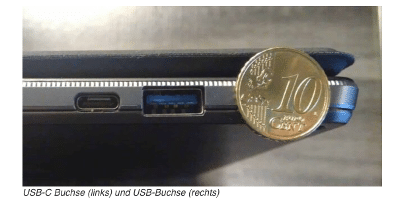
At the connection on the right you can connect the following external USB-3 or USB card readers:
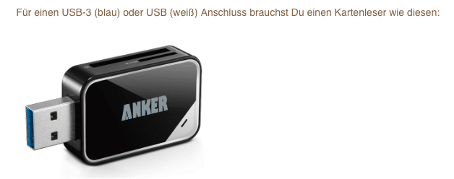
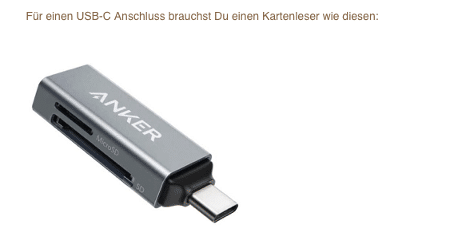
Playlist assignment to folder number:
0 = dark purple / 1 = red / 2 = dark blue / 3 = light green / 4 = yellow / 5 = dove grey /6 = light blue / 7 = orange /
8 = dark green
Open the desired folder where you want to save new MP3 files by clicking with your mouse.
A file called “playlist.m3u” is only found there if you’ve already opened this playlist in browser set mode once before. This file should be kept there.
Important: Your own files that you want to add must be located directly on your device and must not be stored in a cloud.
Now copy or drag your own MP3 or WAV files by drag & drop into the desired content folder of hörbert
Important: Regardless of where you place the tracks in the file manager, new tracks will always be played by hörbert first at the end of a playlist in alphabetical order.
The playback order can then be changed in browser set mode by moving the tracks within the playlist.
See our hörbert user manual from page 22 for this.
Here you can access the user manual:
https://www.hoerbert.com/wp-content/uploads/sites/5/2024/10/User_Manual_Butterfly_DE.pdf
Properly eject the card from the computer before disconnecting it from the computer and insert it back into hörbert.
Option 2 – via browser set mode.
Via browser set mode – and thus via hörbert’s own WLAN – new tracks can also be added to playlists or existing ones deleted.
Adding new tracks via browser set mode:
See our user manual on page 13 for starting browser set mode and from page 23 for adding new files.
Here you can access an explanatory video for starting browser set mode: VIDEO Browser Set Mode
Here you can access the user manual:
https://www.hoerbert.com/wp-content/uploads/sites/5/2024/10/User_Manual_Butterfly_DE.pdf
My recording has disapeared or is not there. What went wrong?
Prerequisites for successful recordings:
The hörbert 2021 model – the one with the rotary knob for switching on and off – can record all sources it plays simultaneously.
– The prerequisite for this is that the memory card has been prepared in advance and the desired playlists have been defined where recordings are allowed.
– If you want to record Bluetooth streams, the Bluetooth and pairing functions must first be activated on hörbert.
– If you want to record internet radio, hörbert must first be connected to your home 2.4 GHz Wi-Fi network, and one or more suitable web radio URLs must be assigned to the desired playlist.
– If you want to make voice recordings using the built-in microphone, the microphone function must be activated on hörbert.
All the above-mentioned settings can conveniently be made using hörbert’s so-called Browser Set Mode. Please also refer to our user manual for hörbert with the Butterfly firmware.
Attention: there must at least be one audio file on the playlist already.
Once everything is set up and hörbert is turned on in standard mode or Bluetooth speaker mode, you can start a recording by pressing the black and the grey button simultaneously. This is the standard method for starting a recording. Press the black button again to stop and save the recording.
In Browser Set Mode, you can also configure in the Expert Menu that a recording should start when a playlist button is pressed and held. This is necessary, for example, for hörberts that only have three large playlist buttons and do not have a black or grey button.
As a visible indicator that a recording is in progress, the red LED behind the opening for the built-in microphone lights up. You can see the LED from the front of the hörbert device.
If the LED does not light up, the recording did not start. Please try again and make sure the recording function is enabled for the desired playlist.
There are also hörbert devices manufactured between October 2021 and December 2022 that do not have a built-in voice microphone. In this case, hörbert plays a confirmation tone to indicate that a recording is in progress.
Attention:
At least one audio file should already be present on the playlist before the recording attempt.
Voice recordings are played once immediately after stopping and saved after the last played file in the respective playlist.
Bluetooth and web radio recordings are saved at the end of the playlist. ATTENTION. If a voice recording has not been saved, it is also possible that someone has activated parrot mode on your hörbert in browser set mode. For all playlists that have not previously been set to allow voice recordings to be saved there, the recording will then only be played once and then deleted directly by hörbert.
To stop the recording, press the black button. The recording will then be saved. If you have selected a different recording mode, e.g. start recording by pressing and holding a playlist button, you can also press the same button again to stop the recording. You can also turn the rotary control to stop recording. ATTENTION: The recording will not be saved if you switch off hörbert before you have properly stopped the recording.
If your recording is not available afterwards despite following all the tips above, it could be because the contents or the file system of your memory card is fundamentally mixed up. In this case, you can try the following: Make a backup of the memory card by using your file manager to copy all the contents to a backup folder on your computer hard drive. Then format the memory card in FAT32 format (or if this is not selectable, also FAT, EXFAT, MSDOSFAT format.) Then copy the data 1:1 back to your memory card. Use the browser set mode to redefine which playlists you want to release for which recording types. Try the recording again. If you get stuck, please write to us using the contact form.
Please try the following after starting the hörbert software and inserting the SD card. In the software menu at the top, go to Extras -> Select destination manually. The card should then be selectable there.
If this is not possible, our development department has taken precautions:
You can simply select a file folder on your hard drive – and not your memory card. After that, the hörbert software works on the file folder as if it *were* a memory card. And if your memory card is usable with the card reader under your operating system and mounted correctly, you can simply copy the contents of this folder to the memory card afterwards. This feature is intended for when the memory card’s mount directory still doesn’t work for some reason, and when alternatives like “Sox” also fail.
All special functions such as sleep timer, Bluetooth, WiFi, and the microphone function are deactivated by default.
To be able to make recordings with hörbert, the following four steps are required first:
You need to activate the desired functions Bluetooth, WiFi, and microphone.
To use the internet radio feature, you must also save your WiFi credentials (network name and password) to hörbert and add at least one valid streaming URL of a radio station.
Finally, assign the colorful playlist buttons on which recordings are allowed. Note: there must be at least one audio file already saved in the playlist you want to add a recording to.
Once everything is set up, you can generally start a recording by pressing and holding the black button on hörbert and then briefly pressing the grey button. The red light behind the microphone hole will light up, and you can release the buttons.
To stop and save the recording, press the black button again.
If you’d like to change the standard recording mode — for example, if you’re using an accessible hörbert with only three large playlist buttons — you can do this in Browser Set Mode. There you can configure the device so that, for example, pressing and holding a playlist button starts the recording. To stop, simply press a playlist button again.
You’ll find detailed instructions for changing the recording settings in the expert menu in our guide for the 3-button hörbert with Butterfly firmware.
Browser Set Mode is only available for hörberts with the Butterfly firmware or newer.
Haven’t installed the latest firmware on your hörbert yet? Click here for the UPGRADE TO BUTTERFLY.
You’ll also find instructions on how to start Browser Set Mode at the link above, along with a short explainer video.
In the Browser Set Mode menu, you will see the colorful buttons of your hörbert displayed on your screen.
Click on the desired playlist button and enable Bluetooth, internet radio, and/or microphone recordings in that button’s settings.
Bluetooth recordings can only be enabled on one playlist.
Web radio and microphone recordings can be enabled on multiple playlists.
In the Browser Set Mode menu:
Go to Bluetooth to activate Bluetooth and enable pairing if you want to record Bluetooth streams.
Go to WiFi to enable the function and enter your WiFi credentials if you want to make web radio recordings.
To add a radio station: go to Playlists and click the “+RADIO” button to add a streaming URL to the desired playlist. You can also use the convenient keyword search to find suitable radio stations.
Go to Microphone to enable the built-in microphone for voice recordings.
Unscrew the back of hörbert.
Turn on hörbert – it will start playing from the memory card.
Press the SET button inside – hörbert will go silent. The LED on the SET button will glow solid green. The front buttons are now in SET mode.
Use the template included in your hörbert package (see attachment) to identify which button activates which function (e.g., Sleep Timer, Bluetooth, WiFi, Mic).
A single beep = function enabled.
A double beep = function disabled.
After selecting your desired functions, press the SET button again to save.
hörbert resumes playback, and the settings are now active.
Install and launch hörbert Software version 3.x.x.
Select the “hörbert 2021” model and read the memory card.
In the Extras menu, select Configure WiFi connections.
Enter the exact name of your WiFi network and the password.
⚠️ It must be a 2.4 GHz WiFi. If connection fails, check your router settings.
⚠️ WiFi network name must not contain spaces.
Choose a colorful button that you want to assign to internet radio.
Click the “+” symbol next to “URL” in the content window and add a streaming URL (e.g., http://laut.fm/kinderradio) — preferably at the top of the list.
Most MP3 podcast links also work.
Save by clicking the green checkmark at the top right, then eject the card using the Eject button before removing it from your computer.
Turn on hörbert. It will start playing normally.
Press the SET button inside. hörbert will go silent, and the buttons enter programming mode.
Press and hold the orange button (WiFi) for approx. 10 seconds until you hear a short confirmation beep. The WiFi data will be imported and then deleted from the card for privacy.
Press the SET button again to save.
hörbert resumes normal playback.
Did you place the URL at the top of a playlist? When you press the corresponding button, hörbert will emit a series of ascending search tones while it connects to the internet radio station and then begins playback.
If it doesn’t work, check that WiFi is enabled (step 1) and that you used a valid streaming URL.
With hörbert software, you can assign one or more colorful buttons where recordings are allowed — even without Butterfly firmware.
This can also be done while performing step 2 above, since the memory card is already connected to the computer.
Open the content window of the button where you want to allow microphone, Bluetooth, or internet radio recordings.
Check the appropriate box at the bottom of the window, e.g., “Allow microphone recordings here.”
Click the green checkmark at the top right to save and close the window.
You can repeat this for other buttons as well.
Note: Bluetooth recordings are only allowed on one button. That’s why you’ll see a round radio button instead of a checkbox.
There should be at least one file already on the playlist to allow proper navigation and recording.
Always eject the memory card using the Eject button before removing it from your computer. Then insert the card back into hörbert.
For voice recordings and internet radio recordings, you first need to select the playlist on hörbert that you previously enabled for such recordings in Browser Set Mode or via the software.
For Bluetooth recordings, this is not necessary — they are always saved at the end of the one playlist previously defined for Bluetooth.
To start a recording:
Press and hold the black button.
Briefly press the grey button.
The recording starts, and you can release both buttons.
To stop and save the recording, press the black button again.
Voice recordings made via the microphone are placed directly after the last played file in the selected playlist. hörbert will automatically play back the recording a few seconds after it is saved.
Bluetooth and internet radio recordings are always placed at the end of the assigned playlist.
For any questions, our service team is happy to assist you.
SET MODE TEMPLATE (included in your hörbert package)
Let me know if you’d like this in a downloadable format or need further adjustments (e.g., US/UK spelling or more technical vs. user-friendly tone).

The detailed instructions for the new hörbert with 9 or 3 playlist buttons can be found here: https://www.hoerbert.com/anleitungen/hoerbert/
Here you will find a suitable and detailed FAQ on the subject of Internet radio.
Here you can find a suitable and detailed FAQ on the subject of Bluetooth recordings
Here you will find a suitable and detailed FAQ on the subject of voice recordings
Answer: Yes, that’s possible with the new hörbert Model 2021.
First, you need to activate Bluetooth and pairing on hörbert, then edit the memory card and set the playlist where the recordings should be saved.
You can do this either on a computer with the hörbert software or without a computer using a phone or tablet via the so-called Browser Set Mode. The Browser Set Mode is available for hörbert 2021 with the Butterfly firmware. You can update your hörbert 2021 to Butterfly at any time if it doesn’t already have this firmware.
Read here exactly which setup steps you need to take and how it works:
FAQ about Bluetooth recordings
After that, you put hörbert into Bluetooth speaker mode by pressing the rotary knob twice with a 0.5-second interval. You then have 60 seconds to pair hörbert with a phone, tablet or computer and play a Spotify playlist or another type of audio file.
To record:
Press the black button and hold it down. Now simultaneously press the grey button next to it briefly.
The recording starts, the red LED behind the microphone lights up. You can release the buttons.
To end the recording, press the black button again.
If you have a barrier-free hörbert with only three buttons, you can change the recording mode in Browser Set Mode so that you, for example, press a playlist button long to start a recording and press it again to end the recording.
You’ll find the recording at the end of the playlist that you previously defined in Browser Set Mode or in the hörbert software for Bluetooth stream recordings.
Have fun streaming, recording and listening back afterwards.
Relevant BLOG article for this question.
Yes, since 12/2020 the hörbert software is also available for Linux (tested on Ubuntu >16.0.4) for download here:
The publishers of our supplied content offer even more beautiful music and stories – in some cases even free of charge.
You can find the sources here: hörbert’s preregistered contents
In addition there are many contents which you can buy as MP3 download or M4a download and which really belong to you. In Amazon and iTunes you can find them under the category “”Music downloads””. There is not only music, but also stories to download.
The included 4 GB memory card for the new hörbert Model 2021 can hold approximately 50 hours of audio content when using MP3 files.
Our free cards, which we include as a product supplement, are preloaded with over two hours of children’s songs and stories. You can add your own favorite songs and stories to our content at any time or replace the content.
More information on loading your own audio content onto the memory card.
If you have a “hörbert 2011,” the 4 GB memory card included in the delivery can hold 1,000 minutes (or 17 hours) of content.
In our experience, even with these 17 hours, it takes several weeks to months before a child wants something different.
Yes. The current hörbert model reads SD cards between 4GB and 512GB in size.
How to do all this exactly, you’ll find out here:
You can format your own memory card in FAT32 format with the built-in tools of your computer. If this format isn’t available in your disk utility programme for formatting the SD card, you can also select FAT, EXFAT or MSDOSFAT.
Alternative without computer:
Create 9 folders for the nine playlists in the main directory of your SD card and name them from 0 to 8. 0 = dark purple button, 1 = red button, 2 = dark blue button, 3 = light green button, 4 = yellow button, 5 = dove blue button, 6 = light blue button, 7 = orange button, 8 = dark green button.
This then looks like this: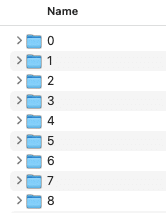
Note: For a hörbert with only 3 playlist buttons, you only create three folders (1 = red, 6 = light blue, 8 = dark green)
You can now copy/drag your own audio files into the respective folders using copy&paste or drag&drop. Possible formats: mp3, wav
The playback order is solved by appropriate numbering of the track names, e.g.
1_Track name
2_Track name
3_Track name
etc.
or with spaces between number and track name:
1 Track name
2 Track name
3 Track name
etc.
Finished! Now you can properly eject the card, disconnect it from your computer and test it in hörbert.
If the Butterfly firmware is already installed on your hörbert, you can also transfer new audio files via Browser Set Mode (via tablet, smartphone or computer). hörbert then handles this via its WLAN. It will take somewhat longer to transfer lots of data than via the SD card reader on your computer.
In Browser Set Mode, select one of the colourful playlist buttons, then select “Playlist content” and click on the blue “FILE” button to select and transfer new audio files.
You can then move the file to another position in the playlist using the icon with the three lines (see image below):
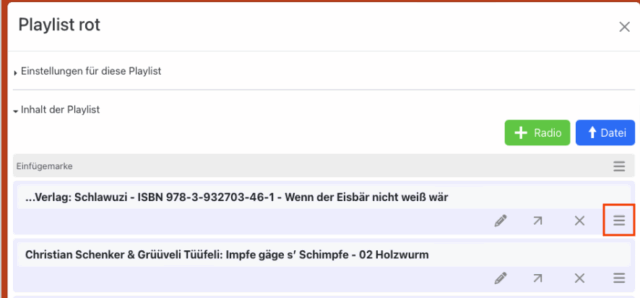
Note: If you’ve once edited or opened the playlist contents of your SD card in Browser Set Mode, hörbert creates a file called “playlist.m3u” in the playlist. This ensures the correct playback order. New files that you subsequently add to playlist folders 0 to 8 via your computer’s file directory will always be played at the end of the playlist in alphabetical order.
You can then change the playback order in Browser Set Mode by dragging the tracks to another position there.
You can find a detailed description in our instructions for hörbert with Butterfly firmware
Important note: For the new hörbert model 2021 with Butterfly firmware (release October 2024), you no longer need hörbert software to load the memory card. You can do this conveniently via the browser set mode or save your own files to the SD card using copy & paste via your computer’s file manager.
Find out more in this BLOG ARTICLE.
For the older hörbert model 2011 with toggle switch, you will need the hörbert software. There is also an upgrade option for your hörbert 2011 to the new version.
The software is included on the memory card of a new hörbert. As we cannot guarantee that this is the latest version of the hörbert software, we recommend downloading the latest version from this page:
System requirements:
PC or Mac (Intel), operating system: Windows 10 or higher, or Mac OS X version 10.14 or higher, Linux (tested on Ubuntu
>16.0.4) If you have an operating system older than those mentioned above, please contact our service team for support.
Screen resolution of at least 1024×768 pixels
At least 4 GB of free hard disk space
At least 2 GB of RAM
hörbert accepts files in the following common formats: mp3, wav – with the restriction that DRM (Digital Rights Management)-protected files do not work. DRM content from (streaming) services such as Audible or Deezer is copy-protected and cannot be transferred to hörbert’s memory card.
However, the current hörbert model offers the option of simultaneously recording the Bluetooth streams that hörbert is currently playing. This allows you to access new audio content free of charge by pairing hörbert with your mobile phone, then streaming your Spotify, Deezer, Audible, etc. playlist to hörbert and recording it at the same time.
The new hörbert can also be used as a radio for internet radio streams. This content can also be recorded onto hörbert’s memory card while listening.
More about the recording functions of the 2021 hörbert model
See also our article on uploading your own content to hörbert’s memory card.
A CD with copy protection can normally be identified by the corresponding IFPI copy protection logo. It’s a black circle with a white triangle. You can find it here: https://de.wikipedia.org/wiki/Kopierschutz
A tip: It is recommended to read a CD first with a program like iTunes and import it to your computer. Then the transfer to hörbert’s memory card is even faster. ITunes also has a good converter that brings the tracks into the optimal format (m4a or better still mp3). This is similarly convenient under Windows with the Media Player, but you have to set the mp3 format there, because the hörbert software does not read files with the extension.wma. After importing into iTunes, you can drag and drop songs directly from the iTunes library to the corresponding playlist window in the hörbert software using the hörbert software.
A software is necessary to conveniently arrange the tracks in the playlists and in the correct order, because if you would simply copy MP3 files to a memory card, the player would still not know in which order it should play them from which button. Another advantage is that you can also use files in OGG, WAV or FLAC format and directly from audio CDs as source material, or other common formats, which is not possible with most MP3 players. Instead of referring to hörbert as an MP3, Ogg, WAV and FLAC Player, only the term “MP3 Player” can be used as category or generic name. Otherwise you would not find our hörbert in any shop, because there is not even a category for “Audio-Player”, but at most “MP3-Player”. The term “universal audio player for children” would of course be quite correct. But we have to meet the potential customers looking for a player and limit ourselves here to the term “MP3 player” as a generic term, although hörbert can do much more.
In the case of hörbert, the conversion of audio files later saves a lot of power during playback, so that you rarely have to change batteries, because decoding (always the same) MP3 files or other formats requires much more computing power and therefore power. You can leave that to the computer and listen to the decoded result. Another advantage is that you can also use files in OGG, WAV or FLAC format and directly from audio CDs as source material, or other common formats, which is not possible with a “normal” MP3 player. And here it comes: Since the hörbert software is necessary anyway to arrange the files in the right order in the right playlists, it can also perform all conversions for you at the same time, without you having to do anything for it. Instead of referring to MP3, Ogg, WAV and FLAC Player, only the term “MP3 Player” can be used as a category or generic name. Otherwise you would not find our hörbert in any shop, because there is not even a category for “Audio-Player”, but at most “MP3-Player”. The term “universal audio player for children” would of course be quite correct. But we have to meet the potential customers looking for a player and limit ourselves here to the term “MP3 player” as a generic term, although hörbert can do much more.
M4A files can be played by a hörbert with toggle switch when they have been transferred via the hörbert software. The fact that 0 minutes is displayed as playing time is a technical problem that occurs only once per file during upload, and then no longer:
Before transferring, the file is displayed with length 0, as the hörbert software cannot determine the length of m4a files before converting. The file is nevertheless transferred.
The next time you insert the memory card, the correct duration will be displayed in the playlist.
Tip: If it’s a very old .m4a file with copy protection (from around 2003-2014), it cannot be transferred to hörbert. For this, you need to download this file again without copy protection – Apple offers an “exchange” of these files: https://support.apple.com/en-us/HT201616
PayPal uses Google reCAPTCHA to help secure the payment process. (More Information)
You are currently viewing a placeholder content from Vimeo. To access the actual content, click the button below. Please note that doing so will share data with third-party providers.
More InformationYou are currently viewing a placeholder content from YouTube. To access the actual content, click the button below. Please note that doing so will share data with third-party providers.
More InformationYou need to load content from reCAPTCHA to submit the form. Please note that doing so will share data with third-party providers.
More InformationYou are currently viewing a placeholder content from Google Maps. To access the actual content, click the button below. Please note that doing so will share data with third-party providers.
More InformationYou are currently viewing a placeholder content from OpenStreetMap. To access the actual content, click the button below. Please note that doing so will share data with third-party providers.
More InformationYou are currently viewing a placeholder content from Mapbox. To access the actual content, click the button below. Please note that doing so will share data with third-party providers.
More InformationYou need to load content from reCAPTCHA to submit the form. Please note that doing so will share data with third-party providers.
More Information