


The microphone is built into the hörbert model on the inside.
This gives you the possibility to record your own voice and play it back from hörbert’s colourful buttons.
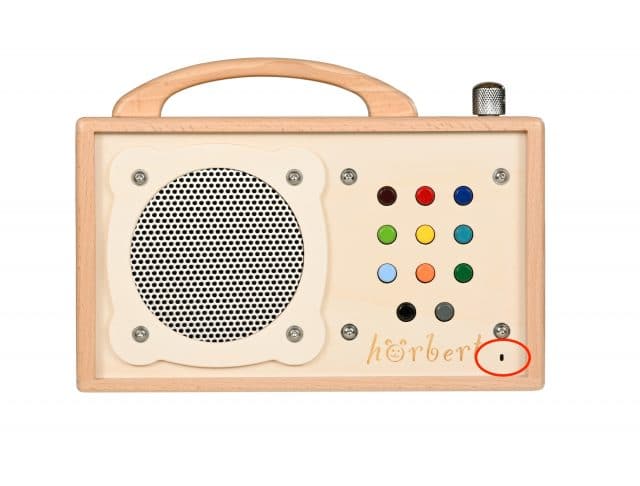
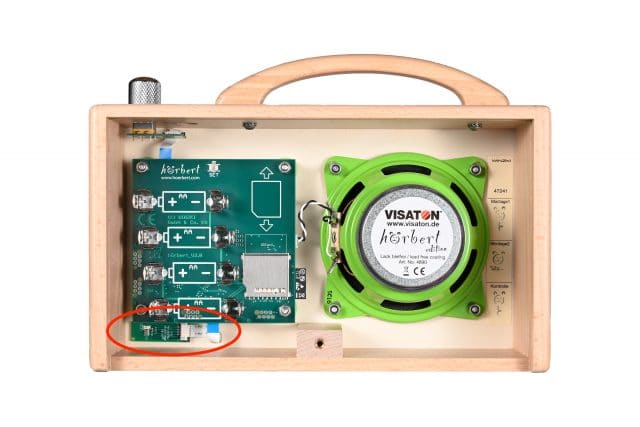
When ordering a hörbert, we install it straight from the factory. It’s very small and sits on an equally small microphone circuit board inside hörbert on the front underside. From the outside, only a small opening in the wood next to the hörbert logo can be seen.
To record speech with the microphone, two settings must first be made:
1. Choose which of the colourful hörbert buttons voice recordings can be saved on.
You might not want to allow voice recordings on every button. For example, if you’ve loaded one of the buttons with connected audio stories and tales. The chapters of these stories shouldn’t be interrupted.
You have two options to activate the microphone and define the playlists on which voice recordings should be allowed.
a. Via the Browser Set Mode, a convenient web interface – for this you need neither a computer, nor an SD card reader, nor hörbert software. Here’s the tutorial video for starting Browser Set Mode.
Note: Browser Set Mode is only available if your hörbert is running the Butterfly firmware, which has been available since November 2024. Here’s the link to the FIRMWARE UPDATE
b. The hörbert software also offers the possibility for you to set at your home computer which playlists you’d like to allow voice recordings for. Start the hörbert software, select the new hörbert model and read the card. Open the button on which you want to allow recordings.
Select “Allow voice recordings here” at the bottom of the window and close the button content window again via the green tick at the top right.
Note: At least one audio file must already be saved on the playlist for a recording to succeed.
In the same way, you can also set where recordings from Bluetooth streams or internet radio should end up.
Always eject the SD card properly first before disconnecting it from the computer and putting it back into hörbert.
2. Activate the microphone via SET mode on your hörbert
Here’s how:
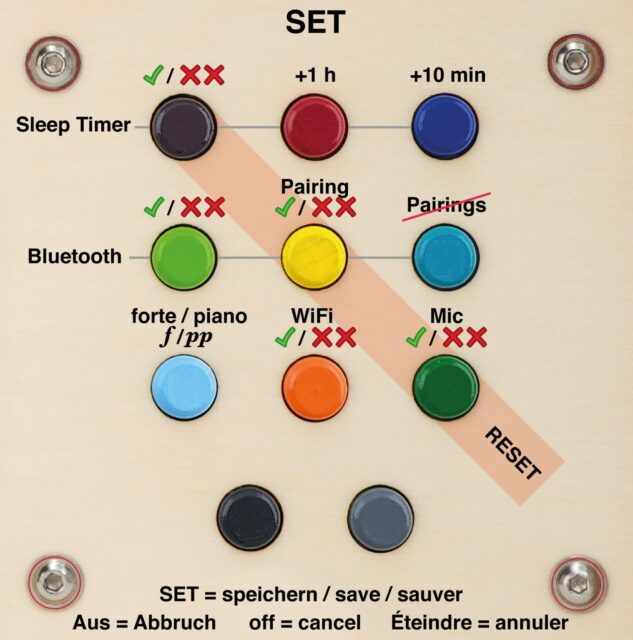
1) Switch hörbert on. Press the small SET button inside hörbert. Now the front colourful buttons of hörbert are in SET mode.
2) Then activate the microphone function by pressing the dark green button at the front once. The included SET template makes it very easy for you to find the right button. Press once: “on” (single signal tone), press again “off” (double signal tone)
3) Press the SET button inside again to save the setting. hörbert has now saved the setting and the microphone is active.
4) Now you can screw hörbert back together and switch it on.
5) Start recording
When you’re in the corresponding, allowed playlist, you can start a recording by holding down the black button at the bottom left and then simultaneously pressing the dark grey button at the bottom right. You can then release both buttons again whilst you speak something.
Stop a recording
To stop the recording, press the black button again.
Discard a recording
To discard the recording, end the recording by pressing the on/off switch and switching hörbert off.
Playback of a microphone recording
With a microphone recording, this is also played back immediately after recording. It lands directly after the track that was playing when you started the recording.
Related FAQ to this question: How do voice recordings work with hörbert
PayPal uses Google reCAPTCHA to help secure the payment process. (More Information)
You are currently viewing a placeholder content from Vimeo. To access the actual content, click the button below. Please note that doing so will share data with third-party providers.
More InformationYou are currently viewing a placeholder content from YouTube. To access the actual content, click the button below. Please note that doing so will share data with third-party providers.
More InformationYou need to load content from reCAPTCHA to submit the form. Please note that doing so will share data with third-party providers.
More InformationYou are currently viewing a placeholder content from Google Maps. To access the actual content, click the button below. Please note that doing so will share data with third-party providers.
More InformationYou need to load content from reCAPTCHA to submit the form. Please note that doing so will share data with third-party providers.
More Information