
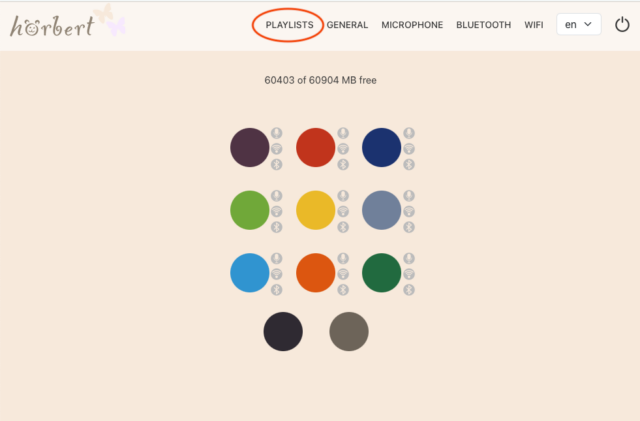
With the hörbert Butterfly 2 firmware, the popular audio player for children and seniors is getting a major feature update.
The new version turns hörbert into a podcast player and introduces other practical innovations.
In this article, we show you:
- how to perform the automatic firmware update
- where to find the instructions for the manual firmware update if your
- hörbert is not yet running the Butterfly firmware version.
- what new features Butterfly 2 offers, e.g. the podcast function
Firmware Update for hörbert in Browser Set Mode
If your hörbert is already running the Butterfly firmware version (from October 2024), you can perform the automatic firmware update via a web browser in Browser Set Mode – without additional programmes, computers or SD card readers.
This is how the automatic update works:
Put hörbert into Browser Set Mode
Open the advanced settings in the main menu under ‘GENERAL’.
Click on the yellow button ‘Check NOW for updates’ at the bottom of this page.
hörbert will install the update automatically and then restart. The restart may take about one minute. Please do not switch off hörbert during this time, but wait until it starts playing again.
This way, your hörbert will always be up to date – quickly, safely and conveniently.
Manual Firmware Update for hörbert (with video)
Alternatively, you can perform the hörbert firmware update manually.
This is particularly necessary if your hörbert does not yet have the first version of the Butterfly firmware.
A video tutorial is available for this purpose:
VIDEO for manual firmware update for hörbert
Of course, you can also read about this in our FAQ on firmware updates for hörbert.
Here you will find a direct link to the hörbert firmware page where you can download the latest firmware file.
New in Butterfly 2
With Butterfly 2, hörbert significantly expands its capabilities.
Each new feature is explained in detail in its own section:
Using hörbert as a podcast player – here's how to do it in just a few minutes
With the new Butterfly 2 firmware, hörbert can now also be used as a podcast player. In addition to music and audio plays, you can now also listen to podcasts on hörbert – completely free of charge!
What does that mean exactly?
Podcasts can be searched for using a convenient keyword search in browser set mode and added to the playlist like normal audio files or internet radio URLs. They are downloaded via your home 2.4 GHz Wi-Fi and transferred to the memory card. They can then be played offline using hörbert’s colourful buttons. This makes podcasts a simple way to access new, free audio content for children and adults. And the best part is that hörbert can automatically download new podcast episodes silently via your home Wi-Fi at a time of your choosing.
There are numerous podcast genres:
- Children’s podcasts
- Knowledge podcasts
- Stories & series
- Crime podcasts
- Travel podcasts
- Parenting and family formats
- Podcasts for seniors
Advantages of hörbert’s podcast function:
- Listen to podcasts offline
- Easy to operate using the buttons
- Ideal for children and families
- The perfect addition to music and audio plays without any effort.
Once set up, hörbert offers access to endless hours of audio content.
Here’s how to do it in three minutes:
‘Set up hörbert as a podcast player with Butterfly 2’
Switch hörbert to Set Mode - without unscrewing
With Butterfly 2, you can switch hörbert to set mode without unscrewing it.
A special key combination consisting of pressing the rotary knob and simultaneously pressing the dark green button is all it takes to activate browser set mode.
The best way to find out exactly how this works is to watch the VIDEO on starting Browser Set Mode without unscrewing! (Activate English Subtitle in youtube)
Advantages:
- No tools required
- Quick access to settings
- Protects the housing
- Ideal for frequent changes
More information can also be found in the article
Switch hörbert to Set Mode without unscrewing
Format SD card in Browser Set Mode
Starting with hörbert firmware version Butterfly 2, you can format the hörbert memory card directly in Browser Set Mode –
without an SD card reader or computer programmes.
This means:
- No additional software required
- Formatting directly in the browser
- Ideal for quick restarts and new content
But be careful: Formatting will delete all data on the card! So be sure to make a backup beforehand if necessary!
Here’s how it works:
1. Start Browser Set Mode (see above)
2. Click on ‘GENERAL’ in the main menu
3. Open the drop-down menu for advanced settings.
4. Check the box next to ‘Show expert menu’.
5. You will see a new main menu item called ‘EXPERT’.
6. Click on ‘EXPERT’ and open the sixth drop-down menu called ‘MEMORY CARD’.
7. Give the card a name and then click on ‘Format memory card and delete all data on it’.
8. You can then immediately start adding new content to hörbert’s colourful playlist buttons under ‘PLAYLISTS’.
Voice recordings with hörbert - how to make them louder
Starting with Butterfly 2, the expert menu offers the option to increase the sensitivity of the voice microphone by one more level. This allows your voice to be heard even more clearly and loudly, even if you are not speaking directly into the voice microphone opening on the front of hörbert (bottom right next to the hörbert logo).
Here’s how to do it in Browser Set Mode:
1. Click on ‘MICROPHONE’ in the main menu of Browser Set Mode.
2. Open the drop-down menu called ‘Advanced Settings’.
3. Set the microphone sensitivity to +1.
4. Exit Browser Set Mode in the main menu by clicking on the ‘Disconnect’ button. This is the circle symbol with a vertical line through the top.
5. hörbert will now restart and you can immediately make a voice recording and test it.
Disable Bluetooth search for headphones when switching on hörbert
Do you only use hörbert as a Bluetooth speaker, but never listen to it via wireless Bluetooth headphones? Then we recommend that you disable the search for headphones in Browser Set Mode.
Advantages:
- There is no Bluetooth signal after switching on hörbert, even if the Bluetooth function is activated.
- There is no risk of hörbert accidentally connecting to an unknown Bluetooth device, e.g. your neighbour’s iPods :)
- You can still pair hörbert as a Bluetooth speaker with your mobile phone, tablet or computer to listen to a streaming playlist from Spotify, Deezer, Audible, YouTube, etc. via hörbert.
Here’s how to do it in Browser Set Mode:
1. Click on ‘BLUETOOTH’ in the main menu of Browser Set Mode.
2. Open the drop-down menu called ‘Advanced Settings’.
3. Under ‘Maximum simultaneous headphones’, select ‘No headphones’.
4. You can also leave this set to 1 (= default) or select 2 if you only ever want to listen to hörbert with one pair of wireless headphones or with up to two pairs of headphones at the same time.
5. Exit Browser Set Mode in the main menu using the ‘Disconnect’ icon. This is the circle icon with a vertical line through the top.
5. hörbert will now restart and play from its speaker.
Jetzt hörbert aktualisieren
Aktualisiere deinen hörbert noch heute auf Butterfly 2 und entdecke die neuen Möglichkeiten.
🎵 Viel Freude beim Hören!
Dein hörbert-Team 💛