


Setting up hörbert 3.0 as a podcast player
(also available for hörbert 2021 with Firmware Butterfly 2)
Preparation
Starting Browser Set Mode for hörbert
- Link to the explanatory video for starting Browser Set Mode without unscrewing (only with Butterfly 2)
- Link to the explanatory video for starting Browser Set Mode via the SET button inside
- Written instructions for starting Browser Set Mode
Step 1 in Browser Set Mode: setting up WiFi
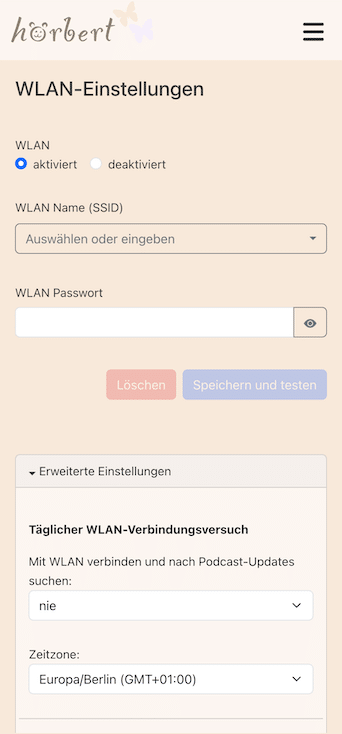
- In Browser Set Mode, open the menu item WIFI

- Activate WiFi
- Enter the network name and password of your home 2.4 GHz WiFi network
- Click on “Save and test”
- In the same window, open “Advanced settings” at the bottom:
- Select a time under “Connect to WiFi and check for podcast updates”
- Select your time zone
- Switch to the main menu and click on PLAYLISTS there
Step 2 in Browser Set Mode: adding a podcast to a playlist
In the main menu, select the item PLAYLISTS and then the coloured hörbert button on which you would like to store a podcast:
- The content window of the playlist opens.
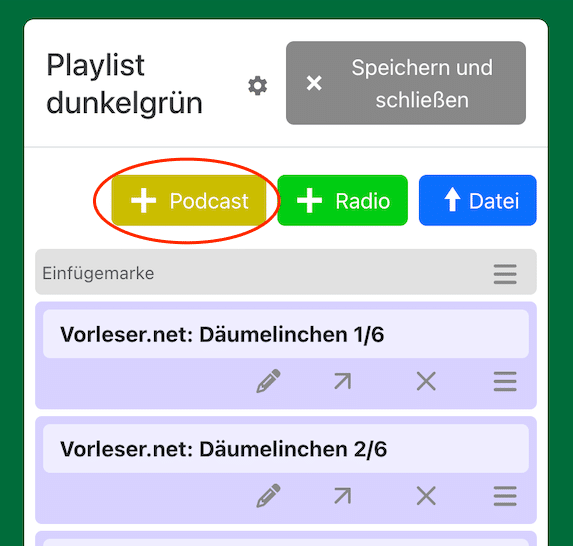
- Above the track overview there are buttons for adding radio stations, files and podcasts. Click on the yellow button “+Podcast”
- Enter a keyword in the search line, e.g. “Die Maus zum Hören” and wait until the search results are displayed.
- Then click once on the correct search result.
- The corresponding podcast is inserted at the top in the line “Podcast URL”:
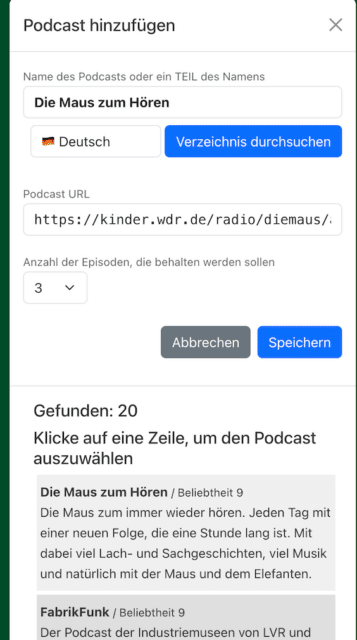
- In the field below you can immediately set the number of episodes that you want to download later and that should be kept stored on this button for the podcast at most.
- Click on the blue “Save” button. The control file of the podcast is now added to the playlist.
Downloading podcast episodes
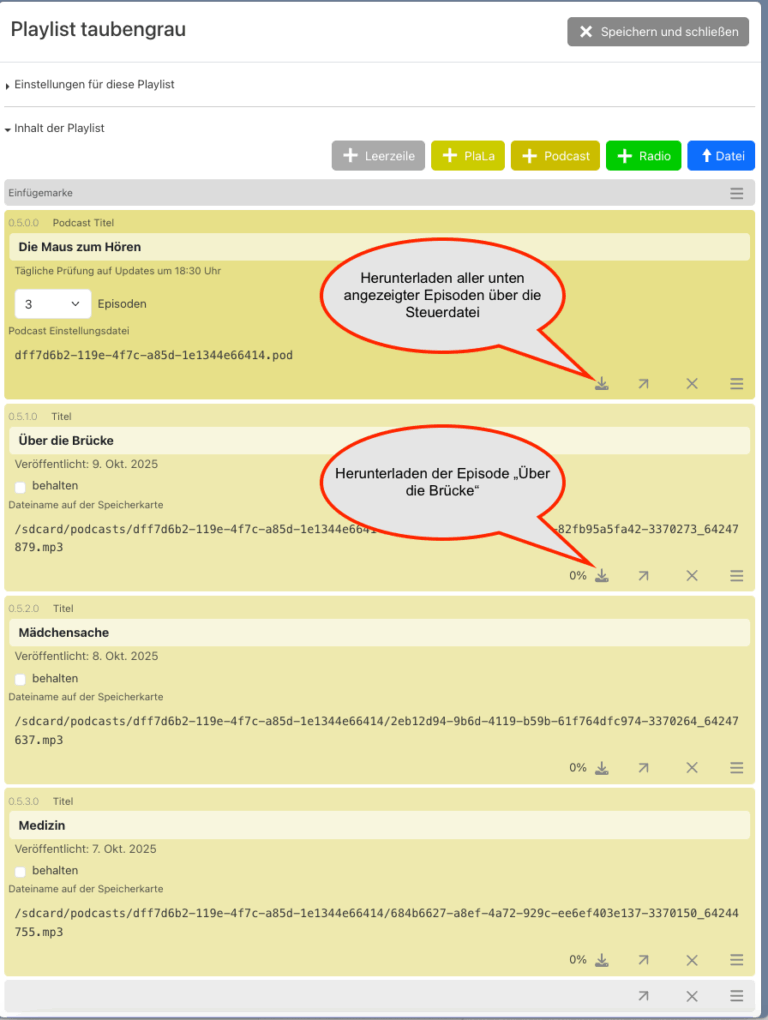
- You can now use the download button in the control file, that is the symbol with the downward-pointing arrow, to download all desired episodes, or you can download a single episode via the download button on each of the episodes displayed below the general control file. The remaining episodes are then downloaded automatically by hörbert at the time you set previously, when it is switched off and the configured WiFi is available to it.
- We recommend downloading only a single episode the first time, as hörbert needs a few minutes for the download via WiFi in Browser Set Mode. Or you just set up the control file and let hörbert download the episodes automatically at the next collection time, so you don’t have to sit next to it and wait.
- In the control file there is the option for individual episodes to tick the small square to the left of “keep“. This way you can make sure that hörbert does not overwrite this episode when it downloads new episodes. That’s because hörbert deletes the oldest episodes when it downloads new ones and the maximum number of desired episodes for this podcast has already been reached.
- After a successful download, click on the grey button “Save and close” at the top right of the window to save the playlist.
End Browser Set Mode via the round “Disconnect” button in the main menu. That is the circle which is interrupted by a vertical line at the top:
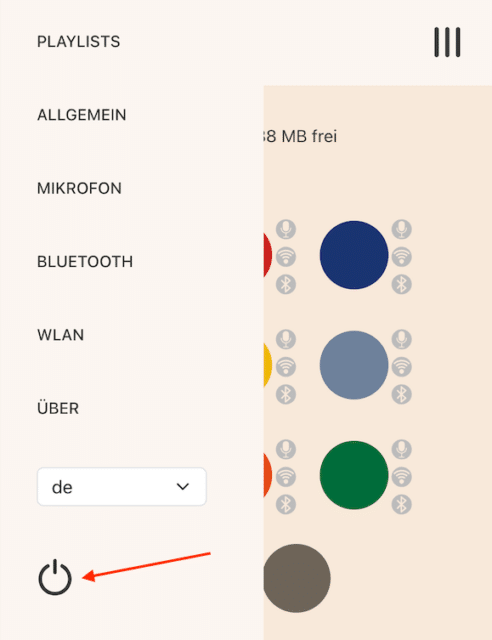
hörbert now restarts. Select the playlist with the podcast and click through to the desired episode, in case you haven’t added it to the first position of the playlist anyway.
We hope you enjoy discovering an endless amount of free audio content!
Further links:
With Butterfly2, more free content for your hörbert: podcasts!
Podcast tips for adults