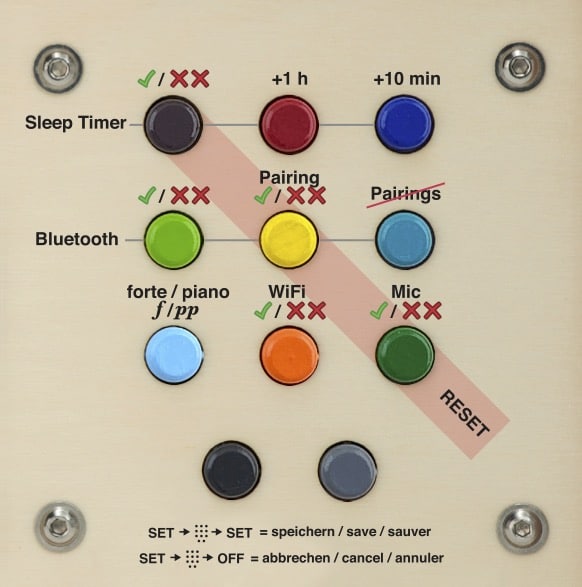
Topic: Making voice recordings using the voice microphone with hörbert (2021 model)
Dear hörbert fans,
the voice recording function on hörbert is designed as a fun feature for young and old, to record and listen to your own voice with the small built-in voice microphone. This is usually very amusing and brings lots of fun, as you hear yourself “live” quite differently than others do and perceive your own voice through the speaker in a completely new way. Voice recordings are played back immediately after recording after a few seconds.
This brilliant function of hörbert naturally also offers the opportunity to record voice messages, bedtime stories or whatever you like for your kids, so that they’re always available for the little ones anytime and anywhere.
Make sure that your hörbert is running firmware Butterfly or newer.
Here you’ll find everything about firmware updates, if your hörbert is already somewhat older than November 2024:
FIRMWARE UPDATE
Start the Browser Set Mode. The Browser Set Mode is a convenient web interface where you can make all settings for hörbert and define the playlists on which recordings should be allowed.
Here you’ll find our EXPLANATION VIDEO FOR BROWSER SET MODE.

The Browser Set Mode is self-explanatory:
When you’ve set everything up, you can start a recording as follows:
We wish you lots of fun with the voice recordings.
Questions? Have a look at our 24×7 Helpdesk or write to us via our contact form.
We’re happy to help!
You can also activate or deactivate the microphone function and all special functions without Browser Set Mode. For this there’s the ->
PayPal uses Google reCAPTCHA to help secure the payment process. (More Information)
You are currently viewing a placeholder content from Vimeo. To access the actual content, click the button below. Please note that doing so will share data with third-party providers.
More InformationYou are currently viewing a placeholder content from YouTube. To access the actual content, click the button below. Please note that doing so will share data with third-party providers.
More InformationYou need to load content from reCAPTCHA to submit the form. Please note that doing so will share data with third-party providers.
More InformationYou are currently viewing a placeholder content from Google Maps. To access the actual content, click the button below. Please note that doing so will share data with third-party providers.
More InformationYou are currently viewing a placeholder content from OpenStreetMap. To access the actual content, click the button below. Please note that doing so will share data with third-party providers.
More InformationYou are currently viewing a placeholder content from Mapbox. To access the actual content, click the button below. Please note that doing so will share data with third-party providers.
More InformationYou need to load content from reCAPTCHA to submit the form. Please note that doing so will share data with third-party providers.
More Information