


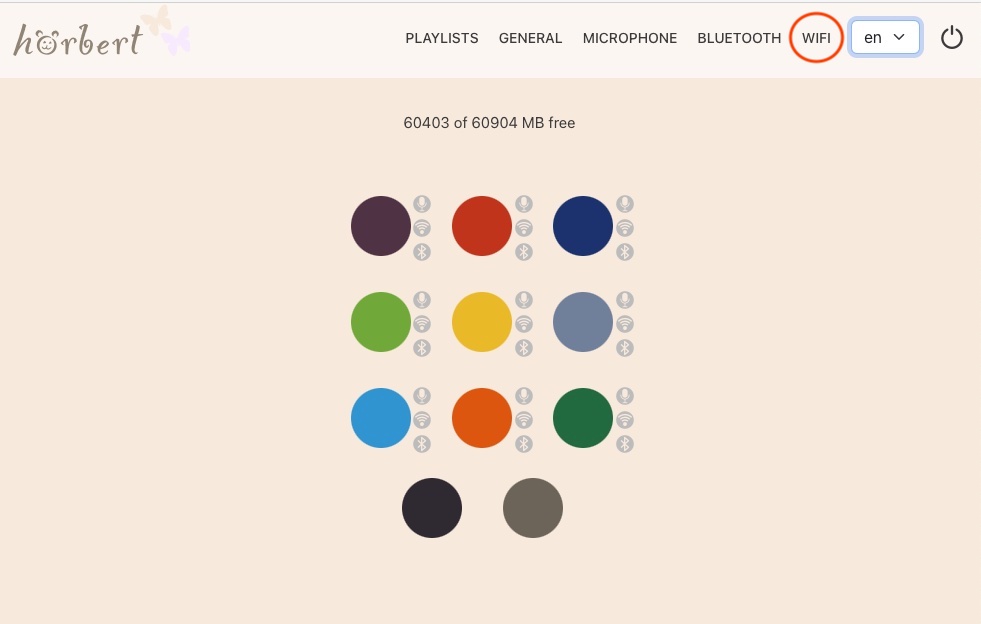
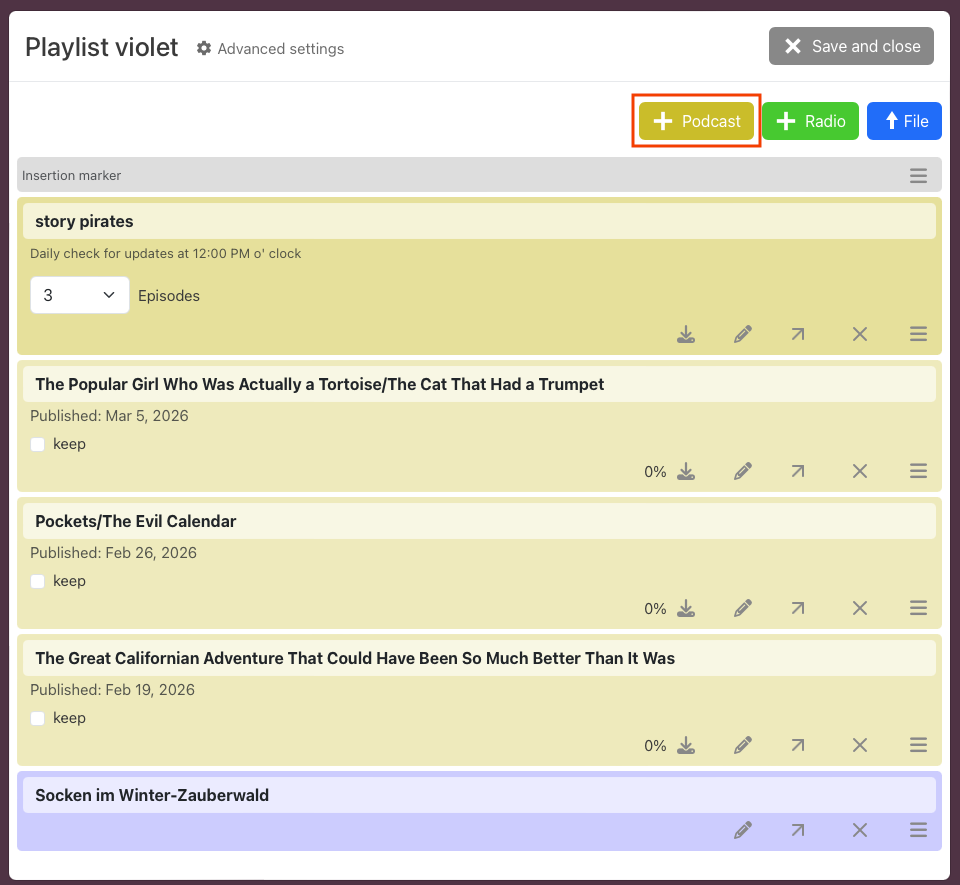
Select PLAYLISTS from the main menu and then select the colourful hörbert button on which you want to save a podcast:

Exit Browser Set Mode using the round ‘Disconnect’ button in the main menu. This is the circle interrupted by a vertical line at the top:
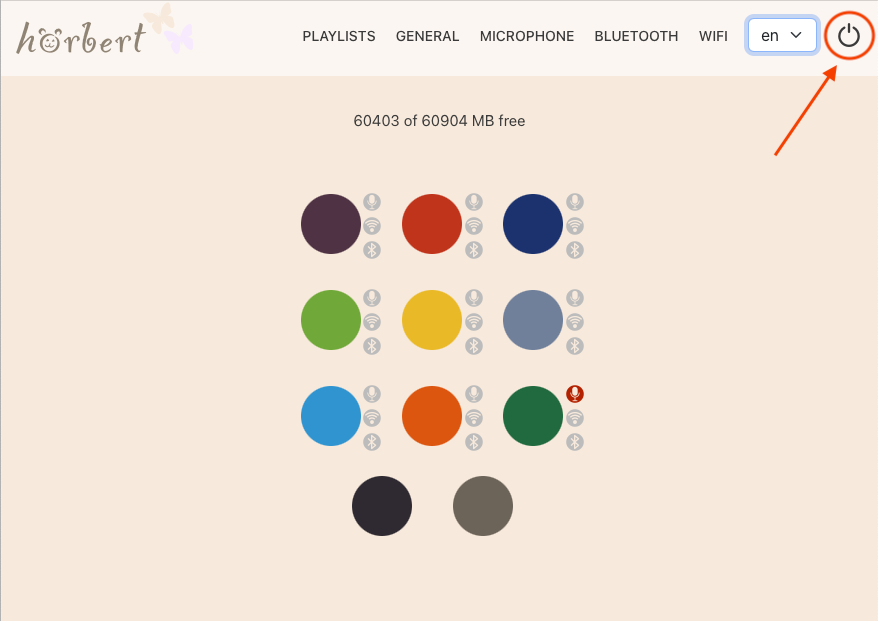
hörbert will now restart. Select the playlist with the podcast and click through to the desired episode, unless you have already added it to the top of the playlist.
We hope you enjoy unlimited, free audio content!
Further links:
More free content for your hörbert with Butterfly2: podcasts!
You are currently viewing a placeholder content from Vimeo. To access the actual content, click the button below. Please note that doing so will share data with third-party providers.
More InformationYou are currently viewing a placeholder content from YouTube. To access the actual content, click the button below. Please note that doing so will share data with third-party providers.
More InformationYou need to load content from reCAPTCHA to submit the form. Please note that doing so will share data with third-party providers.
More InformationYou are currently viewing a placeholder content from Google Maps. To access the actual content, click the button below. Please note that doing so will share data with third-party providers.
More InformationYou need to load content from reCAPTCHA to submit the form. Please note that doing so will share data with third-party providers.
More Information