8

Making recordings with hörbert

hörbert has a built-in microphone that allows you to record your own voice or instruments. Whether it’s a personal greeting, stories read aloud, or individual sentences and voice commands for supported communication – anything is possible with hörbert!

What’s more, hörbert can record all the content it plays through its speaker at the same time. This means you can stream a Spotify playlist, an Audible audiobook library or a YouTube playlist to hörbert via Bluetooth and record the audio content simultaneously. The recordings are then stored locally on hörbert’s colourful playlists, ready to be played back – even without an internet connection or Bluetooth.

So with hörbert, there’s an endless supply of free audio content available! 

8.1

Requirements for recordings with hörbert

If you wish to make voice recordings using the built-in microphone, or record Bluetooth or web radio streams, you must first enable the “Microphone”, “Bluetooth/Pairing” and “Wi-Fi” functions, and define the playlists where the recordings are to be saved.

How to do it:

1. Start hörbert’s Browser Set Mode (9.1).
2. Activate and configure the microphone (9.5), Bluetooth (9.6), or Wi-Fi (9.7) functions for web radio.
3. In the desired playlist, voice recordings, Bluetooth recordings, or web radio recordings must be allowed in the playlist settings (9.3.8). Only one playlist can be defined for Bluetooth recordings, while multiple playlists can be used for voice or web radio recordings.
4. For web radio recordings, at least one internet radio URL must be stored in the respective playlist (9.3.7).
5. For voice recordings, at least one file must be present in the playlist or added (9.3.6) so that the playlist can later be selected for recording.
6. For Bluetooth recordings, hörbert must be in Bluetooth speaker mode (9.6.4) and paired with a Bluetooth transmitter, e.g., a mobile phone.

8.2

Starting a recording

For the requirements for successful voice recording, Bluetooth recording or internet radio recording, see section 8.1 above

How to do it:

  • hörbert must be turned on (5.2).
  • For voice recordings, click on one of the coloured buttons of a playlist you chose to be eligible for voice recordings.
  • For Bluetooth recordings, hörbert must be in Bluetooth speaker mode (9.6.4), streaming content from a Bluetooth transmitter, e.g., a mobile phone. 
  • For WiFi recordings hörbert must be playing an internet radio station. The playlist with the internet radio URL must be eligible for wifi recordings. (See chapter 8.1.)
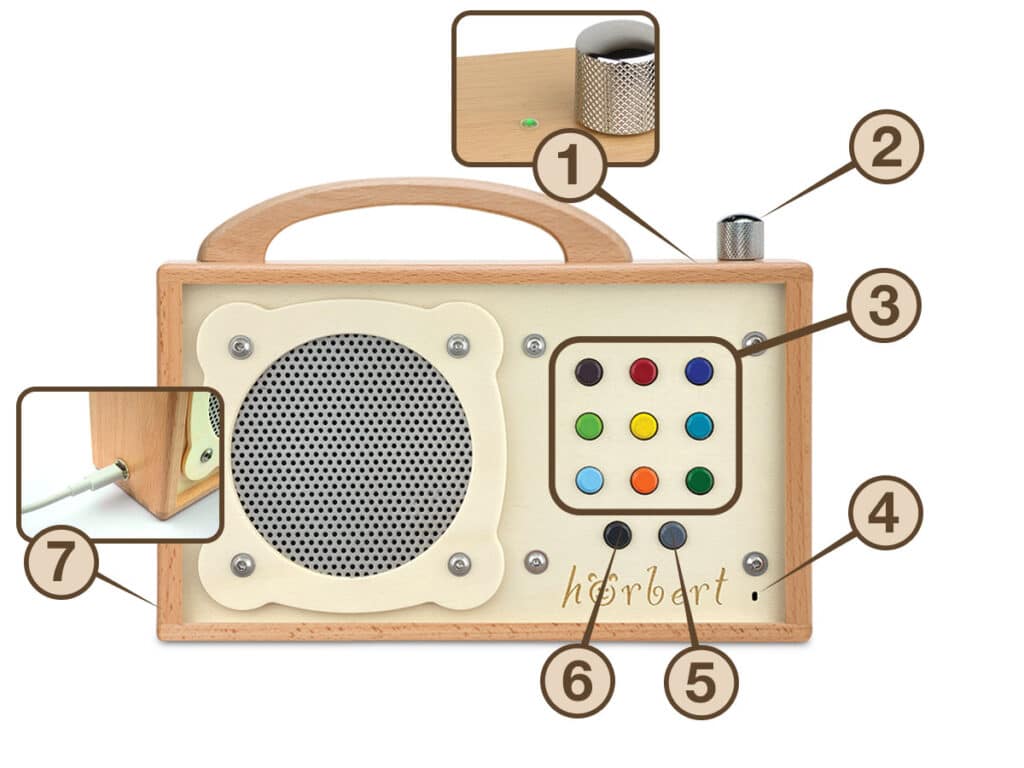
  • For a hörbert with eleven buttons, start a recording by first pressing the black button and then simultaneously pressing the gray button at the bottom of the last row.
  • The LED behind the microphone opening (No. 4 in Figure 1) in the lower right corner of the hörbert front lights up red to confirm that recording is in progress.
  • To stop a recording, briefly press the black button once.
  • Voice recordings are saved directly after the file that was playing when the recording started.
  • Web radio and Bluetooth recordings are always added at the end of the respective playlist.

For a hörbert with three large playlist buttons, a recording is started differently, since this hörbert does not have a black or gray button.

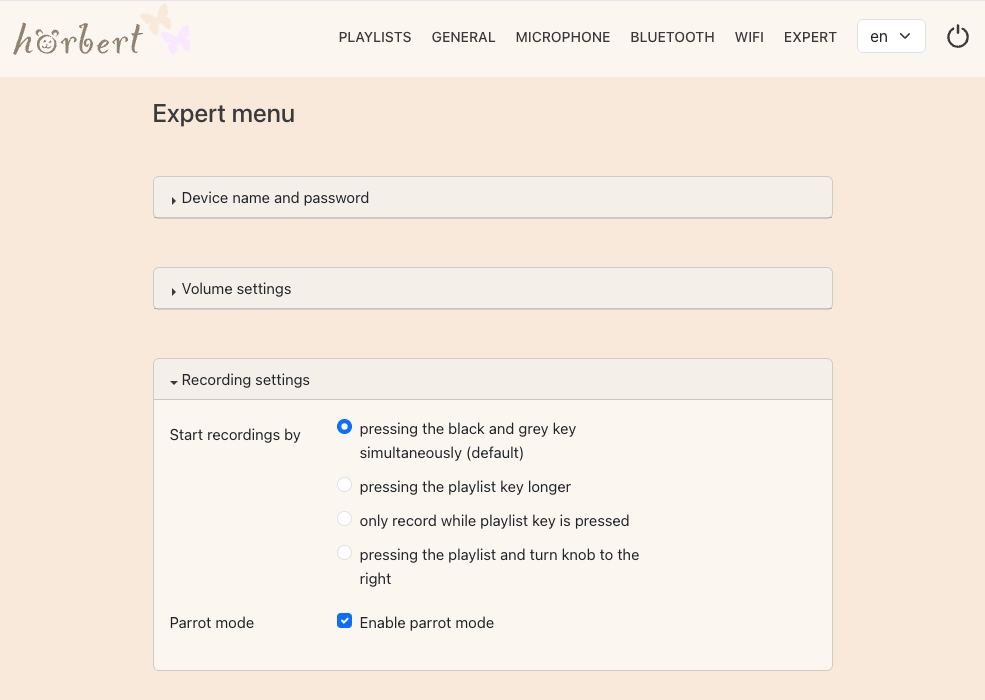
The recording mode (9.8.3) can be changed in the expert menu, so that a recording, for example, can start when one of the playlist buttons is pressed and held, and stop when a button is pressed.

8.3

Recordings in parrot mode

Provided that Parrot Mode has been enabled in the Browser Mode settings, hörbert allows you to make recordings in any playlist, even if that playlist has not been explicitly authorised for recordings. This is because, in Parrot Mode, a voice recording is deleted immediately after playback, unless it was made in a playlist where voice recordings have been explicitly permitted beforehand. In that case, the recording remains stored there even in Parrot Mode.

How to do it:

  • Start Browser Set Mode (9.1).
  • Open the expert menu (9.8).
  • Enable parrot mode in the recording settings (9.8.3) under the main menu https://www.hoerbert.com/anleitungen/browser-set-mode-von-hoerbert-fuer-alle-einstellungen-und-zum-bearbeiten-von-playlists/item EXPERT.
Abbildung 8 - EXPERTE - Aufnahme-Einstellungen - Papagei-Modus
  • Exit Browser Set Mode (9.1.3).
  • Select any playlist and hold down the coloured button while recording.
  • Stop the recording by releasing the coloured button.