9
9.1
9.1.1
You are currently viewing a placeholder content from YouTube. To access the actual content, click the button below. Please note that doing so will share data with third-party providers.
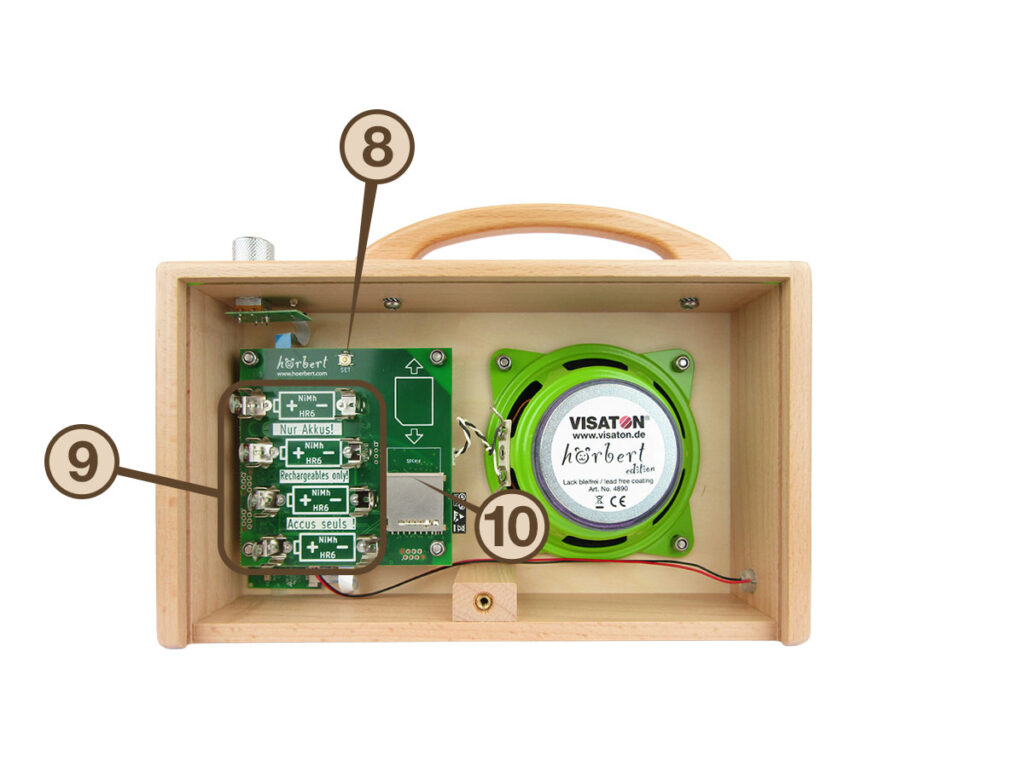
More InformationInside hörbert, above the battery clips and to the right of the hörbert logo, you will find the SET button (No. 8 in Figure 2)
Here’s how:
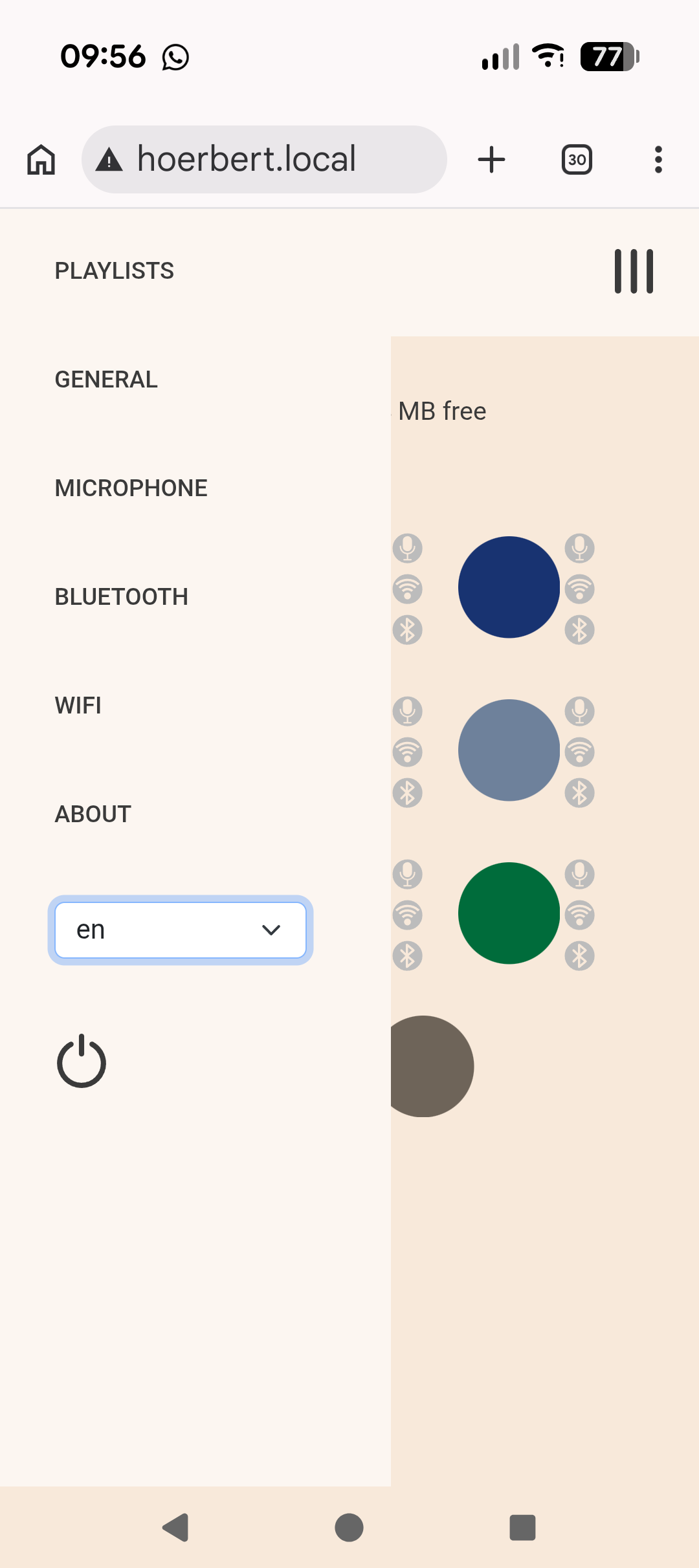
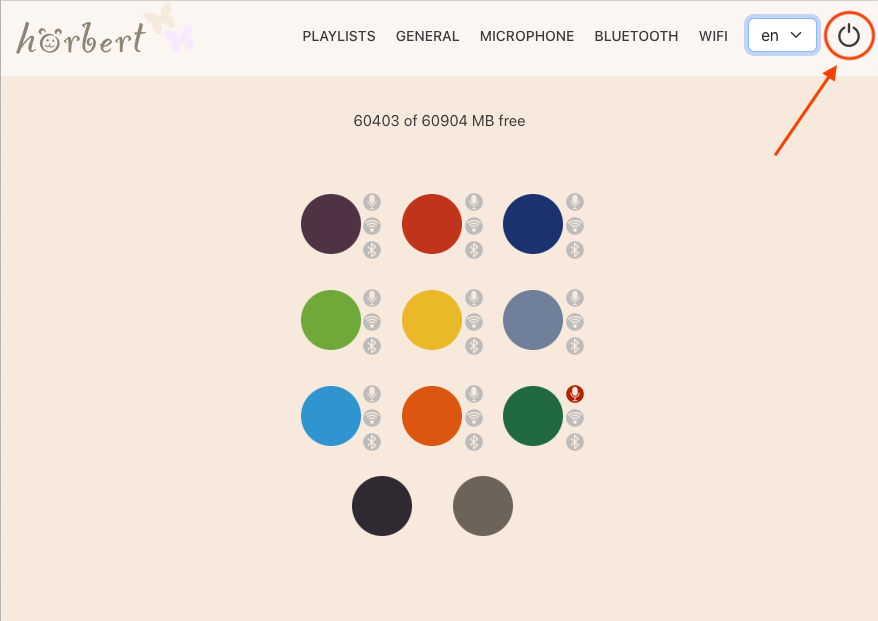
In the desktop view, you will find the main menu in the top row of the window. In the mobile view, you can access the main menu by clicking on the app menu. This is the icon in the upper right corner with three stacked horizontal lines:
Troubleshooting for Browser Set Mode
Note: Phones, tablets, or computers automatically check whether a Wi-Fi network also provides internet access. Therefore, they may display various (error) messages for hörbert’s Wi-Fi such as “limited connectivity” or “poor connection”, or “no internet connection”. The reason is that hörbert’s Wi-Fi only provides a connection to hörbert, not to the internet. Since the connection to hörbert does not require an internet connection, these messages are unfortunately somewhat misleading.
Android: On Android devices, the hörbert page may sometimes not work right away: If this is the case with your device, try the following:
9.1.2
You are currently viewing a placeholder content from YouTube. To access the actual content, click the button below. Please note that doing so will share data with third-party providers.
More InformationPeople who use hörbert, especially small children who often playfully press all the buttons, must not accidentally enter hörbert’s SET mode. That is why we have devised a method that cannot be applied “by accident”.
Here’s how:
9.1.3
9.2
9.2.1
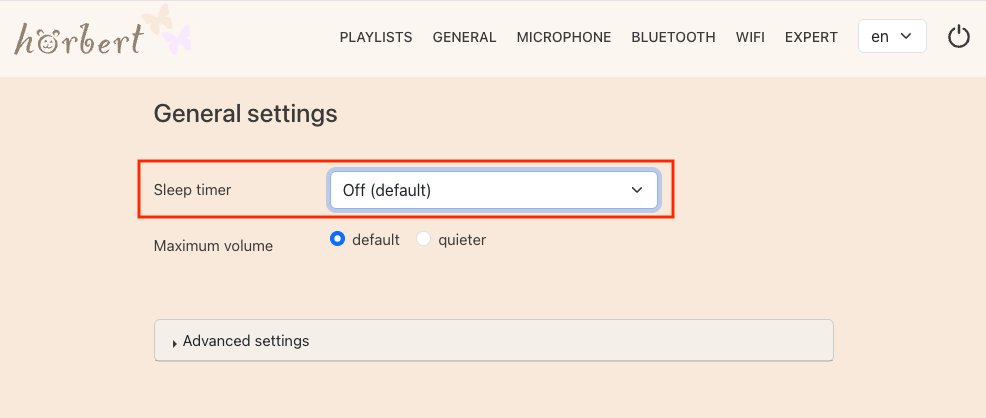
In the GENERAL menu item of the Browser Set Mode (9.1) of hörbert, you’ll find the drop-down menu for the sleep timer at the top. By default, the sleep timer is off. To activate it, select a time in the drop-down menu.
hörbert will then always switch off after this set playing duration until you set the sleep timer back to “Off”.
The following selection as playing duration is possible: 1, 3, 5, 10, 15, 20 minutes and then in increments of 10 minutes up to 7 hours and 50 minutes. See in comparison the point “Standby” (9.8.4) – switching off after a certain time without interaction with hörbert.
9.2.2
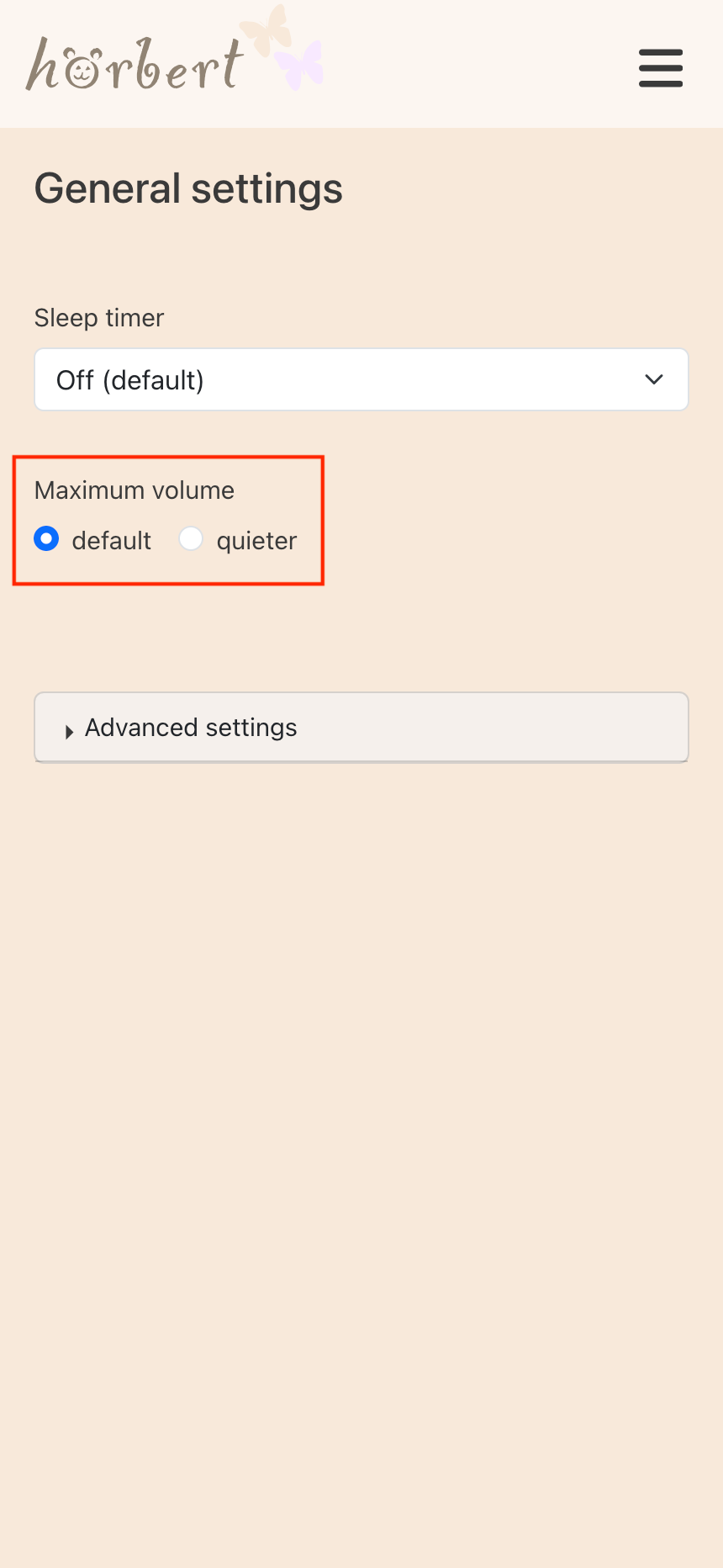
In the GENERAL menu item in hörbert’s Browser Set Mode (9.1) you’ll find – directly below the sleep timer – the setting for limiting the standard volume.
Particularly for small children and for environments where you want to have undisturbed conversations, we recommend the “quieter” setting. This prevents hörbert from being turned up to its maximum standard volume.
9.2.3
9.2.3.1
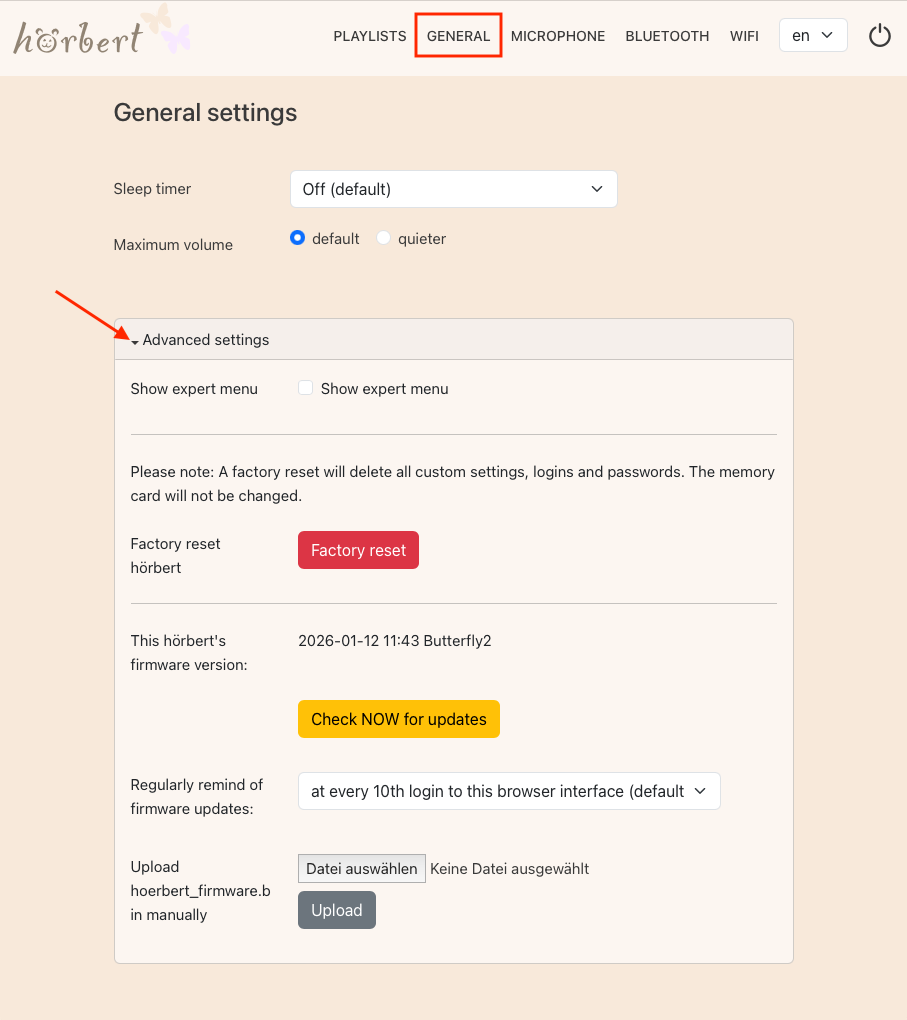
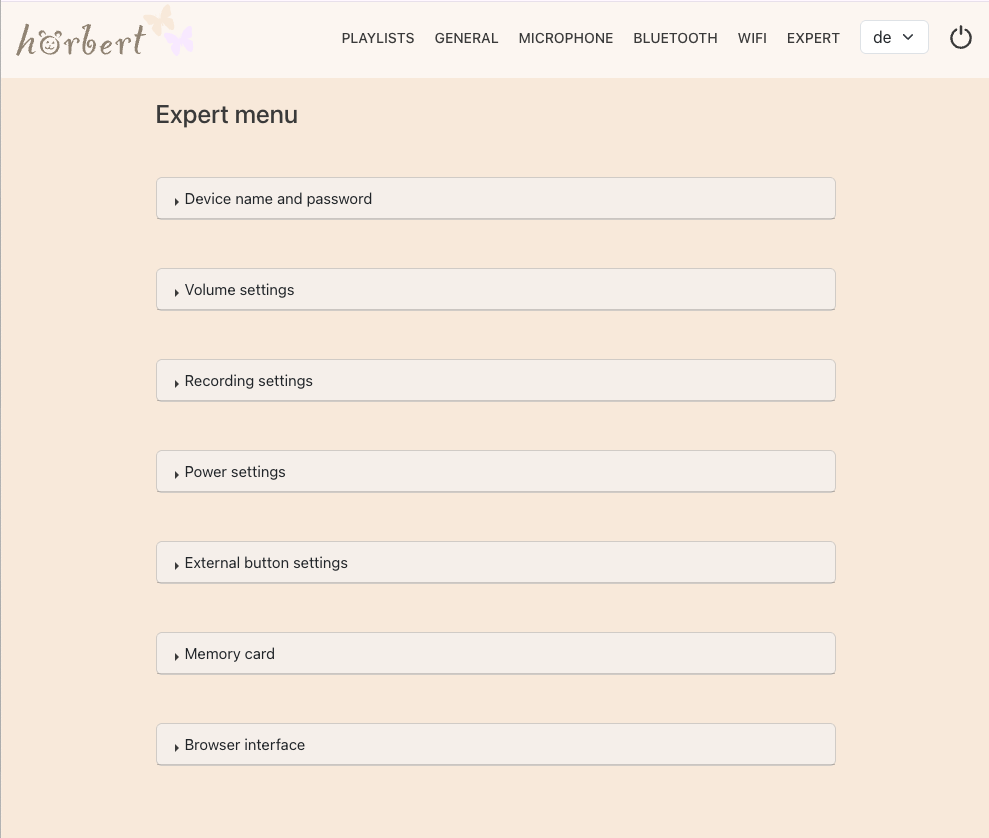
In hörbert’s Browser Set Mode (9.1), there is a drop-down menu in the GENERAL menu item to access the advanced settings. Click on the small black triangle to expand the menu:
Check the box “Show expert menu” if you want to access functions that allow extensive customization for hörbert. Only after this activation does the new menu item “EXPERT” appear in the main menu, see 9.8 .
9.2.3.2
All settings and passwords are reset to the factory state when you click the red “Reset to factory settings” button. Bluetooth, WiFi, volume limitation, sleep timer and voice microphone are turned off if they were activated. The content on the memory card and the settings for the playlists remain unaffected by the reset.
9.2.3.3
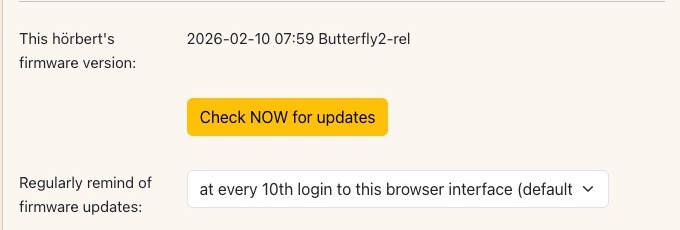
This section displays the installed firmware version of your hörbert.
By clicking the yellow “CHECK for updates NOW” button, hörbert can check whether a newer firmware version is available. If a more recent firmware is found, it can then be updated at the press of a button. For this function, hörbert needs to be able to connect to the internet via your Wi-Fi. See chapter: “Wi-Fi” (9.7).
IMPORTANT: Stay in Browser SET Mode and do not let your phone/tablet/computer go into standby mode while the update is running. The update takes approximately 3 minutes. Afterwards, hörbert will automatically restart and play from its memory card again.
Regularly remind about firmware updates:
Firmware updates include bug fixes and new features for your hörbert. It is therefore worthwhile to always keep the firmware up to date. In the selection under “Regularly remind about firmware updates”, the interval between reminders for a firmware update can be set. hörbert will not perform this check on its own without your involvement. A prompt will appear beforehand when you have started Browser Set Mode.
Manually upload the firmware file “hoerbert_firmware.bin”:
If you do not want to connect your hörbert to the internet, or if you have received a special firmware file from the service team, you can also install the firmware manually. The latest firmware file is available for download on our website under Service -> Firmware.
To manually upload a firmware file via Browser Set Mode, click the light gray “Choose file” button, select the corresponding hoerbert_firmware.bin file in the following dialog, and then click the dark gray “Update” button to start the firmware update. Link to Figure 10 – GENERAL – advanced settings
9.3
9.3.1
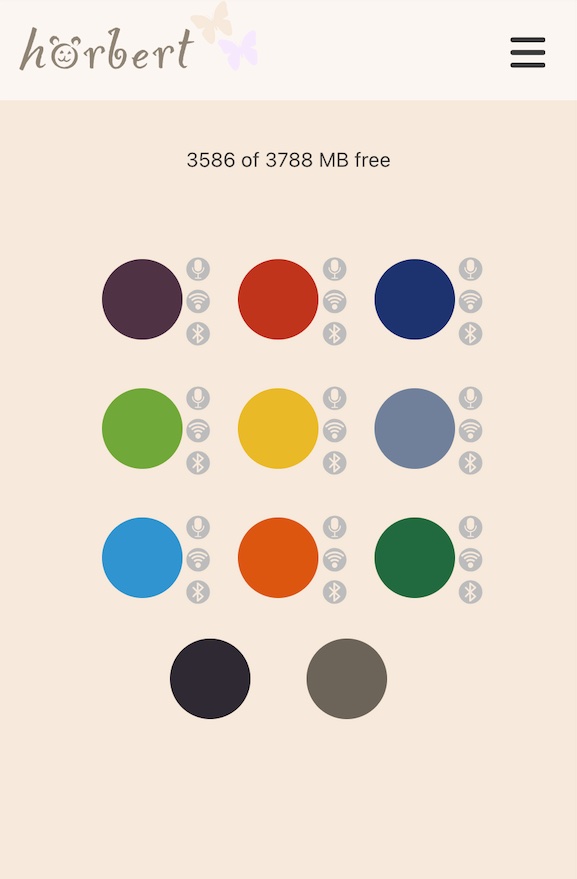
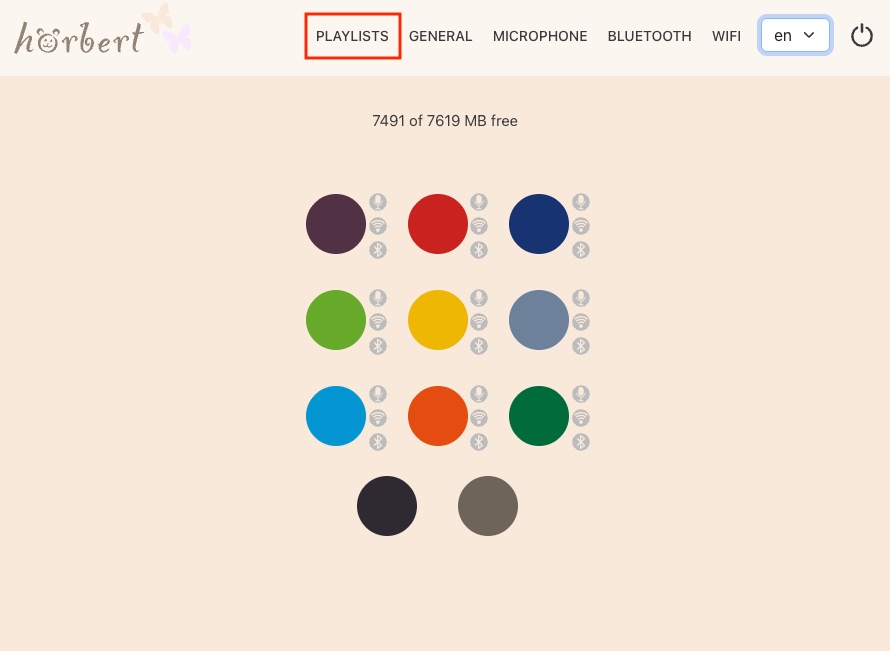
The PLAYLISTS menu item in hörbert’s Browser Set Mode (9.1) displays the colorful hörbert buttons. Click with the mouse on the button you want to edit. The content window of the playlist is displayed. In the upper area, next to the playlist name, there is a gear icon to access the advanced settings (9.3.8) for the playlist. You can also see the audio content of the playlist in the lower content area in table form.
9.3.2
In hörbert’s Browser Set Mode (9.1) under the PLAYLISTS menu item (9.3), you can change the track name of a file. To do this, click on the pale blue row with the track description and overwrite the name there.
By clicking the pencil icon, the file name on the memory card becomes visible. The file name on the memory card may differ from the track name displayed in Browser Set Mode. Changing the title in Browser Set Mode does not change the original file name on the SD card.
Note: If you have activated the expert menu (9.2.3.1), the file name is directly visible and there is no pencil icon.
9.3.3
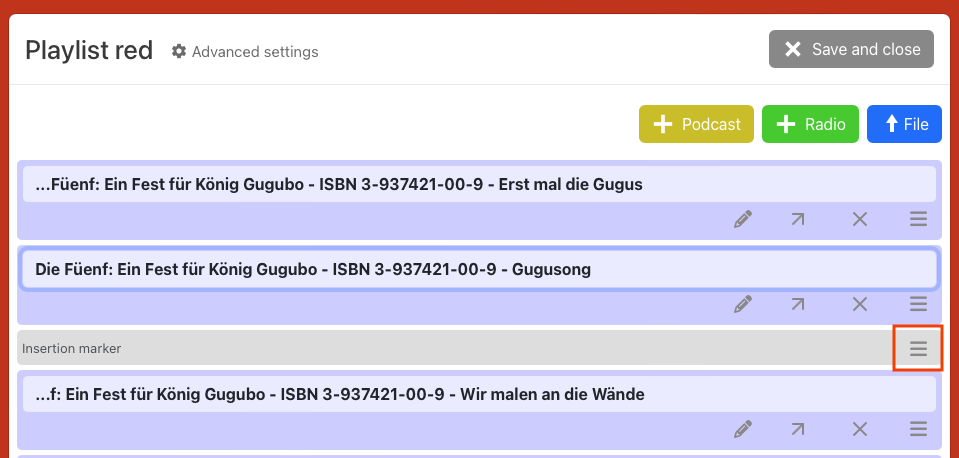
A track can be moved to a different playback position within a playlist in hörbert’s Browser Set Mode (9.1). In Browser Set Mode, select the PLAYLISTS menu item (9.3). There, click on the colored button you want to edit. The content window of the respective playlist opens. In the following example, this is the red playlist:
9.3.3.1
To select a track for moving, click in the purple free area below the track name. A gray border appears around the selected row. If you repeat this process for additional tracks, they will also be selected. The selection is removed when a selected row is clicked again.
Now drag the icon with the three stacked lines to a different position in the content table:
If you have selected multiple files, it does not matter which move icon you use. The action then applies to all selected tracks. This way you can move one or more tracks to a different position using drag & drop.
9.3.4
In hörbert’s Browser Set Mode (9.1), you can edit the tracks of a playlist. In Browser Set Mode, select the PLAYLISTS menu item (9.3). There, click on the colored button you want to edit. The content window of the respective playlist opens.
By clicking the arrow icon pointing to the upper right, the window for moving a file opens:
You can move one or more tracks to the beginning or end of another playlist. To select multiple tracks, see section (9.3.3.1).
To do this, click on the upper or lower half of the colored button for the target playlist and then click the blue “Save” button:
9.3.5
In hörbert’s Browser Set Mode (9.1), you can edit the tracks of a playlist. In Browser Set Mode, select the PLAYLISTS menu item (9.3). There, click on the colored button you want to edit. The content window of the respective playlist opens.
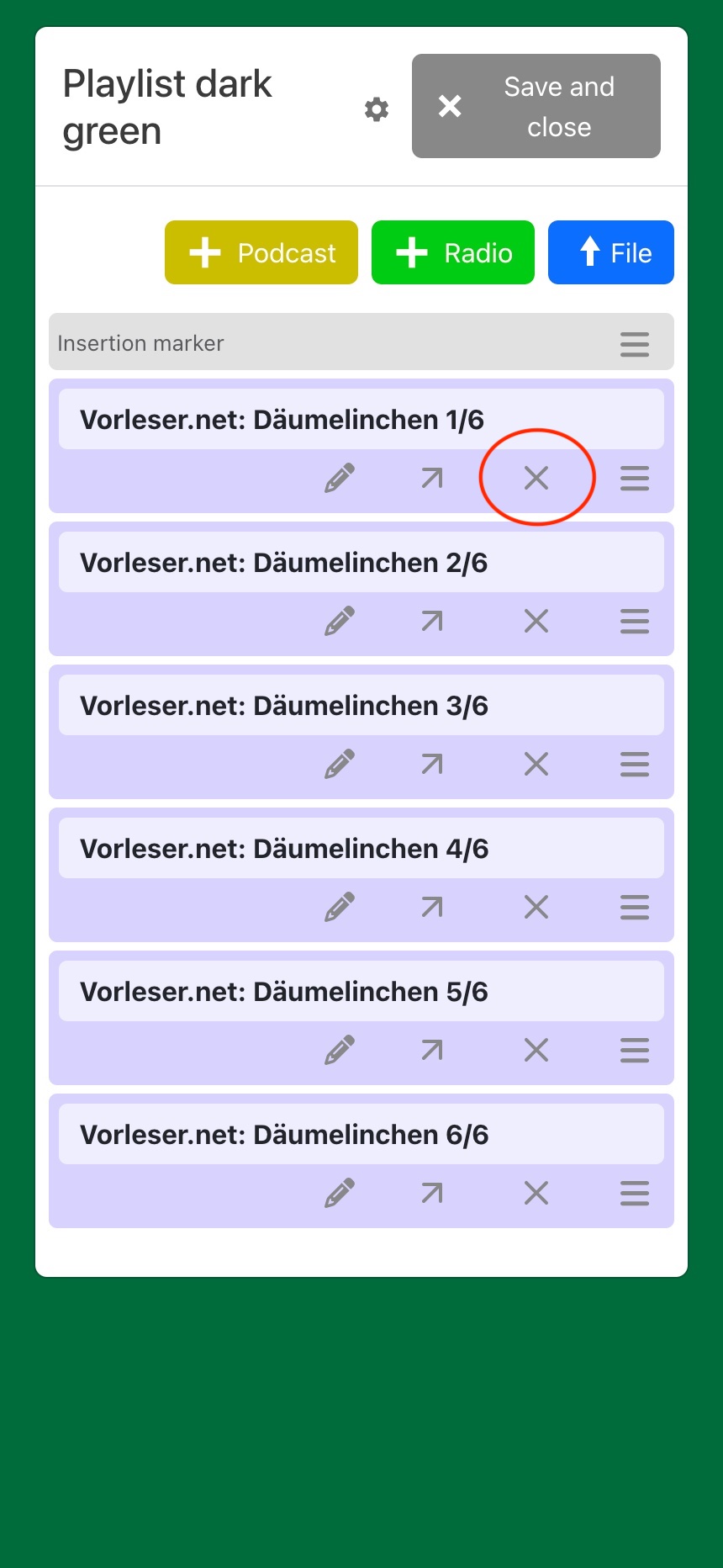
Using the cross icon in the purple area below the track description, one or more files can be deleted from a playlist. To select multiple tracks, see section 9.3.3.1
A confirmation prompt appears before final deletion.
9.3.6
To upload one or more files, click the blue “File” button with the white arrow pointing up and select the desired file(s) in your computer’s file manager. See chapter 5.6 “Transferring your own audio content”.
The fastest way to add new files is the connection via your computer’s file manager. For this you need an SD card reader for your computer. See chapter 5.6.1
9.3.7
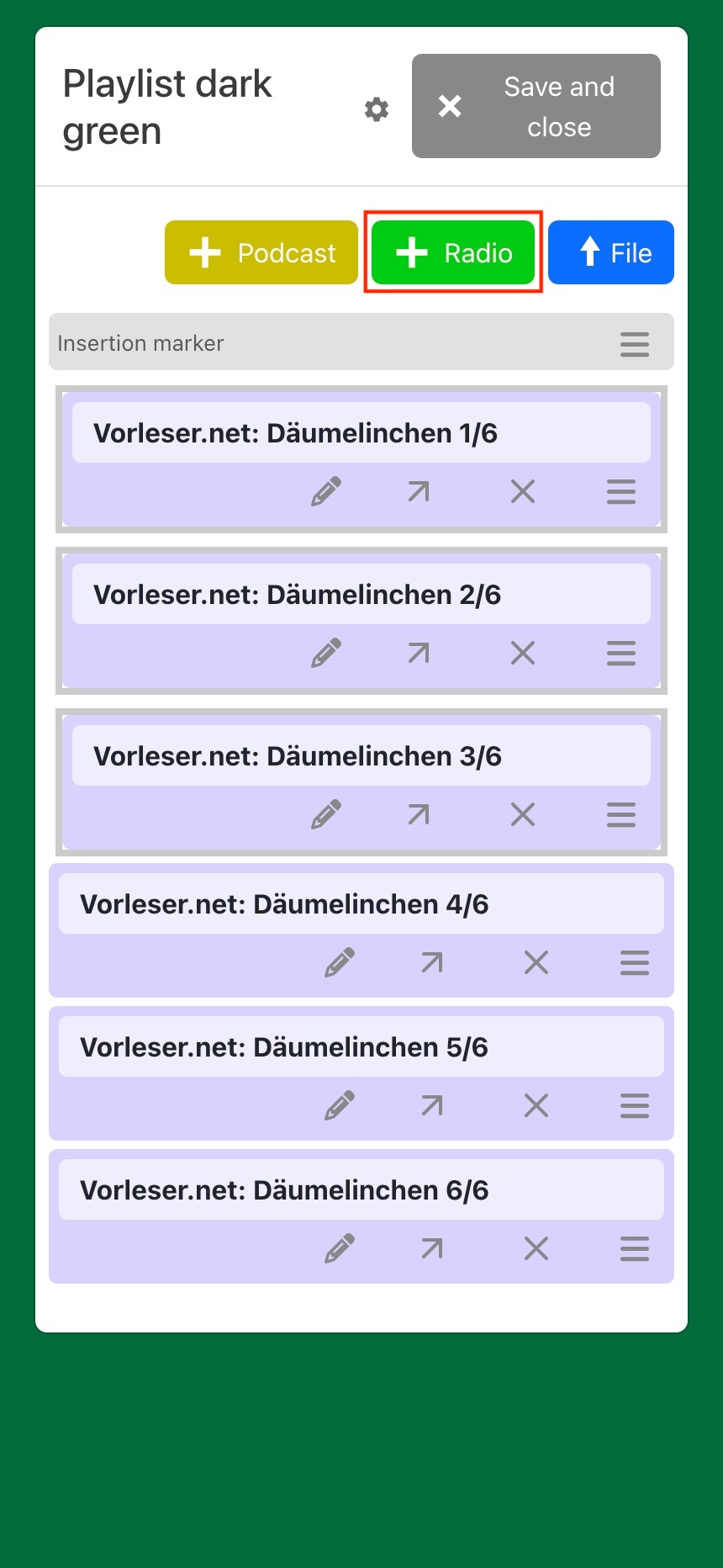
Click on the light green “+ Radio” button and enter the name of the radio station or part of the name.
Click on the desired station in the list. The station will be entered into the “Streaming URL” field. Then click the blue “Save” button. The station will then be added to the playlist and the playlist content window will be displayed again.
Note:If a URL has many confirmations, it appears to be a popular and working URL.
9.3.8
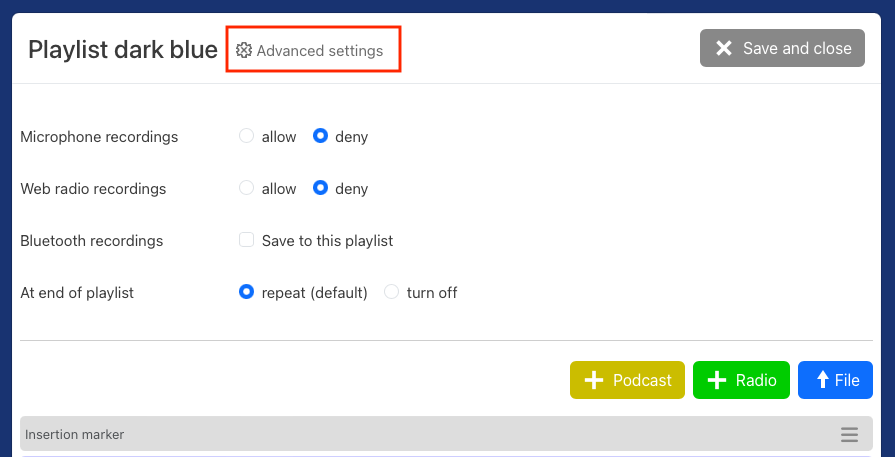
To edit a playlist on hörbert, first start Browser Set Mode (9.1), and select the PLAYLISTS menu item (9.3) with the nine colorful hörbert buttons. There, click on the colored button you want to edit. The content window of the respective playlist opens. At the top of the window, you will find the gear icon for the “Advanced settings” of this playlist:
9.3.8.1
In this menu you select whether voice microphone recordings, web radio recordings or Bluetooth recordings are allowed in a playlist.
For further requirements for recordings, see chapter (8) “Making recordings with hörbert”.
9.3.8.2
In standard mode, hörbert starts playback again from the first track of a playlist when it has reached the end of that playlist.
In Browser Set Mode (9.1), you can select in the Playlists menu item under the advanced playlist settings that hörbert should turn off at the end of a playlist:
9.3.8.3
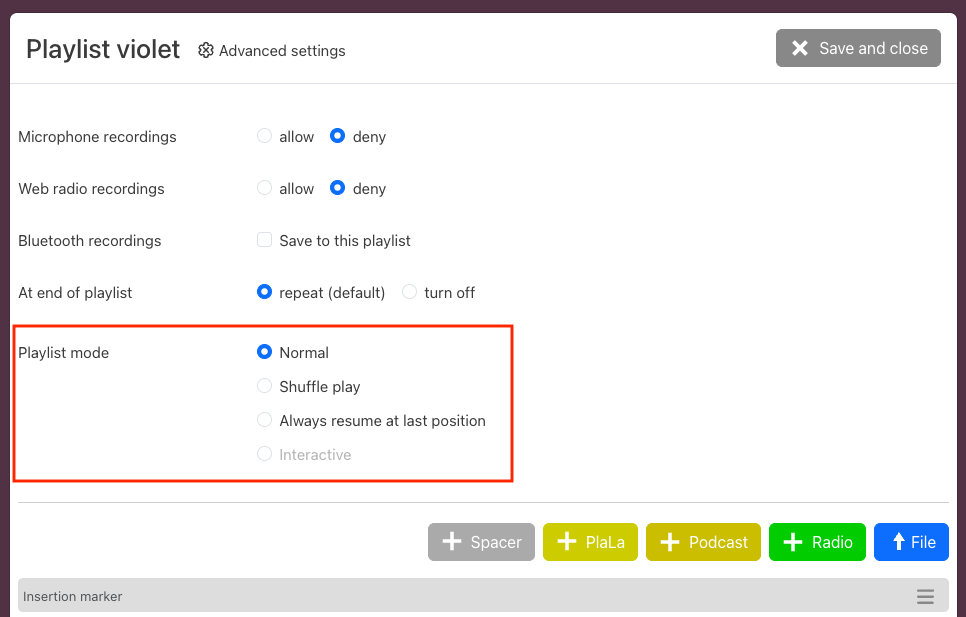
If the display for the expert menu (9.2.3.1) is activated, advanced options for the playback mode of a playlist appear in the playlist settings:
9.4
A podcast can be added to a playlist in hörbert’s Browser Set Mode (9.1). First, the Wi-Fi function must be activated in the main menu under WLAN (9.7) and a time (9.7.2.1) for the daily check and retrieval of new podcast episodes must be set in the advanced Wi-Fi settings.
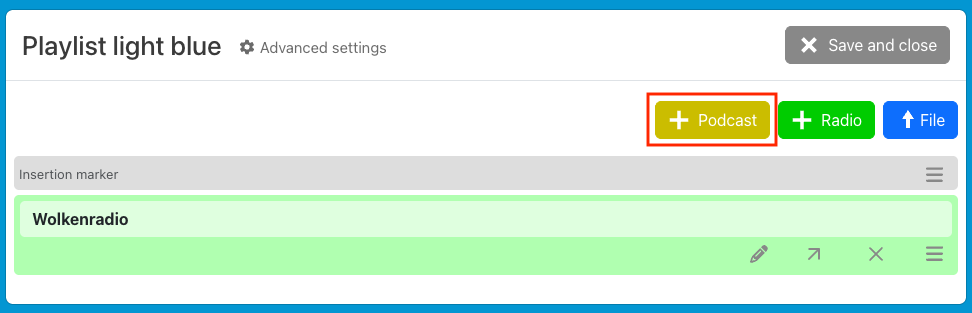
Then click on the colored button in the PLAYLISTS main menu item (9.3) to which you want to add a podcast. At the top of the content window, you will find the yellow “+Podcast” button for this purpose:
Clicking this button opens the podcast search:
Downloading podcast episodes:
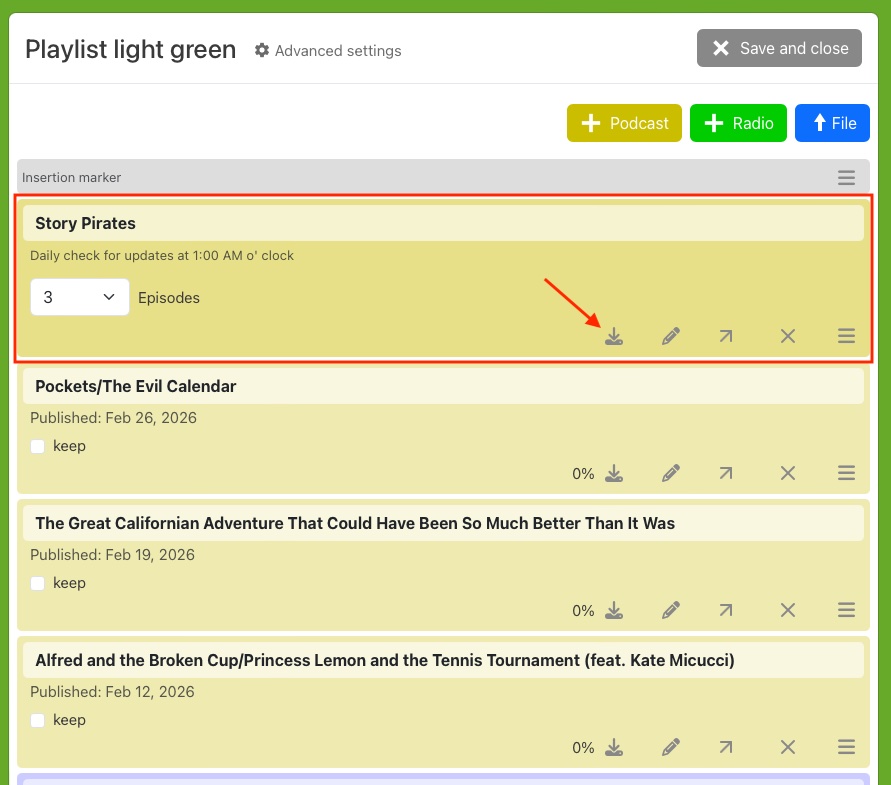
Via the download button in the control file you can now download the episodes in the overview. This process can take several minutes per episode, depending on the length of the episodes:
Note: To save time, there is the option to download only a single episode by clicking the download icon in the row for a single episode. At the set time (e.g. at night), hörbert will then automatically download the remaining episodes, provided the saved Wi-Fi network is available.
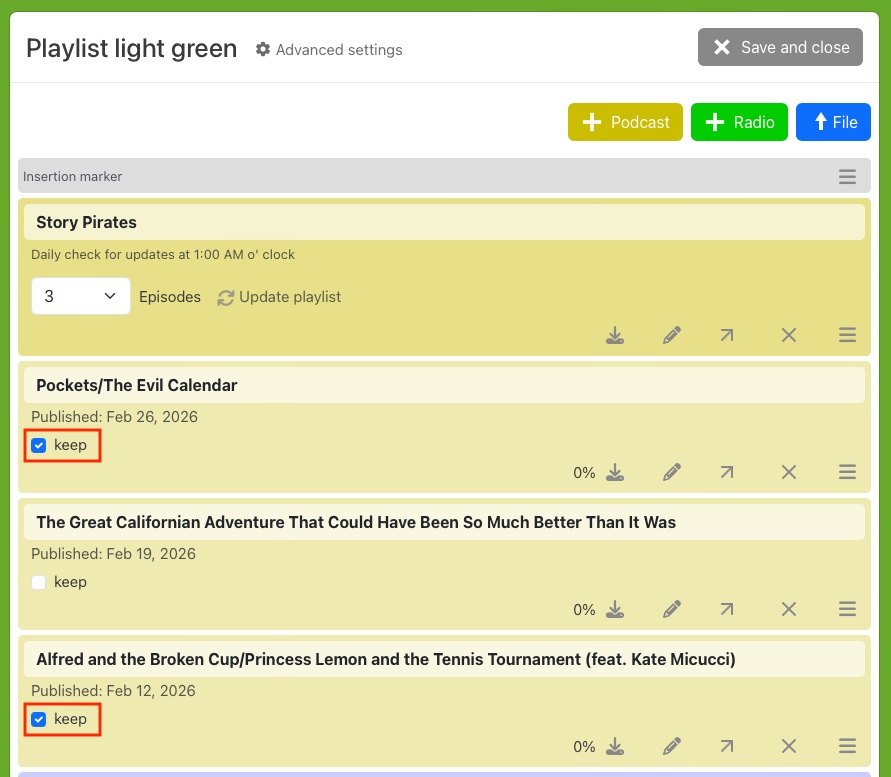
To make room for new episodes, hörbert deletes the oldest episodes from the list when the maximum desired number of episodes would otherwise be exceeded during automatic download. Favorite episodes that should be kept can be marked in the playlist content window so that they are definitely retained. To do this, check the box next to “keep” in an episode row:
When you are done working in the playlist, click the gray “Save and close” button in the upper right corner of the playlist window to save the changes to the memory card.
9.8.1
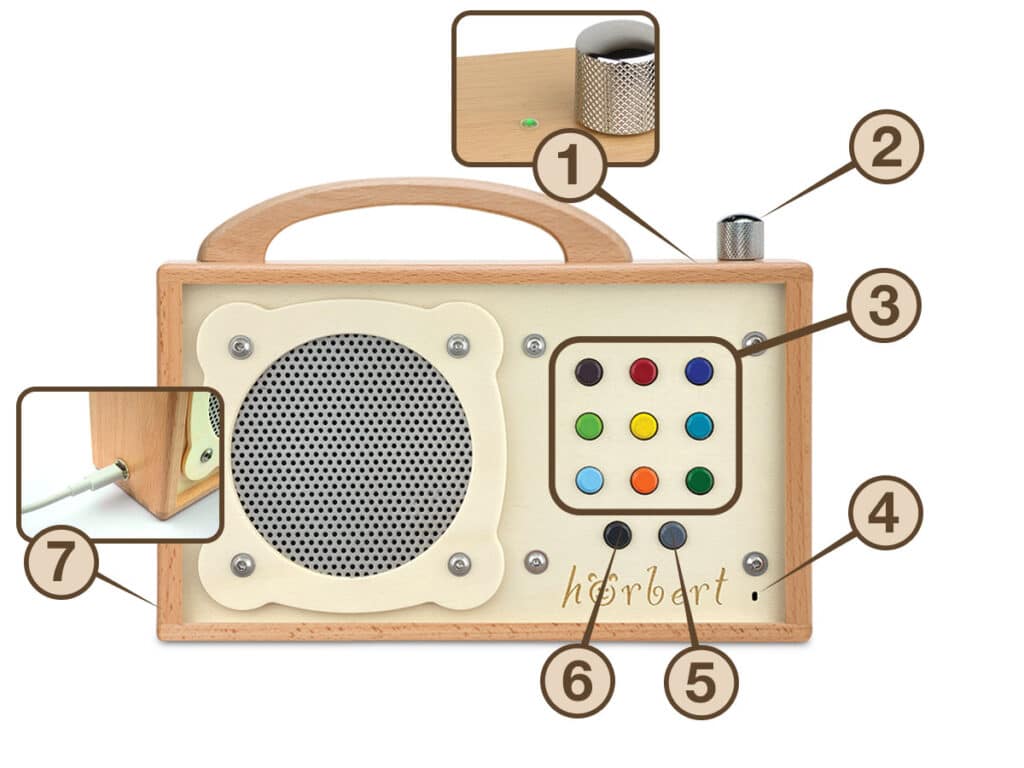
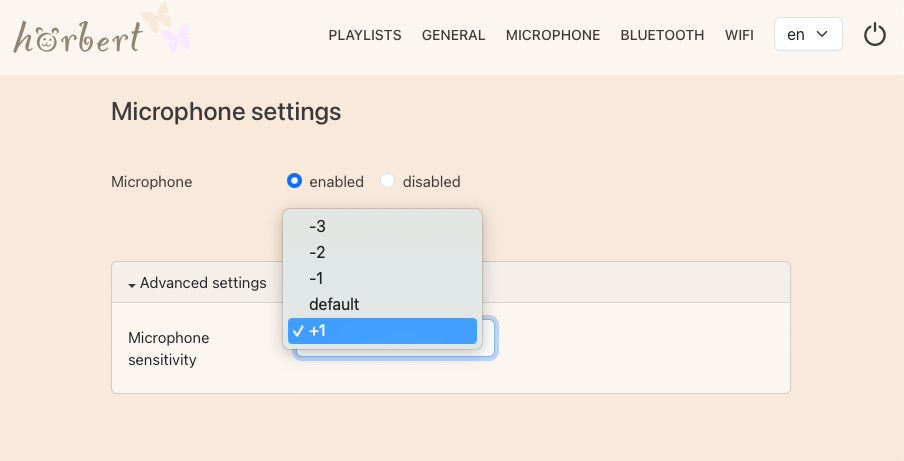
hörbert has a built-in voice microphone (No. 4 in Figure 1) behind the small opening at the bottom right of the hörbert front panel.
Ideas for use:
Here’s how:
9.6
hörbert can be paired with up to two Bluetooth receivers, e.g. wireless headphones, and transmit its audio content to the headphones. It can also be used as a Bluetooth speaker for streaming content from Bluetooth transmitters, e.g. mobile phone, tablet or computer.
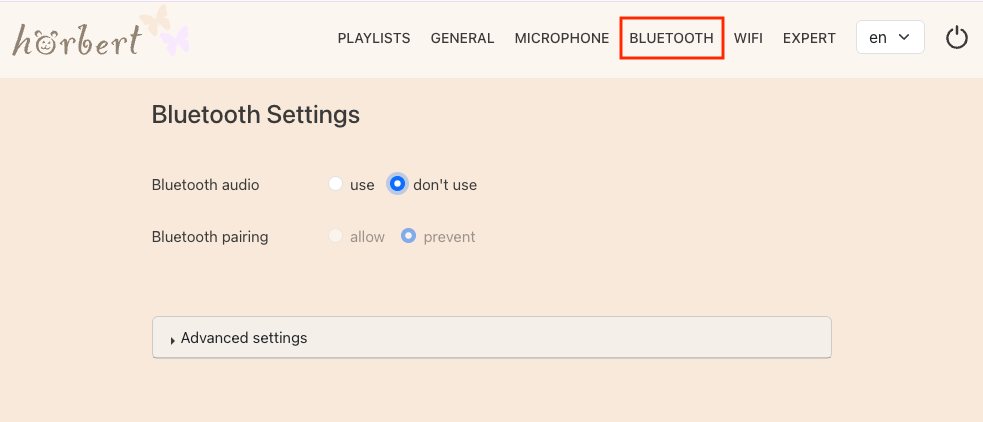
For this, the Bluetooth and pairing function must be activated on hörbert in Browser Set Mode.
9.6.1
9.6.2
9.6.2.1
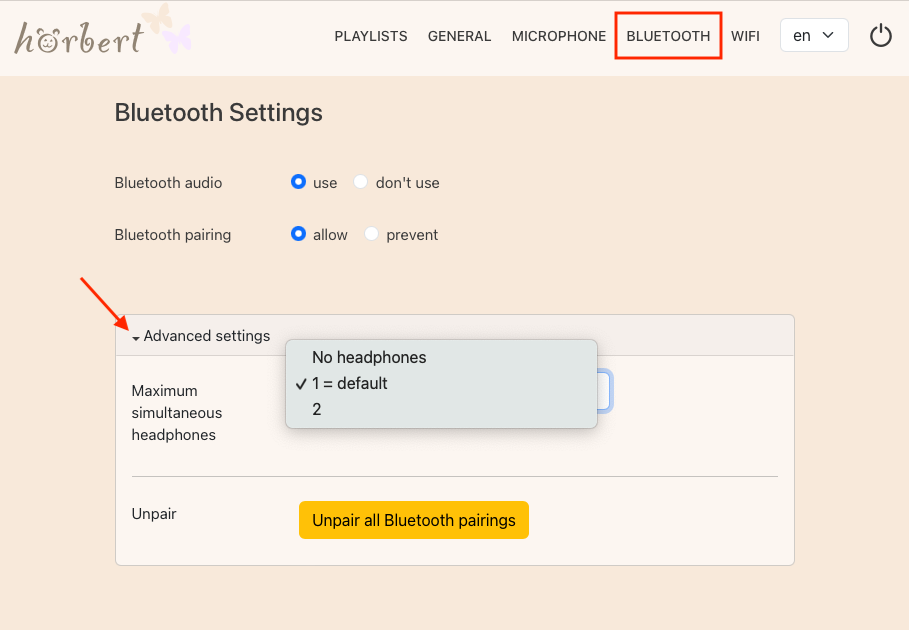
hörbert can be paired with up to two Bluetooth receivers, e.g. wireless headphones, and transmit its audio content to the headphones. The user can determine whether hörbert should search for one or two headphones or no Bluetooth headphones at all after turning on.
Here’s how:
9.6.2.2
Sometimes it may be useful to have hörbert “forget” devices that have previously been connected to it, if it is no longer desired for hörbert to pair with a known device. Clearing all pairings and re-pairing devices can also help with Bluetooth connection problems.
Here’s how:
9.6.3
After turning on, hörbert can optionally pass its audio to one or up to two parallel Bluetooth receivers, so that you can listen to hörbert via wireless headphones or even Bluetooth hearing aids.
When Bluetooth and pairing are activated, hörbert automatically searches for the first Bluetooth receiver for approximately 90 seconds after turning on.
Here’s how:
9.6.4
hörbert can be used as a Bluetooth speaker for streaming content. This makes it possible to transfer audio content from Spotify, Audible, Amazon Music, Apple Music, Deezer, YouTube Music or other streaming services to hörbert via Bluetooth. Thanks to hörbert’s recording function (8), these streams can even be recorded. This means no additional costs for new audio content!
Here’s how:
Troubleshooting:
If the sound is not played through hörbert after a successful Bluetooth connection and starting audio content on the device, please check whether it is necessary on your device to actively select hörbert as the audio output device. You can find this option in the system settings for audio output on your mobile phone, tablet or computer.
9.7
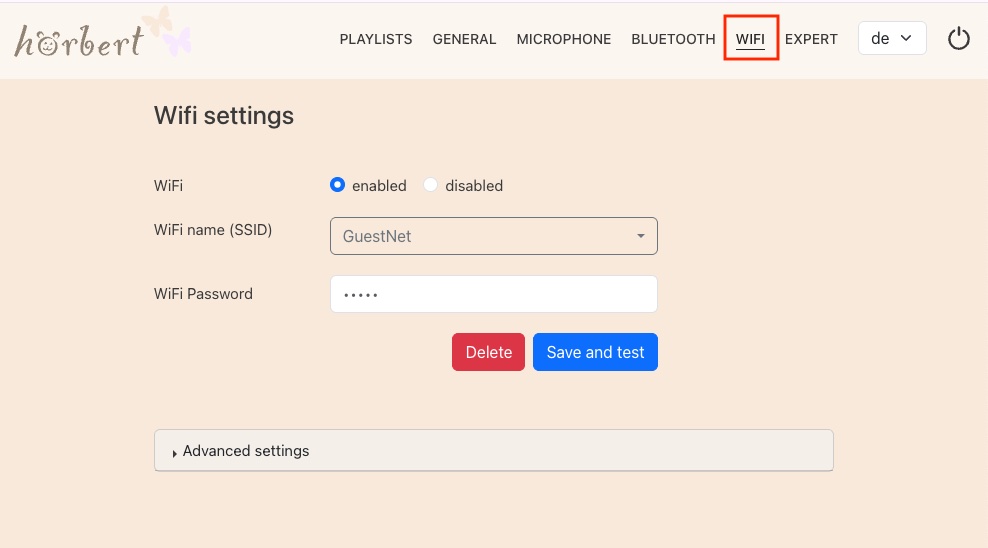
To use hörbert as a playback device for internet radio stations or as a podcast player, an available 2.4 GHz Wi-Fi network must first be set up via Browser Set Mode. You will need the name (SSID) and password of your own home Wi-Fi network for the setup.
Here’s how:
9.7.1
9.7.2
hörbert can be used as a playback device for web radio stations and as a podcast player. If a home 2.4 GHz Wi-Fi network is available, it can silently turn on at a desired time and download new podcast episodes.
Here’s how:
9.7.2.1
9.8
9.8.1
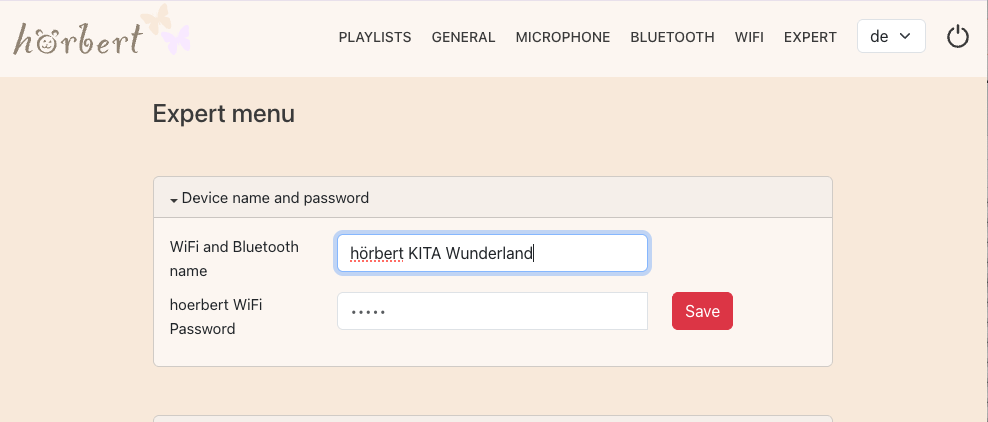
Each hörbert has its own device name, structured according to this pattern: hoerbert-xx:xx:xx:xx:xx:xx. Instead of “xx:xx:xx:xx:xx:xx”, each hörbert has an individual combination of letters and numbers.
To avoid mix-ups when connecting to a hörbert via Wi-Fi or Bluetooth when there is more than one hörbert in the vicinity, you can change hörbert’s name in the expert menu view (9.8) – in the first drop-down menu “Device name and password” – and choose a unique designation, e.g. “Anna’s hörbert” or “Daycare Rainbow”.
The password for connecting to hörbert’s own Wi-Fi can also be changed for security reasons. The default password is: hoerbert. See Starting Browser Set Mode (9.1)
9.8.2
In certain situations, hörbert should be louder, e.g. in the gym, in the garden, on a hiking day, in the case of hearing impairment, etc.
Sometimes it needs to be even quieter than in quiet mode (6), e.g. in the doctor’s waiting room, on public transport, etc.
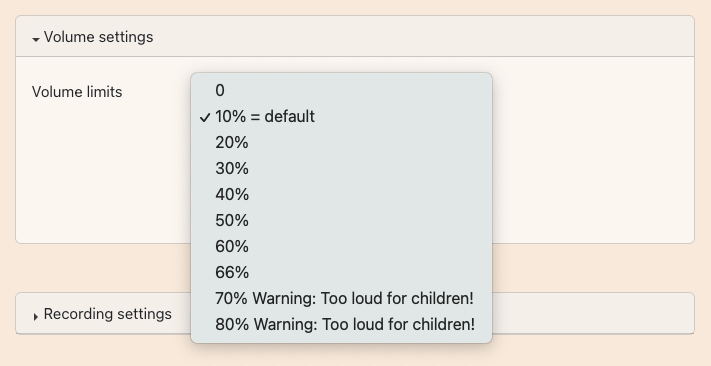
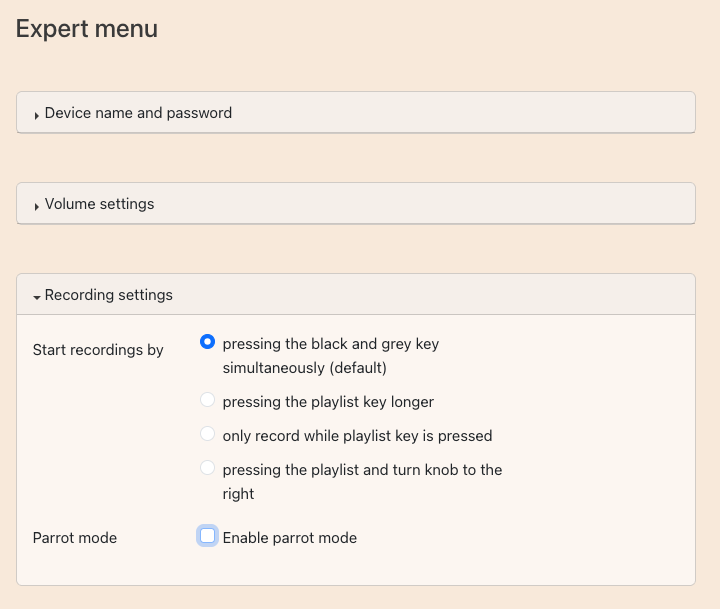
The expert menu (9.8) offers in the second drop-down area for the volume settings the option to set hörbert even quieter or even louder and to adjust the volume limits accordingly between 0% and 80%.
WARNING: Above a value of 70%, hörbert is too loud for young children’s ears when they are close to the speaker.
If the limit is set to 80%, vibrations in the wooden case may occur, which can impair the sound quality.
9.8.3
9.8.4
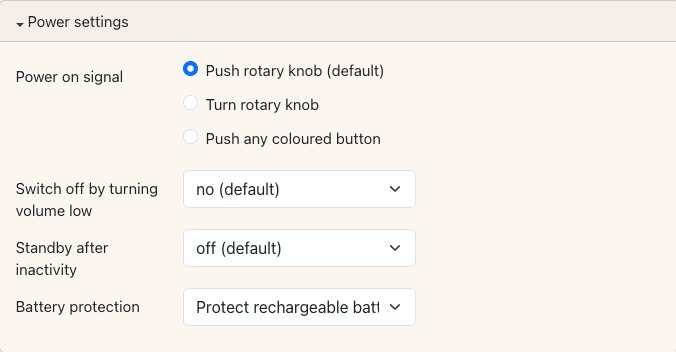
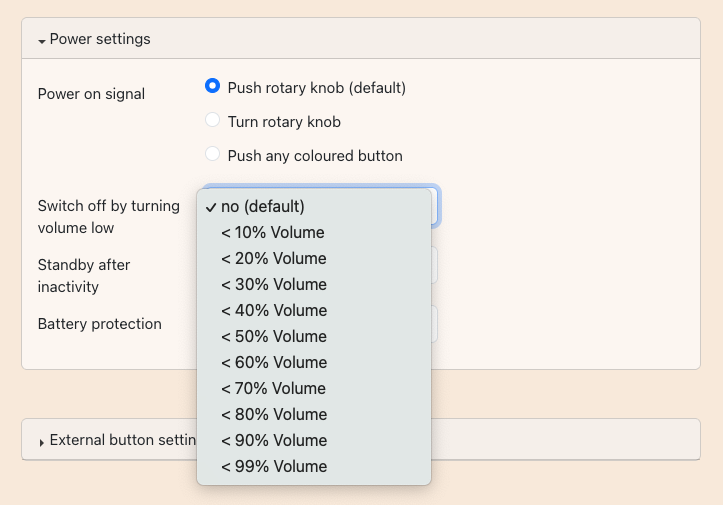
In hörbert’s power supply settings, the on and off behavior can be customized to individual needs. Additionally, the battery protection mode can be selected there.
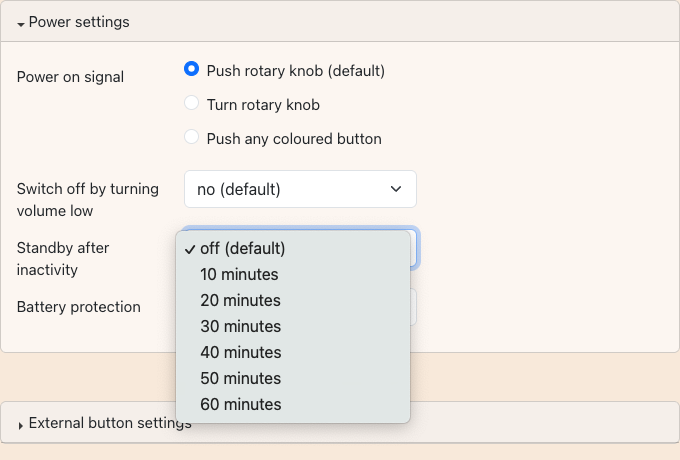
This option means that hörbert automatically turns off after the desired time, provided no interaction has taken place during that period.
You can choose between 10, 20, 30, 40, 50 or 60 minutes here:
9.8.5
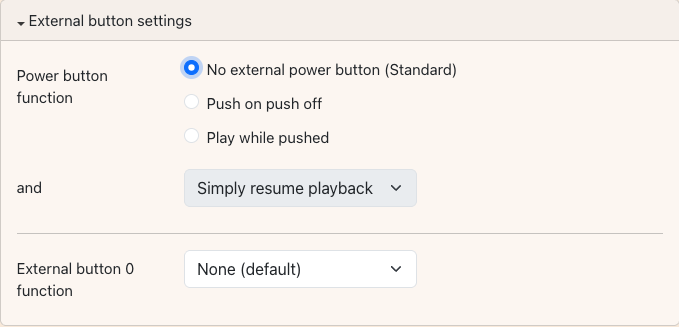
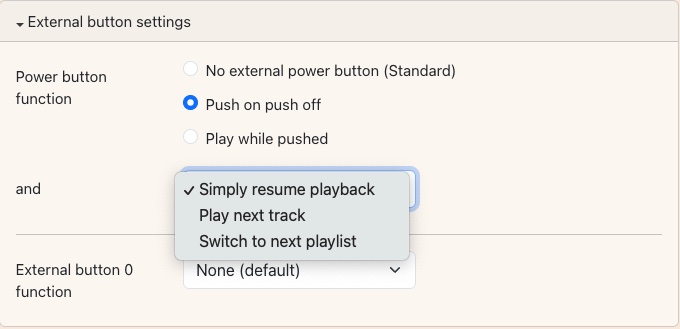
The accessible version of hörbert can be equipped with an optional port for external, large control buttons (e.g. Jelly Button or Lib Switch). This makes it possible for people with physical and/or cognitive limitations to independently experience music and stories and to intuitively navigate through their favorite content.
Pressing the external button turns hörbert on. Pressing again turns hörbert off.
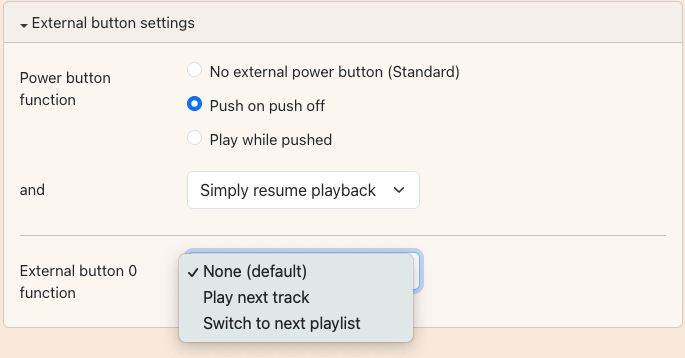
Using a Y-cable, which we include with an accessible hörbert with a port for external control buttons, up to two external, large-surface control buttons can be connected. If a second button (Button 0) is connected, you can also define how hörbert should behave when this button is pressed:
9.8.6
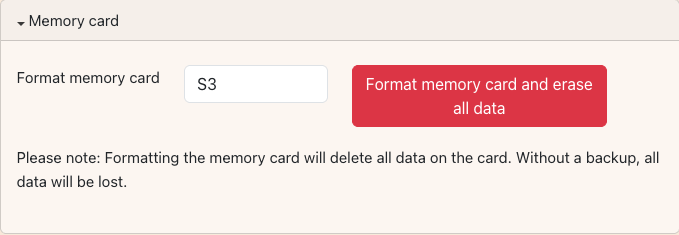
Starting from firmware version Butterfly 2, a memory card can also be reformatted via Browser Set Mode without an SD card reader or computer.
WARNING: Formatting deletes all data on the memory card. We therefore recommend creating a backup of the content beforehand.
Here’s how:
9.8.7
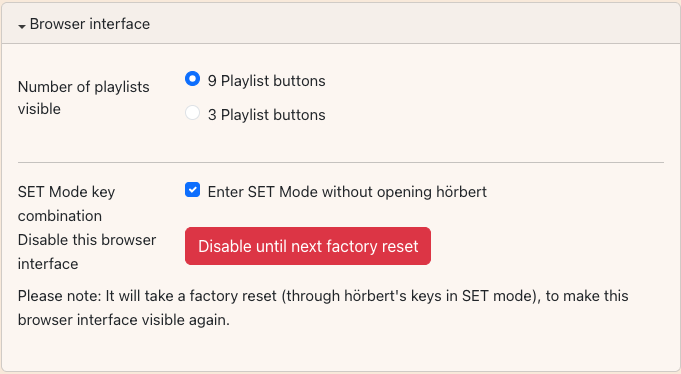
In this dialog menu, you can set whether a hörbert has 9 or 3 buttons for playlists. Additionally, you can prevent access to Browser Set Mode here if you do not want a third party to connect to hörbert’s Browser Set Mode.
Here’s how:
9.8.8
When the expert menu has been activated, extended options are available in the PLAYLISTS menu item for individual playlist settings:
9.8.8.1
9.8.8.2
When the expert menu is activated (see 9.2.3.1), new options are available in the content window of a playlist, e.g. the light yellow “+ PlaLa” button. PlaLa is hörbert’s Playlist Language and consists of commands that can influence hörbert’s controls, such as volume, playback behavior or other advanced commands.
Click on “+PlaLa” if you want to add a PlaLa command at the insert marker. An overview of PlaLa commands and address modifiers can be found on this page: https://www.hoerbert.com/technik/
You are currently viewing a placeholder content from Accessibility Widget. To access the actual content, click the button below. Please note that doing so will share data with third-party providers.
More InformationYou are currently viewing a placeholder content from Vimeo. To access the actual content, click the button below. Please note that doing so will share data with third-party providers.
More InformationYou are currently viewing a placeholder content from YouTube. To access the actual content, click the button below. Please note that doing so will share data with third-party providers.
More InformationYou need to load content from reCAPTCHA to submit the form. Please note that doing so will share data with third-party providers.
More InformationYou are currently viewing a placeholder content from Google Maps. To access the actual content, click the button below. Please note that doing so will share data with third-party providers.
More InformationYou need to load content from reCAPTCHA to submit the form. Please note that doing so will share data with third-party providers.
More Information