


Categories:
hörbert 2021 FAQ
hörbert 3.0 FAQ
Requirements:
- You need access to a 2.4 GHz Wi-Fi at your location.
Your hörbert must have the latest firmware version (Butterfly2) installed. The model hörbert 3.0 already has this firmware version or a newer one. Here’s the link to the -> Instructions for a firmware update.
How to activate the podcast function for your hörbert
- Start the Browser Set Mode for hörbert -> Explanation video
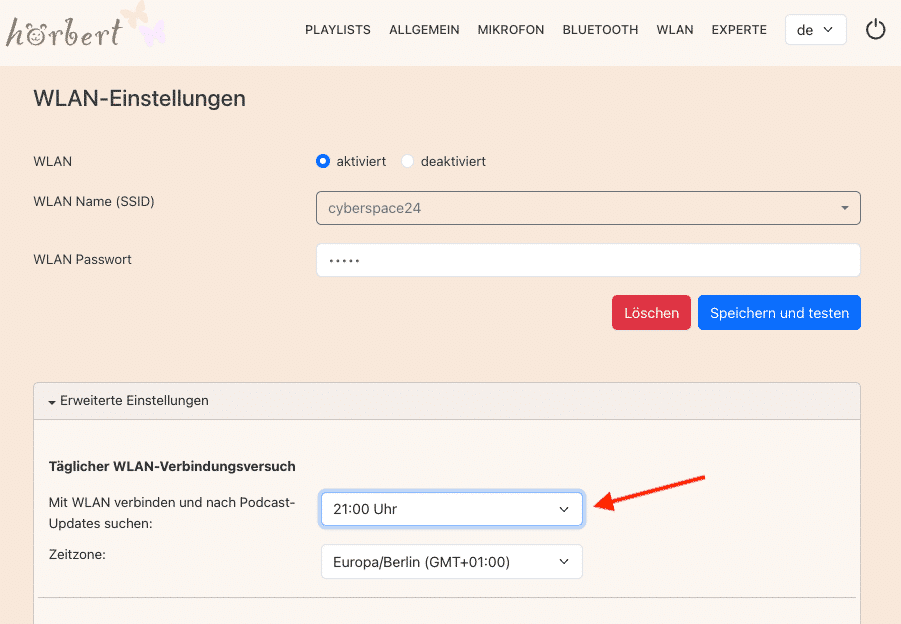
- Click on “WLAN” in the main menu. Activate the WLAN there and enter the WLAN name and password.
- Choose in the “Advanced Settings” at what time hörbert should wake up silently and download new episodes. Use a time when hörbert is definitely not being used.
- Add podcasts to playlists:
- Select one of the colourful playlists in the main menu where you’d like to save a podcast URL.
- Click on the “+Podcast” button
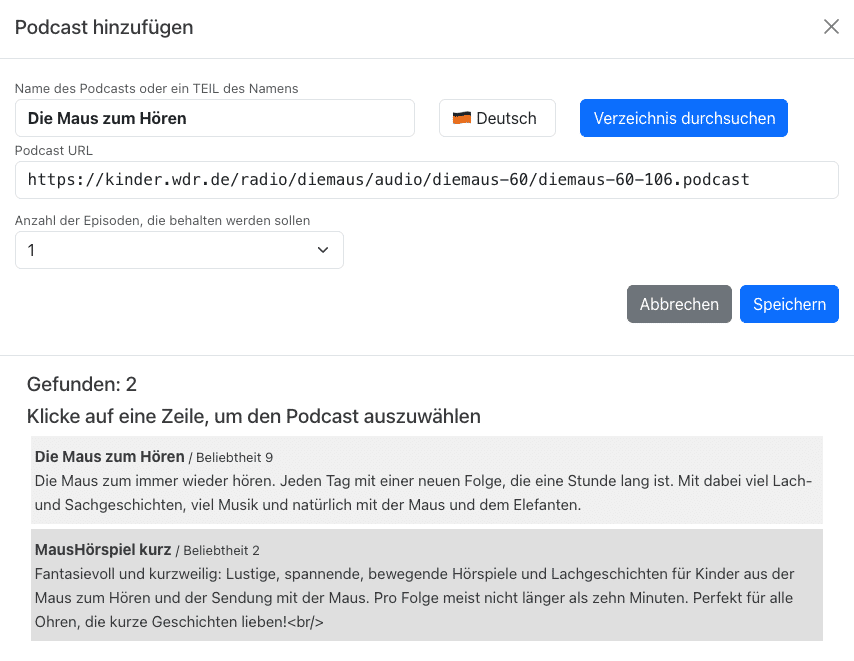
- If you know the URL, enter a name for the podcast here and type or copy the URL into the designated field and select “save”
- You can also start a keyword search for a podcast, select the right podcast from the results list and “Save”.
- Define at this point as well how many podcast episodes should be kept:
- Once you’ve clicked “Save”, hörbert downloads the control file for the podcast. In the playlist, this control file is displayed together with the preview of the podcast episodes.
- If you then click on the download icon in the parent control file, hörbert downloads the entire number of episodes displayed. This can take several minutes depending on the podcast length.
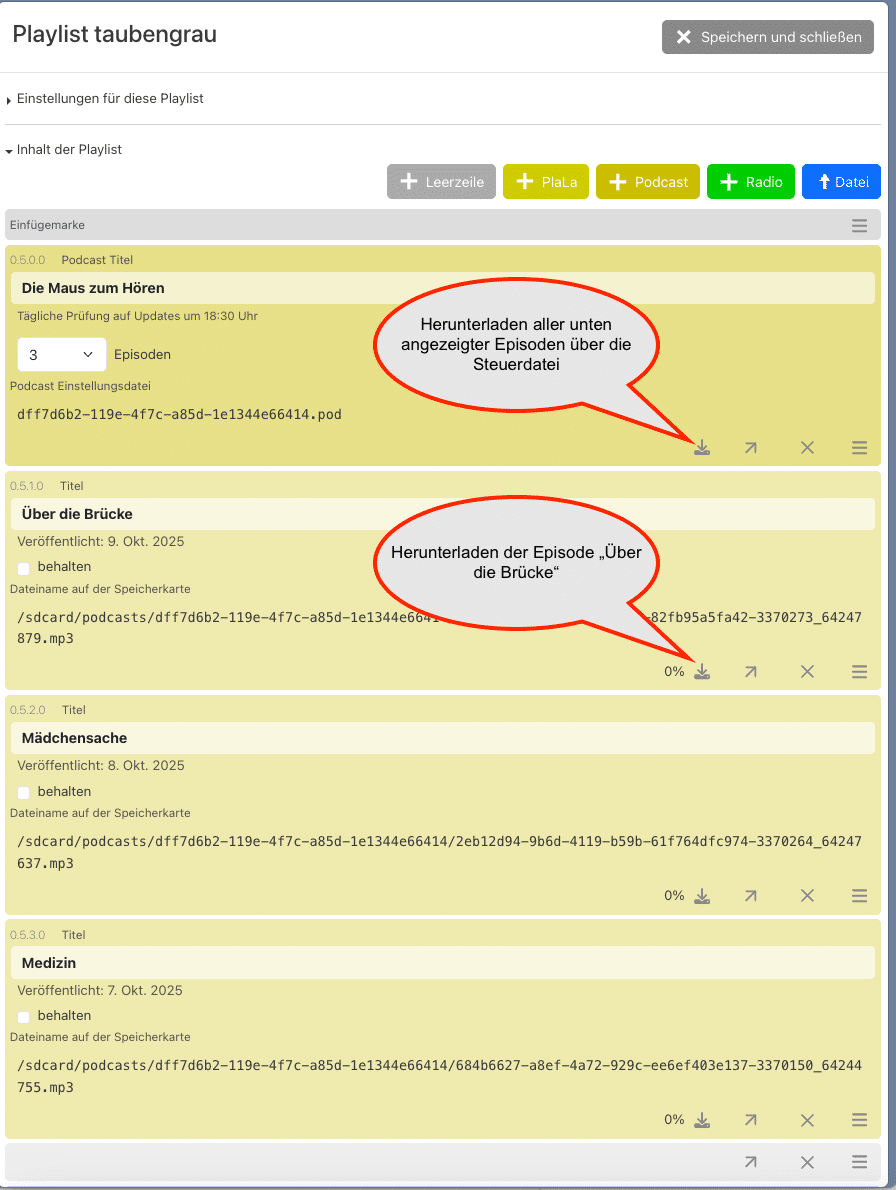
- If you want to download just a single episode first, click on the download symbol to the right of the desired episode.
- hörbert then automatically downloads the other episodes at the previously set wake-up time, provided it’s connected to the home Wi-Fi at that moment and was switched off beforehand. If it’s currently playing and in use, no new episodes will be loaded.
We wish you lots of fun with your favourite podcasts!