


Can I use my own memory cards?
Yes. The current hörbert model reads SD cards between 4GB and 512GB in size.
Necessary preparation steps for the SD card so that hörbert can play it
- Your own SD card must be formatted in FAT32 (or FAT, MSDOS-FAT, EXFAT) format.
Attention: Formatting irreversibly deletes all data on the selected storage medium. So make sure that you’re really formatting the correct memory card, and that you’ve either made a backup beforehand or can do without the data that’s stored on it! - You must then create 9 playlist folders with names 0 to 8 on the SD card.
How to do all this exactly, you’ll find out here:
You can format your own memory card in FAT32 format with the built-in tools of your computer. If this format isn’t available in your disk utility programme for formatting the SD card, you can also select FAT, EXFAT or MSDOSFAT.
Alternative without computer:
- Start the Browser Set Mode
- Open the “Advanced Settings” in the GENERAL menu item
- Click on “Show expert menu”
- Go to the menu item EXPERT -> Memory card
- Format the memory card there
- You can now add your own files or web radio URLs in the PLAYLISTS menu item. See below under “Editing the SD card in Browser Set Mode”.
- Do you also want to add podcasts and automatically download new episodes? This works with the firmware update to Butterfly2, currently (as of 31.10.25) available as a BETA version.
- Or: Exit Browser Set Mode if you’d rather edit the SD card on your computer with an SD card reader. See next section.
Setting up the SD card on your computer and quickly transferring many files
1. Creating folder structure on the SD card
Create 9 folders for the nine playlists in the main directory of your SD card and name them from 0 to 8. 0 = dark purple button, 1 = red button, 2 = dark blue button, 3 = light green button, 4 = yellow button, 5 = dove blue button, 6 = light blue button, 7 = orange button, 8 = dark green button.
This then looks like this: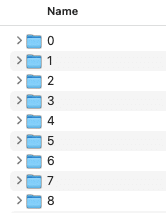
Note: For a hörbert with only 3 playlist buttons, you only create three folders (1 = red, 6 = light blue, 8 = dark green)
You can now copy/drag your own audio files into the respective folders using copy&paste or drag&drop. Possible formats: mp3, wav
The playback order is solved by appropriate numbering of the track names, e.g.
1_Track name
2_Track name
3_Track name
etc.
or with spaces between number and track name:
1 Track name
2 Track name
3 Track name
etc.
Finished! Now you can properly eject the card, disconnect it from your computer and test it in hörbert.
Editing the SD card in Browser Set Mode (without computer and without SD card reader)
If the Butterfly firmware is already installed on your hörbert, you can also transfer new audio files via Browser Set Mode (via tablet, smartphone or computer). hörbert then handles this via its WLAN. It will take somewhat longer to transfer lots of data than via the SD card reader on your computer.
In Browser Set Mode, select one of the colourful playlist buttons, then select “Playlist content” and click on the blue “FILE” button to select and transfer new audio files.
You can then move the file to another position in the playlist using the icon with the three lines (see image below):
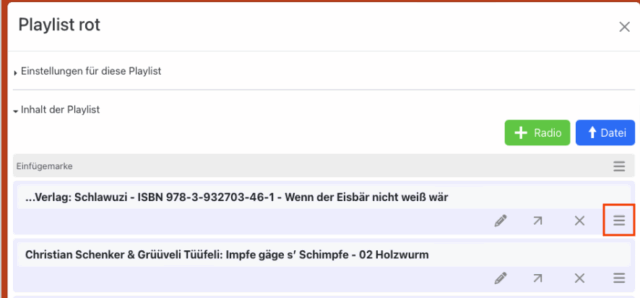
Note: If you’ve once edited or opened the playlist contents of your SD card in Browser Set Mode, hörbert creates a file called “playlist.m3u” in the playlist. This ensures the correct playback order. New files that you subsequently add to playlist folders 0 to 8 via your computer’s file directory will always be played at the end of the playlist in alphabetical order.
You can then change the playback order in Browser Set Mode by dragging the tracks to another position there.
You can find a detailed description in our instructions for hörbert with Butterfly firmware