


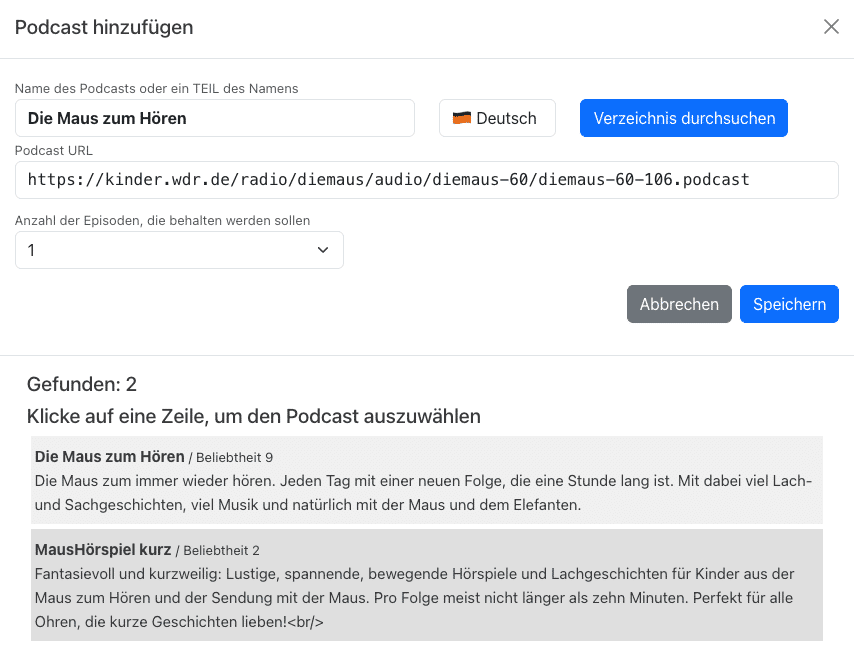
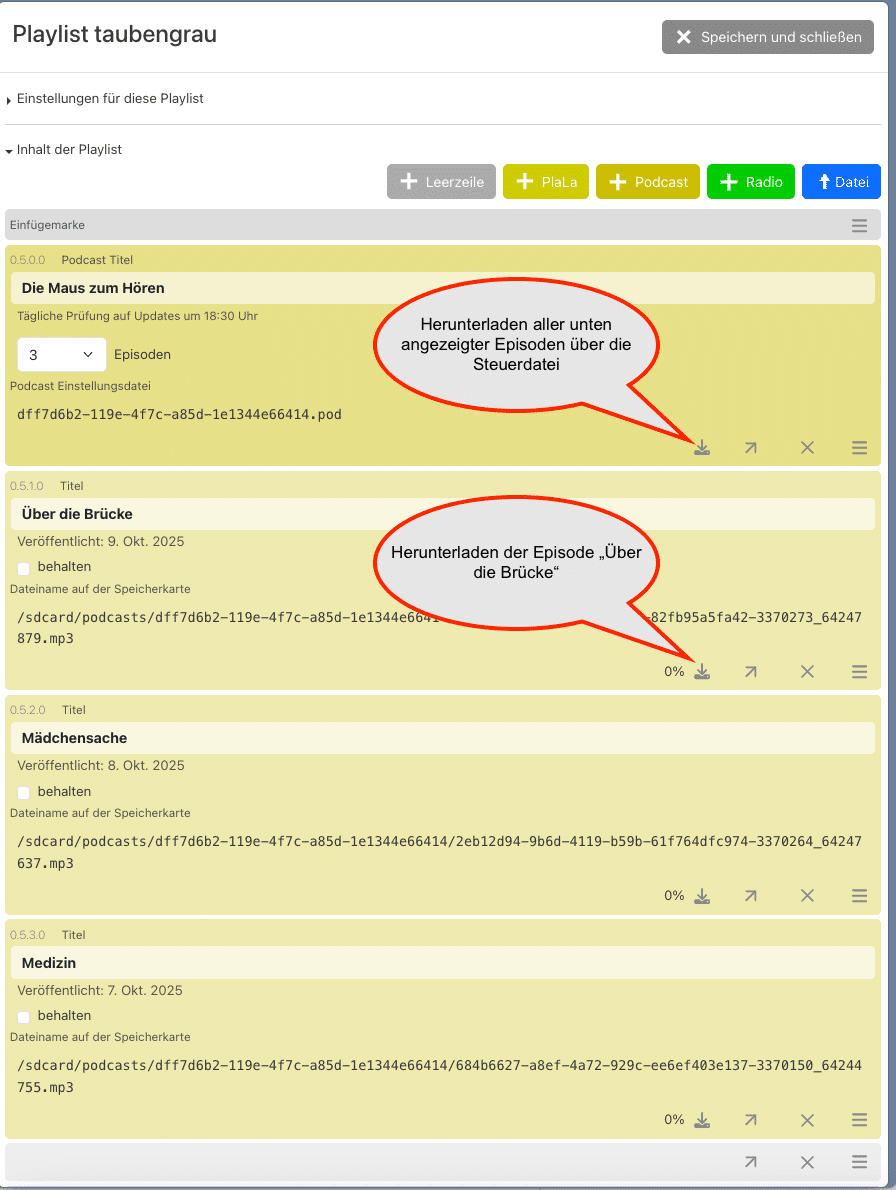
We hope you enjoy your favourite podcasts!
People who use hörbert, especially small children who often press all the buttons just for fun, must not end up in hörbert’s SET mode by accident. That’s why we’ve come up with a method that can’t be triggered “by mistake”.
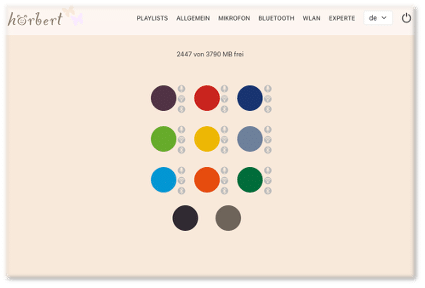
In the Browser Set Mode you can now make all the settings for hörbert. For example:
activate/deactivate WiFi, Bluetooth and the voice microphone, edit playlists, add podcasts or web radio stations, and much more.
Here you’ll find an overview of the options in the Browser Set Mode: BLOG ARTICLE BROWSER SET MODE
Requirement: You have a hörbert model without a toggle switch.
If you’d like to upgrade your hörbert 2011 (old model with toggle switch), order the upgrade kit right now to retrofit it yourself, or have us upgrade your hörbert in our workshop.
How you carry out a firmware update depends on which firmware is running on your hörbert. If your firmware is older than November 2024, you have to use the manual method (further below). It’s most convenient if your hörbert already has the “Butterfly” firmware or newer.
Start the Browser Set Mode (click here to go to the explanatory video)
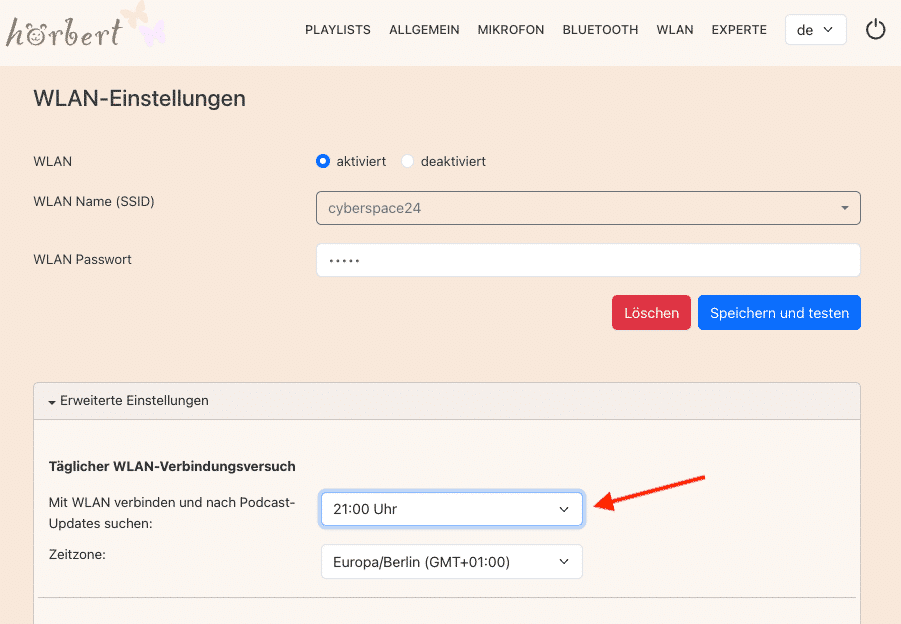
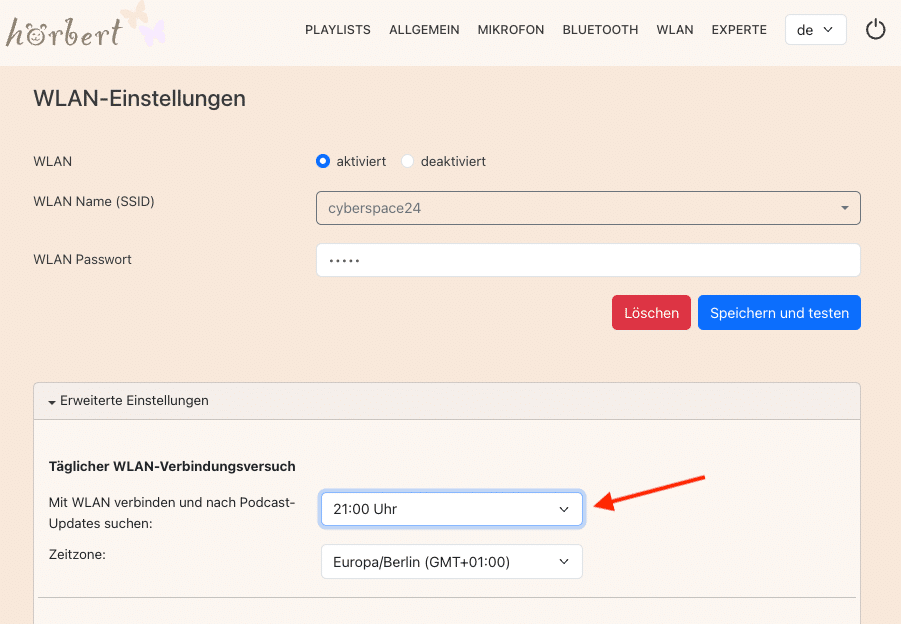
Activate and configure hörbert’s Wi-Fi function in the Wi-Fi menu item:
Select your Wi-Fi network (2.4GHz only) from the list of available networks and enter your Wi-Fi password.
Tip: If you’d like to use hörbert as a podcast player: Under “Advanced settings”, set the time at which hörbert should automatically look for new podcast episodes. Choose a time when hörbert isn’t being used, e.g. at night. hörbert won’t make any sounds while updating podcasts.
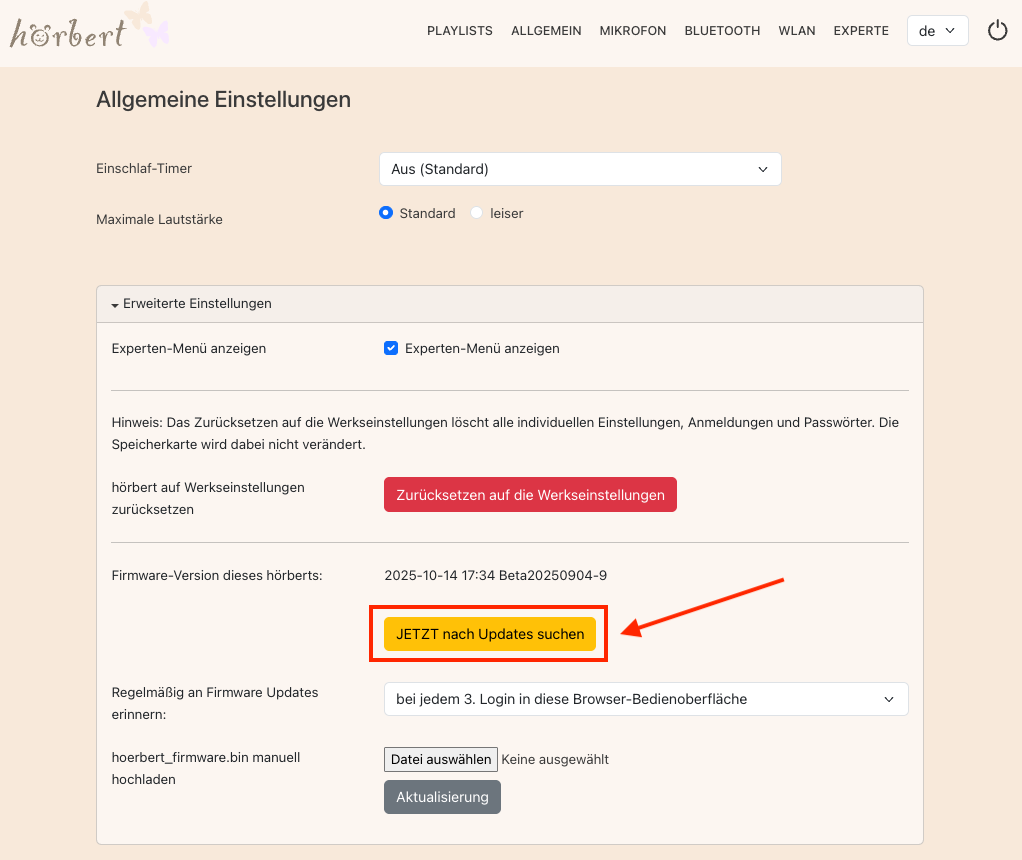
Then select the item “General” in the main menu and open the Advanced settings there. Click on “Check for updates NOW” to bring your hörbert’s firmware up to date.
Wait until the update has been carried out. You’ll know it’s done when hörbert automatically ends the Browser Set Mode. Please don’t switch hörbert off and wait until it plays content through its speaker again.
Done! You’re now using the latest firmware with the current features and bug fixes!
TIP: BETA VERSIONS
We’re constantly developing hörbert’s firmware further. We test new features in BETA versions, which aren’t yet stable or fully developed. If you’re curious and you have a backup copy of your memory card, you can also take a look at these BETA versions:
To do so, download the BETA firmware as a file. You mustn’t unzip the downloaded file, as it’s simply loaded onto hörbert as a .bin file:
Click on “Choose file“, then find the downloaded .bin file, and afterwards click on “Update“.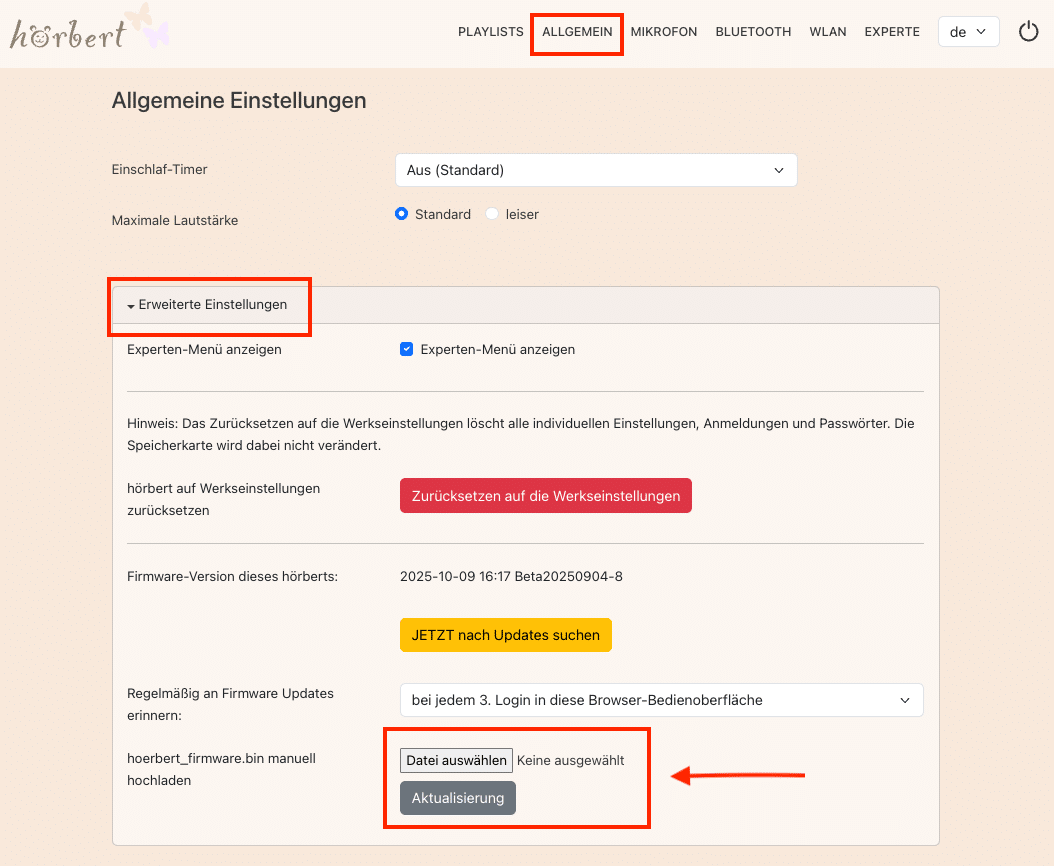
hoerbert_firmware.binDone! From now on you can carry out future firmware updates quite easily via Wi-Fi using the Browser Set Mode.
PayPal uses Google reCAPTCHA to help secure the payment process. (More Information)
You are currently viewing a placeholder content from Vimeo. To access the actual content, click the button below. Please note that doing so will share data with third-party providers.
More InformationYou are currently viewing a placeholder content from YouTube. To access the actual content, click the button below. Please note that doing so will share data with third-party providers.
More InformationYou need to load content from reCAPTCHA to submit the form. Please note that doing so will share data with third-party providers.
More InformationYou are currently viewing a placeholder content from Google Maps. To access the actual content, click the button below. Please note that doing so will share data with third-party providers.
More InformationYou are currently viewing a placeholder content from OpenStreetMap. To access the actual content, click the button below. Please note that doing so will share data with third-party providers.
More InformationYou are currently viewing a placeholder content from Mapbox. To access the actual content, click the button below. Please note that doing so will share data with third-party providers.
More InformationYou need to load content from reCAPTCHA to submit the form. Please note that doing so will share data with third-party providers.
More Information