
hörbert user manuals

Hardware Version 3.0 with Butterfly 2 Firmware

Note: To simplify your search, use the keyboard shortcut CTRL + F (for Windows) or CMD + F (for Mac) and then enter the search term in the browser’s search field.

Table of contents

1

General

1.1

hörbert explained in short

Congratulations on your new hörbert!

You now own a high-quality audio player made from sustainable wood that is easy to use and designed to accompany you for many years.

The colorful playlist buttons on the front allow you to control audio content intuitively—without a display or any reading skills, simply at the push of a button. This makes hörbert suitable both for young children from around two years of age and for people who have difficulties with complex technology.

By default, hörbert plays music and stories from an SD card. Each button can store multiple tracks, radio plays, or audiobooks; each press of a button jumps to the next track in the respective playlist.

Additionally, hörbert has many advanced features that can be activated via a web interface, the Browser Set Mode (9.1). Among other things, it can be used as a Bluetooth speaker (9.6.4), podcast-player (9.4) or a webradio player (9.3.7). Thanks to the recording functions (8) für voice, Bluetooth streams and internet radio streams, there are no ongoing costs for new audio content. With the sleep timer function (9.2.1) hörbert gently accompanies you to sleep. hörbert is delivered with a preloaded memory card, so listening fun can begin immediately.  The memory card can be expanded at any time with your own content (5.6).

1.2

Used symbols and their meaning

1.3

scope of delivery

Please check the package contents for completeness upon receipt. In addition to the user and safety instructions, including a QR code and a link to this detailed manual, the following items should be included:

  • 1 × hörbert – wooden music box with USB port and rechargeable battery function
  • 1 × complimentary memory card edition according to your order selection

2

Safety instructions

Your hörbert has a charging function for NiMH rechargeable batteries.

We do not include batteries or rechargeable batteries in the delivery. The metallic battery clips (No. 9 in Figure 2) are designed for 4 x NiMH rechargeable batteries (1.2V AA / HR6). You need a standard USB-C cable and a USB power adapter if you want to operate hörbert on mains power or charge the batteries inside hörbert. Any USB power adapter can be used.

Do not use rechargeable batteries with damaged casing (e.g. scratched). This can lead to short circuits and damage to the batteries and the device. Always use four identical batteries with the same charge level.

3

Maintenance and care

Wood is a natural product and the wooden case may react to moisture by swelling and warping. The sturdy construction counteracts such problems. However, you should always keep hörbert dry and not expose it to extreme cold or heat. Over time, the wooden case will darken, which is a natural process. For cleaning, we recommend wiping hörbert with a slightly damp cloth. Do not use cleaning agents, as these may cause discoloration or be absorbed by the wood and then slowly released into the environment.

hörbert has a saliva-resistant and perspiration-proof finish that protects the wood from contamination and moisture fluctuations. Most damage to the wood can be corrected with very fine sandpaper. Any loosened screws can be retightened by yourself with suitable tools. You can also replace spare parts yourself if you have the necessary manual skills. For all other cases, we are here for you. Please feel free to contact us through our contact form (11.2) if you have any questions or if a repair is needed.

4

Controls and connections

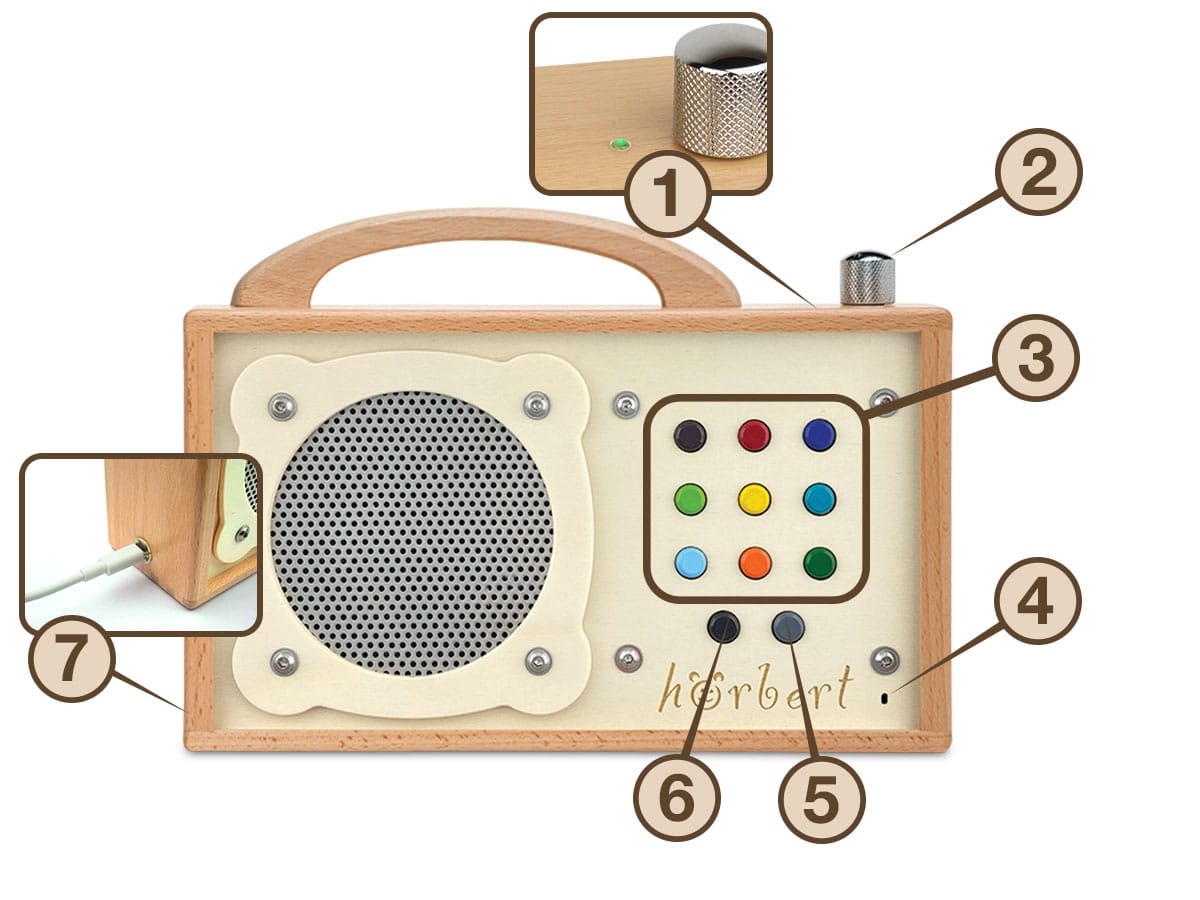
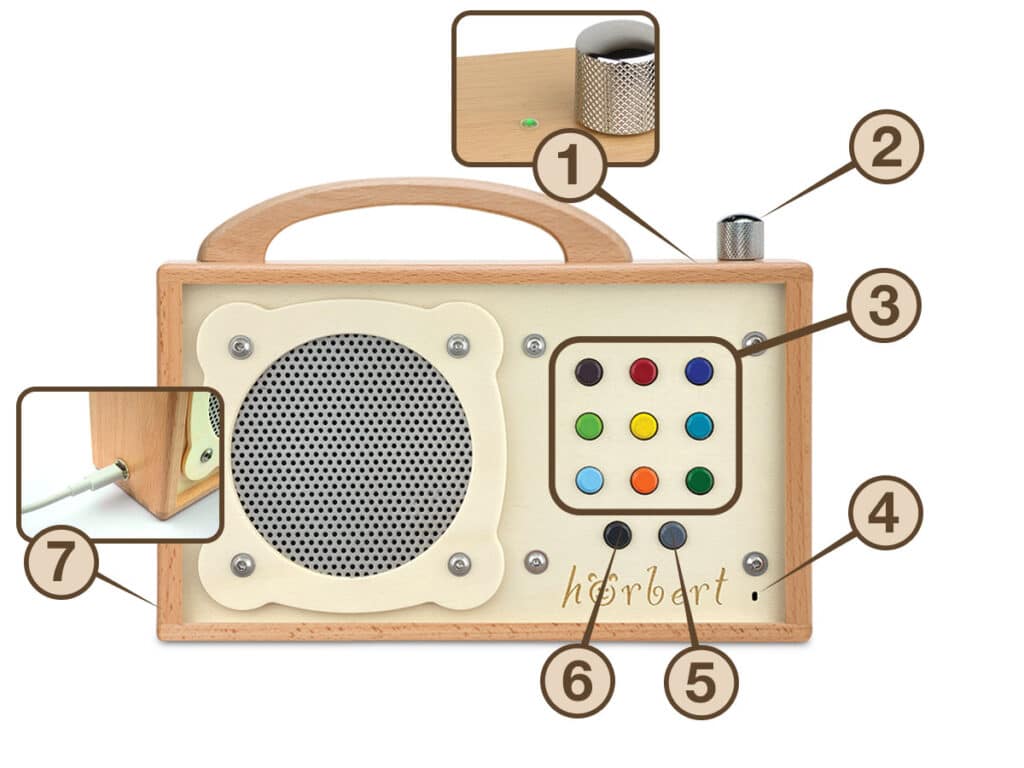
Start at the front with the labels ‘1’ for the power indicator LED, ‘2’ for the volume knob, ‘3’ for the playlist buttons, ‘4’ for the built-in microphone opening, ‘5’ for the fast-forward button, “6” for the rewind button, and ‘7’ for the USB-C charging port.
Figure 1 - controls of hoerbert from the outside
1 = LED Power Status Indicator For explanation see 4.1
2 = On/Off and volume control
  • Press once for On / Off
  • Turn to adjust volume
  • Press twice to start Bluetooth speaker mode (9.6.4)
3 = Playlist buttons Each repeated press of the same button skips to the next track in a playlist
4 = Built-in microphone For recording voice, instruments
5 = fast-forward button audibly fast-forwards within a track
6 = Rewind button
  • Press once: jump to the beginning of the currently playing track
  • Press twice quickly: jump to the previous track in the playlist
7 = USB-C port USB-C port for mains operation and battery charging. Any USB adapter with a USB-C cable can be used here (See 5.4)
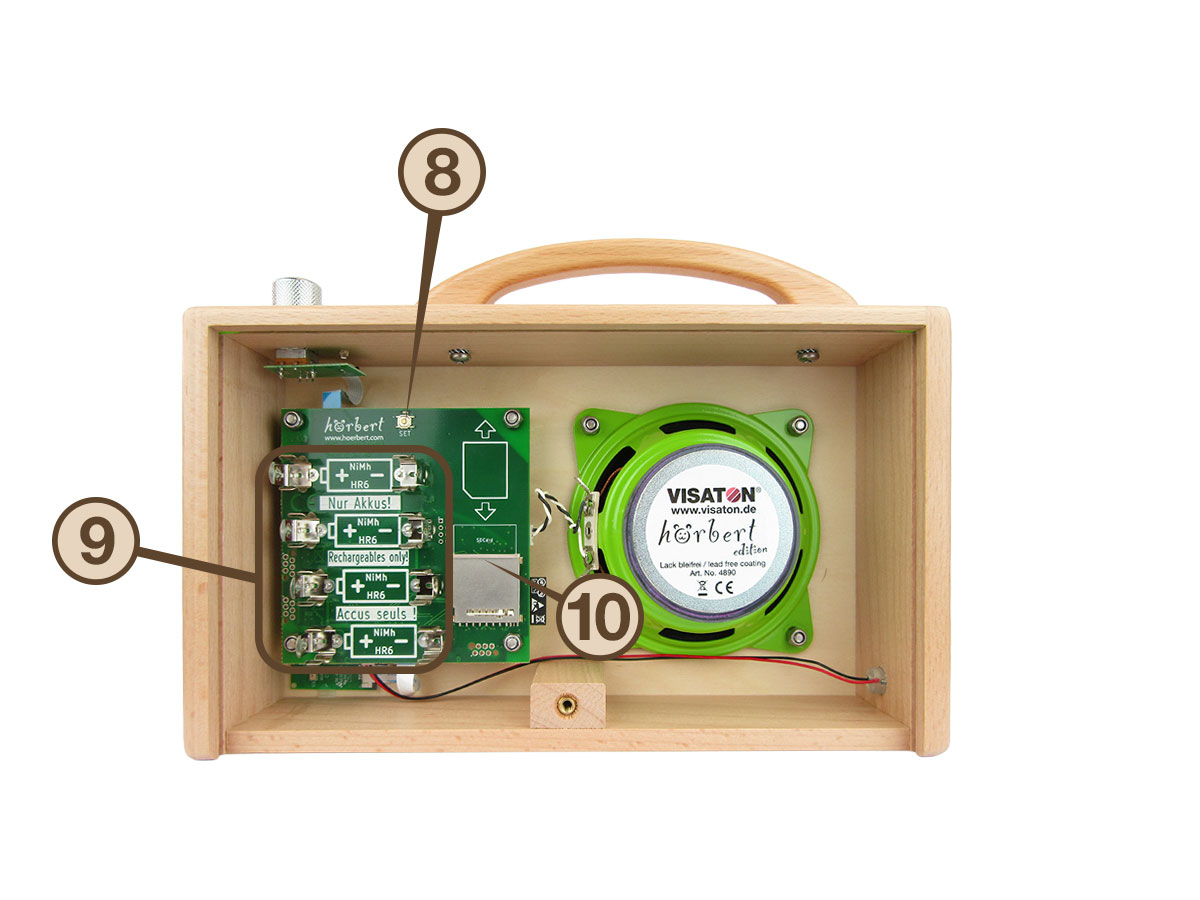
Hear from inside, with labels ‘8’ for the SET button, “9” for the battery holders, and ‘10’ for the memory card holder.
Figure 2 - controls of hoerbert in the inside
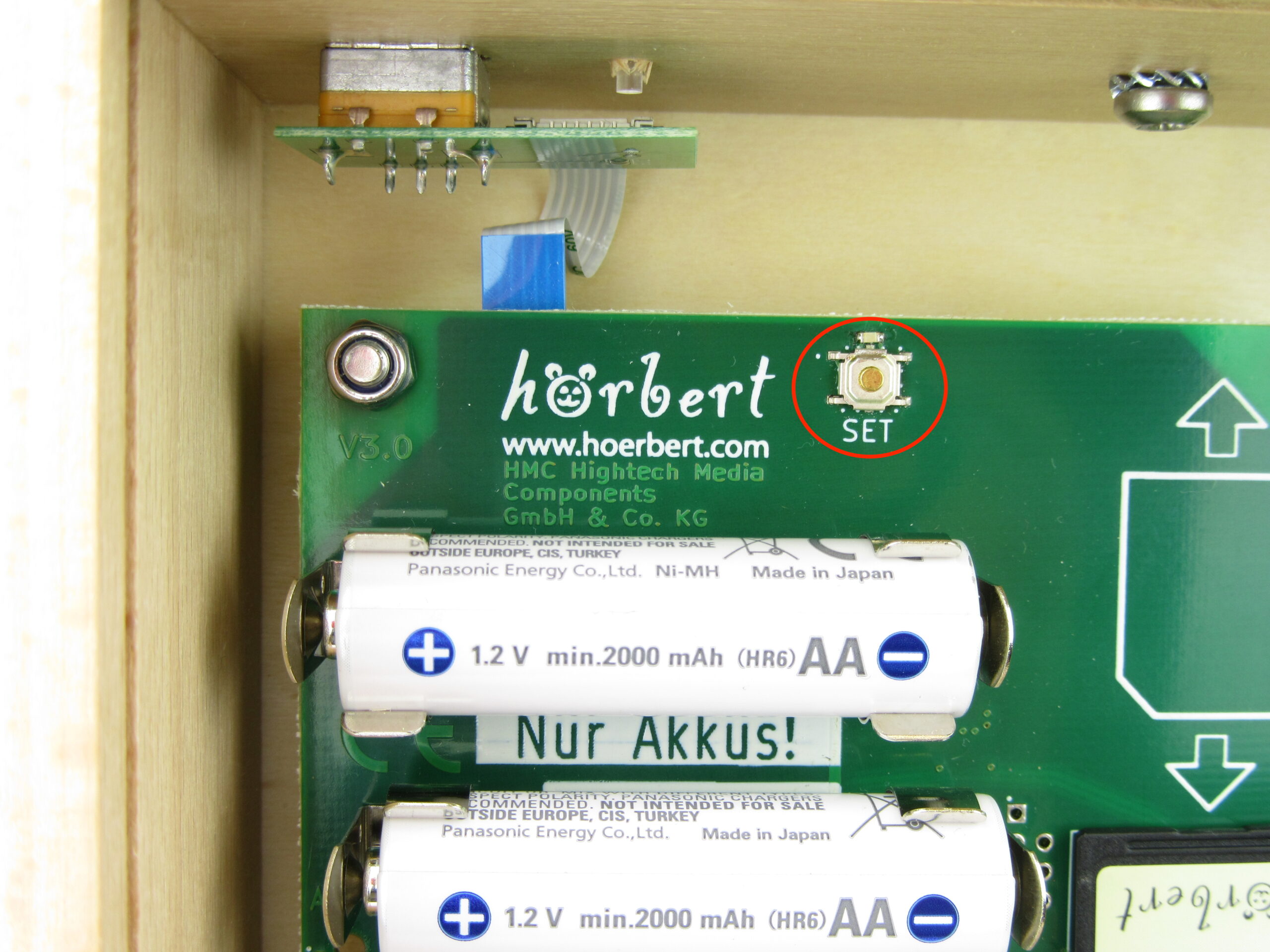
8 = SET-button This button allows you to start the Browser Set Mode (9), through which all settings for hörbert can be configured.
9 = holder for rechargeable batteries  4 x NiMH AA accumulators (see 5.3)
10 = SD card slot Insert the SD card from above or push it upwards to remove it

4.1

LED Power Status indicator

hörbert has an LED status indicator on the top of the housing, to the left of the rotary control (No 1 in Figure 1). The following explains the meaning of the different LED states:

LED stateMeaning
LED offhörbert is off
LED flashes dark greenhörbert is on und charges accumulators. When the batteries are fully charged, the LED no longer blinks
LED lights solid greenhörbert is on
LED flashes alternately green and dark greenhörbert is on and charges accumulators
LED flashes once green, once briefly bluehörbert is on and searching for a Bluetooth device
LED flashes once green, twice briefly bluehörbert is on and searching for up to two Bluetooth devices
LED flashes once green, once briefly blue, and once dark greenhörbert is on, searching for only one Bluetooth device, and charging batteries
LED flashes once green, twice briefly blue, and once dark greenhörbert is on, searching for up to two Bluetooth devices, and charging batteries
LED lights alternately green and bluehörbert is on and connected to one or two Bluetooth devices
LED lights alternately green, blue, and dark greenhörbert is on, paired with at least one Bluetooth device, and charging batteries

Note:

If no rechargeable batteries are inserted in hörbert, the device is switched off but connected to the mains power supply via the USB-C port, the LED will glow dark green continuously.

Reminder:

Only rechargeable batteries may be used in hörbert when the device is connected to the mains via USB.

5

Getting started

5.1

Preparations for operation

Here’s how:

  • Place hörbert on a soft surface with the front facing down.
  • Use a coin to turn the back panel screw counterclockwise, remove it, then carefully pull the back panel downward and set it aside.
  • To use hörbert out of the box, insert the pre-loaded memory card (5.5) included in the delivery with the label facing up into the designated SD card holder (No. 10 in Figure 2). The white stamp print in the shape of an SD card above the SD card holder shows you where the rounded corner of the SD card should be.
  • Insert suitable rechargeable batteries (5.3) into the metallic battery clips (No. 9 in Figure 2) if you want to use hörbert on the go. Or connect hörbert via its USB port (No. 7 in Figure 1) (5.4) to mains power and use it with a cable.
  • Slide the back panel back into place and tighten it clockwise with the coin.

5.2

Turning on/off

On the right side of hörbert’s top, there is the rotary knob (No. 2 in Figure 1), which is used to turn hörbert on and off, as well as to adjust the volume.

Here’s how:

  • Turning on:
    Press the rotary knob once to turn on hörbert. hörbert now plays the audio content on the memory card through its speaker. It continues playing exactly in the playlist and at the position where it last stopped.
  • Turning off:
    Press the rotary knob once again to turn hörbert off.
  • Bluetooth speaker mode:
    If hörbert is to be used as a Bluetooth speaker, press the rotary knob twice with an interval of approx. 0.5 seconds. hörbert then emits a rising signal tone and waits to be paired with a mobile phone, tablet, or computer. For setting up the Bluetooth functions, see chapter (9.6)

5.3

Rechargeable batteries for mobile use

If you want to use hörbert on the go without a cable:

Insert 4 x NiMH rechargeable batteries (1.2 V AA / HR6) into the battery clips (No. 9 in Figure 2).

Warning with solid color fillAlways use four identical, equally charged batteries.

The batteries sit very firmly in the battery clips so that hörbert continues playing even when subjected to vibrations.

Information with solid color fillTip: To remove the batteries, we recommend threading a thin cord, e.g. gift ribbon or parcel string, under each battery one by one and pulling the individual cells out with it. Hold the batteries with one hand while pulling them out.
Watch this tip as a video

5.4

USB port for mains power operation and charging function

If you want to use hörbert stationary via the USB port on mains power: Connect hörbert via its USB port (No. 7 in Figure 1) with a USB-C cable and USB power adapter to a mains power outlet. Any USB power adapter and USB-C cable can be used for this.

If rechargeable batteries are inserted in the device, they will now be charged.
The charging process is indicated by the LED on the top next to the rotary knob. See section LED operating indicator (4.1). A full charge of empty batteries takes approximately six hours. Overcharging the batteries is not possible. Interrupting a charging process for mobile use is possible.

Information with solid color fillAlways fully charge empty batteries to ensure the longest possible battery life. When the batteries are fully charged, the LED stops blinking.

Information with solid color fillAlways fully charge empty batteries to ensure the longest possible battery life. When the batteries are fully charged, the LED stops blinking.

5.5

Memory cards

Our included memory card is a 4 GB SDHC memory card. It can hold approximately 50 hours of audio content when using MP3 files. Our cards are already formatted and have the hörbert folder structure.

Your own memory cards between 4 and 512 GB can be used. These must first be formatted in FAT32 format (or FAT, EXFAT, MSDOS-FAT).

Additionally, for a hörbert with nine playlists, nine corresponding folders named 0 through 8 must be created in the root directory of the memory card.

Figure 1 - Folder structure of the SD card for hörbert with 9 playlists

Folder 0: violet playlist, first row left
Folder 1: red playlist, first row center
Folder 2: dark blue playlist, first row right
Folder 3: light green playlist, second row left
Folder 4: yellow playlist, second row center
Folder 5: dove gray playlist, second row right
Folder 6: light blue playlist, third row left
Folder 7: orange playlist, third row center
Folder 8: dark green playlist, third row right

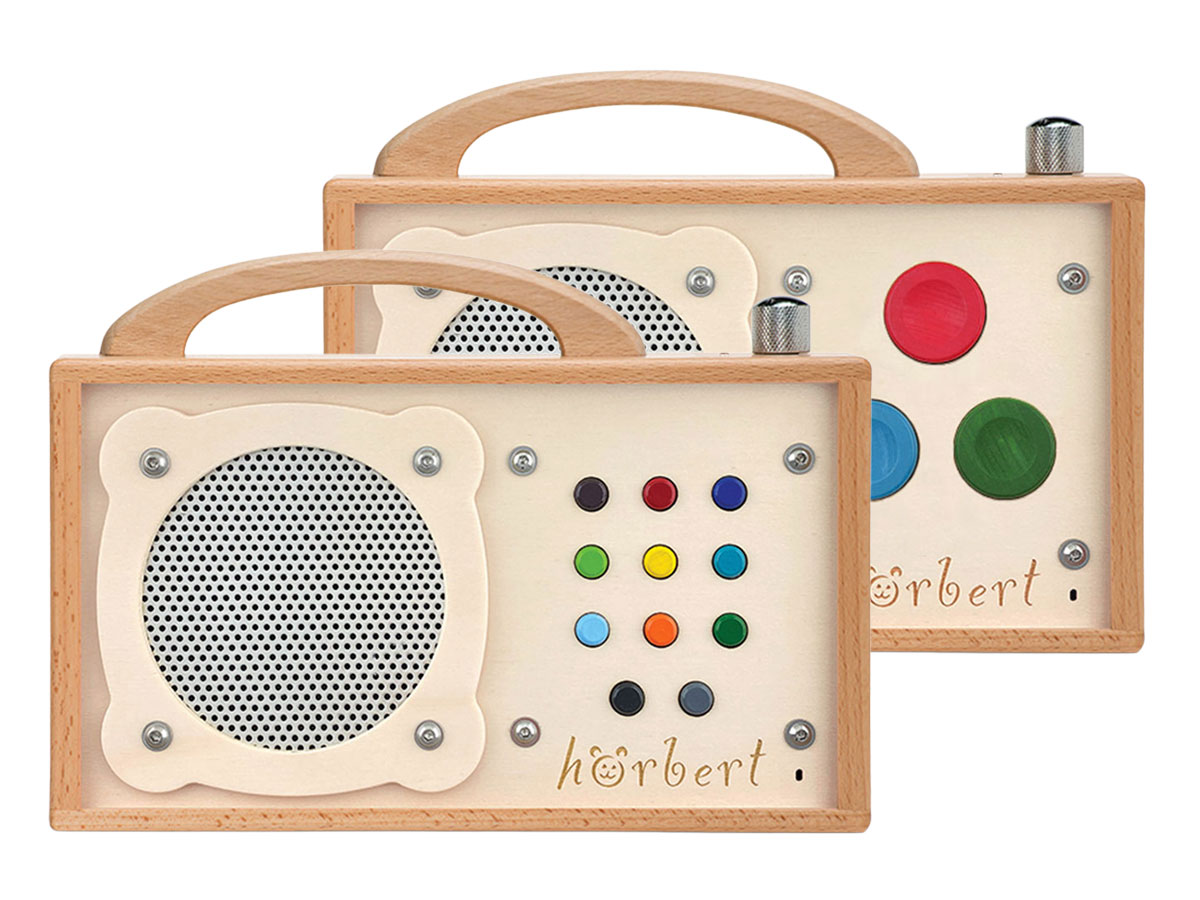
Figure 4 - hörbert model with 3 large playlist buttons

Note for hörbert variant with 3 playlist buttons

For a hörbert with three playlists three folders named 1, 6, and 8 must be created in the root directory of a separate memory card.

Figure 2 - Folder structure of the SD card for hörbert with 3 playlists

Folder 1: red playlist, first row center
Folder 6: light blue playlist, second row left
Folder 8: dark green playlist, second row right

5.6

Transferring your own audio content

Important: Accepted file formats are: MP3 or WAV. The AAC format and the M4a container format are only partially supported. For example, audible fast forwarding may be impaired, and some M4a files cannot be played back.

Here’s how:

5.6.1

Fastest way to transfer files using a computer and SD card reader

  • Turn off hörbert, remove the memory card and insert it into the SD card reader of your computer, where it will appear as a new drive.
  • If you are using a new, separate SD card, it must first be formatted and given a specific folder structure. See chapter 5.5
  • Copy the desired audio files using the computer’s file manager, e.g. via “Microsoft Explorer” (Windows) or “Finder” (macOS), into the correct folders on the memory card.
  • Eject the memory card using the means provided by your operating system before removing the card from the SD card reader and inserting it back into hörbert.


Files copied via computer are always played by hörbert at the end of the respective playlist in alphabetical order. The playback order can be changed at any time in Browser Set Mode (9.1) by moving files within the playlist (9.3.3) or to another playlist (9.3.4).

5.6.2

Uploading audio files in Browser Set Mode without computer/card reader

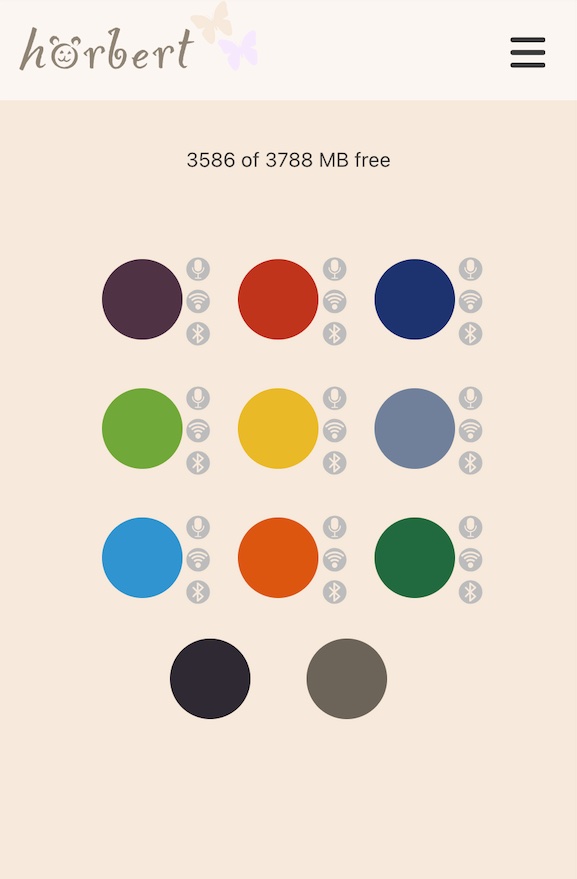
  • Start hörbert’s Browser Set Mode (9.1) on a Wi-Fi capable device, e.g. smartphone, tablet, or computer. On the screen, you will now see the colorful hörbert buttons and the main menu.
  • Click on the colored button for the desired playlist and wait until the content overview is fully loaded.
    At the top of the content overview, there are three buttons. A yellow “+Podcast” button, a green “+Radio” button, and a blue “File” button with an arrow icon.
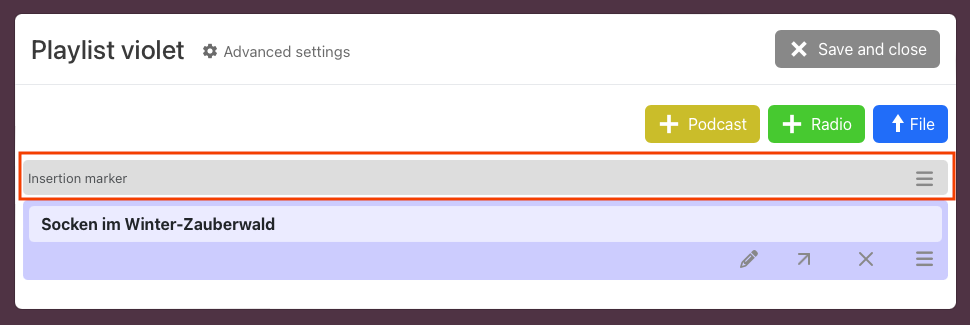
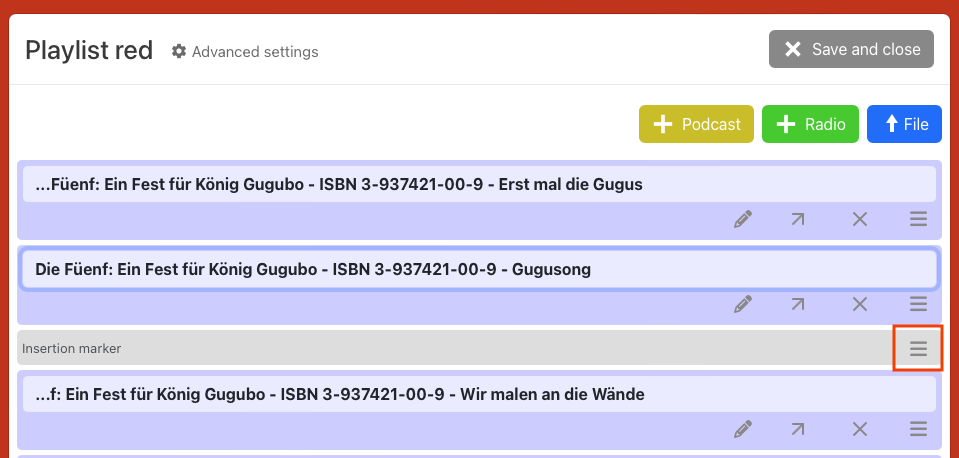
  • If needed, drag the row Insert marker – that is the gray row at the very top of the content overview – using drag & drop via the icon with the three stacked lines to the desired position where the new file should be placed.
Figure 6 - PLAYLIST - Insert marker for new track
Figure 7 - PLAYLIST - Upload new file with insert marker
  • Click on the blue “File” button.
  • In the following dialog, select one or more files, which will be transferred to your hörbert after confirmation. It may take several minutes via Browser Set Mode to transfer multiple tracks. Several factors influence the duration, including the quality of the Wi-Fi connection, visible on the Wi-Fi symbol of your smartphone/tablet/computer. The file(s) are always inserted at the position of the “Insert marker” in the playlist. You can click and drag the insert marker on the three-line icon (“drag-and-drop”).
  • In the following dialog, click the “Save and close” button to save the changes.

6

Adjusting the volume

Turning the rotary knob (No. 2 in Figure 1) to the right = hörbert gets louder

Turning the rotary knob to the left = hörbert gets quieter

Additional volume control in Browser Set Mode (9.1):

  • GENERAL settings (9.2.2) -> Choose between piano (quiet) and forte (default) volume
  • Expert menu: Reduce or increase volume limits (9.8.2)

7

Navigating through content

After turning on, hörbert starts playback in standard mode from the last playlist you were listening to, at the exact point where it was turned off.

7.1

Skip to the next track in a playlist

To skip to the next track within a playlist, press the current playlist button again. With each button press, hörbert jumps to the next track in the playlist. After the last track, playback starts again from the first track of the playlist.

hörbert can also turn off at the end of a playlist (9.3.8.2)

7.2

Fast forward and skip back

As long as the gray fast-forward button (No. 5 in Figure 1) is held down, hörbert plays in fast forward mode, which you can listen along to.

Pressing the black skip-back button (No. 6 in Figure 1) makes hörbert jump to the beginning of the currently playing track. If you press the black button twice quickly in succession, you will go to the previous track in the playlist. This can be repeated until you reach the first track of the playlist again.

7.2.1

Navigation on hörbert with three playlist buttons

On hörbert models with three large playlist buttons, no additional buttons for skip back or fast forward (black or gray) are available.

Quickly jump to the first track of a playlist
If you want to return directly to the beginning of a playlist, you can:

  • briefly press a different playlist button and
  • then switch back to the desired playlist.

The playlist will then automatically start with track No. 1 in standard mode.

8

Making recordings with hörbert

hörbert has a built-in microphone that allows you to record your own voice or instruments. Whether it’s a personal greeting, stories read aloud, or individual sentences and voice commands for supported communication – anything is possible with hörbert!

What’s more, hörbert can record all the content it plays through its speaker at the same time. This means you can stream a Spotify playlist, an Audible audiobook library or a YouTube playlist to hörbert via Bluetooth and record the audio content simultaneously. The recordings are then stored locally on hörbert’s colourful playlists, ready to be played back – even without an internet connection or Bluetooth.

So with hörbert, there’s an endless supply of free audio content available! 

8.1

Requirements for recordings with hörbert

If you wish to make voice recordings using the built-in microphone, or record Bluetooth or web radio streams, you must first enable the “Microphone”, “Bluetooth/Pairing” and “Wi-Fi” functions, and define the playlists where the recordings are to be saved.

How to do it:

1. Start hörbert’s Browser Set Mode (9.1).
2. Activate and configure the microphone (9.5), Bluetooth (9.6), or Wi-Fi (9.7) functions for web radio.
3. In the desired playlist, voice recordings, Bluetooth recordings, or web radio recordings must be allowed in the playlist settings (9.3.8). Only one playlist can be defined for Bluetooth recordings, while multiple playlists can be used for voice or web radio recordings.
4. For web radio recordings, at least one internet radio URL must be stored in the respective playlist (9.3.7).
5. For voice recordings, at least one file must be present in the playlist or added (9.3.6) so that the playlist can later be selected for recording.
6. For Bluetooth recordings, hörbert must be in Bluetooth speaker mode (9.6.4) and paired with a Bluetooth transmitter, e.g., a mobile phone.

8.2

Starting a recording

For the requirements for successful voice recording, Bluetooth recording or internet radio recording, see section 8.1 above

How to do it:

  • hörbert must be turned on (5.2).
  • For voice recordings, click on one of the coloured buttons of a playlist you chose to be eligible for voice recordings.
  • For Bluetooth recordings, hörbert must be in Bluetooth speaker mode (9.6.4), streaming content from a Bluetooth transmitter, e.g., a mobile phone. 
  • For WiFi recordings hörbert must be playing an internet radio station. The playlist with the internet radio URL must be eligible for wifi recordings. (See chapter 8.1.)
  • For a hörbert with eleven buttons, start a recording by first pressing the black button and then simultaneously pressing the gray button at the bottom of the last row.
  • The LED behind the microphone opening (No. 4 in Figure 1) in the lower right corner of the hörbert front lights up red to confirm that recording is in progress.
  • To stop a recording, briefly press the black button once.
  • Voice recordings are saved directly after the file that was playing when the recording started.
  • Web radio and Bluetooth recordings are always added at the end of the respective playlist.

For a hörbert with three large playlist buttons, a recording is started differently, since this hörbert does not have a black or gray button.

The recording mode (9.8.3) can be changed in the expert menu, so that a recording, for example, can start when one of the playlist buttons is pressed and held, and stop when a button is pressed.

8.3

Recordings in parrot mode

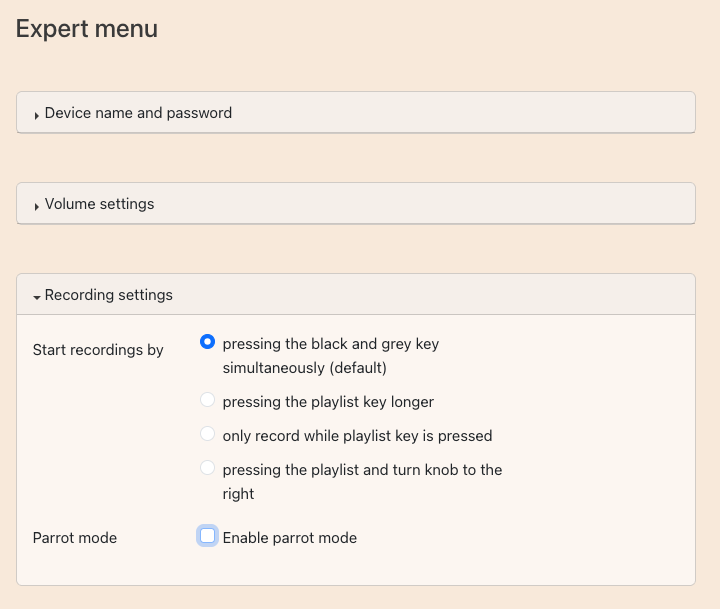
Provided that Parrot Mode has been enabled in the Browser Mode settings, hörbert allows you to make recordings in any playlist, even if that playlist has not been explicitly authorised for recordings. This is because, in Parrot Mode, a voice recording is deleted immediately after playback, unless it was made in a playlist where voice recordings have been explicitly permitted beforehand. In that case, the recording remains stored there even in Parrot Mode.

How to do it:

  • Start Browser Set Mode (9.1).
  • Open the expert menu (9.8).
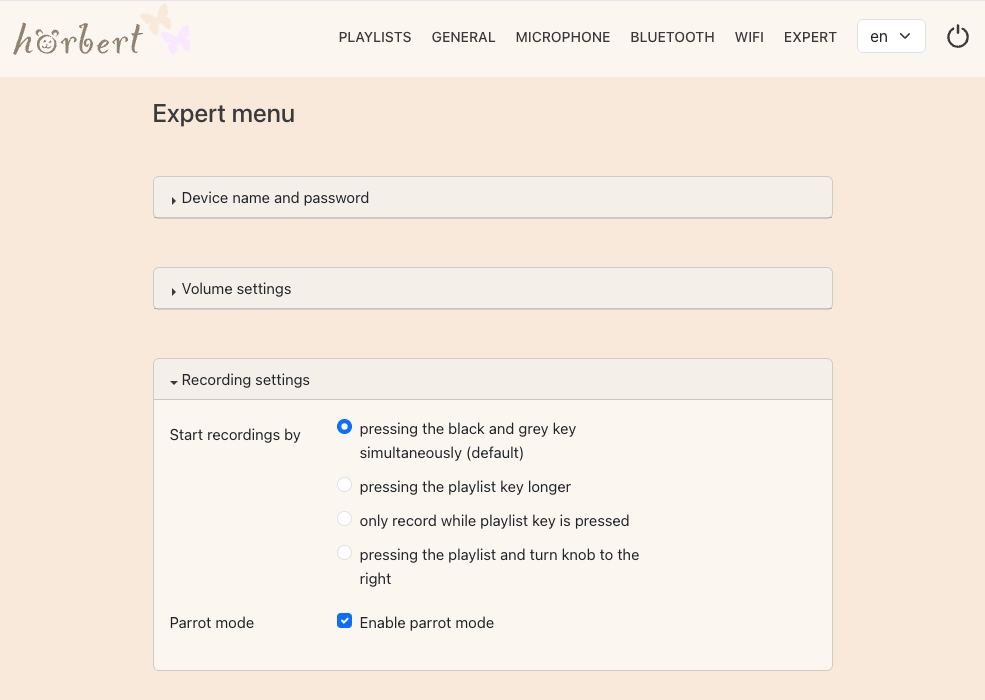
  • Enable parrot mode in the recording settings (9.8.3) under the main menu https://www.hoerbert.com/anleitungen/browser-set-mode-von-hoerbert-fuer-alle-einstellungen-und-zum-bearbeiten-von-playlists/item EXPERT.
Abbildung 8 - EXPERTE - Aufnahme-Einstellungen - Papagei-Modus
  • Exit Browser Set Mode (9.1.3).
  • Select any playlist and hold down the coloured button while recording.
  • Stop the recording by releasing the coloured button.

9

Browser Set Mode of hörbert (for all settings and editing playlists)

9.1

Starting Browser Set Mode

9.1.1

Starting Browser Set Mode via the SET button inside hörbert

You are currently viewing a placeholder content from YouTube. To access the actual content, click the button below. Please note that doing so will share data with third-party providers.

More Information
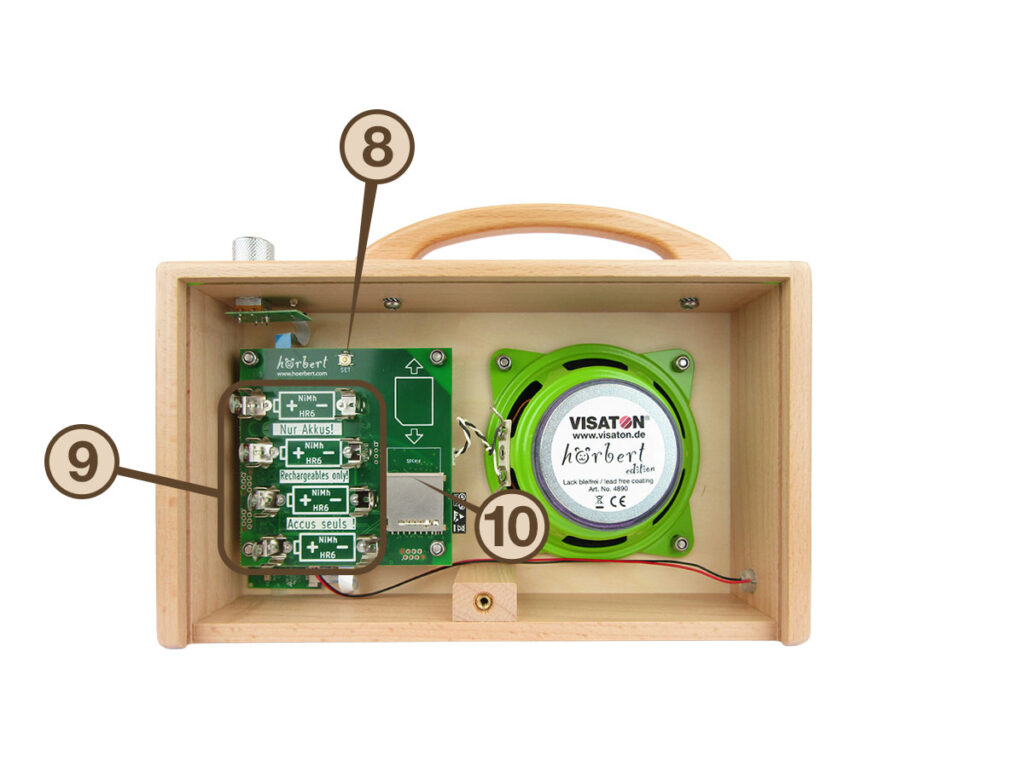
Inside hörbert, above the battery clips and to the right of the hörbert logo, you will find the SET button (No. 8 in Figure 2)

Here’s how:

  • Turn on hörbert
  • Press the SET button, a rising tone sequence sounds and the LED on the SET button lights up solid green. hörbert now opens its own Wi-Fi network.
  • On your device (mobile phone, tablet or computer), search in the network settings (Wi-Fi/Internet) for hörbert’s Wi-Fi and connect your device to hörbert’s Wi-Fi.
  • The Wi-Fi name is structured as follows: hoerbert-xx:xx:xx:xx:xx:xx. Instead of the “x”, each hörbert has an individual combination of letters and numbers.
  • The password is: hoerbert
  • Then open a web browser on your device, e.g. Chrome, Safari or Firefox, and enter the address http://hoerbert.local in the address bar. Usually hoerbert.local is also sufficient
  • The Browser Set Mode of hörbert will now open on your screen.
  • A model selection may appear first, asking whether your hörbert has 9 or 3 playlists. Select the correct model based on the images and click “Let’s go”.

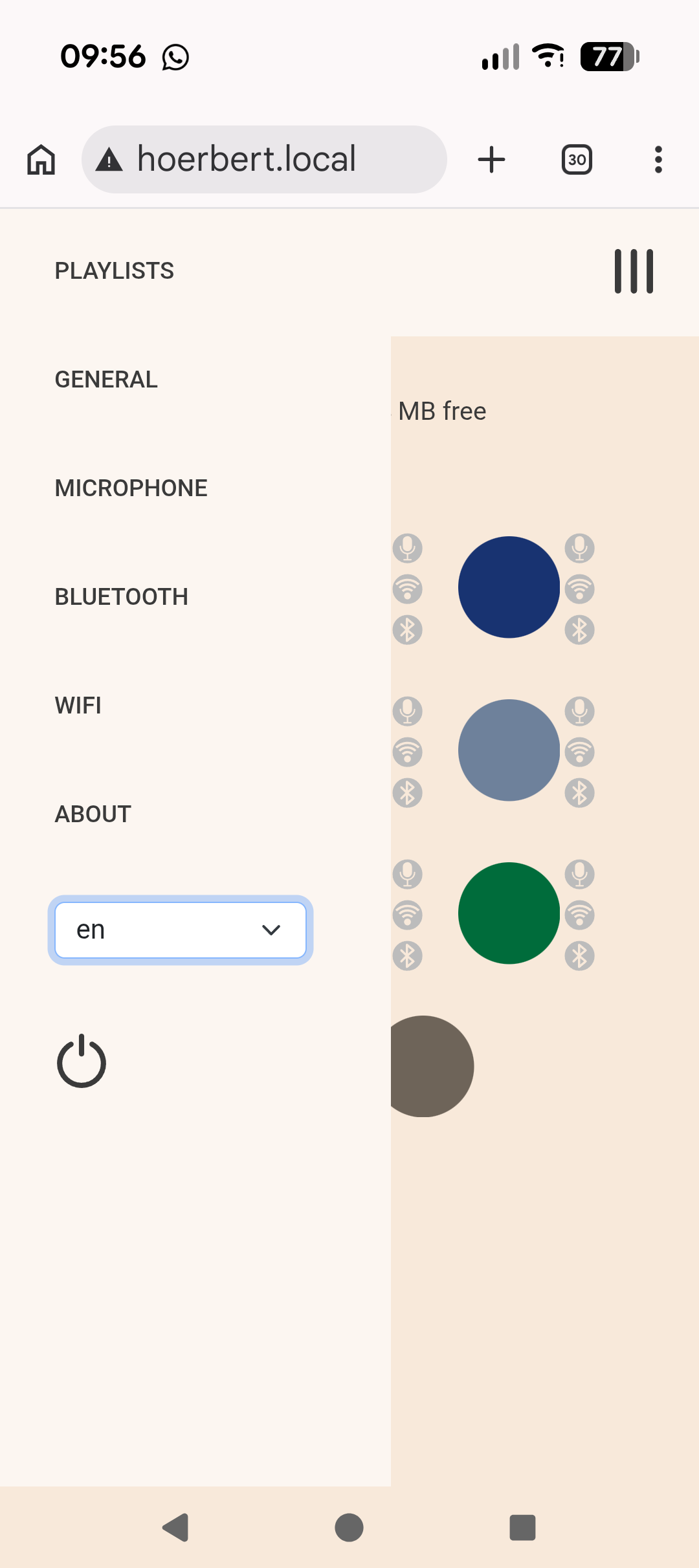
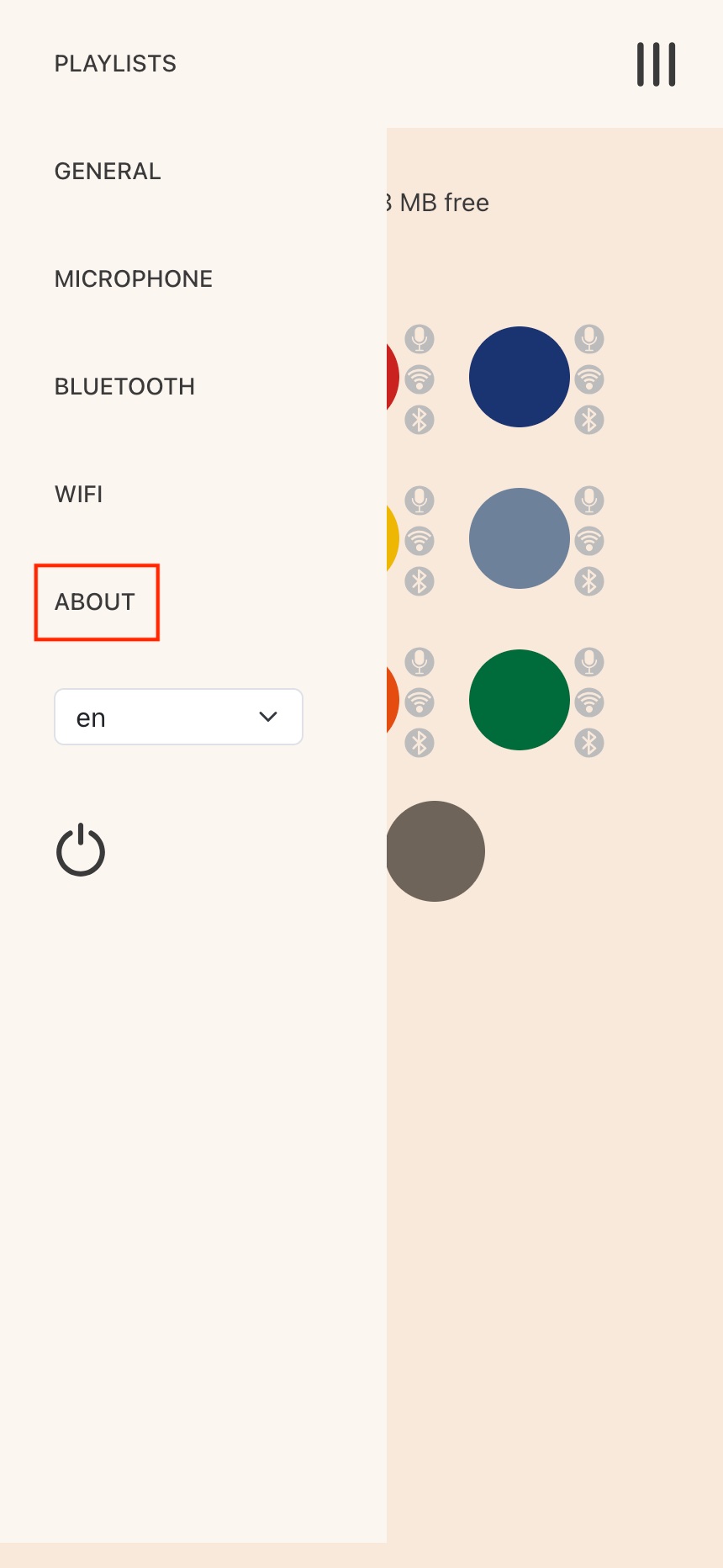
In the desktop view, you will find the main menu in the top row of the window. In the mobile view, you can access the main menu by clicking on the app menu. This is the icon in the upper right corner with three stacked horizontal lines:

Figure 9 - Browser Set Mode - mobile view - app menu collapsed
Figure 10 - Browser Set Mode - mobile view - app menu expanded

Troubleshooting for Browser Set Mode

Note: Phones, tablets, or computers automatically check whether a Wi-Fi network also provides internet access. Therefore, they may display various (error) messages for hörbert’s Wi-Fi such as “limited connectivity” or “poor connection”, or “no internet connection”. The reason is that hörbert’s Wi-Fi only provides a connection to hörbert, not to the internet. Since the connection to hörbert does not require an internet connection, these messages are unfortunately somewhat misleading.

Android: On Android devices, the hörbert page may sometimes not work right away: If this is the case with your device, try the following:

  • Look for an error message that often only appears in the background:
Figure 11 - Android connectivity dialog
  • Confirm in the dialog window that you want to allow the connection for this network anyway and always.

9.1.2

Via button combination without unscrewing hörbert (new since Butterfly2)

You are currently viewing a placeholder content from YouTube. To access the actual content, click the button below. Please note that doing so will share data with third-party providers.

More Information

People who use hörbert, especially small children who often playfully press all the buttons, must not accidentally enter hörbert’s SET mode. That is why we have devised a method that cannot be applied “by accident”.

Here’s how:

  • Press the rotary knob (No. 2 in Figure 1) and keep it pressed.
  • Wait 5 seconds (hörbert may start playing)
  • Now additionally press the dark green playlist button on hörbert’s front. This is the button on the far right in the third row.
  • Hold both buttons for at least 10 seconds, then release the rotary knob first, followed by the dark green button.
  • hörbert emits three rising signal tones, is now in Set Mode and opens its own Wi-Fi network.
  • Search on your device (mobile phone, tablet or computer) in the network settings (Wi-Fi/Internet) for hörbert’s Wi-Fi and connect your mobile phone, tablet or computer to it. The Wi-Fi name is structured as follows: hoerbert-xx:xx:xx:xx:xx:xx. Instead of the “x”, each hörbert has an individual combination of letters and numbers.
  • The password is: hoerbert
  • Then open a web browser on your device, e.g. Chrome, Safari or Firefox, and enter the address http://hoerbert.local in the address bar.
  • The Browser Set Mode of hörbert will now open on your screen.
  • A model selection may appear first, asking whether your hörbert has 9 or 3 playlists. Select the correct model based on the images and click “Let’s go”.


9.1.3

Closing Browser Set Mode

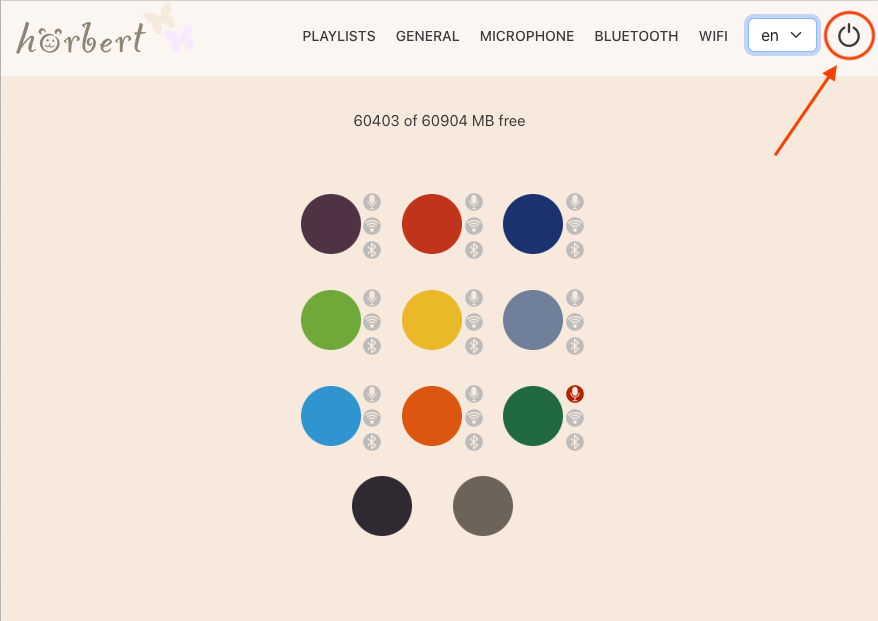
To close Browser Set Mode, click on the control for shutting down in the main menu. This is the circle symbol interrupted by a line at the top:

Figure 12 - Main menu - Disconnect button to close Browser Set Mode

9.2

GENERAL settings in Browser Set Mode

9.2.1

Sleep timer

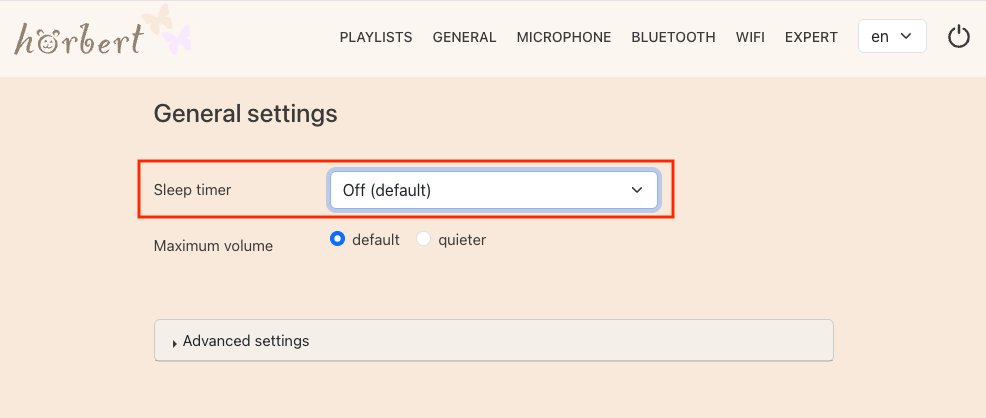
In the GENERAL menu item of the Browser Set Mode (9.1) of hörbert, you’ll find the drop-down menu for the sleep timer at the top. By default, the sleep timer is off. To activate it, select a time in the drop-down menu.

hörbert will then always switch off after this set playing duration until you set the sleep timer back to “Off”.

The following selection as playing duration is possible: 1, 3, 5, 10, 15, 20 minutes and then in increments of 10 minutes up to 7 hours and 50 minutes. See in comparison the point “Standby” (9.8.4) – switching off after a certain time without interaction with hörbert.

Figure 13 - GENERAL - Sleep timer activated

9.2.2

Setting up volume limitation (standard/quiet)

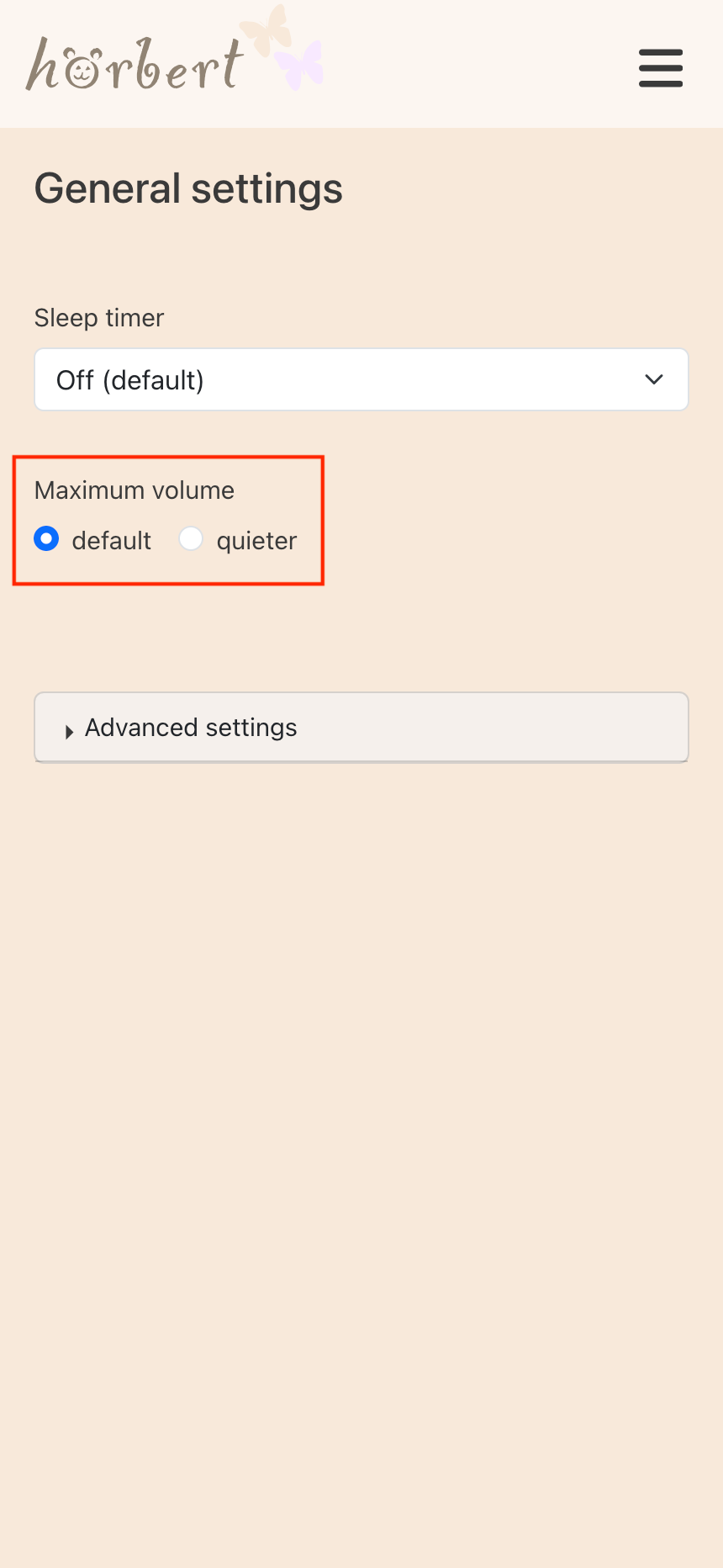
In the GENERAL menu item in hörbert’s Browser Set Mode (9.1) you’ll find – directly below the sleep timer – the setting for limiting the standard volume.

Particularly for small children and for environments where you want to have undisturbed conversations, we recommend the “quieter” setting. This prevents hörbert from being turned up to its maximum standard volume.

Figure 14 - GENERAL - Maximum volume standard or quieter

9.2.3

Advanced settings

9.2.3.1

Show expert menu

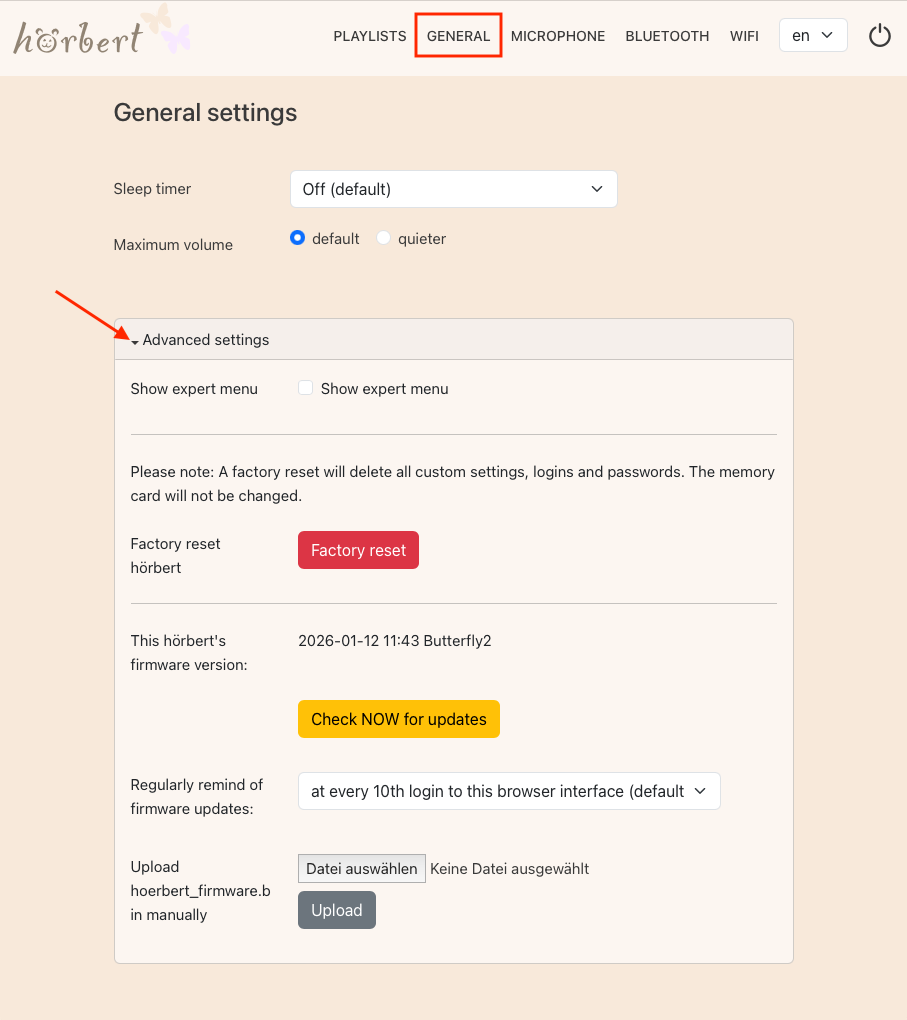
In hörbert’s Browser Set Mode (9.1), there is a drop-down menu in the GENERAL menu item to access the advanced settings. Click on the small black triangle to expand the menu:

Figure 15 - GENERAL - advanced settings

Check the box “Show expert menu” if you want to access functions that allow extensive customization for hörbert. Only after this activation does the new menu item “EXPERT” appear in the main menu, see 9.8 .

9.2.3.2

Reset to factory settings

All settings and passwords are reset to the factory state when you click the red “Reset to factory settings” button. Bluetooth, WiFi, volume limitation, sleep timer and voice microphone are turned off if they were activated. The content on the memory card and the settings for the playlists remain unaffected by the reset.

9.2.3.3

Check firmware version and firmware update
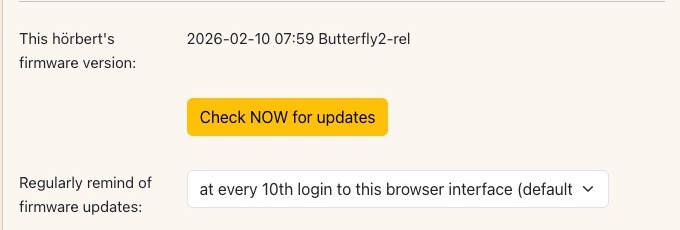
Figure 16 - GENERAL - advanced settings - check for updates

This section displays the installed firmware version of your hörbert.
By clicking the yellow “CHECK for updates NOW” button, hörbert can check whether a newer firmware version is available. If a more recent firmware is found, it can then be updated at the press of a button. For this function, hörbert needs to be able to connect to the internet via your Wi-Fi. See chapter: “Wi-Fi” (9.7).

Regularly remind about firmware updates:

Firmware updates include bug fixes and new features for your hörbert. It is therefore worthwhile to always keep the firmware up to date. In the selection under “Regularly remind about firmware updates”, the interval between reminders for a firmware update can be set. hörbert will not perform this check on its own without your involvement. A prompt will appear beforehand when you have started Browser Set Mode.

Manually upload the firmware file “hoerbert_firmware.bin”:

If you do not want to connect your hörbert to the internet, or if you have received a special firmware file from the service team, you can also install the firmware manually. The latest firmware file is available for download on our website under Service -> Firmware.

To manually upload a firmware file via Browser Set Mode, click the light gray “Choose file” button, select the corresponding hoerbert_firmware.bin file in the following dialog, and then click the dark gray “Update” button to start the firmware update. Link to Figure 10 – GENERAL – advanced settings

9.3

Editing playlists

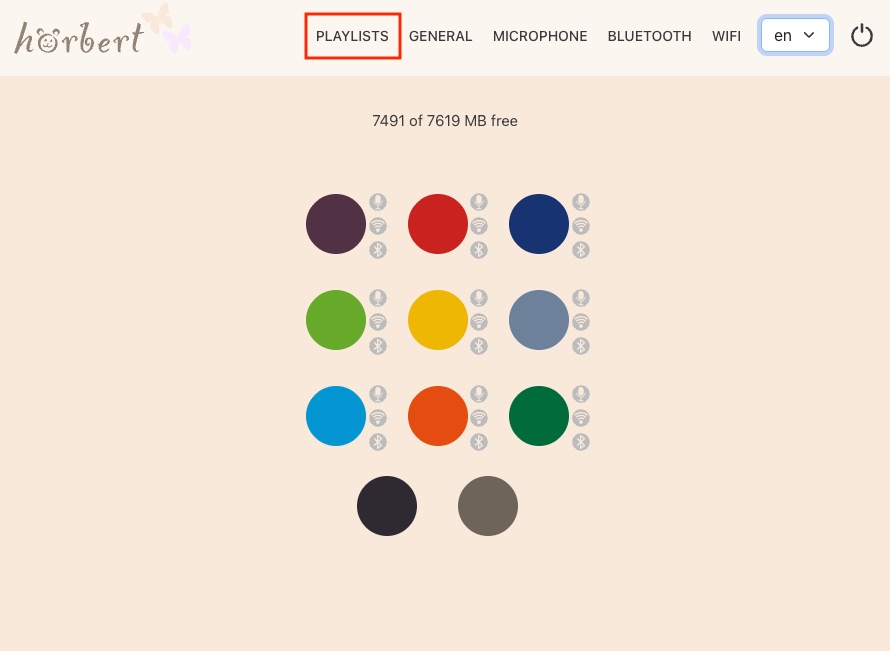
Figure 17 - Main menu - PLAYLISTS

9.3.1

Explanation of the icons in the content overview

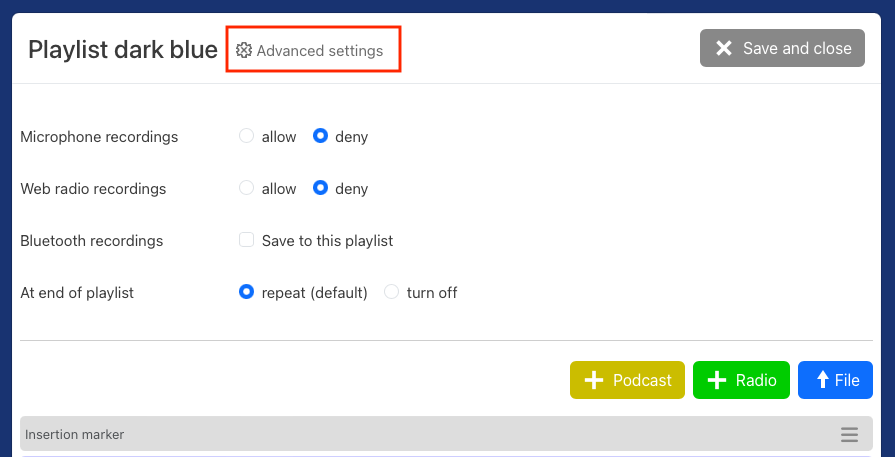
The PLAYLISTS menu item in hörbert’s Browser Set Mode (9.1) displays the colorful hörbert buttons. Click with the mouse on the button you want to edit. The content window of the playlist is displayed. In the upper area, next to the playlist name, there is a gear icon to access the advanced settings (9.3.8) for the playlist. You can also see the audio content of the playlist in the lower content area in table form.

9.3.2

Changing track names

Figure 18 - PLAYLIST - Change track name

In hörbert’s Browser Set Mode (9.1) under the PLAYLISTS menu item (9.3), you can change the track name of a file. To do this, click on the pale blue row with the track description and overwrite the name there.

By clicking the pencil icon, the file name on the memory card becomes visible. The file name on the memory card may differ from the track name displayed in Browser Set Mode. Changing the title in Browser Set Mode does not change the original file name on the SD card.

Note: If you have activated the expert menu (9.2.3.1), the file name is directly visible and there is no pencil icon.

9.3.3

Moving tracks within a playlist

A track can be moved to a different playback position within a playlist in hörbert’s Browser Set Mode (9.1). In Browser Set Mode, select the PLAYLISTS menu item (9.3). There, click on the colored button you want to edit. The content window of the respective playlist opens. In the following example, this is the red playlist:

9.3.3.1

Selecting one or more files
  • Turn off hörbert, remove the memory card and insert it into the SD card reader of your computer, where it will appear as a new drive.

To select a track for moving, click in the purple free area below the track name. A gray border appears around the selected row. If you repeat this process for additional tracks, they will also be selected. The selection is removed when a selected row is clicked again.

Now drag the icon with the three stacked lines to a different position in the content table:

Figure 20 - PLAYLIST - Moving tracks within a playlist

If you have selected multiple files, it does not matter which move icon you use. The action then applies to all selected tracks. This way you can move one or more tracks to a different position using drag & drop.

9.3.4

Moving tracks to another playlist

In hörbert’s Browser Set Mode (9.1), you can edit the tracks of a playlist. In Browser Set Mode, select the PLAYLISTS menu item (9.3). There, click on the colored button you want to edit. The content window of the respective playlist opens.

By clicking the arrow icon pointing to the upper right, the window for moving a file opens:

Figure 21 - PLAYLIST - Moving tracks to another playlist

You can move one or more tracks to the beginning or end of another playlist. To select multiple tracks, see section (9.3.3.1).

To do this, click on the upper or lower half of the colored button for the target playlist and then click the blue “Save” button:

Figure 22 - PLAYLIST - Moving tracks to the beginning of another playlist
Figure 23 - PLAYLIST - Moving tracks to the end of another playlist

9.3.5

Deleting tracks from the playlist

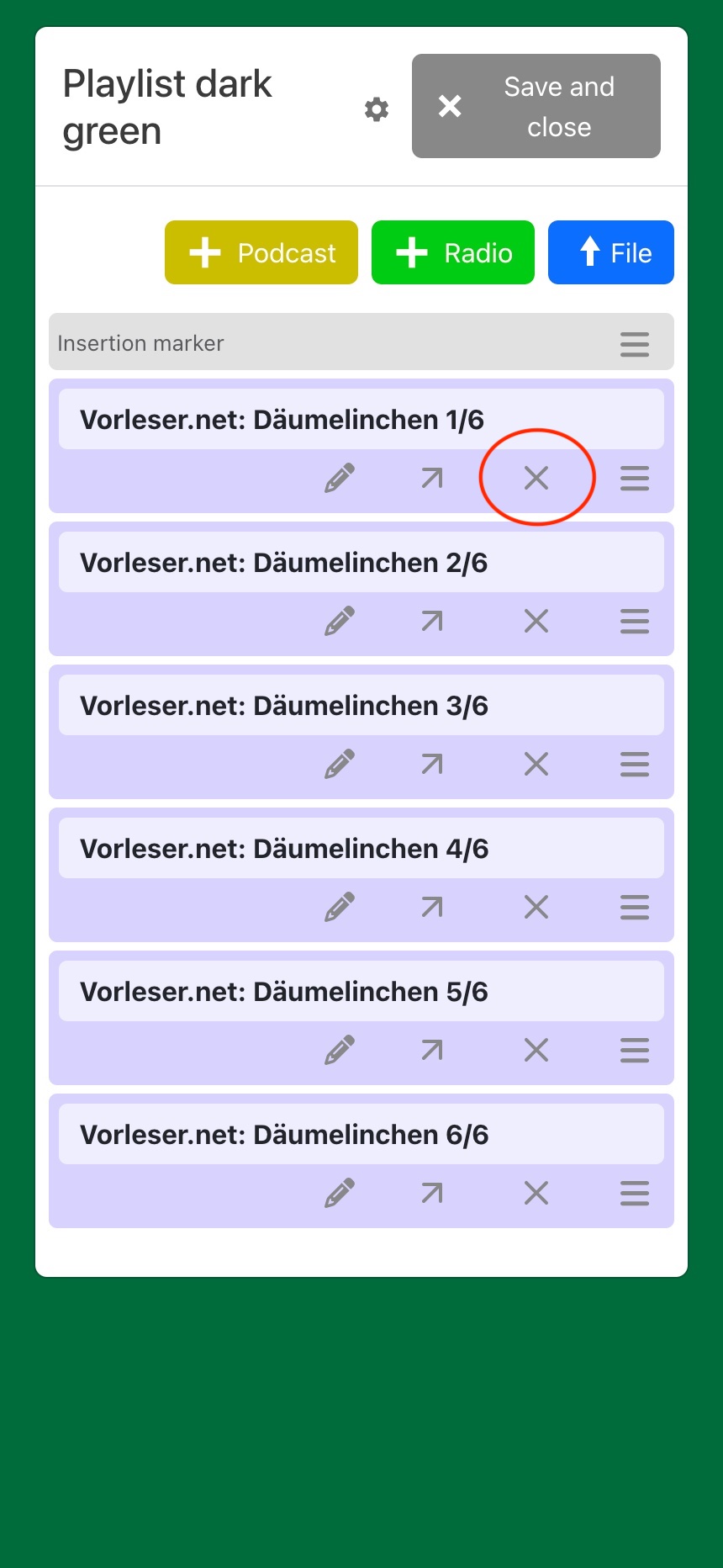
Figure 24 - PLAYLIST - Delete file

In hörbert’s Browser Set Mode (9.1), you can edit the tracks of a playlist. In Browser Set Mode, select the PLAYLISTS menu item (9.3). There, click on the colored button you want to edit. The content window of the respective playlist opens.

Using the cross icon in the purple area below the track description, one or more files can be deleted from a playlist. To select multiple tracks, see section 9.3.3.1

A confirmation prompt appears before final deletion.

9.3.6

Adding tracks to a playlist

In hörbert’s Browser Set Mode (9.1), you can edit and add tracks to a playlist.

In Browser Set Mode, select the PLAYLISTS menu item (9.3).

There, click on the colored button you want to edit. The content window of the respective playlist opens.

Figure 25 - PLAYLIST - Add new file

To upload one or more files, click the blue “File” button with the white arrow pointing up and select the desired file(s) in your computer’s file manager. See chapter 5.6 “Transferring your own audio content”.

The fastest way to add new files is the connection via your computer’s file manager. For this you need an SD card reader for your computer. See chapter 5.6.1

9.3.7

Adding an internet radio station (URL) to a playlist

In hörbert’s Browser Set Mode (9.1), you can add a web radio URL to a playlist under the PLAYLISTS menu item (9.3). To listen to web radio, hörbert’s Wi-Fi function must be activated (9.7.1) and a Wi-Fi network must be available (9.7.2).

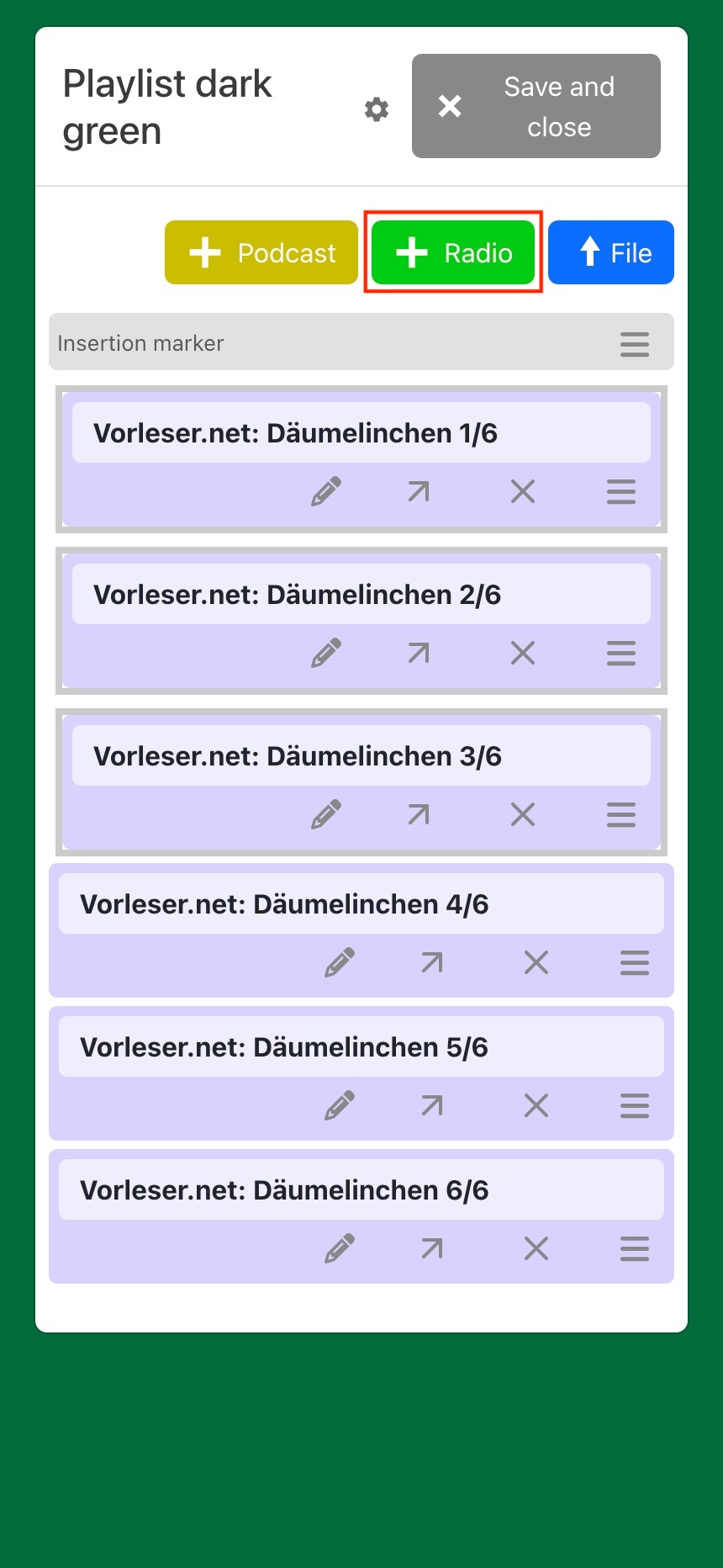
Figure 26 - Playlist - Button to add web radio station

Click on the light green “+ Radio” button and enter the name of the radio station or part of the name.

Figure 27 - Playlist - Add internet radio URL via keyword search

Click on the desired station in the list. The station will be entered into the “Streaming URL” field. Then click the blue “Save” button. The station will then be added to the playlist and the playlist content window will be displayed again.

Note:If a URL has many confirmations, it appears to be a popular and working URL.

9.3.8

Advanced settings for a playlist

To edit a playlist on hörbert, first start Browser Set Mode (9.1), and select the PLAYLISTS menu item (9.3) with the nine colorful hörbert buttons. There, click on the colored button you want to edit. The content window of the respective playlist opens. At the top of the window, you will find the gear icon for the “Advanced settings” of this playlist:

Figure 26 - Playlist - Button to add web radio station

9.3.8.1

Allow recording of voice, web radio streams and Bluetooth streams

In this menu you select whether voice microphone recordings, web radio recordings or Bluetooth recordings are allowed in a playlist.
For further requirements for recordings, see chapter (8) “Making recordings with hörbert”.

9.3.8.2

At the end of a playlist repeat or switch off

In standard mode, hörbert starts playback again from the first track of a playlist when it has reached the end of that playlist.

In Browser Set Mode (9.1), you can select in the Playlists menu item under the advanced playlist settings that hörbert should turn off at the end of a playlist:

Figure 26 - Playlist - Button to add web radio station

9.3.8.3

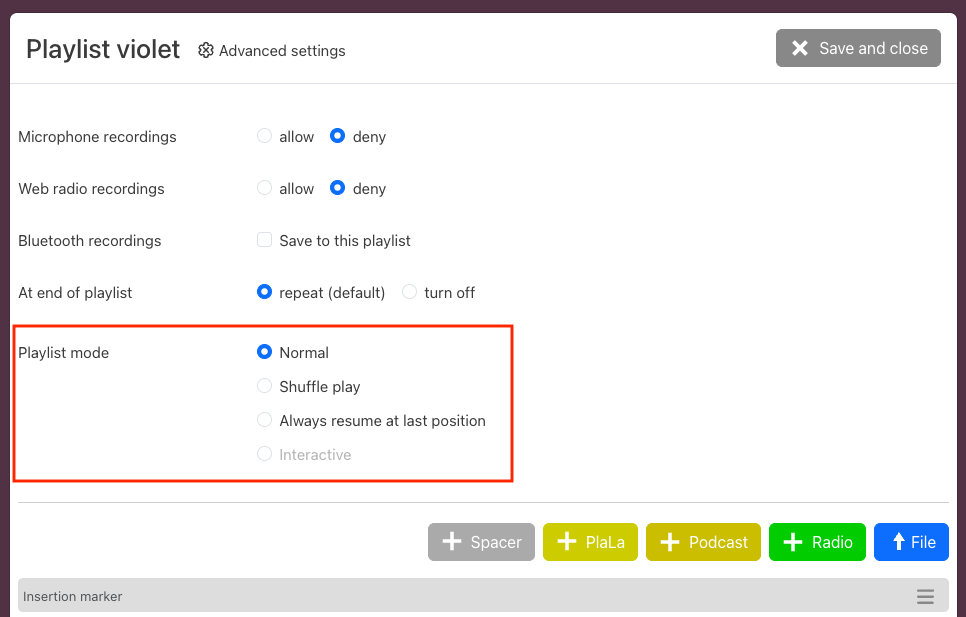
Expert: Change playback mode of a playlist (Normal, Shuffle, Remember last playback position)

If the display for the expert menu (9.2.3.1) is activated, advanced options for the playback mode of a playlist appear in the playlist settings:

Figure 26 - Playlist - Button to add web radio station
  • Normal: In normal mode, hörbert always starts playback at the beginning of the playlist when you press one of the colored playlist buttons on hörbert’s front.
  • Shuffle: The playlist plays your tracks in a random order.
  • Always resume from last position: The playlist continues exactly where it was last interrupted.
  • Interactive: not yet relevant in Butterfly 2.

9.4

Setting up hörbert's podcast function

A podcast can be added to a playlist in hörbert’s Browser Set Mode (9.1). First, the Wi-Fi function must be activated in the main menu under WLAN (9.7) and a time (9.7.2.1) for the daily check and retrieval of new podcast episodes must be set in the advanced Wi-Fi settings.

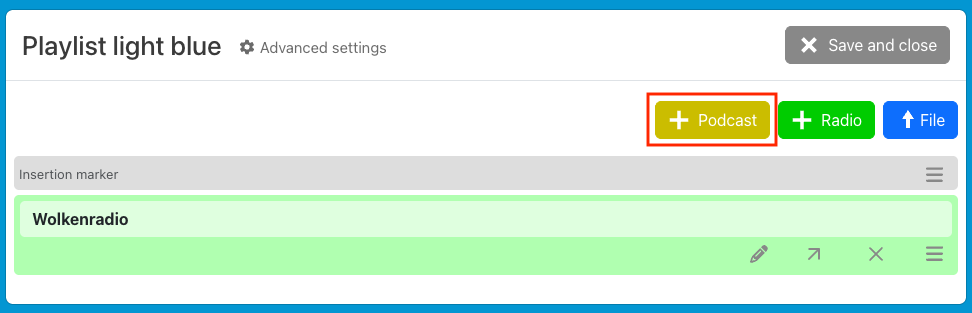
Then click on the colored button in the PLAYLISTS main menu item (9.3) to which you want to add a podcast. At the top of the content window, you will find the yellow “+Podcast” button for this purpose:

Figure 31 - Podcast - Button to add podcast

Clicking this button opens the podcast search:

Figure 32 - Podcast search
  • In the search field you enter the name of a podcast or part of the name. A keyword search is also possible, e.g. “Mouse”.
  • Click on the blue button “Browse directory” to start the search. After a few seconds the search results appear at the bottom of the window.
  • With a single click on the desired search result, the podcast is inserted above in the “Podcast URL” line.
  • In the field “Number of episodes to be kept” you specify how many episodes of this podcast you want to add to the control file in the next step. You can also change the number of episodes later.
  • Then click on the blue button “Save” to download the podcast control file.

Downloading podcast episodes:

Via the download button in the control file you can now download the episodes in the overview. This process can take several minutes per episode, depending on the length of the episodes:

Figure 33 - Podcast - download all episodes

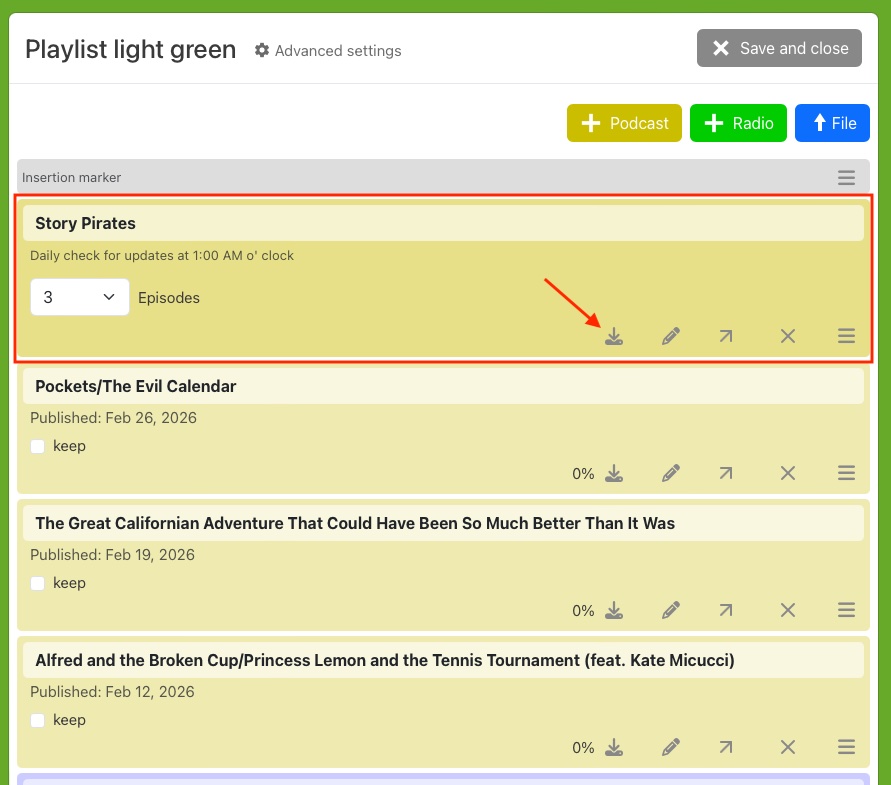
Note: To save time, there is the option to download only a single episode by clicking the download icon in the row for a single episode. At the set time (e.g. at night), hörbert will then automatically download the remaining episodes, provided the saved Wi-Fi network is available.

Figure 34 - Podcast - download single episode

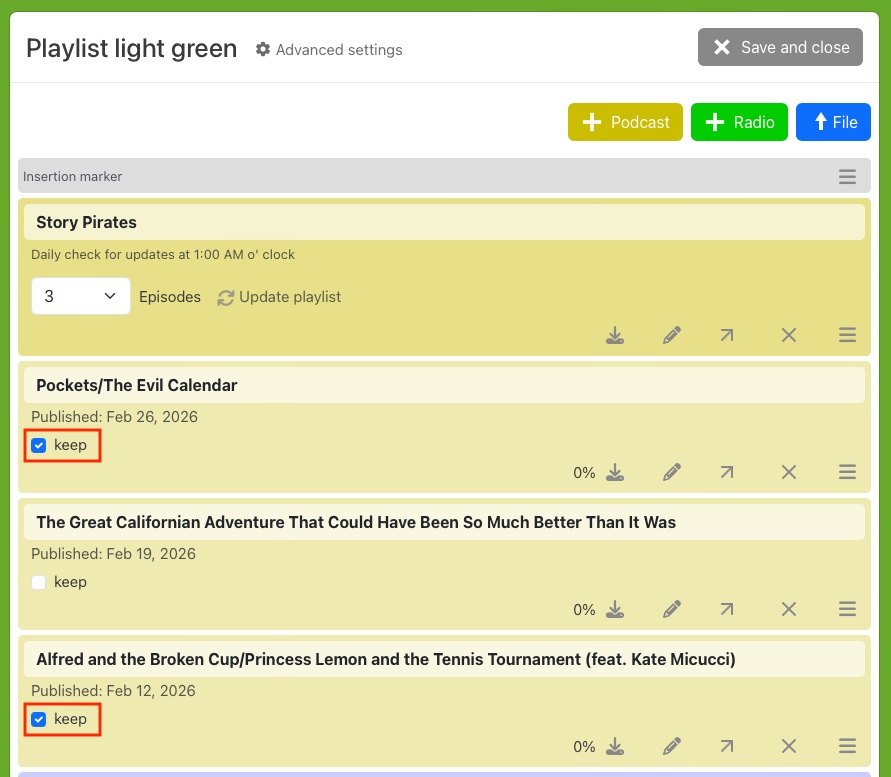
To make room for new episodes, hörbert deletes the oldest episodes from the list when the maximum desired number of episodes would otherwise be exceeded during automatic download. Favorite episodes that should be kept can be marked in the playlist content window so that they are definitely retained. To do this, check the box next to “keep” in an episode row:

Figure 35 - Podcast - keep episodes

When you are done working in the playlist, click the gray “Save and close” button in the upper right corner of the playlist window to save the changes to the memory card.

9.8.1

Microphone settings

hörbert has a built-in voice microphone (No. 4 in Figure 1) behind the small opening at the bottom right of the hörbert front panel.

Ideas for use:

  • Record self-read stories
  • Record personal greeting messages
  • Record sounds for a guessing game
  • Record singing
  • Record instruments
  • Learn (to pronounce) languages
  • Record clues for scavenger hunt stations
  • etc.

Here’s how:

  • Start Browser Set Mode (9.1) for hörbert
  • Select the MICROPHONE menu item.
  • Click “activated” for Microphone
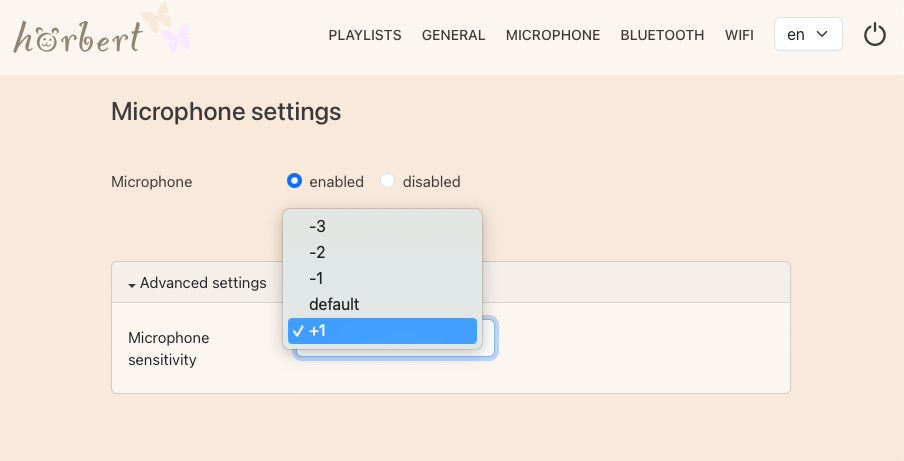
  • Optional: Set the microphone sensitivity higher in the advanced settings. +1 is the highest setting. At this setting, it is sufficient to be approximately 15-30 cm away from the microphone opening during recording for the recording to be clearly audible.
Figure 36 - MICROPHONE setup - advanced settings
  • For starting and stopping a recording, see chapter (8) “Making recordings with hörbert”

9.6

Setting up hörbert's Bluetooth functions

hörbert can be paired with up to two Bluetooth receivers, e.g. wireless headphones, and transmit its audio content to the headphones. It can also be used as a Bluetooth speaker for streaming content from Bluetooth transmitters, e.g. mobile phone, tablet or computer.
For this, the Bluetooth and pairing function must be activated on hörbert in Browser Set Mode.

9.6.1

Activate / deactivate Bluetooth and pairing

Here’s how:

  • Start hörbert’s Browser Set Mode (9)
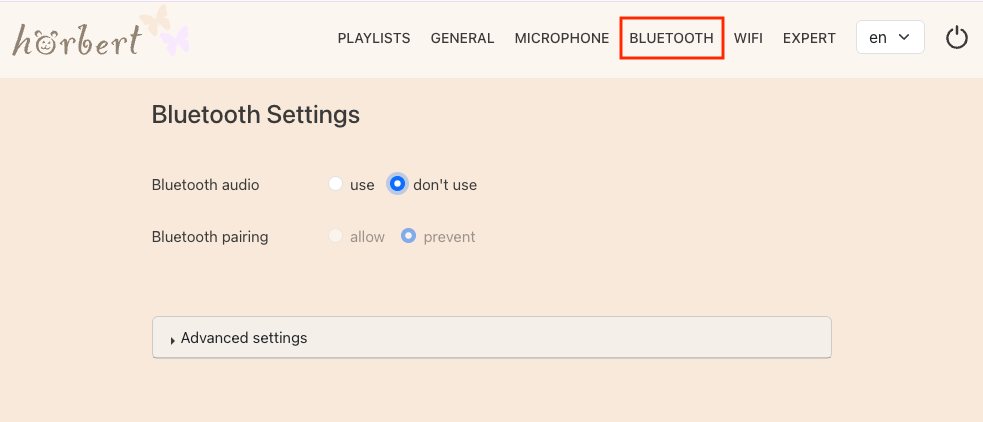
  • Select BLUETOOTH in the main menu
Figure 37 - Main menu - BLUETOOTH
  • In the Bluetooth settings, select “use” for Bluetooth Audio
  • In the Bluetooth settings, select “allow” for Bluetooth Pairing
  • Click the small black triangle next to “Advanced settings” for Bluetooth (9.6.2)

9.6.2

Bluetooth - Advanced settings

9.6.2.1

Set number of simultaneous Bluetooth headphones

hörbert can be paired with up to two Bluetooth receivers, e.g. wireless headphones, and transmit its audio content to the headphones. The user can determine whether hörbert should search for one or two headphones or no Bluetooth headphones at all after turning on.

Here’s how:

  • Start Browser Set Mode (9.1)
  • Select BLUETOOTH in the main menu and – if not already done – activate the Bluetooth and pairing function:
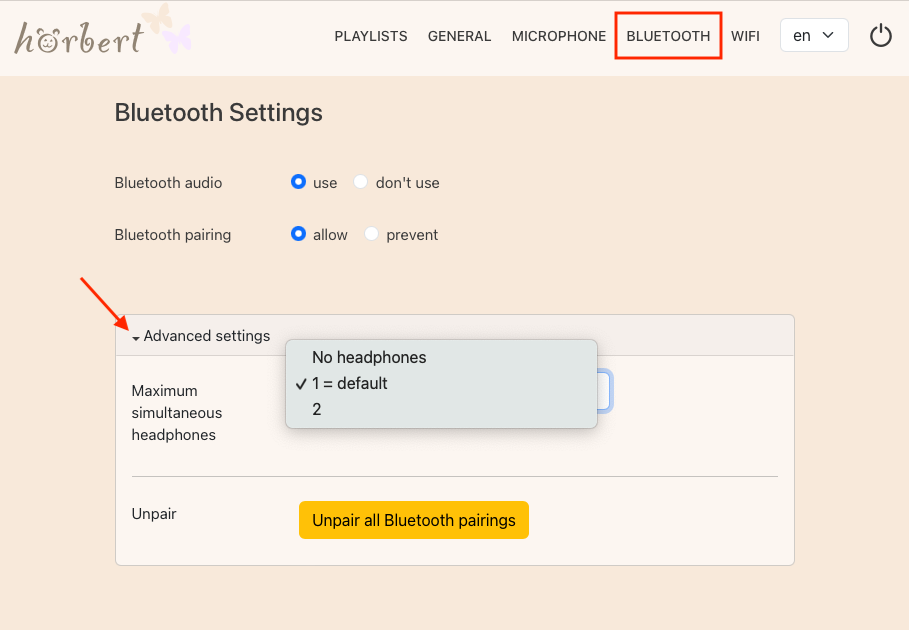
Figure 38 - BLUETOOTH - Advanced settings
  • Under “Maximum simultaneous headphones”, select either 1, 2 or NONE.
  • If “NONE” is selected, hörbert cannot connect to a Bluetooth receiver after turning on, even with Bluetooth and pairing activated. Choose this setting if the intention is that hörbert should never switch its sound to a Bluetooth receiver. It will then always play only from its own speaker.
  • In this case, however, hörbert can still be used as a Bluetooth speaker and receive and play streaming content from a mobile phone, tablet or computer when it is in Bluetooth speaker mode (9.6.4).
  • Close Browser Set Mode (9.1.3)

9.6.2.2

Clear pairings

Sometimes it may be useful to have hörbert “forget” devices that have previously been connected to it, if it is no longer desired for hörbert to pair with a known device. Clearing all pairings and re-pairing devices can also help with Bluetooth connection problems.

Here’s how:

  • Start Browser Set Mode (9.1)
  • Select BLUETOOTH (9.6.1) in the main menu
  • Click the small black triangle next to “Advanced settings”
  • Click the yellow “Forget all Bluetooth pairings” button.
  • Close Browser Set Mode (9.1.3)

9.6.3

Pairing hörbert with Bluetooth headphones

After turning on, hörbert can optionally pass its audio to one or up to two parallel Bluetooth receivers, so that you can listen to hörbert via wireless headphones or even Bluetooth hearing aids.

When Bluetooth and pairing are activated, hörbert automatically searches for the first Bluetooth receiver for approximately 90 seconds after turning on.

Here’s how:

  • Start Browser Set Mode (9.1)
  • Activate Bluetooth and pairing (9.6.1)
  • In the advanced Bluetooth settings, select the desired number of headphones (9.6.2.1)
  • Close Browser Set Mode (9.1.3) and wait until hörbert plays
  • Now turn on the Bluetooth headphones within 60 seconds. For some models, it is necessary to press the Bluetooth button after turning on so the headphones enter pairing mode.
  • hörbert and the headphones now have approximately 60 seconds to find each other and pair.
  • If it does not work right away, please try again.

9.6.4

Using hörbert as a Bluetooth speaker

hörbert can be used as a Bluetooth speaker for streaming content. This makes it possible to transfer audio content from Spotify, Audible, Amazon Music, Apple Music, Deezer, YouTube Music or other streaming services to hörbert via Bluetooth. Thanks to hörbert’s recording function (8), these streams can even be recorded. This means no additional costs for new audio content!

Here’s how:

  • Start hörbert’s Browser Set Mode (9.1)
  • Activate Bluetooth and pairing (9.6.1)
  • Close Browser Set Mode (9.1.3) and wait until hörbert plays.
  • Turn off hörbert.
  • Press the rotary knob 2 times with an interval of approx. 0.5 seconds to switch hörbert into speaker mode.
  • hörbert emits three rising signal tones to confirm that it is now in Bluetooth speaker mode. It can now be paired with a Bluetooth-capable device (mobile phone, tablet or computer).
  • Go to the Bluetooth settings on your device and start a search for new, available Bluetooth devices if needed.
  • hörbert will appear after a short time in the list of available Bluetooth devices and can be paired with the mobile phone, tablet or computer.
  • Start the desired audio content on the Bluetooth device.
  • The audio content will now be played through hörbert’s speaker.

Troubleshooting:

If the sound is not played through hörbert after a successful Bluetooth connection and starting audio content on the device, please check whether it is necessary on your device to actively select hörbert as the audio output device. You can find this option in the system settings for audio output on your mobile phone, tablet or computer.

9.7

Setting up hörbert's Wi-Fi function

To use hörbert as a playback device for internet radio stations or as a podcast player, an available 2.4 GHz Wi-Fi network must first be set up via Browser Set Mode. You will need the name (SSID) and password of your own home Wi-Fi network for the setup.

Here’s how:

9.7.1

Activate / deactivate Wi-Fi and enter Wi-Fi credentials

  • Start Browser Set Mode (9.1)
  • Click on WLAN in the main menu
  • In the WLAN row, select “activated”
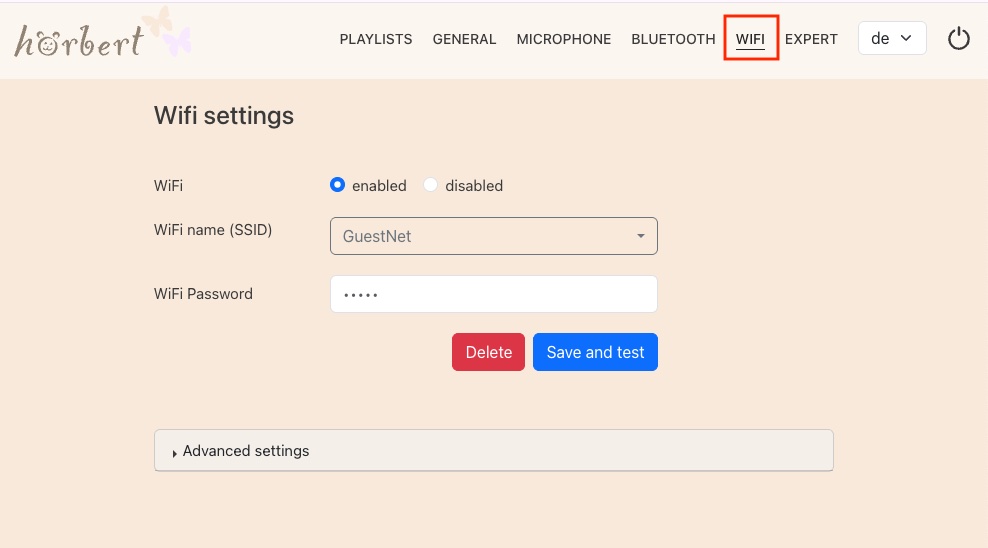
Figure 39 - Main menu - WLAN
  • In the WLAN Name (SSID) row, click the small black triangle to get a selection list of available Wi-Fi networks. Select your appropriate Wi-Fi here.
  • In the WLAN Password row, enter the password for your local Wi-Fi.
  • Then click the blue “Save and test” button.
  • hörbert tests the Wi-Fi access and displays a confirmation message.
  • You can now go to the advanced settings (9.7.2) to configure further options and set up up to four additional Wi-Fi networks. If these Wi-Fi networks exist at other locations, hörbert will display an error message after clicking “Save and test”. This can be ignored in this case. As soon as hörbert is at the other location and can access one of the saved Wi-Fi networks, it will connect to it when needed.

9.7.2

WLAN - Advanced settings

hörbert can be used as a playback device for web radio stations and as a podcast player. If a home 2.4 GHz Wi-Fi network is available, it can silently turn on at a desired time and download new podcast episodes.

Here’s how:

9.7.2.1

Set time for automatic download of new podcast episodes
  • Start Browser Set Mode (9.1)
  • In the Browser Set Mode app menu, click on WLAN
  • In the WLAN row, check that “activated” is selected and the correct Wi-Fi is chosen.
  • Click the small black triangle next to “Advanced settings” to open the selection menu:
Figure 40 - WLAN - advanced settings - set time for podcast retrieval
  • Under “Daily Wi-Fi connection attempt”, set the desired time at which hörbert should silently wake up and search for and download new podcast episodes.
  • Note: To automatically wake up and download new podcast episodes, it must be ensured that hörbert is turned off.
  • Note: If the expert menu is activated, the time can be selected in quarter-hour intervals. Otherwise, only the full hour can be selected as the retrieval time.
  • Note: For hörbert with USB-C port: Connect hörbert via a USB-C cable and power adapter to an outlet to ensure that the podcast download is not interrupted by empty batteries.
  • Select the time zone in which you or hörbert is located.
  • Turn off hörbert, remove the memory card and insert it into the SD card reader of your computer, where it will appear as a new drive.
  • Turn off hörbert, remove the memory card and insert it into the SD card reader of your computer, where it will appear as a new drive.
  • Turn off hörbert, remove the memory card and insert it into the SD card reader of your computer, where it will appear as a new drive.

9.8

Expert menu

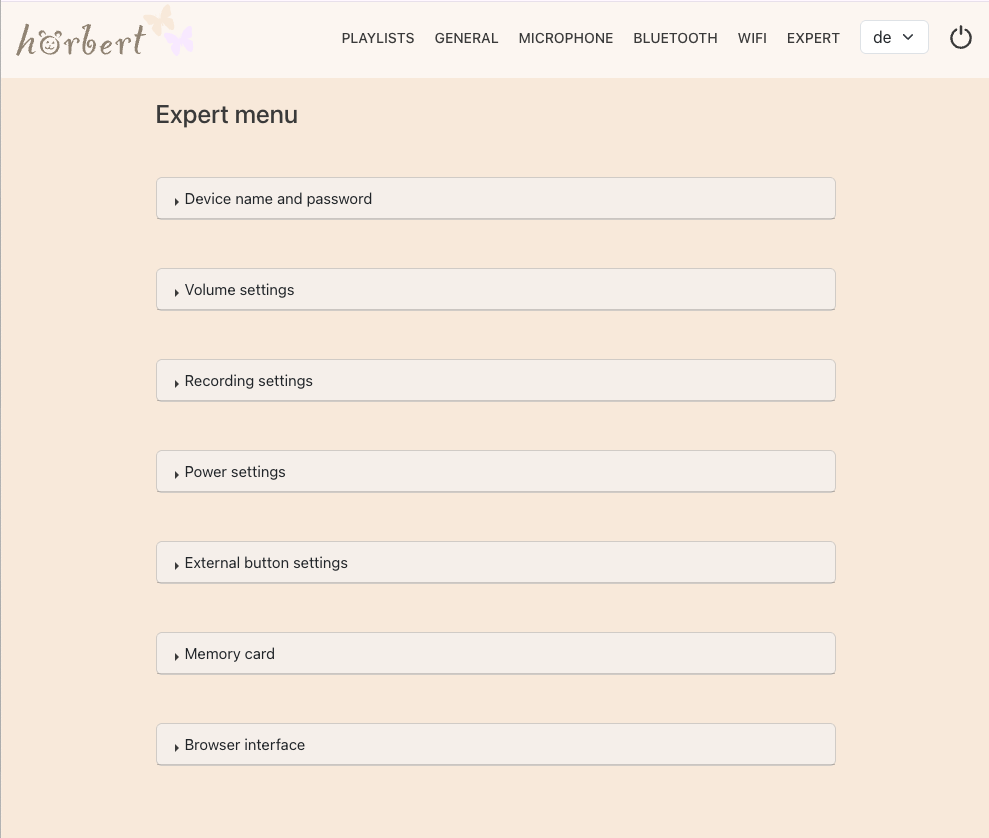
The expert menu offers extensive settings options for hörbert. The EXPERT menu item can be activated in Browser Set Mode (9.1) in the main menu under GENERAL in the advanced settings (9.2.3.1).

Figure 41 - EXPERT - Overview

9.8.1

Change device name and password for hörbert

Each hörbert has its own device name, structured according to this pattern: hoerbert-xx:xx:xx:xx:xx:xx. Instead of “xx:xx:xx:xx:xx:xx”, each hörbert has an individual combination of letters and numbers.

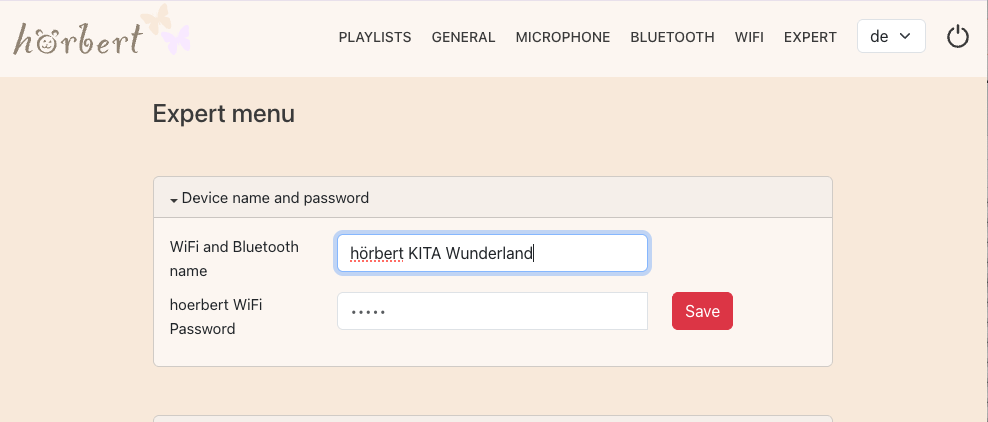
To avoid mix-ups when connecting to a hörbert via Wi-Fi or Bluetooth when there is more than one hörbert in the vicinity, you can change hörbert’s name in the expert menu view (9.8) – in the first drop-down menu “Device name and password” – and choose a unique designation, e.g. “Anna’s hörbert” or “Daycare Rainbow”.

Figure 42 - EXPERT - Change device name and password for hörbert

The password for connecting to hörbert’s own Wi-Fi can also be changed for security reasons. The default password is: hoerbert. See Starting Browser Set Mode (9.1)

9.8.2

Advanced volume settings for hörbert

In certain situations, hörbert should be louder, e.g. in the gym, in the garden, on a hiking day, in the case of hearing impairment, etc.

Sometimes it needs to be even quieter than in quiet mode (6), e.g. in the doctor’s waiting room, on public transport, etc.

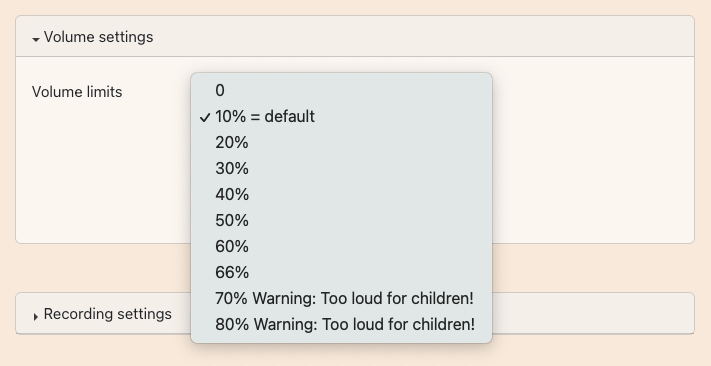
The expert menu (9.8) offers in the second drop-down area for the volume settings the option to set hörbert even quieter or even louder and to adjust the volume limits accordingly between 0% and 80%.

Figure 43 - EXPERT - Volume limits

If the limit is set to 80%, vibrations in the wooden case may occur, which can impair the sound quality.

9.8.3

Recording settings

Figure 44 - EXPERT - Recording settings
hörbert starts a recording by simultaneously pressing the black and grey button. See also under Making recordings with hörbert (8) However, a recording can also be started differently. Here’s how:
  • Start Browser Set Mode (9.1)
  • Display Expert Menu (9.2.3.1)
  • In the main menu under EXPERT open the drop-down dialogue for the recording settings.
  • Select desired option:
    • Long press of a playlist button
    • Record whilst a playlist button is pressed
    • Press a playlist button and simultaneously turn the dial to the right
    • Optional: Activate Parrot Mode (8.3)

9.8.4

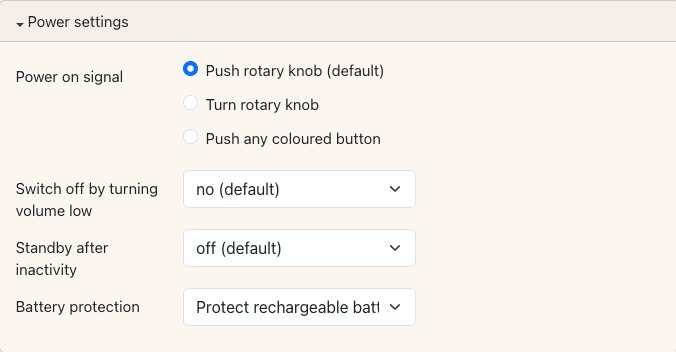
Power supply settings for hörbert

In hörbert’s power supply settings, the on and off behavior can be customized to individual needs. Additionally, the battery protection mode can be selected there.

Figure 45 - EXPERT - Power supply settings - Overview
Here’s how it works:
  • Start Browser Set Mode (9.1)
  • Show expert menu (9.2.3.1)
  • In the main menu under EXPERT, open the drop-down dialogue for power supply settings.
  • Select desired option for switching on:
    • Press rotary knob (standard)
    • Turn rotary knob
    • Press a coloured playlist button
    • Press a playlist button and simultaneously turn the rotary knob to the right
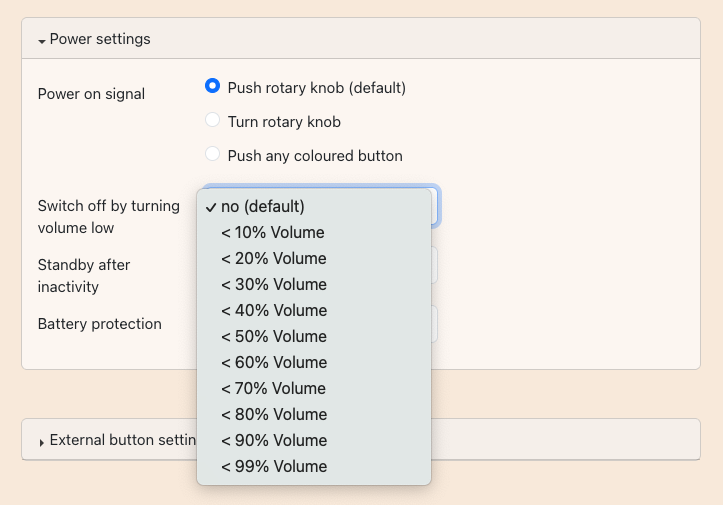
  • Choose desired option for switching off by turning down quietly:
Figure 46 - EXPERT - Power supply settings - Turn off by turning down volume
    • No (default)
    • When hörbert’s volume is reduced below 10%
    • When hörbert’s volume is reduced below 20% etc. up to 99%
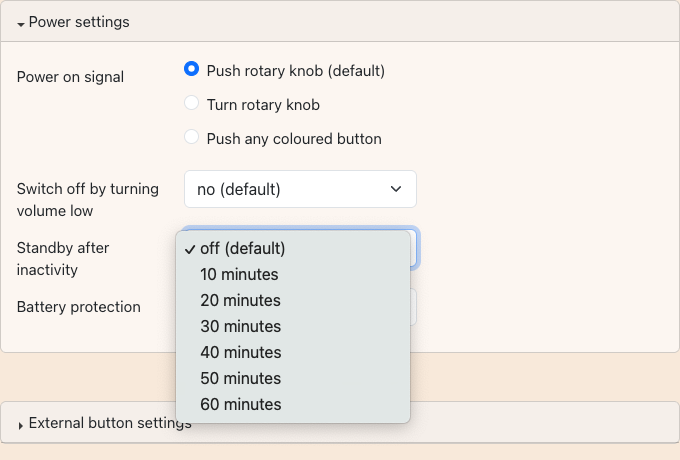
  • Select the desired option for standby after inactivity:

This option means that hörbert automatically turns off after the desired time, provided no interaction has taken place during that period.

You can choose between 10, 20, 30, 40, 50 or 60 minutes here:

Figure 47 - EXPERT - Power supply settings - Standby

9.8.5

Settings for hörbert with external control buttons

The accessible version of hörbert can be equipped with an optional port for external, large control buttons (e.g. Jelly Button or Lib Switch). This makes it possible for people with physical and/or cognitive limitations to independently experience music and stories and to intuitively navigate through their favorite content.

Figure 48 - EXPERT - Settings for external buttons - Overview

Here’s how:

  • Start Browser Set Mode (9.1)
  • Show expert menu (9.2.3.1)
  • In the main menu under EXPERT, open the drop-down dialog “Settings for external buttons”.
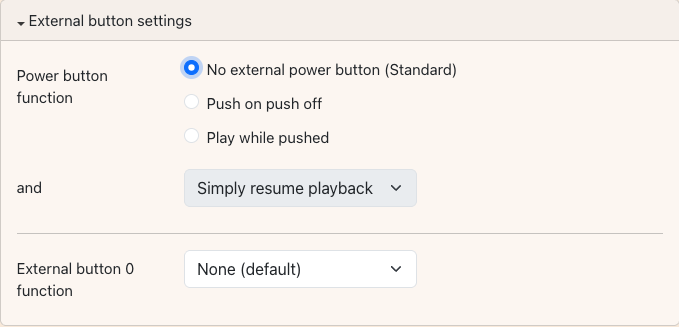
  • Select the desired option for the power-on button (Button 1):
Figure 49 - EXPERT - Settings for external buttons - Power-on button (Button 1)
    • No external power-on button (default): Select this option if no external button is connected.
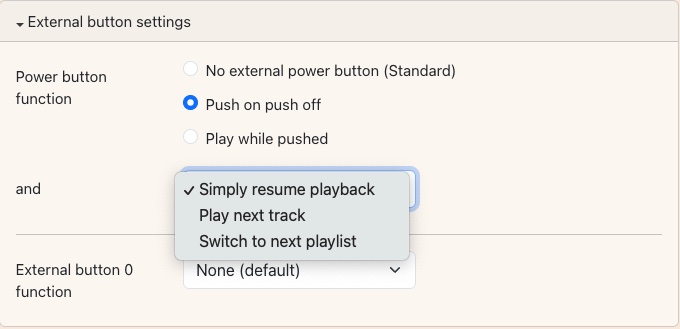
    • Press on, press off

      Pressing the external button turns hörbert on. Pressing again turns hörbert off.

  • Select the desired option for hörbert’s behavior after turning on:
    • Simply continue playing: hörbert continues playing from where it was turned off.
    • Play next track: this allows you to click through the tracks within a playlist using a single large control button.
    • Jump to next playlist: this allows you to also select a different playlist using just one large control button.
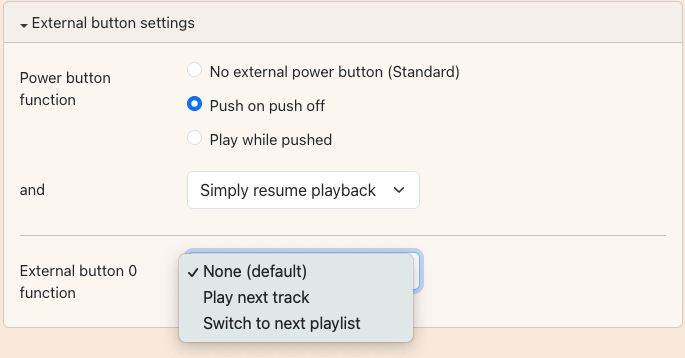
  • Select the desired option for the second external control button (Button 0):

Using a Y-cable, which we include with an accessible hörbert with a port for external control buttons, up to two external, large-surface control buttons can be connected. If a second button (Button 0) is connected, you can also define how hörbert should behave when this button is pressed:

Figure 50 - EXPERT - Settings for external buttons - Button 0
    • None (default): Select this option if no second button is connected.
    • Play next track: Select this option if a different option was chosen for Button 1.
    • Jump to next playlist: Select this option if a different option was chosen for Button 1.

9.8.6

Format memory card for hörbert

Starting from firmware version Butterfly 2, a memory card can also be reformatted via Browser Set Mode without an SD card reader or computer.

Figure 51 - EXPERT - Format memory card

Here’s how:

  • Start Browser Set Mode (9.1)
  • Show expert menu (9.2.3.1)
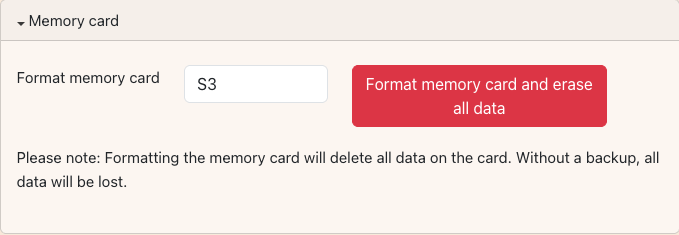
  • In the main menu under EXPERT, open the drop-down dialog “Memory card”.
  • Enter a name for the memory card in the white field with the blue border. Special characters are not allowed here.
  • Then click the red “Format memory card and delete all data on it” button.
  • A confirmation prompt will appear again.
  • Afterwards, the SD card must be loaded with new content in Browser Set Mode if it is to be used with hörbert. See 5.6

9.8.7

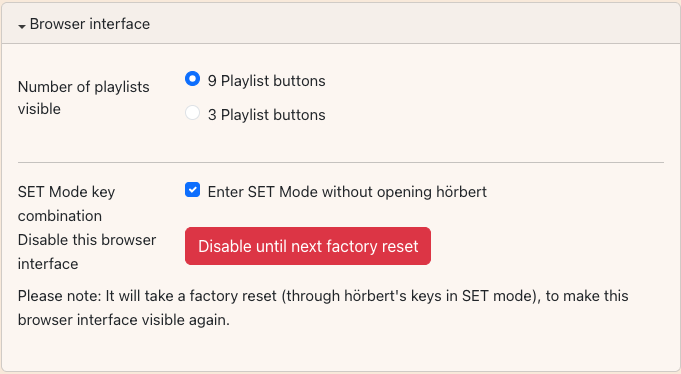
Configure browser interface

In this dialog menu, you can set whether a hörbert has 9 or 3 buttons for playlists. Additionally, you can prevent access to Browser Set Mode here if you do not want a third party to connect to hörbert’s Browser Set Mode.

Here’s how:

Figure 52 - EXPERT - Browser interface
  • Start Browser Set Mode (9.1)
  • Show Expert Menu (9.2.3.1)
  • In the main menu under EXPERT, open the drop-down dialogue “Browser Interface”
  • Choose the desired option for the hörbert model:
    • 9 playlist buttons
    • 3 playlist buttons
  • Decide whether SET mode may be entered without unscrewing hörbert’s back panel. See 9.1.2. This option is activated by default in Butterfly 2.
  • Decide whether the browser interface should be switched off:
  • Click on the red button “Deactivate until next factory reset”
Only after a factory reset without Browser Set Mode (see 10) is hörbert’s Browser Set Mode accessible again.

9.8.8

Advanced playlist settings for hörbert in expert mode

When the expert menu has been activated, extended options are available in the PLAYLISTS menu item for individual playlist settings:

9.8.8.1

Change playlist playback mode: Shuffle, Remember last playback position
  • Start Browser Set Mode (9.1)
  • Show expert menu (9.2.3.1)
  • Select PLAYLISTS in the main menu, the following window is displayed:
Figure 53 - EXPERT - new options for playlists in expert view
  • Select the desired options for the playlist playback behavior:
    • Normal (hörbert starts playback at the first track in the playlist after starting the playlist.
    • Shuffle: The playlist starts randomly at any track
    • Always resume from last position: The playlist continues exactly where it last left off, even if you switch to another playlist in between.
    • Interactive: This option is not yet active in Butterfly 2 and is therefore grayed out.
  • Select the desired options for the audio content overview:
    • + Blank row: To improve the clarity of the content overview, you can insert blank rows between tracks or between albums. This has no effect on playback behavior; hörbert still continues with the next track.

9.8.8.2

Playlist Language of hörbert - for advanced users

When the expert menu is activated (see 9.2.3.1), new options are available in the content window of a playlist, e.g. the light yellow “+ PlaLa” button. PlaLa is hörbert’s Playlist Language and consists of commands that can influence hörbert’s controls, such as volume, playback behavior or other advanced commands.

Click on “+PlaLa” if you want to add a PlaLa command at the insert marker. An overview of PlaLa commands and address modifiers can be found on this page: https://www.hoerbert.com/technik/

10

Activating/deactivating special functions without Browser Set Mode

Inside hörbert, the SET button (No. 8 in Figure 2) is located on the hörbert main board to the right of the printed hörbert logo. The button is labeled with the word “SET”:

hörbert 3.0 interior - SET button
Figure 54 - hörbert 3.0 interior - SET button
Here’s how:
  • Place hörbert on a soft surface. Use a coin to turn the back panel screw counterclockwise, remove it, then carefully pull the back panel downward and set it aside.
  • Turn on hörbert by pressing the rotary knob (No. 2 Figure 1) on the top once.
  • After approx. 5 seconds, press the SET button once on the inside.
  • hörbert emits a rising signal tone and the LED on the SET button lights up solid green.
  • hörbert is now in SET mode.

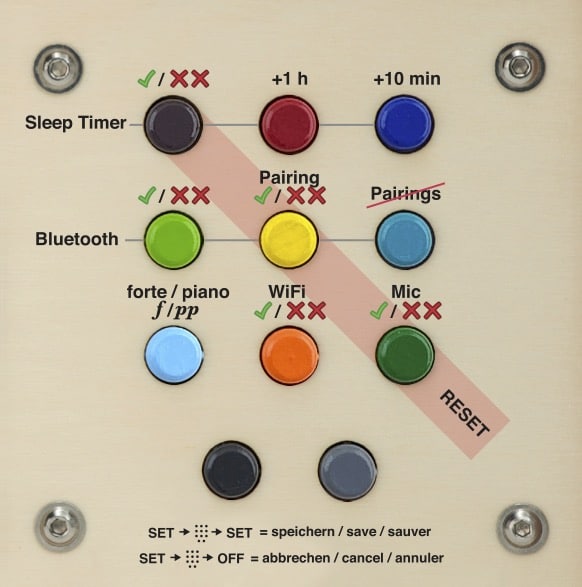
With a hörbert with 11 buttons, many functions such as Bluetooth and pairing, Wi-Fi, voice microphone, or sleep timer can now also be activated or deactivated using the colored buttons on the front. This image shows which button is responsible for which function:
Figure 55 - SET template

Here’s how:

The detailed instructions for the playlist buttons in SET mode can be found on this page:

What is the SET mode of hörbert?

Note: With a hörbert with 3 playlists, it is necessary to make all settings via the Browser Set Mode. What is the SET mode of hörbert?

11

Support

11.1

Collecting diagnostic data for a service request

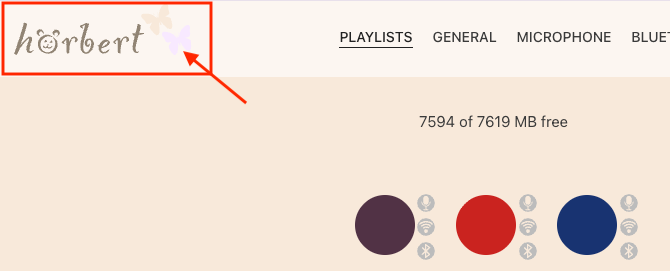
In the Browser Set Mode, there is a hörbert logo with butterflies in the upper left corner of the window, through which you can access the support options:

Browser Set Mode - ABOUT in Desktop View
Figure 56 - Browser Set Mode - ABOUT in Desktop View

In the mobile view, you can find the “ABOUT” option in the app menu:

Browser Set Mode - ABOUT in Desktop View
Figure 57 - Browser Set Mode - ABOUT in Mobile View

In the desktop view, clicking on the hörbert logo opens an overview page with contact details of the hörbert manufacturer and a link to create a diagnostic file. Save this file and send it to us in case of a service request together with one or more photos of the inside of your hörbert and the connections and cables there. This way, we can help you quickly and effectively with any problems.

11.2

Contact the service team

We are happy to help you with any questions about hörbert. Contact us through our contact form or look for a solution to your question in our service section with instructions and videos.

We wish you much joy and listening pleasure with hörbert!