


How do I save my own audio files to the memory card on an hörbert with Butterfly firmware?
Option 1 – with SD card reader on computer
This is the fastest and best option if you want to transfer a larger number of tracks.
- Open your file manager on the computer, such as Windows Explorer or macOS Finder.
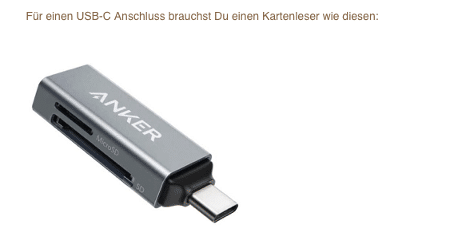
- Connect hörbert’s memory card to the computer. For this you need either a built-in SD card slot in the computer or a connection for an external SD card reader that you can connect to the computer. Many laptops have these connections here for external card readers (the 10 cent coin serves for size comparison):
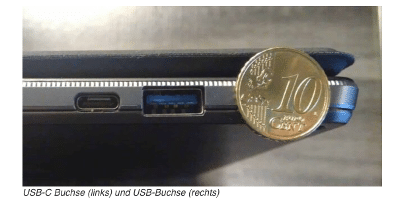
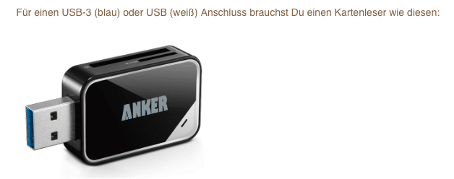
At the connection on the right you can connect the following external USB-3 or USB card readers:
- Find the memory card drive in the file manager. This is called e.g. DE (German-language free card) or INT (multilingual card) or CH (Swiss German card)
- Click on the SD card drive with your mouse. You’ll see the contents of the SD card. The important folders are 0 to 8. The MP3 files are stored in these.
- If you’re using a foreign, own SD card, you must first format it in FAT32 format (or FAT, MSDOSFAT, EXFAT) for hörbert before first use and create folders 0 to 8 in the main directory of the card.
- If you have a hörbert with only 3 large playlist buttons, you only need to create folders 1 (red), 6 (light blue) and 8 (dark green).
Playlist assignment to folder number:
0 = dark purple / 1 = red / 2 = dark blue / 3 = light green / 4 = yellow / 5 = dove grey /6 = light blue / 7 = orange /
8 = dark green
Open the desired folder where you want to save new MP3 files by clicking with your mouse.
A file called “playlist.m3u” is only found there if you’ve already opened this playlist in browser set mode once before. This file should be kept there.
Important: Your own files that you want to add must be located directly on your device and must not be stored in a cloud.
Now copy or drag your own MP3 or WAV files by drag & drop into the desired content folder of hörbert
Important: Regardless of where you place the tracks in the file manager, new tracks will always be played by hörbert first at the end of a playlist in alphabetical order.
The playback order can then be changed in browser set mode by moving the tracks within the playlist.
See our hörbert user manual from page 22 for this.
Here you can access the user manual:
https://www.hoerbert.com/wp-content/uploads/sites/5/2024/10/User_Manual_Butterfly_DE.pdf
Properly eject the card from the computer before disconnecting it from the computer and insert it back into hörbert.
Option 2 – via browser set mode.
Via browser set mode – and thus via hörbert’s own WLAN – new tracks can also be added to playlists or existing ones deleted.
Adding new tracks via browser set mode:
See our user manual on page 13 for starting browser set mode and from page 23 for adding new files.
Here you can access an explanatory video for starting browser set mode: VIDEO Browser Set Mode
Here you can access the user manual:
https://www.hoerbert.com/wp-content/uploads/sites/5/2024/10/User_Manual_Butterfly_DE.pdf