


How do you perform a firmware update on hörbert?
Requirement: You have a hörbert model without toggle switch.
If you would like to upgrade your hörbert 2011 (old model with toggle switch), order the Upgrade Kit for self-retrofitting now, or have hörbert upgraded by us in our workshop.
How you perform a firmware update depends on which firmware is running on your hörbert. If your firmware is older than November 2024, you must use the manual method (below). It’s most convenient if your hörbert already has the “Butterfly” firmware or newer.
Firmware Update via WLAN through Browser Set Mode
Start the Browser Set Mode (click here to go to the explanatory video)
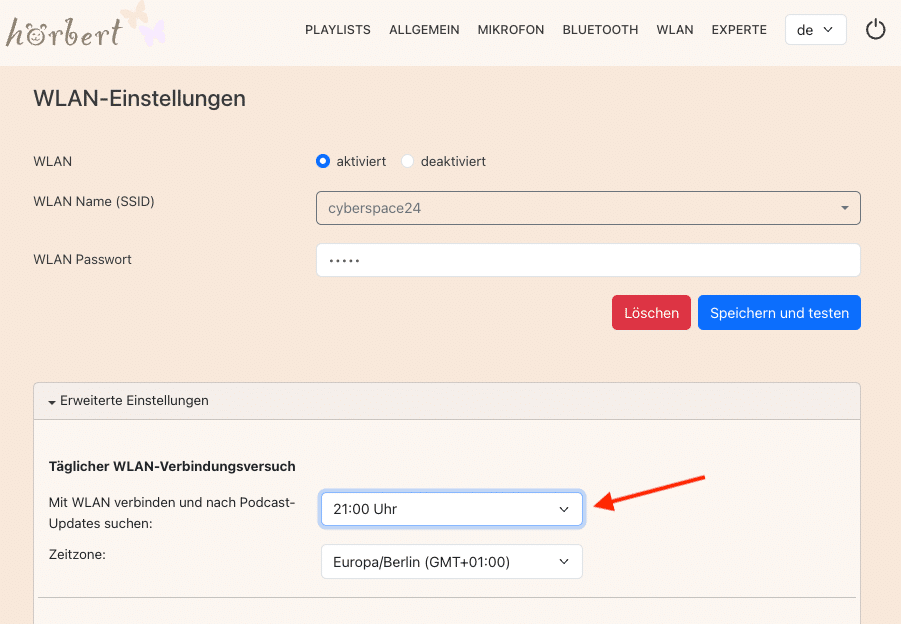
Activate and configure hörbert’s WLAN function in the WLAN menu item:
Select your WLAN (only 2.4GHz) from the list of available networks and enter your WLAN password.
Tip: If you would like to use hörbert as a podcast player: Set under “Advanced Settings” when hörbert should automatically search for new podcast episodes. Choose a time when hörbert is not being used, e.g. at night. hörbert will not make any sounds when updating podcasts.
Then select “General” in the main menu and open the Advanced Settings there. Click on “Search for updates NOW” to bring your hörbert’s firmware up to the latest version.
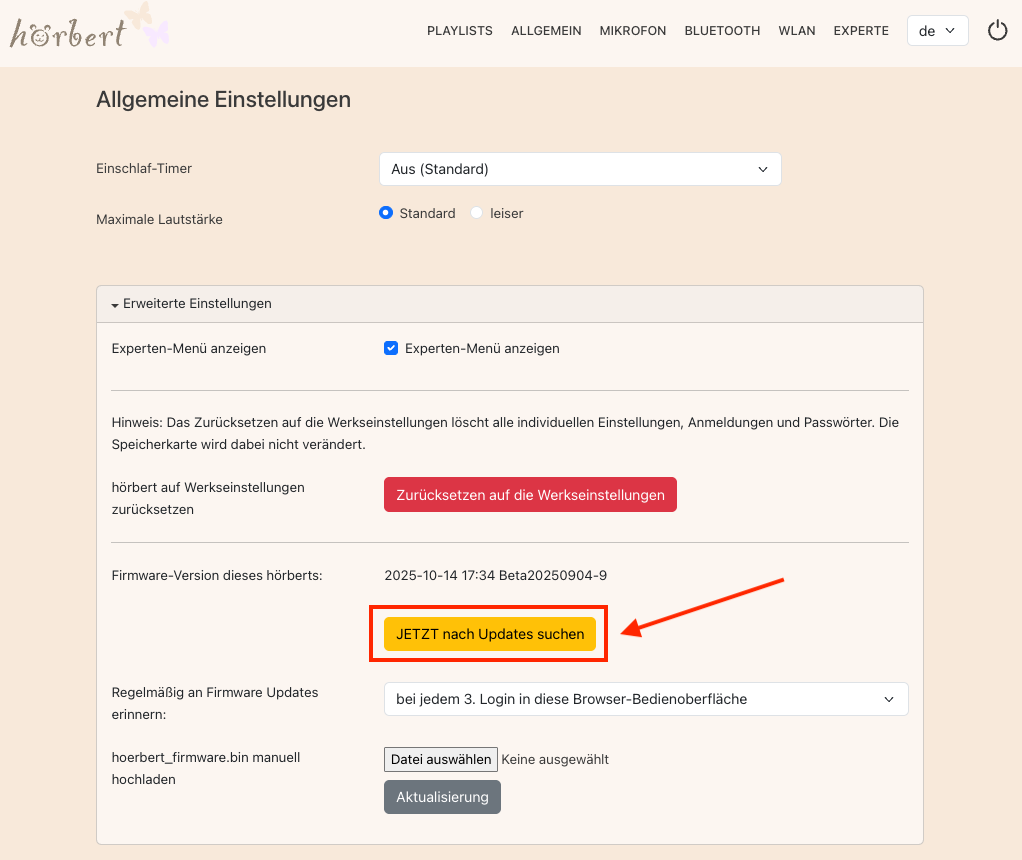
Wait until the update has been carried out. You can tell this by hörbert automatically ending Browser Set Mode. Please do not switch hörbert off and wait until it plays content through its speaker again.
Done! You are now using the latest firmware with the current functions and bug fixes!
TIP: BETA VERSIONS
We are constantly developing hörbert’s firmware further. We test new functions in BETA versions that are not yet stable or mature. If you are curious, and you have a backup copy of your memory card, you can also take a look at these BETA versions:
To do this, download the BETA firmware as a file. You must not unpack the downloaded file, as it is simply loaded onto hörbert as a .bin file:
Click on “Select file“, then search for the downloaded .bin file, and then click on “Update“.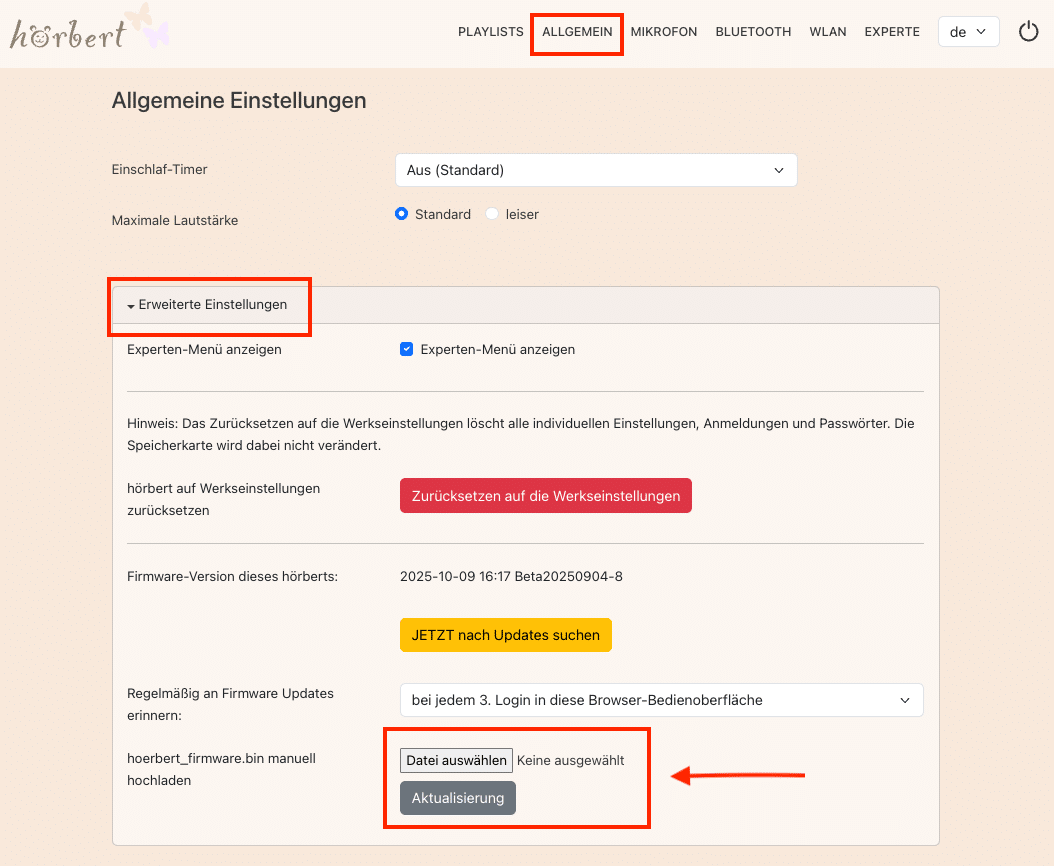
Manual Firmware Update via Memory Card
- Download the latest firmware file “hoerbert_firmware.bin” on this page: hörbert Firmware
- Do not unpack the downloaded file, it is loaded onto hörbert as a .bin file.
- Now insert the memory card into your computer and drag the file onto the card by drag & drop.
Place the file directly on the card, and not in a subdirectory.
The file must be named exactly like this:hoerbert_firmware.bin - Eject the SD card properly and insert it back into hörbert.
- Watch our explanatory video for the further steps with hörbert or continue directly with points 6 to 10.
- Remove one of the four batteries or rechargeable batteries from the battery clips or the separate battery compartment, and unplug the USB charging cable if your hörbert has the charging function.
- Wait at least 20 seconds until hörbert is completely without power.
- Press the SET button inside hörbert and keep it pressed while you now reinsert the last battery/rechargeable battery.
- Keep the SET button pressed for another approximately 50 seconds until the LED on the SET button blinks rapidly. Now you can release the SET button.
- Wait at least 10 seconds before you switch hörbert on.
Done! From now on you can perform future firmware updates quite easily via WLAN through Browser Set Mode.